Try OurAI White Hair Filter
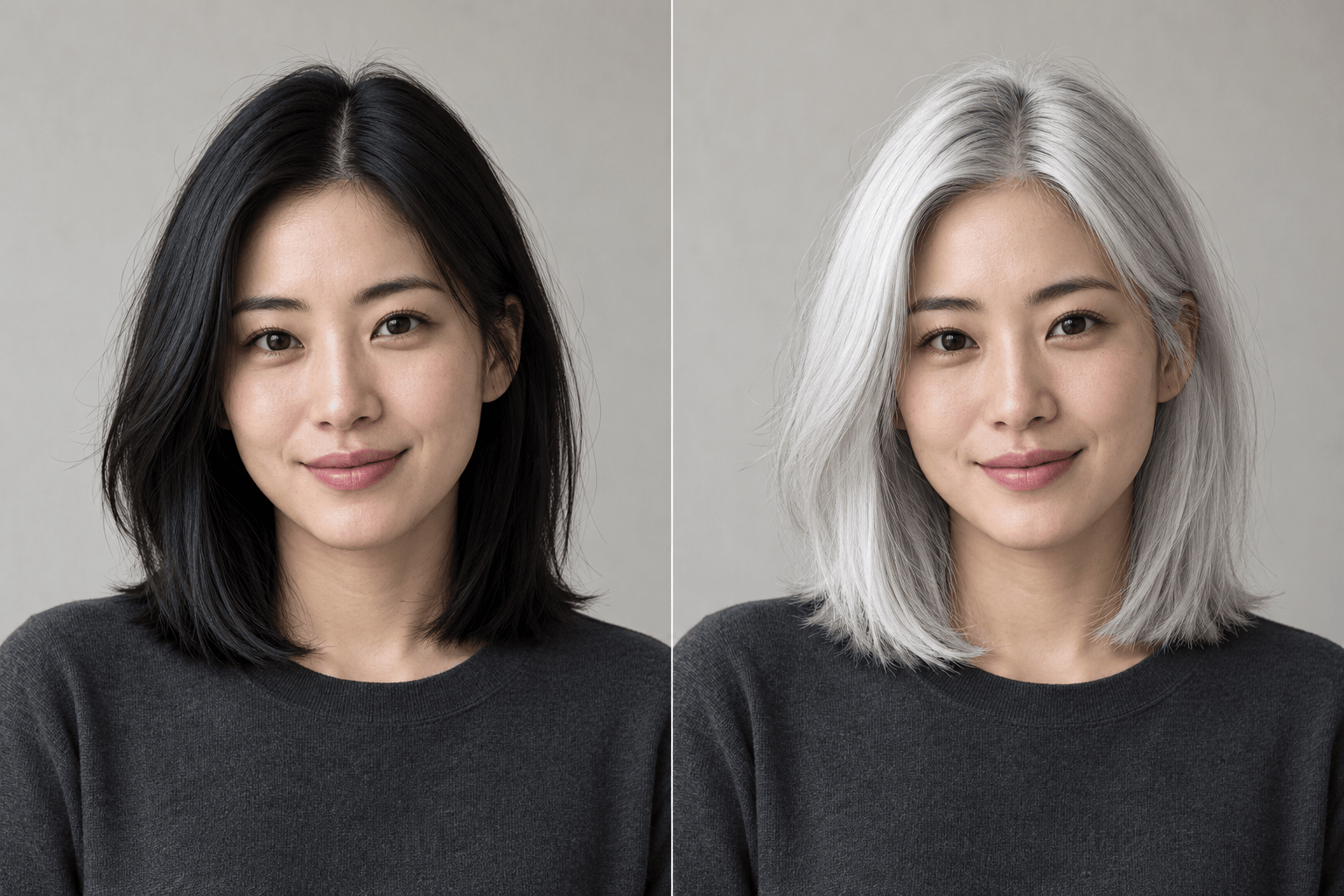
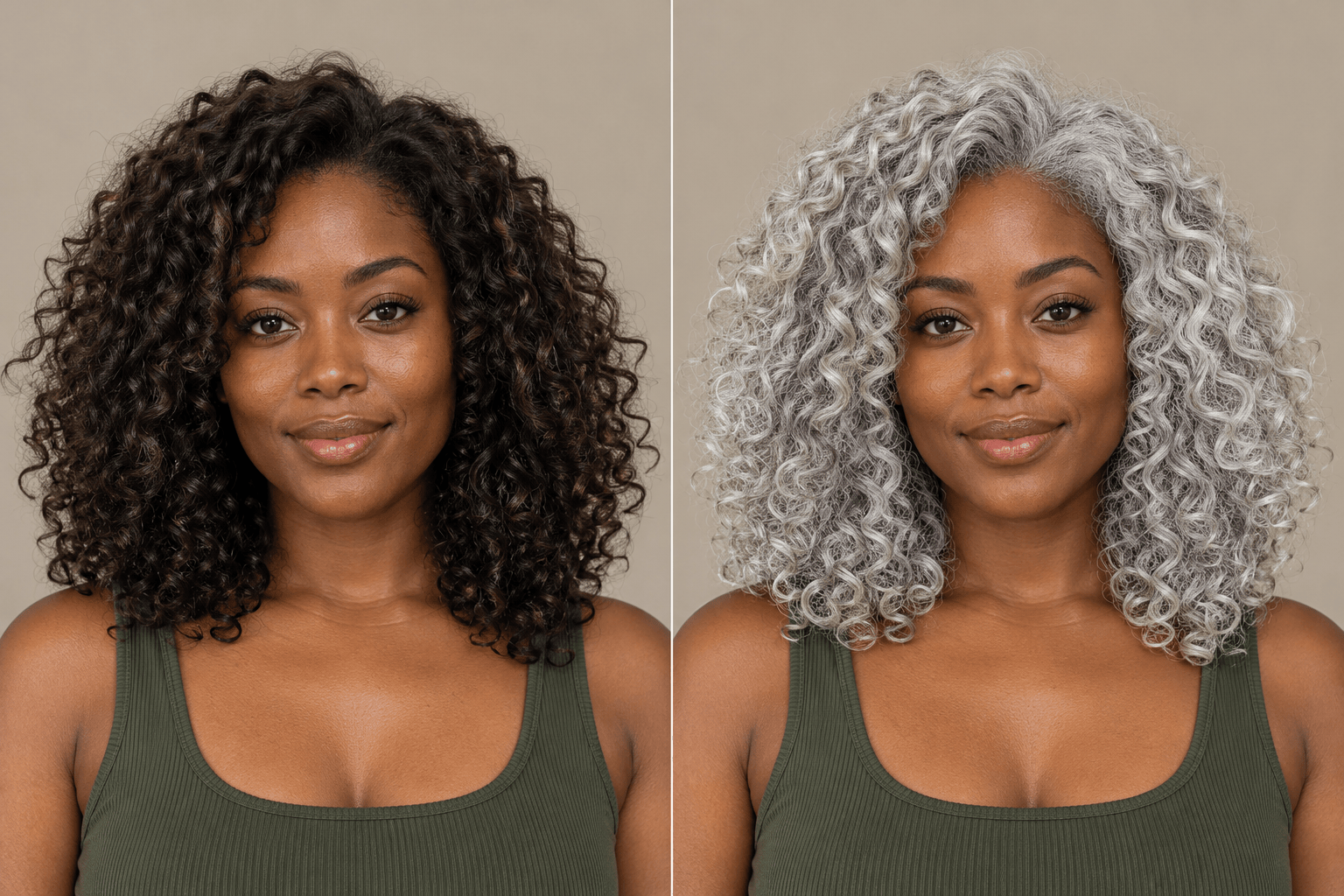
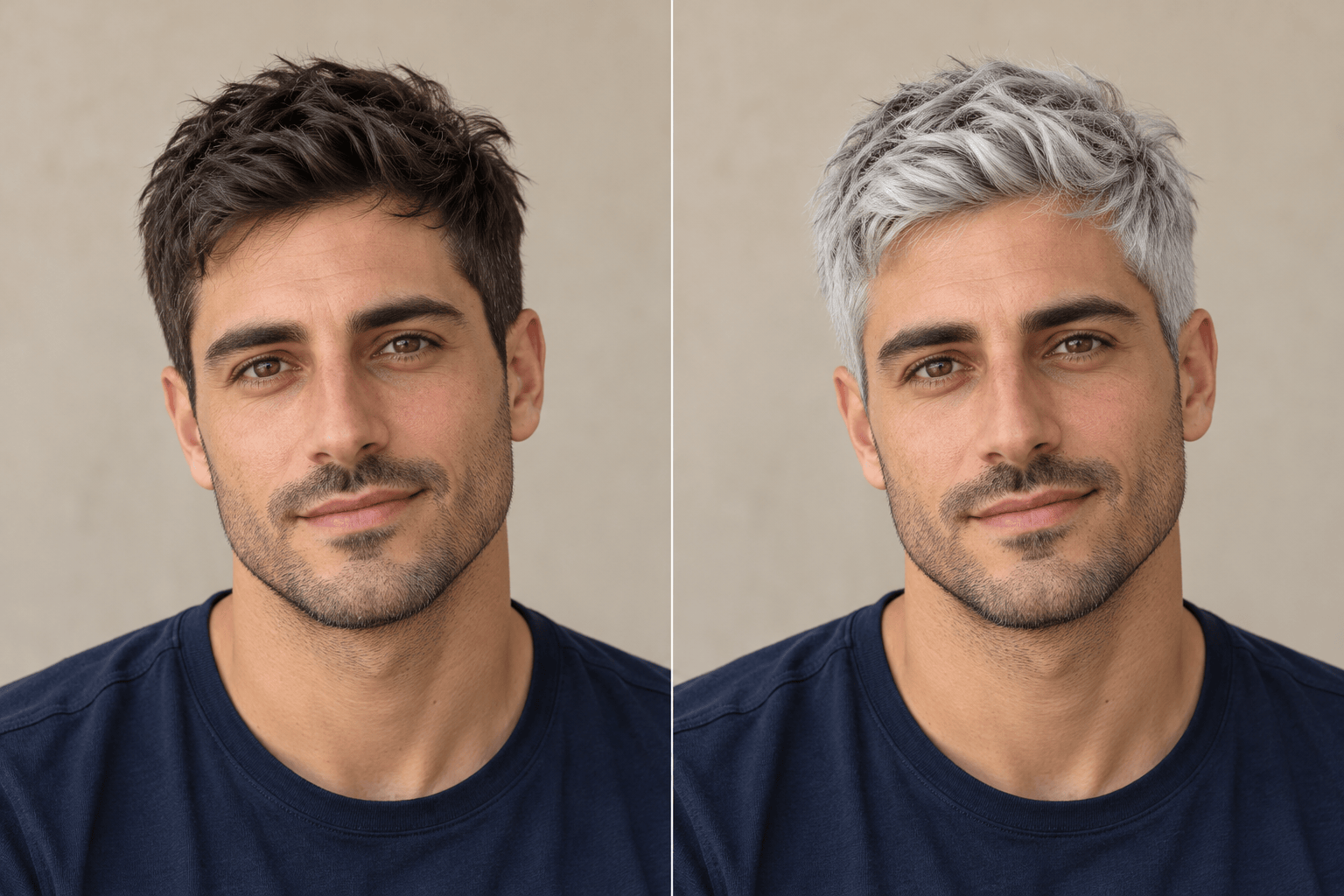
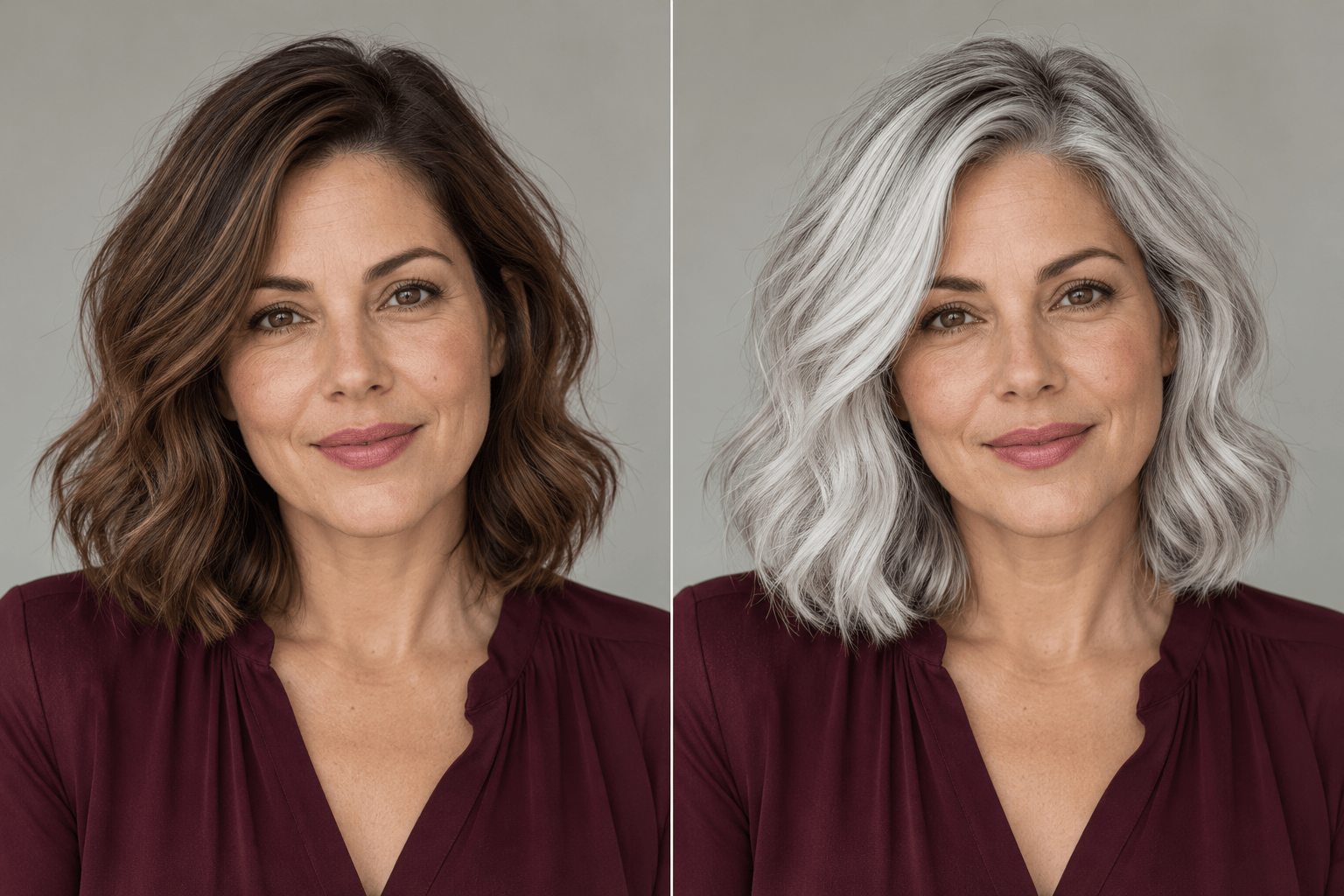
How to Try White Hair on Your Photo with AI
Upload a Clear Portrait
Pick Your Shade of White
Refine the Tone and Texture
Compare and Save Your Look

Explore White Hair on Your Own Terms
Start with Your Own Photo
Use this online white hair color changer on your portrait, so you can judge the shade beside your own features instead of relying on a model photo.
Go Beyond One White Shade
Compare bright white, a cooler silver finish, and softer platinum. An AI white hair try-on helps you explore the differences on the same starting photo.
Adjust Small Details in Chat
Ask for softer roots or more visible strands without requesting a whole new look. Chat Edit lets you focus each revision on the detail that needs attention.
Bring a Hair Color Reference
Upload a shade reference alongside your portrait. Tell Mew Design to use it for color only, while keeping your own cut and styling as the guide.
Compare Versions from One Portrait
Request separate white and silver versions from the same original. Keeping the pose and lighting consistent makes the color difference easier to judge.
Save a Look Worth Discussing
Export a watermark-free PNG or JPG for a mood board or salon conversation. The image communicates your preferred look; it does not predict the result of dyeing your hair.
Choose the Right Photo for a White Hair Preview
- Use Even Light: Pick daylight or soft indoor light. Strong color casts and blown-out highlights make white and silver tones harder to judge.
- Show the Hairline and Ends: Avoid hats, cropped-off hair, and heavy blur. Include the full hairstyle so the preview has a clear shape to follow.
- Separate Color from Cut: Request a color-only edit first. Change the length or styling in a separate version if you want to compare those too.
- Check What Stayed the Same: Compare your face, skin, eyebrows, and background with the original. If they shift, ask for a correction using the original photo.
Fix Common White Hair Try-On Problems
Remove the yellow cast from the hair in my preview. Make it a neutral white while preserving strand detail, natural shadows, and the rest of the photo.
The hair looks too gray. Make it a brighter snow-white, keeping subtle shadows between strands so it still has depth. Leave my face and background unchanged.
The white hair looks flat. Restore the highlights, shadows, and individual curl detail from my original photo without changing the selected white shade.
Use my original photo to restore the exact haircut, parting, and length. Keep the white color from the preview and do not add volume or straighten my curls.
Restore my original skin tone, face, eyebrows, and beard from the uploaded source photo. Apply the white color only to the hair on my head.
Soften the transition from my dark roots to the white lengths. Keep a small amount of root depth, with a gradual blend instead of a hard band of color.





