Free OnlineAI Uncrop Image
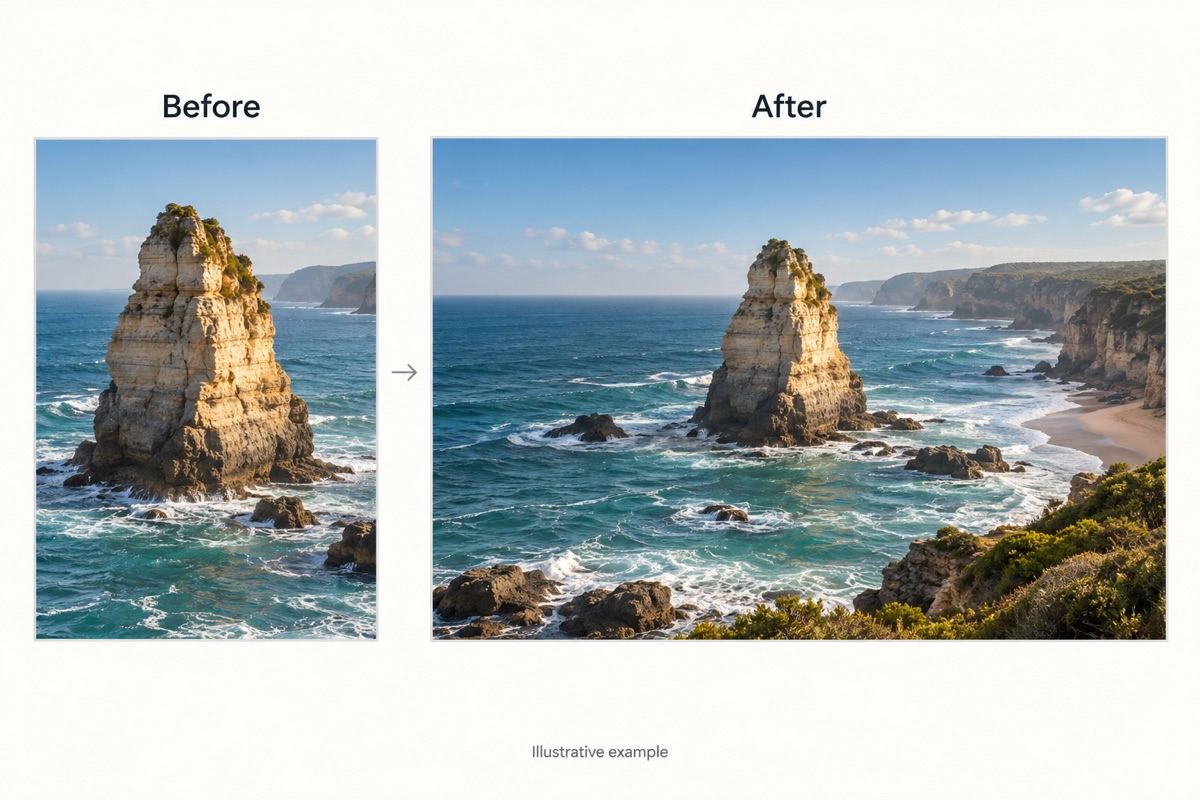
How to Expand a Photo with AI
Upload Your Photo
Generate the New Surroundings
Check the Subject and Edges
Download for Your Layout

More Room for the Photo You Already Have
Start from Your Own Image
Use an uploaded photo as the basis for expansion. Tell Mew Design which subject details matter, instead of recreating the scene from a text description.
Reframe for a Different Format
Use the online AI image expander to request a wide banner or tall post. Add surrounding content instead of stretching the subject to fill the frame.
Make Space for Your Message
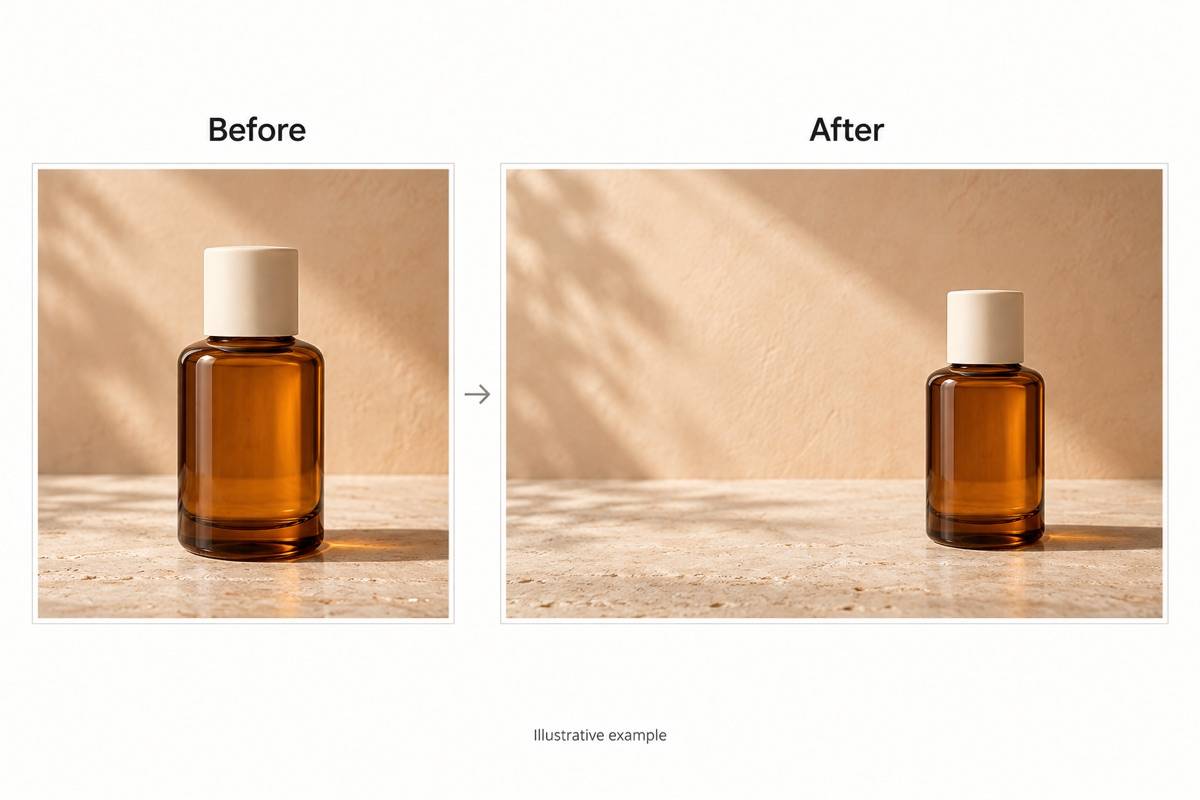
Extend a product photo background on one side for a headline or offer. Ask for a quiet area that follows the existing lighting.
Refine a Specific Problem
Use Chat Edit to correct a broken horizon, repeated texture, or distracting object. Describe the issue and the parts you want to keep.
Reuse Your Framing Rules
Save a successful approach as a Mew Skill for recurring product or social images. Reuse placement, background style, and format preferences with less repeated briefing.
Try It Before You Commit
Sign up for free AI credits to test your own photo. Download watermark-free results; further generation depends on your available credits.
Before You Expand: Protect the Important Details
- Choose a Clear Source: Use the best available original. Blurred edges and heavy compression give the AI less reliable visual context.
- Keep Expansion Modest: Start with the space you actually need. Very large extensions leave more of the scene for AI to invent.
- Inspect Sensitive Details: Check faces, hands, logos, labels, and product shapes. A preservation instruction does not guarantee identical pixels.
- Know What Is Generated: New areas are plausible additions, not recovered evidence of what was outside the frame. Gallery comparisons are illustrative examples.
Fix the Framing for Your Next Layout
Turn my uploaded portrait-format landscape photo into a 16:9 image. Extend both sides with matching scenery, continue the horizon, and keep the main subject in proportion.
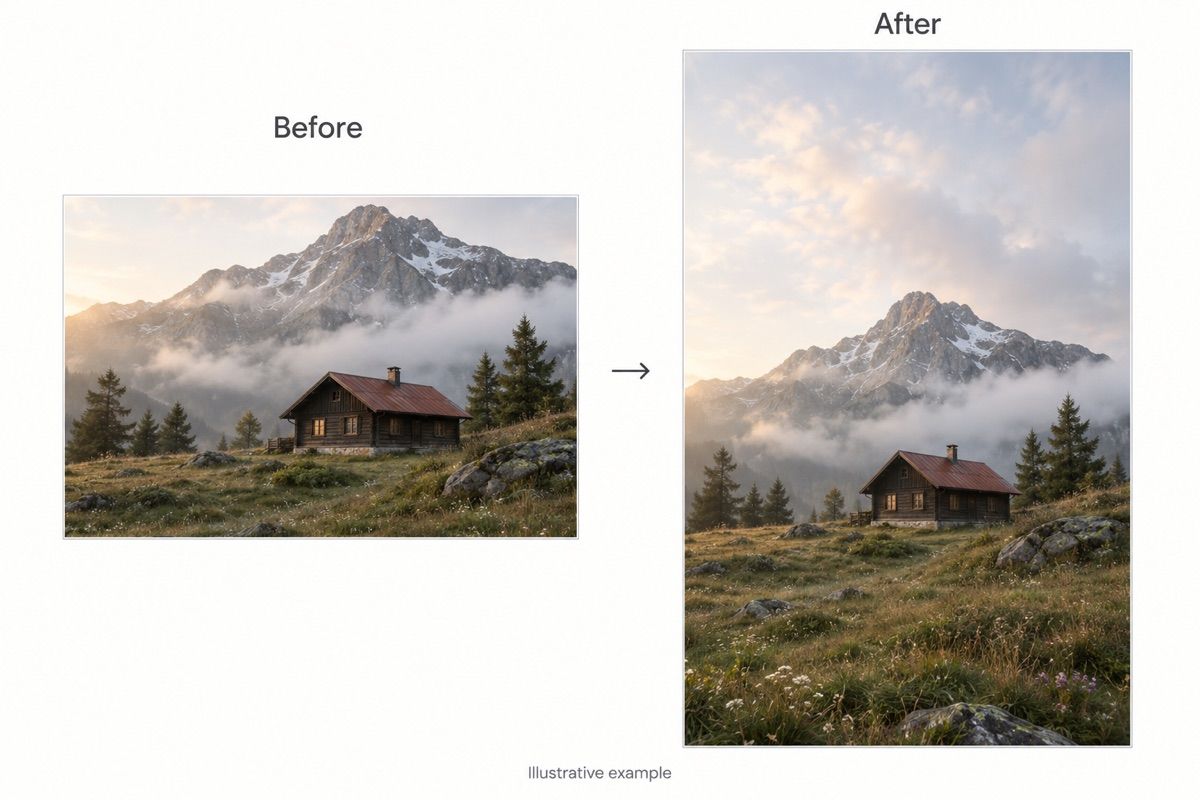
Extend my uploaded photo to 9:16 for a Story or phone wallpaper. Add matching sky above and foreground below, keeping the focal point clear of the outer edges.
Expand my uploaded product photo into a square with more space around the item. Continue the surface and contact shadow; preserve the product shape, color, and label.
Extend only the left background of my uploaded image for a wide banner. Keep the subject on the right and leave the added area uncluttered for a headline. Do not add text.
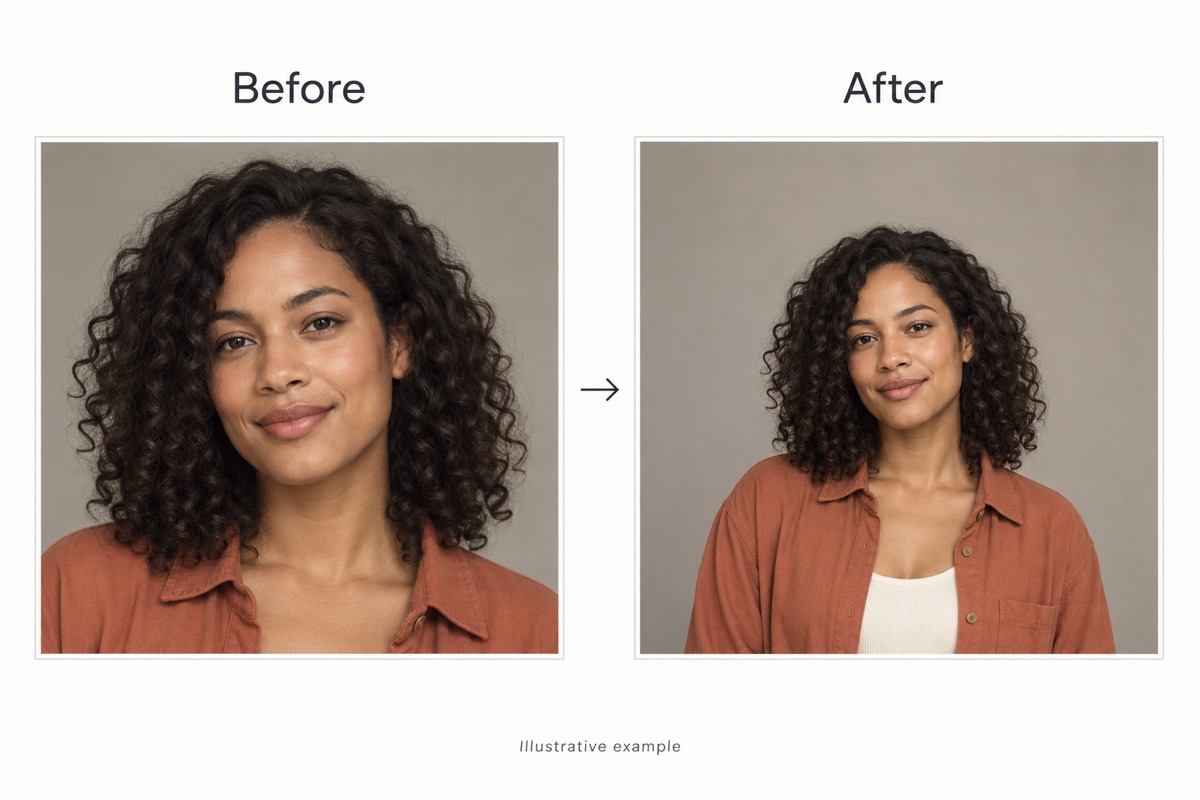
Give my uploaded portrait more headroom and space beside the shoulders. Continue the background and clothing naturally, keeping the face, expression, and pose consistent.
Fix the visible join in this expanded image. Align the horizon, remove repeated patterns in the added area, and match the original light without adding new objects.





