Free OnlineAI That Turns Pictures Into Paintings
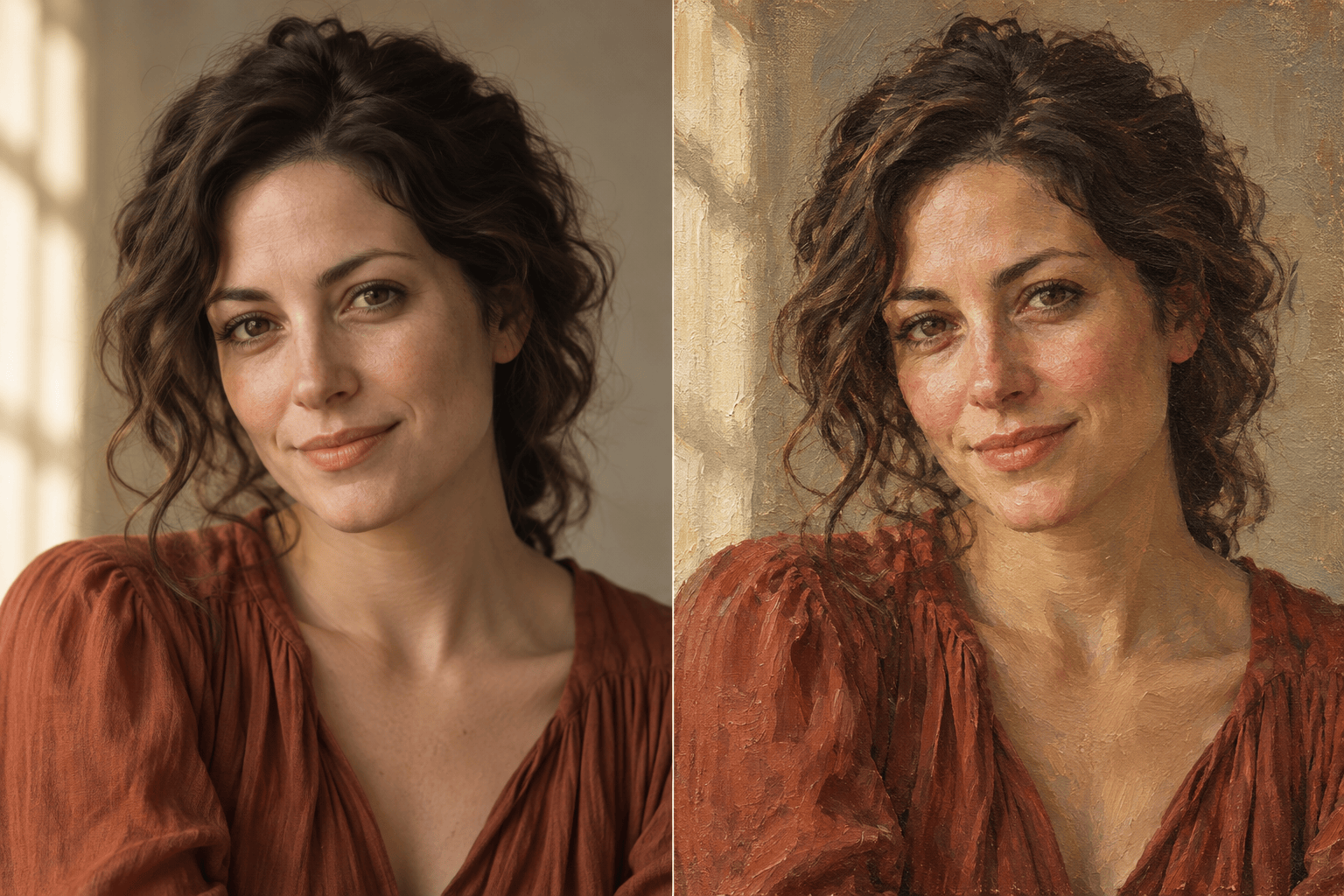
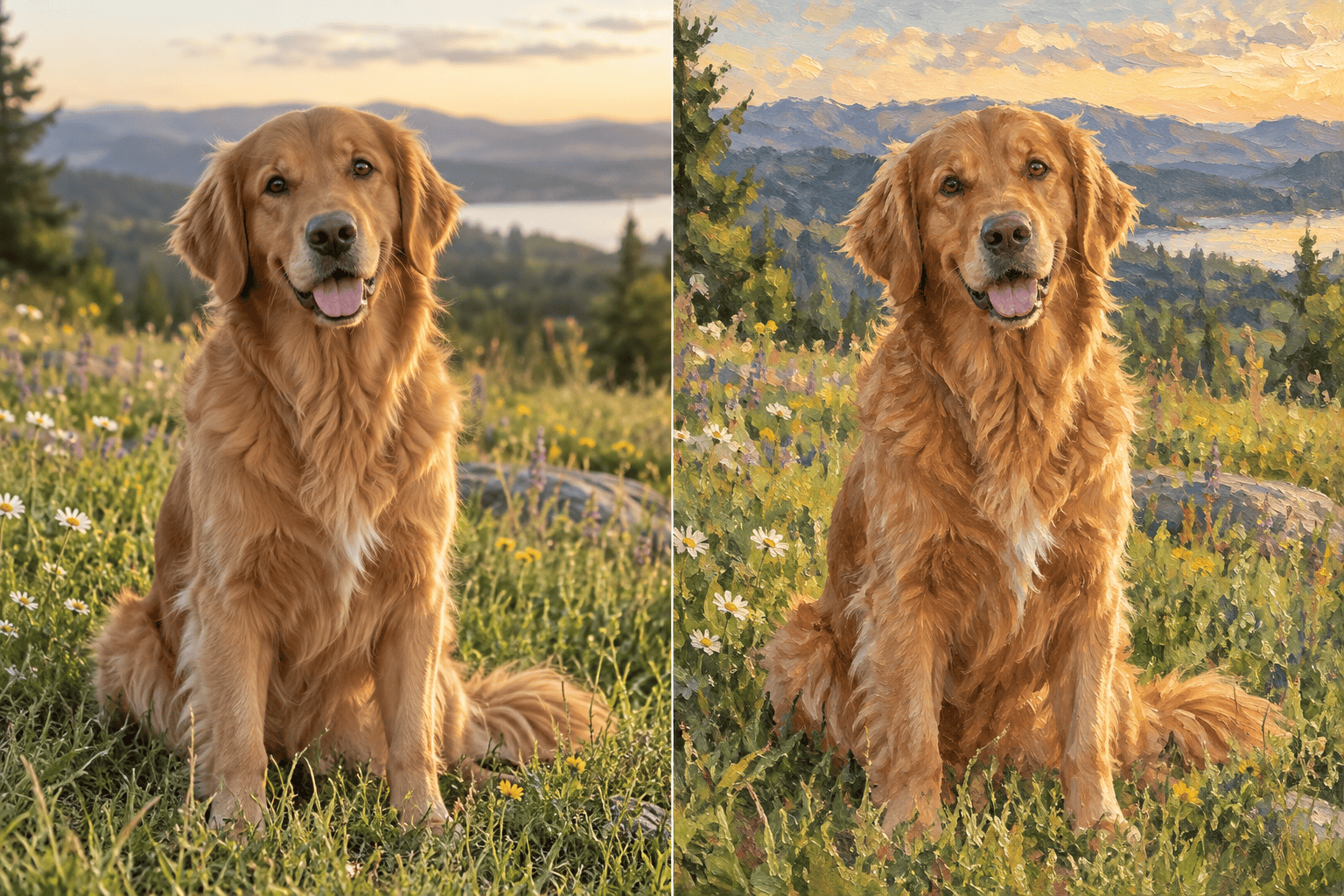
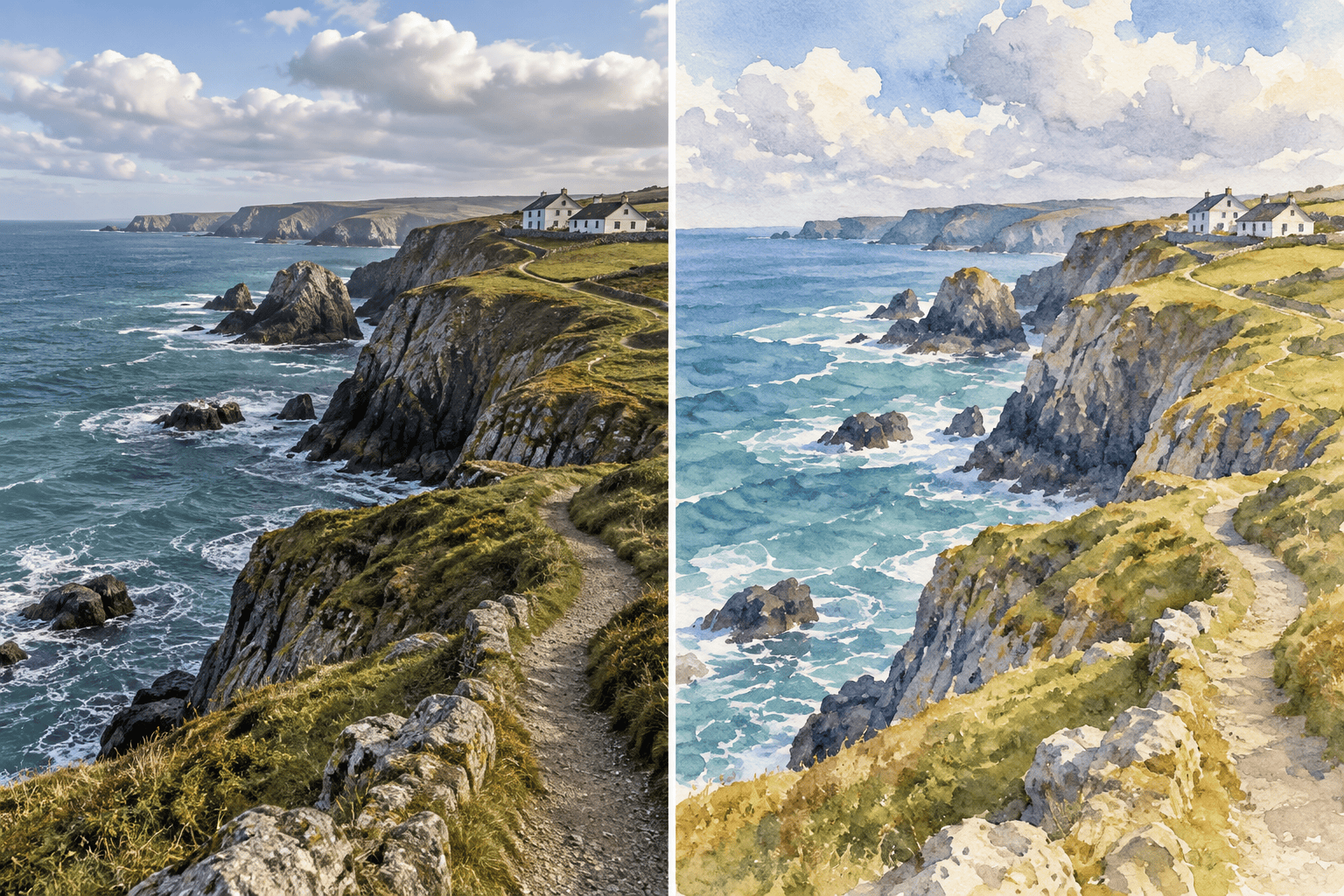
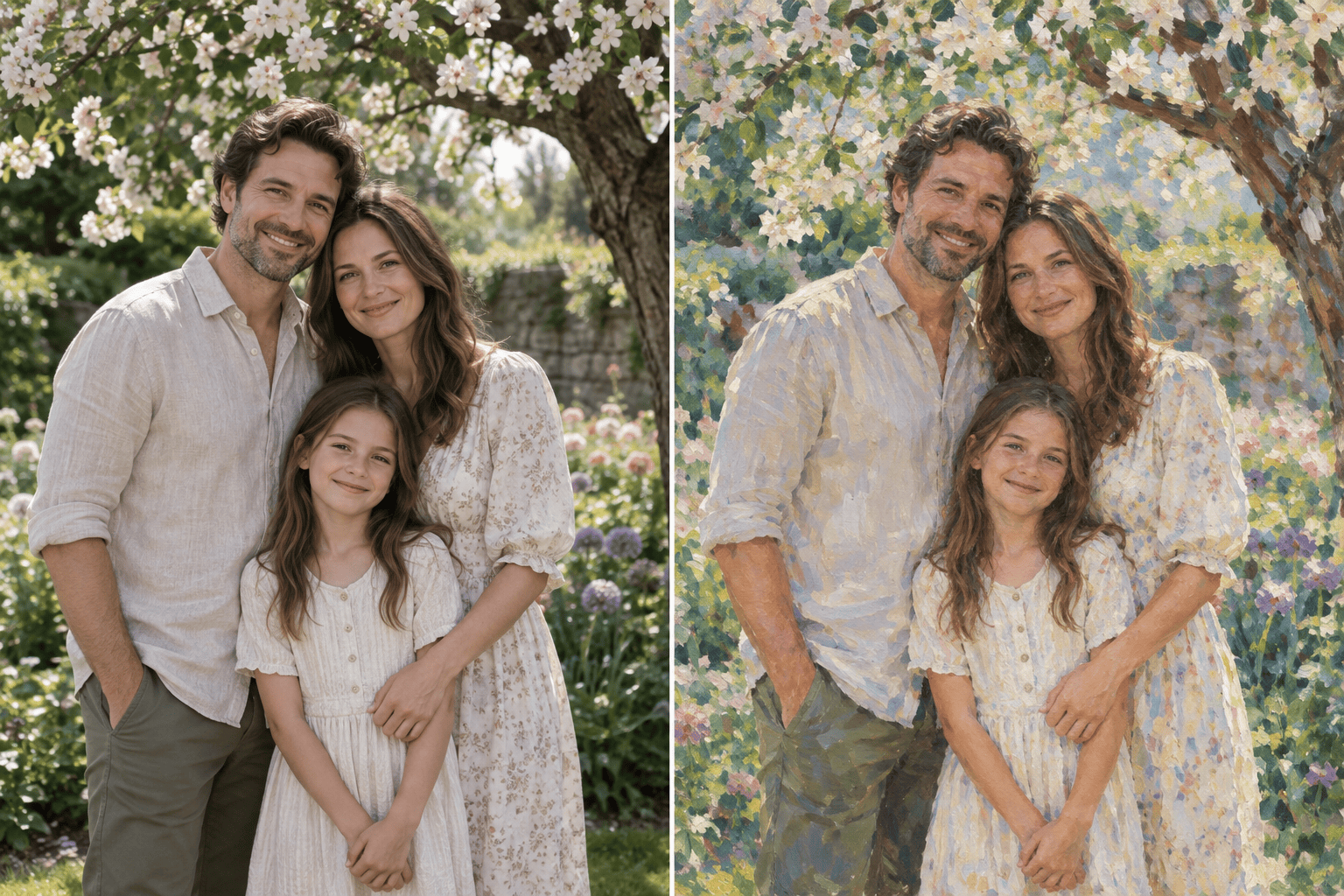
How to Turn a Photo Into a Painting With AI
Upload a Clear Photo
Describe the Painting Medium
Inspect and Refine the Artwork
Export Your Digital Painting

Why Use Mew Design for Photo-to-Painting AI
Start From Your Actual Picture
This is an image-to-image workflow, so your uploaded photo anchors the subject and composition. It is better suited to a recognizable painted portrait than generating a new scene from text alone.
Control More Than a Preset Filter
Describe thick impasto, soft wet-on-wet washes, visible canvas grain, restrained color, or a looser background. Our AI photo to painting converter lets you direct the artistic treatment in natural language.
Use a Visual Style Reference
Upload a reference image to guide palette, texture, and brushwork, then state which details from your original picture must remain. Use references you have permission to use and describe the visual traits you want.
Correct Details Through Chat
A painted face too loose or a pet marking missing? Use Chat Edit to ask for a targeted repair without rewriting the entire brief. Review each revision before export.
Explore Several Painting Directions
Create oil, watercolor, acrylic, gouache, and impressionist variations from the same source. Compare how each medium handles edges, color, light, and texture before choosing one.
Build a Coordinated Art Series
For a matching set of pet portraits, travel scenes, or family gifts, turn the successful visual direction into a reusable Mew Skill. Reuse the workflow with new photos while adjusting each result to its subject.
How to Keep Your Painting Recognizable
- Use a Clean Source: Choose a well-lit, focused photo at the largest available size. Heavy blur, compression, or a crowded background gives the AI less reliable detail to preserve.
- Name Physical Paint Qualities: Ask for impasto ridges, dry-brush edges, translucent washes, paper grain, canvas weave, or controlled color bleeding so the result feels painted rather than filtered.
- Protect Identity and Composition: State that faces, pet markings, pose, camera angle, major objects, and crop must remain unchanged when those details matter.
- Match the Intended Use: Mention whether the artwork is for a square profile image, a vertical framed print, a card, or a wide banner so the crop and level of detail fit the destination.
Photo-to-Painting Requests for Popular Styles
Oil portrait: Turn this uploaded head-and-shoulders photo into a refined oil painting with layered natural brushwork, subtle canvas texture, and warm gallery lighting. Preserve the person's identity, expression, hairstyle, clothing, pose, and crop. Simplify only the background.
Watercolor portrait: Convert this photo into a luminous watercolor painting with transparent washes, soft edge blooms, fine cold-press paper texture, and restrained splatter. Keep the face, expression, skin tone, pose, and composition recognizable.
Pet painting: Transform this pet photo into a richly textured oil portrait with expressive fur strokes and a softly painted neutral background. Preserve the animal's eye color, markings, ear shape, proportions, and exact pose.
Travel landscape: Repaint this landscape photo as an impressionist plein-air artwork with broken color, visible brushstrokes, atmospheric depth, and lively natural light. Keep the horizon, landmarks, and overall composition unchanged.
Family keepsake: Turn this family photo into a gentle painted portrait with realistic faces, soft layered brushwork, harmonious colors, and a quiet background. Preserve every person's identity, relative position, clothing colors, and expression; add no people.
Modern acrylic: Convert this city or product photo into a bold acrylic painting with opaque color blocks, crisp focal edges, subtle canvas tooth, and simplified secondary detail. Preserve the main object's shape, perspective, and brand-free visible features.





