OnlineAI Steroid Filter
How to Add Muscles to a Photo with AI
Upload a Clear Body Photo
Generate Your Muscle Edit
Adjust the Effect in Chat
Check and Download
Why Use Mew Design for AI Muscle Editing
Add Muscles to Your Own Photo
Upload a portrait and use the AI muscle photo editor to adjust the areas you choose. Specify which facial features, clothing, and surroundings should stay unchanged.
Choose Definition or Bulk
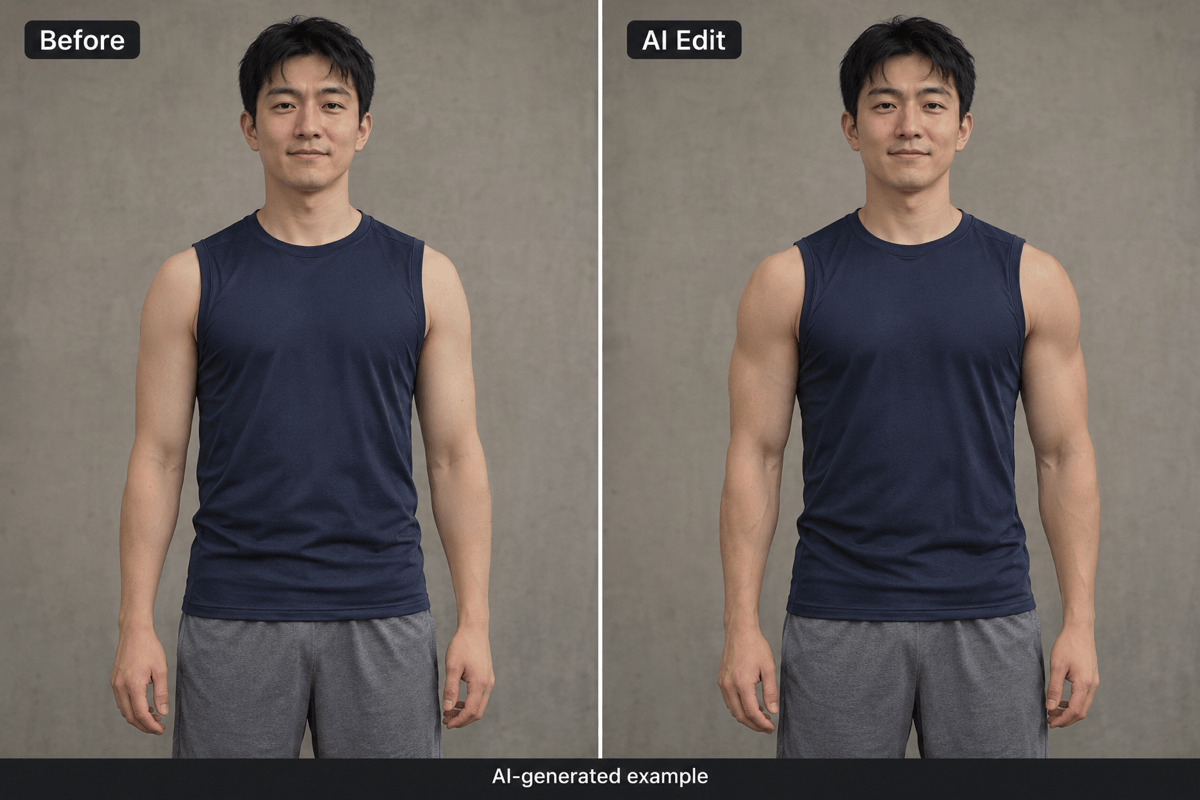
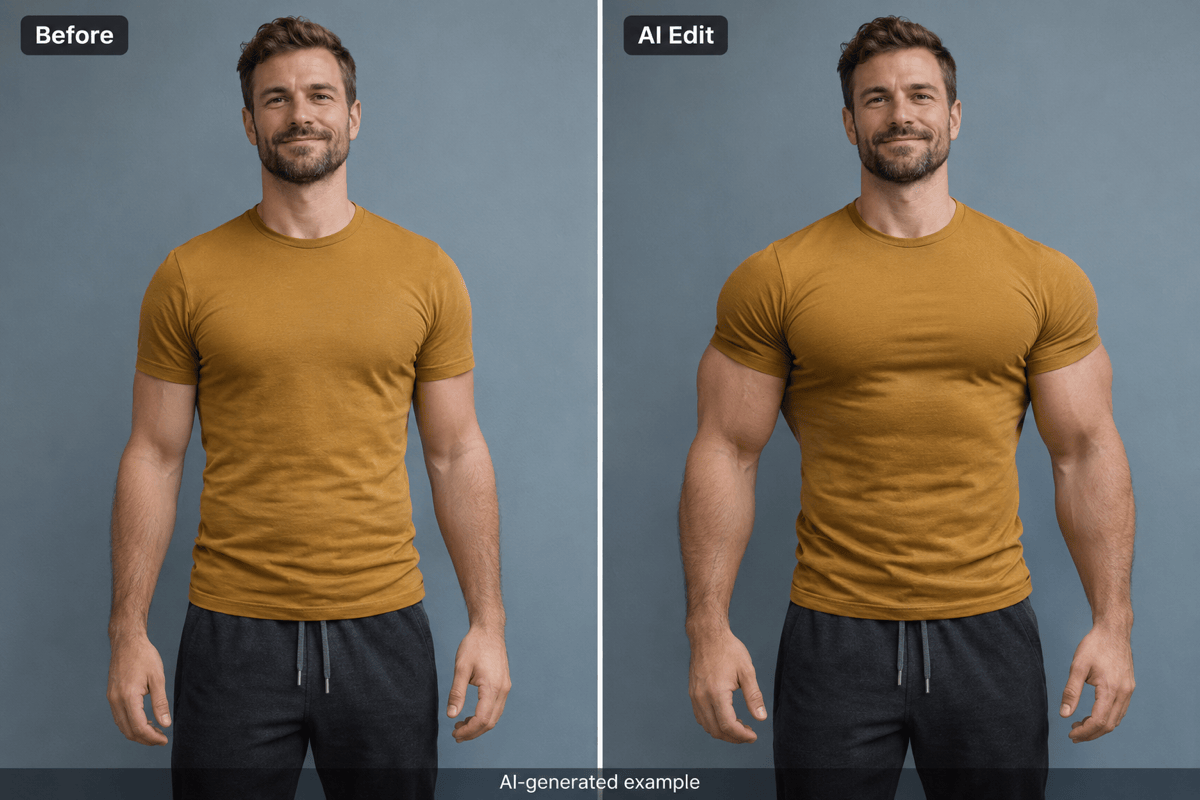
Go from a realistic muscle photo edit to a playful bodybuilder effect. Ask for defined arms, broader shoulders, or more upper-body bulk, and adjust the intensity in chat.
Refine Specific Details
Ask Chat Edit to correct a distorted sleeve or scale back the arms. You can explain the problem without learning manual retouching tools.
Choose a Model or Use Mew Auto
Select an available image model yourself, or let Mew Auto choose one for your photo and editing request. Mew Design brings the latest leading image models into one workflow.
Compare Different Looks
Create a restrained muscle edit and a more exaggerated version from the same reference. Compare the results before choosing which one to keep.
Make Images for Social Posts
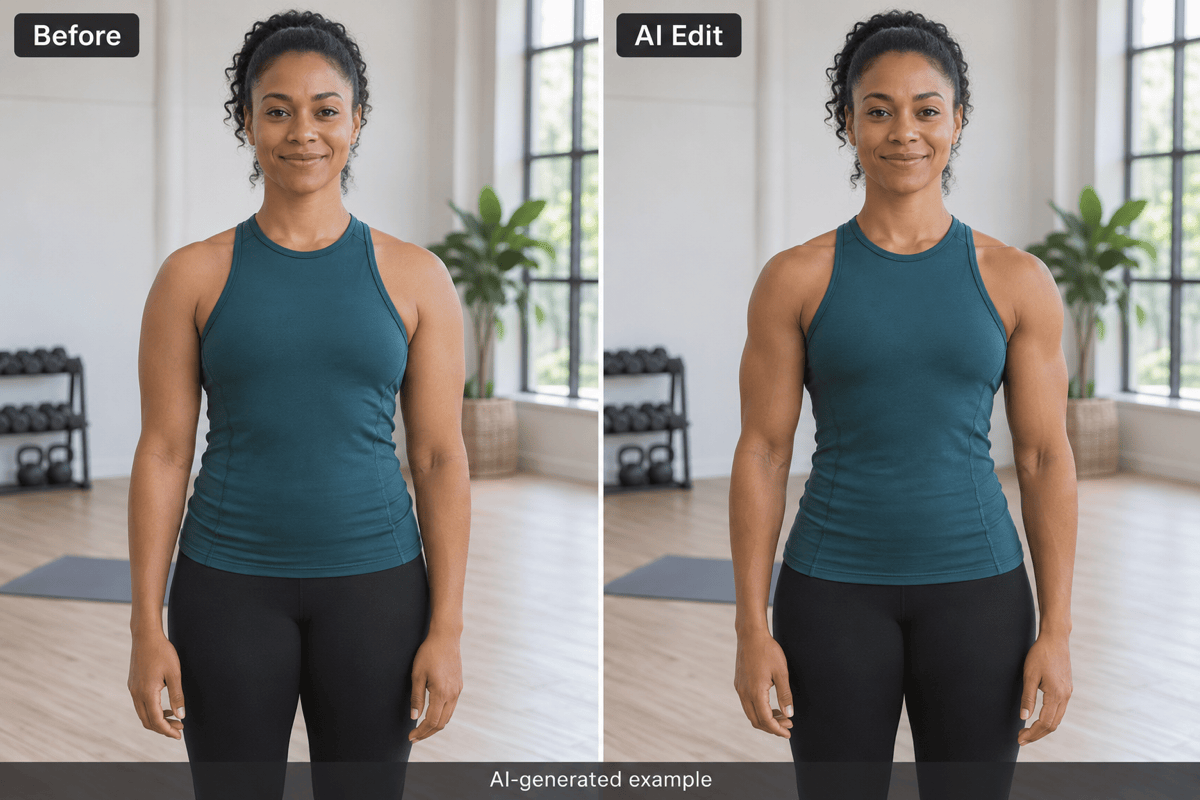
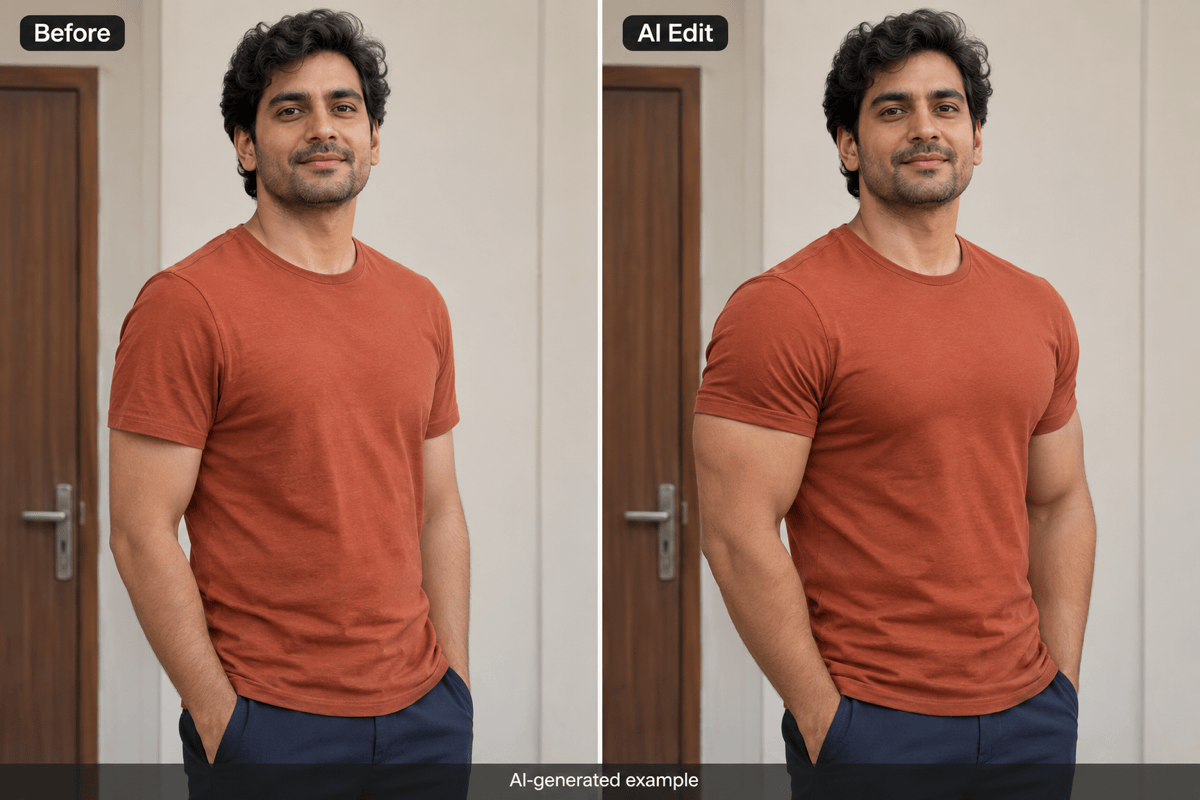
Turn your muscle photo edit into a standalone portrait or a labeled before-and-after layout. Download watermark-free PNG or JPG images for sharing.
Get a More Natural-Looking Muscle Edit
- Show the Relevant Areas: Use a waist-up or full-body photo with the arms visible. A tightly cropped face selfie gives the AI little body detail to work with.
- Separate Size from Definition: Larger muscles change the silhouette; stronger definition changes visible contours. Start with one goal if you want a restrained effect.
- Work with the Clothing: Your T-shirt can show a broader shoulder outline, but it should not reveal bare abdominal detail through opaque fabric. State that the outfit must stay on.
- Compare at the Same Scale: Look beyond the muscles. Check facial likeness, finger shapes, fabric seams, and straight lines behind the body. Request a smaller change if these details drift.
AI Muscle Filter Styles to Try on Your Photo
Add subtle shoulder and arm definition to my uploaded photo for a natural athletic look. Keep my overall body size, face, clothes, pose, and background close to the original.
Give my uploaded photo a bold bodybuilder effect for a funny muscle transformation post. Make the shoulders, arms, and chest noticeably larger. Keep my head size, facial features, clothes, and setting unchanged.
Edit my uploaded photo of an adult woman with stronger shoulder and arm definition. Keep the proportions balanced, the original outfit fully in place, and the face, hairstyle, and background unchanged.
Make my upper arms moderately bigger in this photo without changing the rest of my body. Preserve my hands, elbow positions, face, shirt details, and the background.
Add a more muscular shoulder and chest silhouette beneath the T-shirt in my uploaded photo. Keep the fabric opaque, preserve the neckline and sleeves, and do not reveal extra skin or abs through the shirt.
Use my uploaded photo to create a muscular version, then place the original and edited images side by side at matching scale. Label them Before and AI Edit. Keep both images uncropped and use a simple background.