Free OnlineAI Shadow Generator
How to Add a Shadow to an Image with AI
Upload a Clear Source Image
Describe the Light and Shadow
Generate and Inspect the Edit
Refine and Export

Why Mew Design Works for Product Shadow Editing
Describe the Shadow in Plain Language
Ask for a subtle contact shadow, a long afternoon cast, or a crisp drop shadow without learning layer effects. Our online AI shadow maker turns practical lighting instructions into a visual edit.
Edit the Photo You Already Have
Upload an existing product photo, portrait, logo, or cutout and direct the change around that source. This image-to-image workflow is useful when the subject is already right but the grounding feels flat.
Match Light, Surface, and Perspective
Describe the current light direction, the floor or background, and whether the object is upright or lying flat. Mew Design uses that context to create a more coherent starting point for realistic product shadows.
Correct One Detail with Chat Edit
If the shadow is too dark, detached, or pointed the wrong way, ask for one focused correction. Chat Edit helps you refine softness, length, density, position, or background while keeping successful choices in view.
Guide the Look with References
Upload a lighting or campaign reference when words are not enough. The AI product shadow generator can use that visual direction to explore softer catalog lighting, bold graphic casts, or premium studio moods.
Try Product Shadow Ideas for Free
Sign up to receive free AI credits, test shadow treatments online, and export finished images without a watermark. Review the final subject details and lighting before publishing the result.
How to Make AI-Generated Shadows Look Natural
- Show the Grounding Point: Make the bottom edge or contact area easy to see. Ask for the darkest part of the shadow to begin where the object touches the surface.
- Name the Light Direction: State where the light comes from and where the shadow should fall. Keep that direction consistent with highlights and existing shadows in the photo.
- Choose Softness for the Scene: Use a diffused shadow for clean catalog photos, a sharper cast for direct light, or a separated oval shadow only when you want a deliberate floating effect.
- Protect the Product: Specify that shape, color, texture, label text, crop, and key reflections must remain unchanged. Check those details again after every AI edit.
AI Shadow Prompts for Common Product Photos
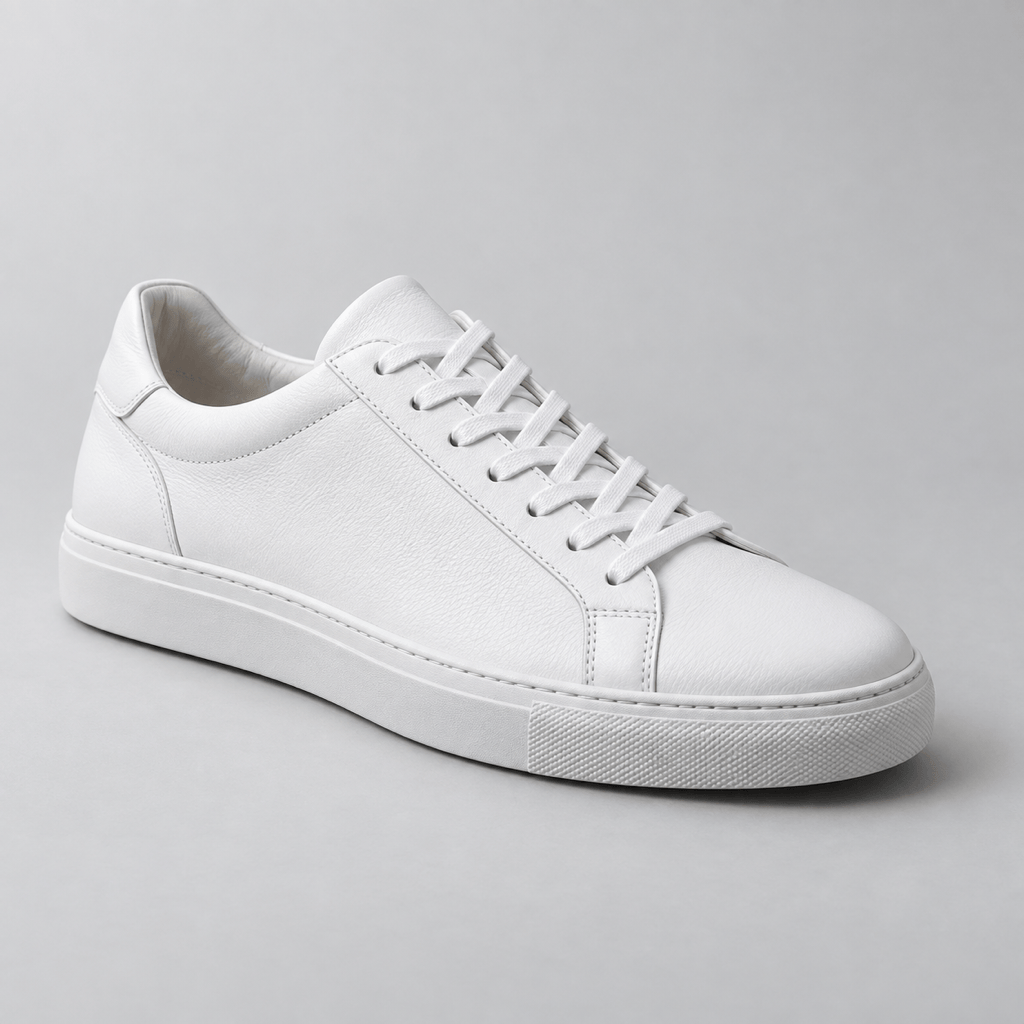
Add a subtle soft contact shadow beneath this white sneaker on a pale gray studio floor. Keep the sole attached to the surface, follow light from the upper left, and preserve the shoe shape, stitching, color, and crop.
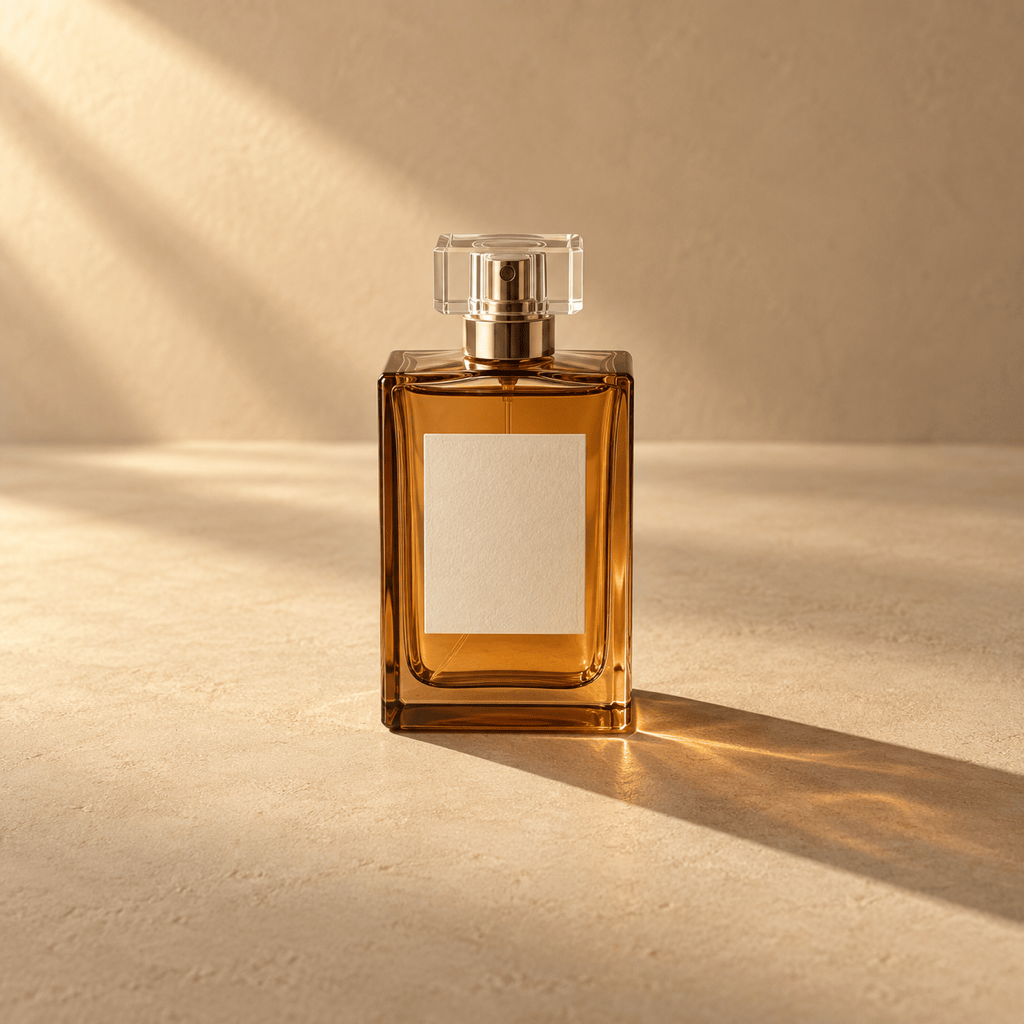
Create a long warm directional shadow behind this amber perfume bottle for a luxury campaign. Let the cast fall to the right with a crisp base and gradually softer edge. Keep the bottle, label, glass highlights, and background color unchanged.
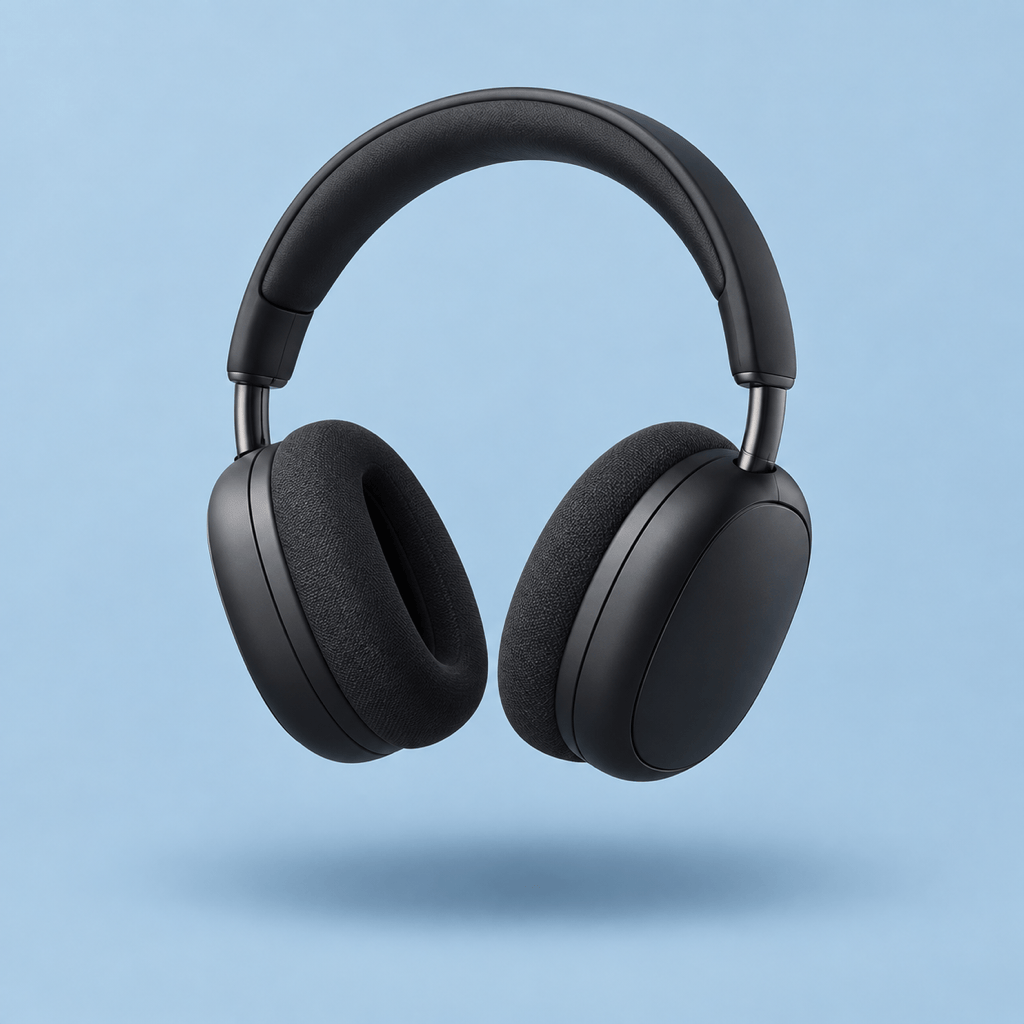
Add an oval floating shadow below these wireless headphones on a clean blue background. Leave a small believable gap between the product and shadow, use soft edges, and keep the headphones and framing unchanged.
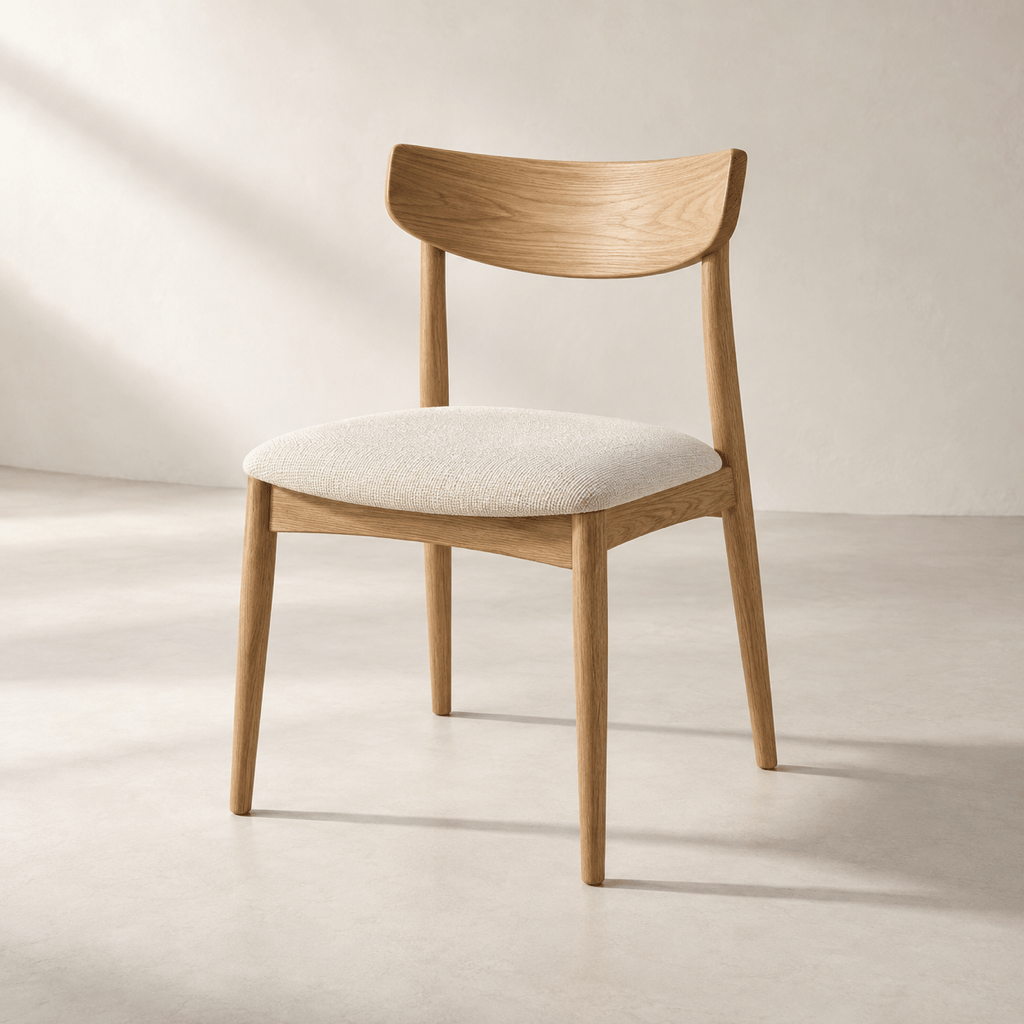
Ground this modern chair on the studio floor with a natural shadow that follows the legs and camera perspective. Use broad diffused light from the left and preserve the chair material, proportions, and background.
Add a light drop shadow to this transparent-background package image for an online store. Cast it slightly down and right, keep the white background clean, and do not change the package edges, colors, logo, or label text.
Add a cinematic window-light shadow behind this portrait for a social campaign. Use soft diagonal lines on the wall, keep the face and clothing clear, and preserve identity, skin tone, pose, and crop.





