Free OnlineAI Sakura Filter
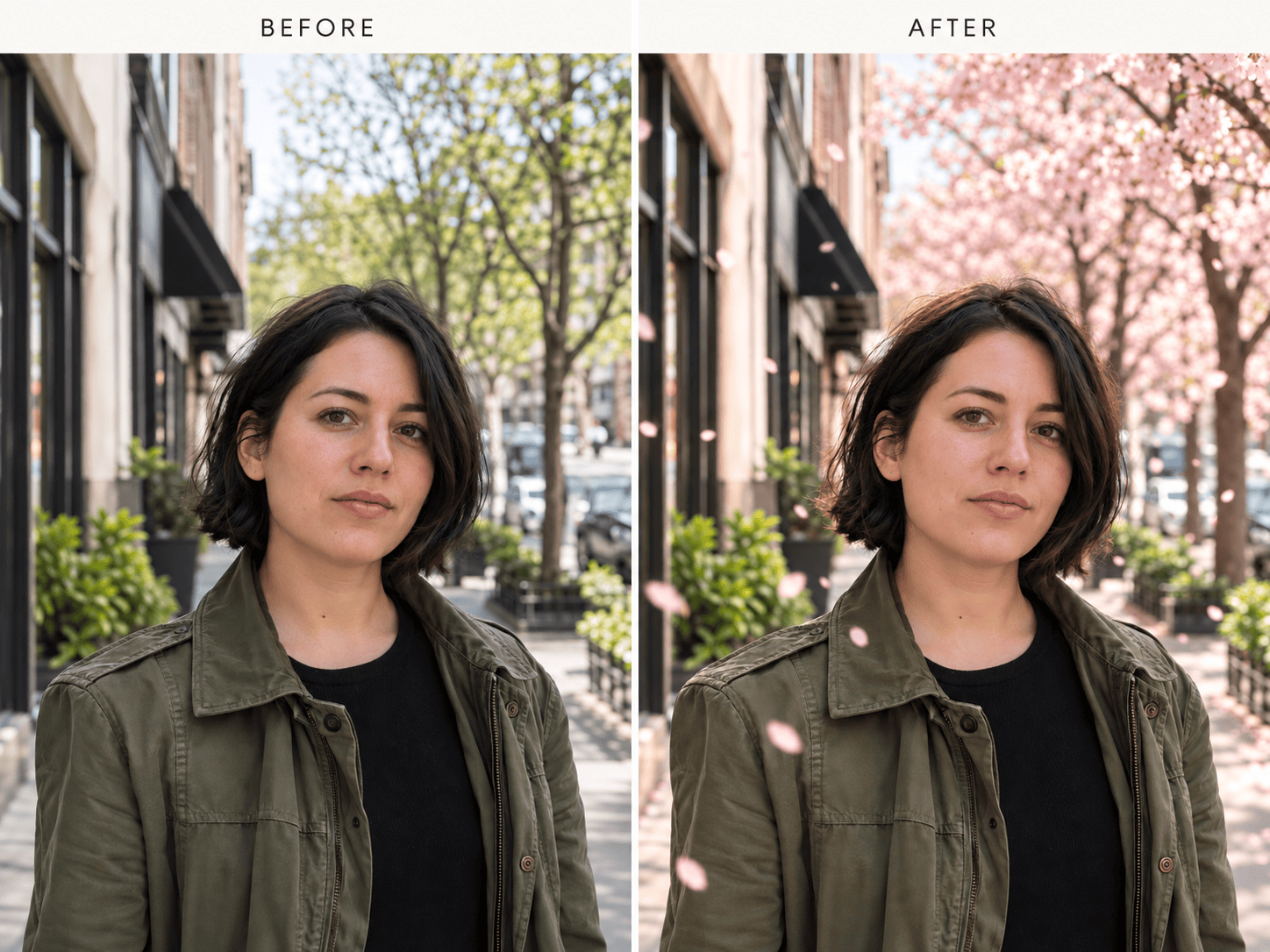
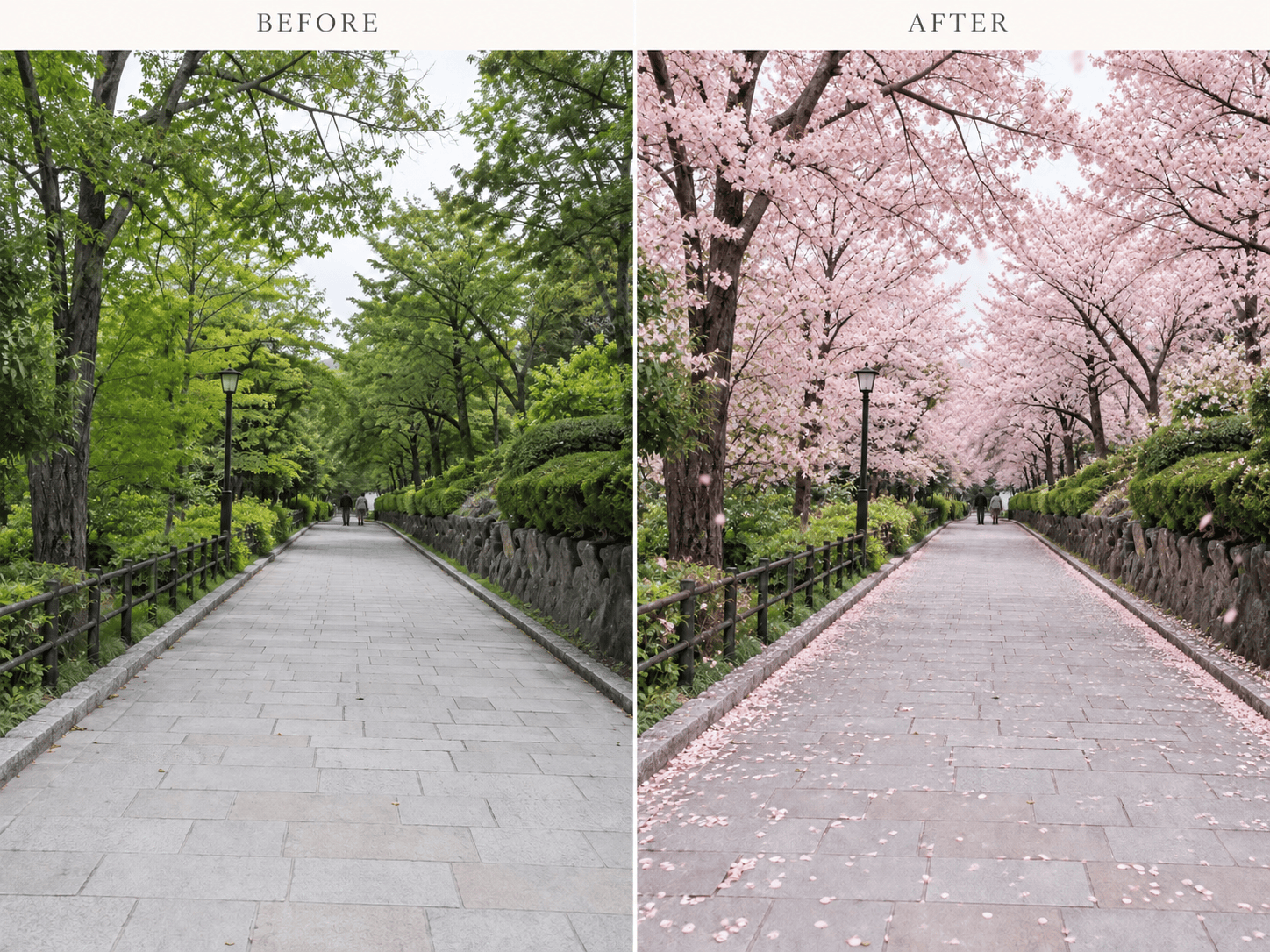
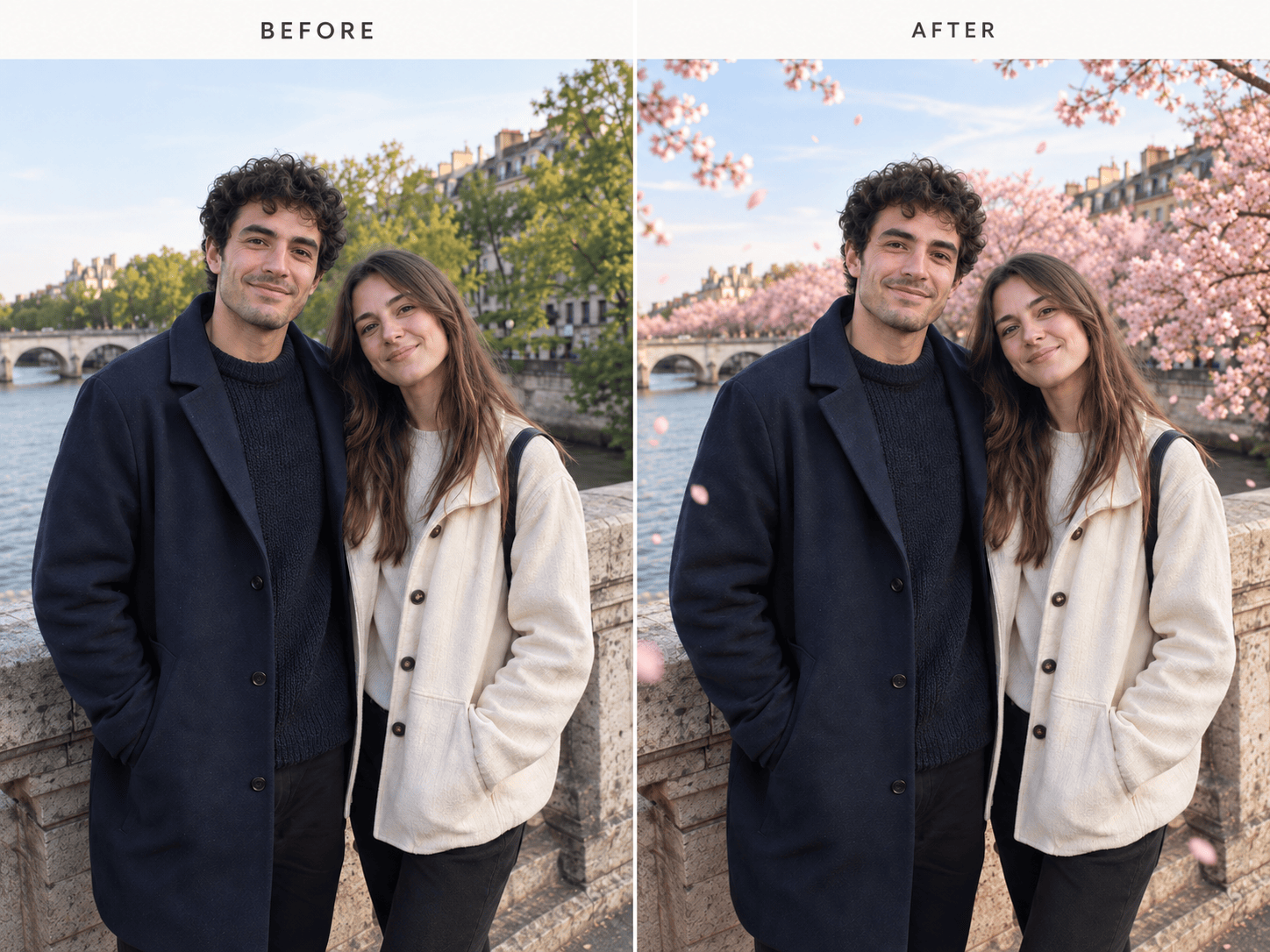
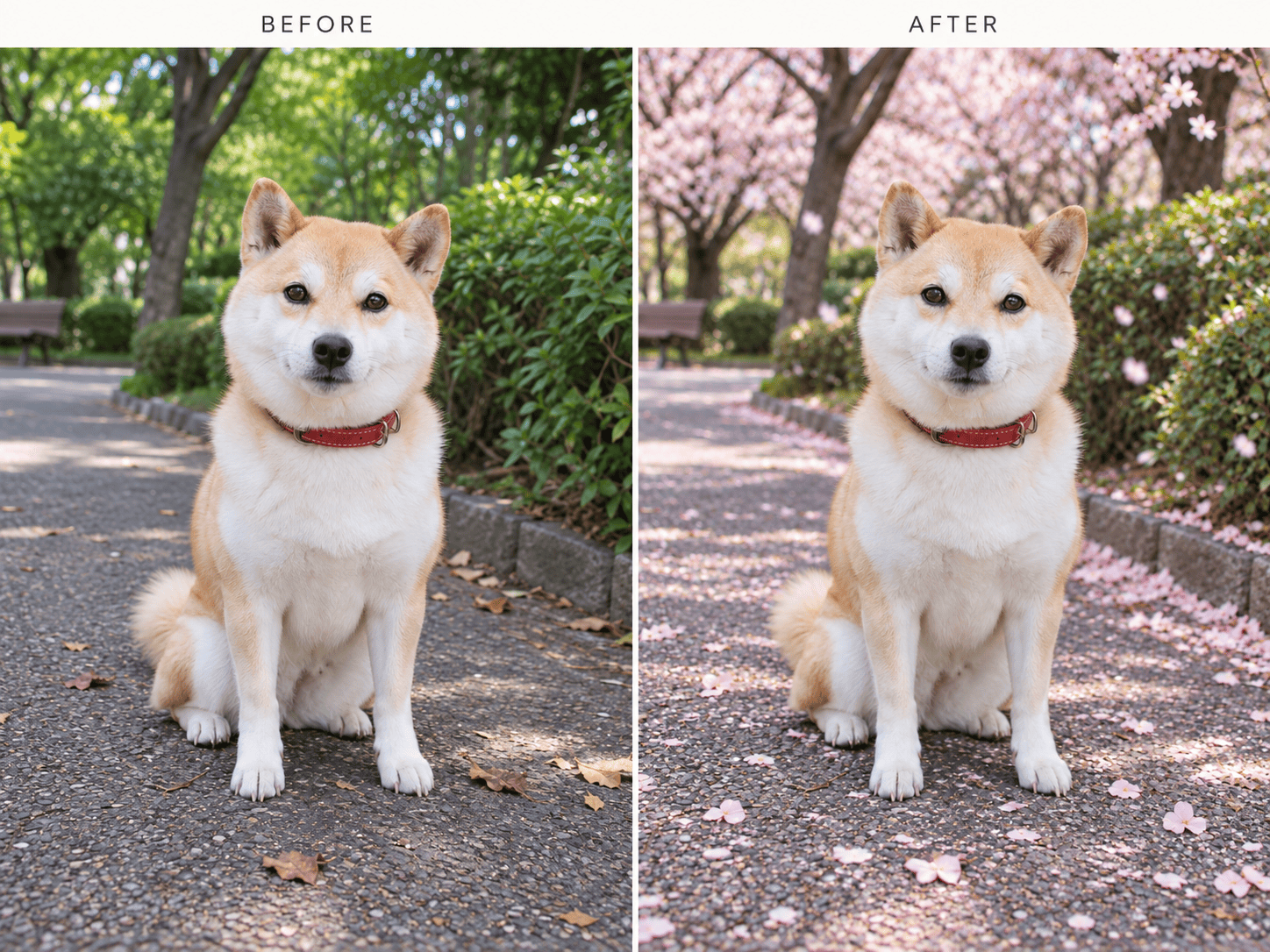
How to Add Cherry Blossoms to a Photo with AI
Upload Your Photo
Describe the Spring Scene
Generate and Check the Edit
Refine and Download

Make the Sakura Effect Fit Your Photo
Edit the Photo You Already Have
Upload your own image and describe the change. This online sakura photo editor builds on your subject and composition instead of starting from an unrelated scene.
Place Blossoms with Purpose
Ask for branches behind the subject, petals in the foreground, or a light floral frame. Describe depth and light so the effect belongs in the scene.
Keep Faces and Details Visible
Tell the AI cherry blossom filter to leave faces, clothing, pet markings, and important objects unobstructed. Review the output and correct any drift before sharing.
Choose Subtle or Full Bloom
Move from a few petals to a blooming walkway through plain-language requests. Chat Edit lets you reduce density or change the pink cast after the first result.
Bring a Style Reference
Upload a reference image when you want a specific spring palette, backlight, or film feel, then ask Mew Design to adapt it to your original photo.
Try and Export Online
Start with free AI credits after signup. When your photo is ready, download a watermark-free PNG or JPG for a profile image, feed post, or keepsake.
How to Get a Natural Cherry Blossom Photo Effect
- Protect the Subject: Name the face, pose, outfit, pet markings, or architecture that must remain recognizable. Generated edits can still change details, so inspect the result.
- Set the Blossom Density: Request a few petals for a subtle spring photo filter, or flowering branches and a canopy for a stronger transformation.
- Match Light and Depth: Ask petals to sit in front of and behind the subject with shadows and color that suit the source photo. Avoid a flat pink overlay.
- Check the Final Crop: For a profile picture, keep the face clear at small size. For an Instagram story or post, leave the key subject inside the crop before export.
Sakura Photo Ideas You Can Try
Apply a subtle cherry blossom filter to my uploaded selfie. Keep my face and skin tone natural; add a few pale petals behind my shoulders and soft spring light.
Turn my uploaded park path into a realistic sakura walkway. Keep the path, camera angle, and people in place; add flowering trees overhead and a light scatter of petals.
Add a romantic cherry blossom backdrop to our uploaded couple photo. Preserve both faces, outfits, and pose; put pink branches behind us and leave the center uncluttered.
Give my uploaded pet photo a gentle spring setting. Keep the pet’s fur pattern, eyes, and collar recognizable; add fallen petals on the ground and soft blossoms in the background.
Make my uploaded travel street photo feel like cherry blossom season. Preserve the buildings and perspective; add blooming trees along the sidewalk and match the original daylight.
Refine the sakura edit I just made: reduce the pink cast, move petals away from the face, keep the original crop, and make the blossoms match the scene’s light.