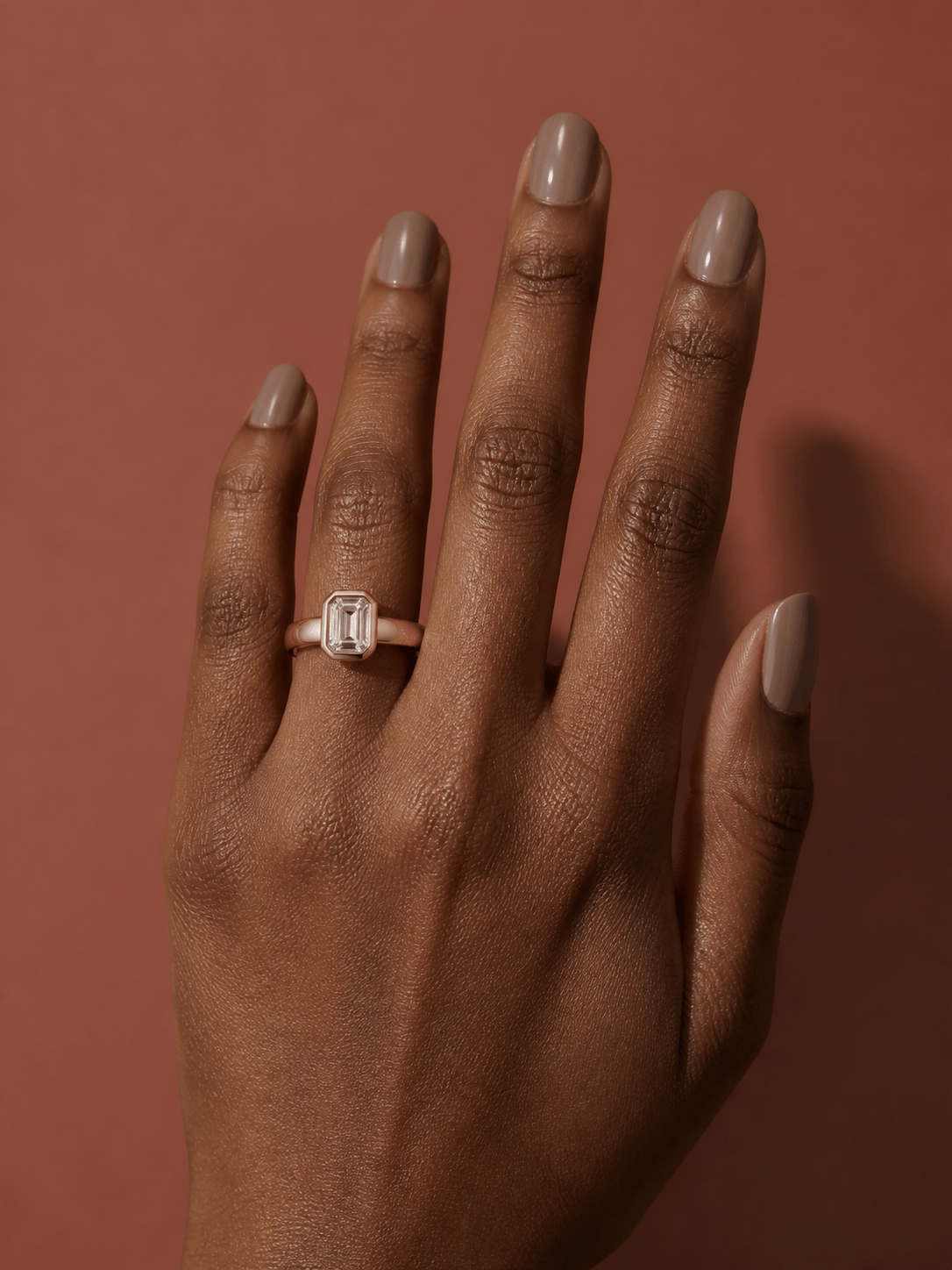
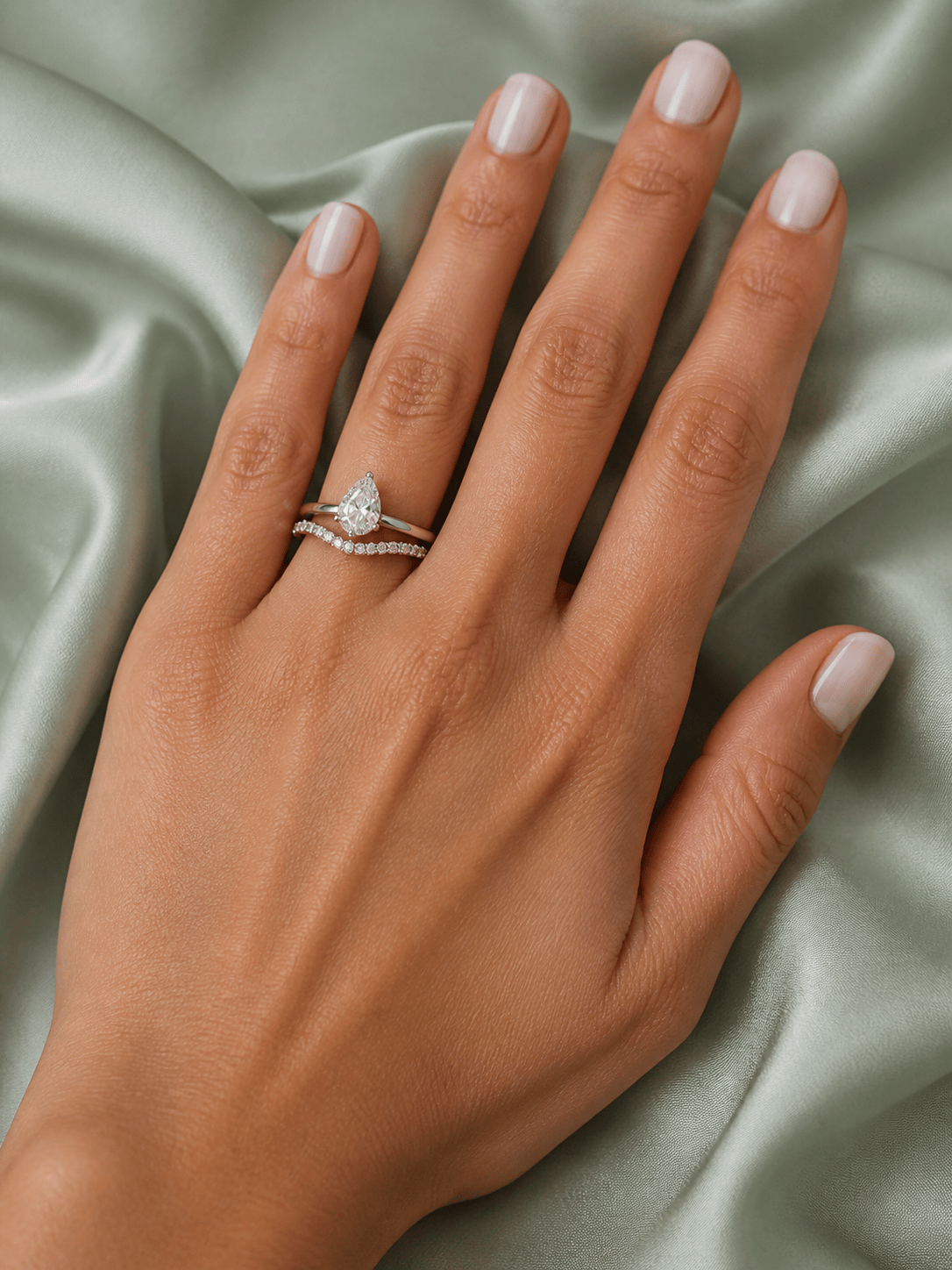
Free OnlineAI Ring Try On
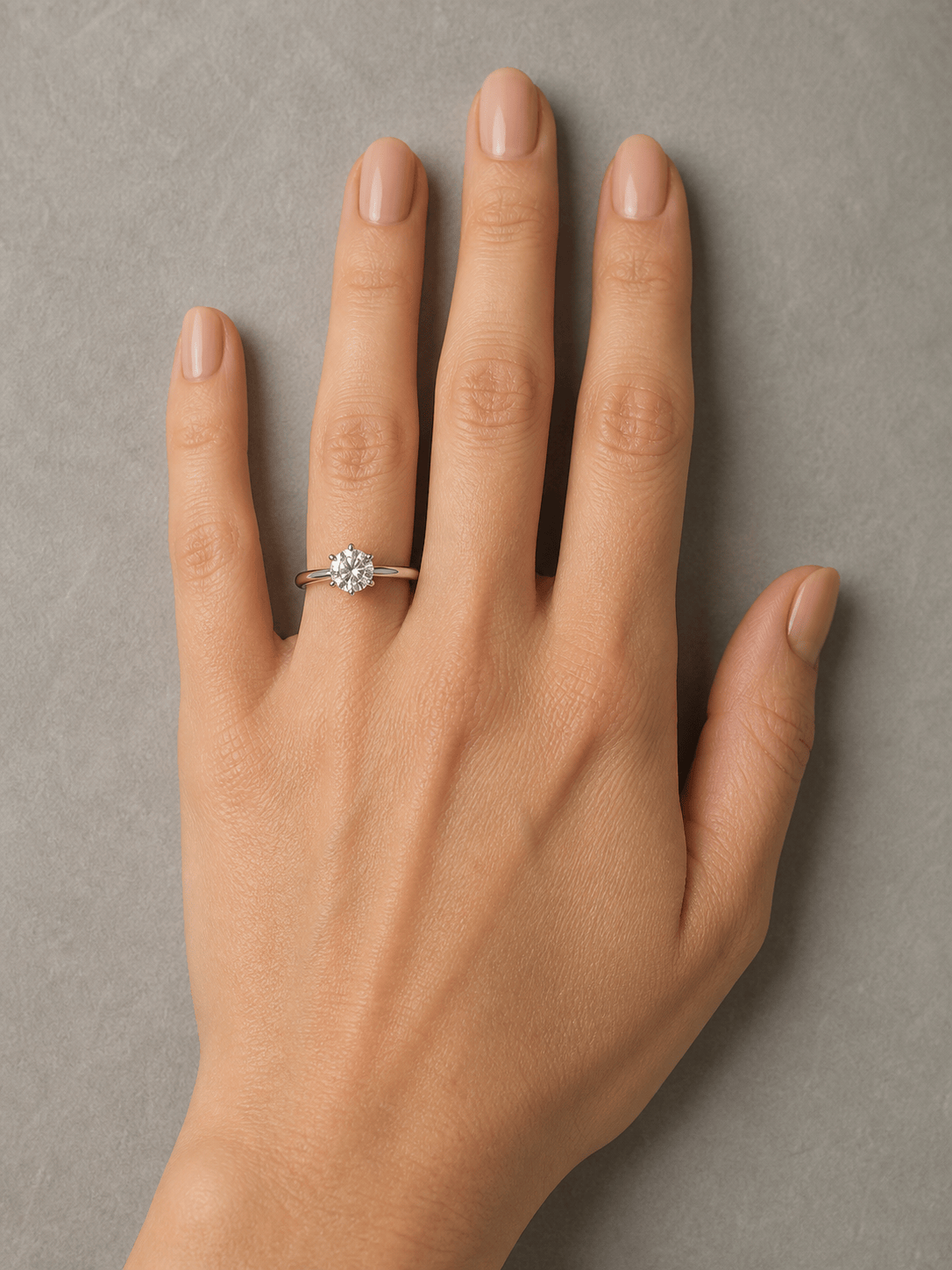
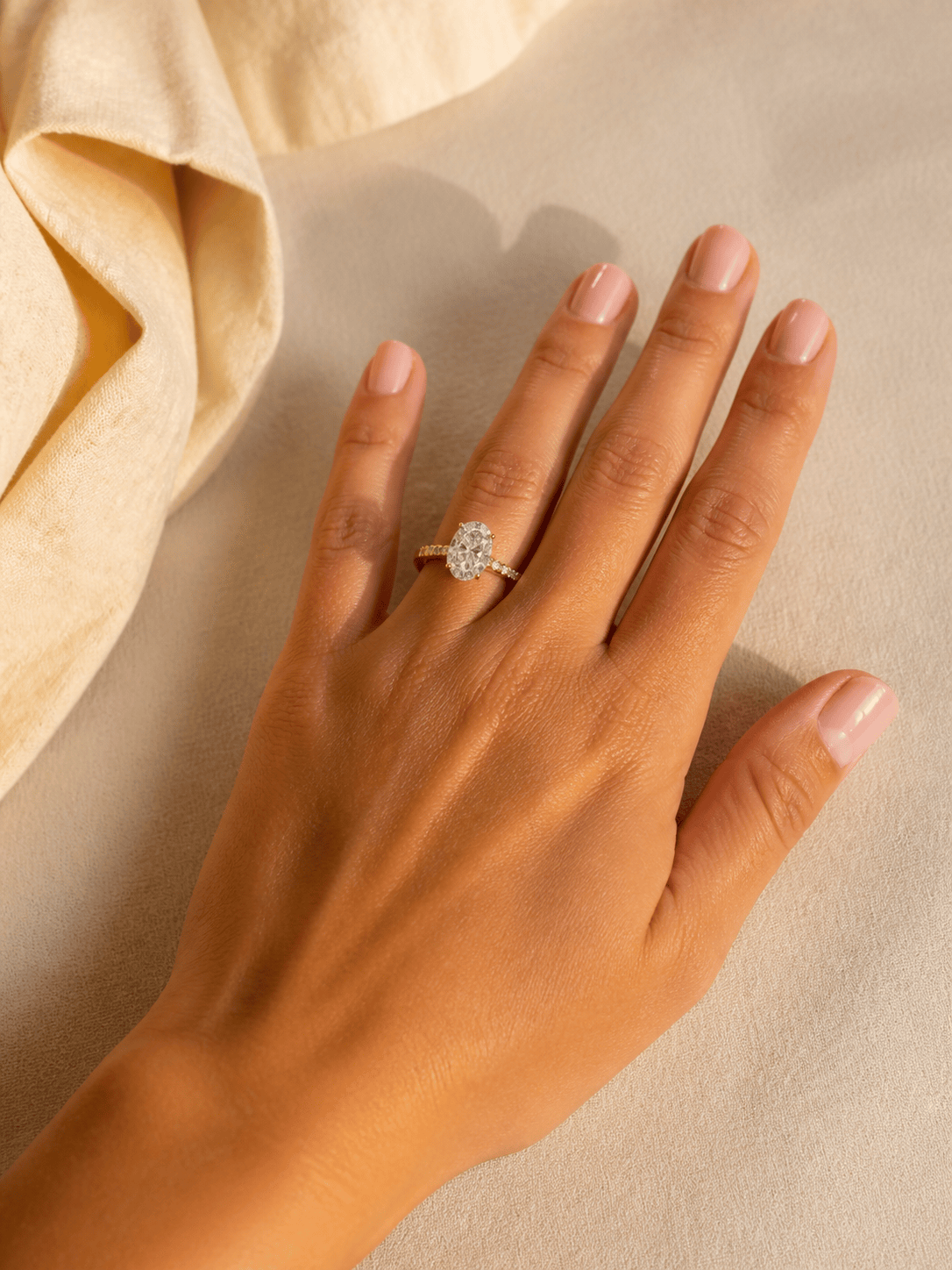
Upload a hand photo and preview a solitaire, halo, wedding band, or bridal stack before you buy or create jewelry content. Mew Design - AI Design Agent works as a virtual engagement ring try on: describe a ring or add a permitted product reference, then place it on the exact finger with realistic perspective, reflections, and shadow.

How to try an engagement ring on your hand with AI

Start with a clear hand photo, define the ring precisely, and compare consistent previews before making a purchase decision.
1

Upload a clear hand photo

Choose a sharp, evenly lit photo with the full target finger, knuckle, nail, and nearby fingers visible. A relaxed top-down or slight-angle pose works best.
2

Describe or add the ring

Name the hand and finger, stone shape, setting, metal, band width, and stack. You can also attach a ring image you are permitted to use.
3

Place and refine the preview

Ask the AI to wrap the band naturally around the finger and match perspective, skin occlusion, metal reflections, gemstone light, and contact shadow.
4

Compare, verify, and download

Keep the same hand and change one detail at a time. Check product details against the original and confirm your physical ring size with a jeweler or ring sizer.
How to create an AI ring try on with Mew Design

Why use Mew Design for a virtual ring try on

Your hand, your chosen finger

Preview an engagement ring on your own hand photo and specify the exact left or right finger for a more relevant comparison.

Shape and setting comparisons

Explore round, oval, pear, cushion, emerald, or marquise stones with solitaire, halo, bezel, pavé, or three-stone settings.

Metal and band variations

Compare yellow, white, or rose gold and platinum, then adjust band width and profile while keeping the hand photo consistent.

Bridal stack previews

Visualize an engagement ring beside a straight, curved, pavé, or contour wedding band before choosing a coordinated stack.

Ring-reference guidance

Use a permitted store image or product photo to guide the center stone, prongs, side stones, band, and metal tone.

Jewelry content mockups

Create concept images for listings, lookbooks, ads, and social posts, then verify product fidelity and usage rights before publishing.

What makes a good AI ring try-on prompt

Place a classic round brilliant solitaire engagement ring on the left ring finger in my uploaded hand photo. Use a slim polished platinum band and a six-prong setting. Keep the hand, nails, skin texture, pose, crop, and lighting unchanged. Wrap the band naturally around the finger with correct front-and-back occlusion, match the camera angle, add subtle diamond sparkle, realistic metal reflections, and a soft contact shadow. Do not add other jewelry or alter the other fingers.
Name the exact hand and finger, stone shape, setting, metal, band width, orientation, and whether to include a wedding band.
  • Prepare the hand photo: Use sharp, even light, a relaxed pose, visible knuckles, and no existing ring or overlapping fingers on the target area.
  • Prepare the reference: Choose one clear ring on a simple background from a camera angle that is compatible with the hand photo.
  • Request physical cues: Ask for natural band occlusion, matching perspective, contact shadow, metal reflections, and gemstone lighting so the ring does not look pasted on.
  • Compare fairly: Keep the same photo, crop, pose, and lighting, then change one variable per generation—shape, setting, metal, band width, or stack.

AI ring try-on prompt examples

Add a round brilliant solitaire engagement ring to the left ring finger in my hand photo. Use a slim platinum band and six-prong setting, preserve the hand and manicure exactly, and match perspective, reflections, occlusion, diamond sparkle, and contact shadow.

Create a virtual engagement ring try on with an oval center diamond, delicate hidden halo, and thin yellow-gold pavé band on my right ring finger. Keep the same crop and warm window light, with natural band wrap and no other jewelry.

Place an emerald-cut diamond in a modern bezel setting on the left middle finger. Use polished rose gold and a medium-width band, preserve skin texture and nail color, and render restrained step-cut reflections rather than exaggerated sparkle.

Build a bridal ring stack on my left ring finger: a pear-shaped white-gold solitaire with the point facing the nail plus a fitted curved pavé wedding band below it. Keep both bands separate, aligned, and naturally wrapped around the finger.

Use my attached ring product photo as the reference and try that ring on my uploaded hand. Preserve the center-stone shape, prong count, side stones, band profile, and metal tone as closely as possible; do not invent engraving, logos, or extra stones.

Create a consistent ecommerce hand-model image for this permitted engagement-ring reference. Use a clean neutral background, soft studio light, realistic hand anatomy, accurate ring placement on the ring finger, and ample crop space for a jewelry product listing.


AI ring try-on FAQ

An AI ring try on places a described or referenced ring onto a hand photo. It helps you compare engagement rings, wedding bands, metals, settings, stone shapes, and stacks before shopping or creating jewelry content.
Yes. New Mew Design users receive free AI credits after signup. You can upload a hand photo, generate ring previews, refine a preferred version, and export watermark-free images; credit use varies by model and settings.
Use a sharp, evenly lit top-down or slightly angled photo with the full target finger, knuckle, nail, and adjacent fingers visible. Avoid motion blur, harsh flash, cropped fingers, overlapping hands, or an existing ring on the target finger.
Yes. Upload a product photo or screenshot you are permitted to use. A single ring shown clearly on a simple background and from an angle compatible with the hand photo gives the AI a better reference for the stone, setting, band, and metal.
Not always. Generative editing can change prong count, pavé stones, side stones, engraving, hallmarks, logos, facet patterns, band thickness, or metal tone. Compare the result with the original product and never present an unverified mockup as an exact photograph.
No. The preview is for style and proportion, not a ring-size measurement or fit guarantee. Finger size varies with the hand, knuckle, temperature, time of day, band width, and ring design. Confirm your size with a physical ring sizer, the seller's guide, or a jeweler.
Yes. Keep the hand photo, crop, finger, pose, and light unchanged, then create separate versions for round, oval, pear, cushion, emerald, or marquise stones; metal colors; band widths; settings; or engagement-and-wedding-band stacks.
Yes, as product or campaign mockups when you have permission to use the ring and model images. Before commercial publication, verify the product's stone, setting, prongs, side details, metal, scale, and color, and review Mew Design's current terms.

Ready to Generate Designs With AI?

Get Started - 50 Free Credits
No credit card required
© 2025 - 2026 Mew Design, MAGOAI LTD.All rights reserved.