Remove Tattoos from Photoswith AI
How to Remove Tattoos from Photos with AI
Upload the Original Photo
Identify the Ink to Remove
Check the Skin Up Close
Save Your Chosen Version

Photo Tattoo Removal You Can Refine
Start with Your Own Photo
Edit an uploaded portrait instead of describing a new person. Your source photo guides the tattoo removal.
Specify One Tattoo
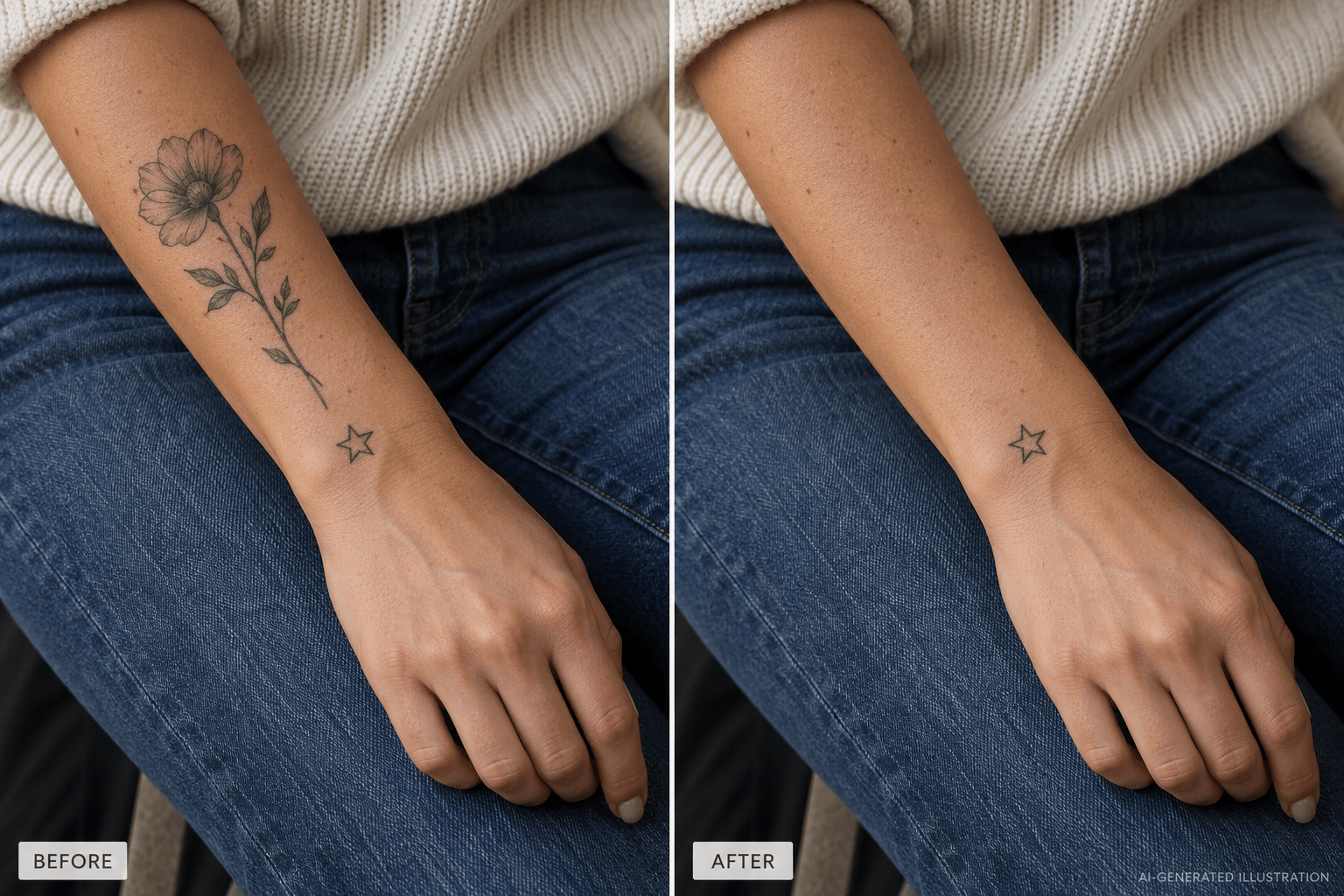
Ask our AI tattoo remover to edit one design or body area. Name any other tattoos you want to keep.
Describe the Skin Details
Request matching skin tone, pores, body hair and shadows. Inspect the result; reconstructed skin may need refinement.
Correct Through Conversation
Use Chat Edit to address a patch of leftover ink or a blurred edge with a focused follow-up request.
Try Online with Free Credits
Sign up for free AI credits to try removing tattoos from photos online. Generation and revisions use credits.
Export for Your Photo Library
Download PNG or JPG files without a watermark for personal portraits, selected wedding shots or social posts.
Keep Skin Looking Natural After Tattoo Removal
- Leave Surrounding Skin Visible: Avoid cropping tightly around the ink; nearby skin provides tone and lighting context.
- Name What Must Stay: Mention freckles, jewelry, clothing edges and tattoos outside the edit area.
- Inspect at Full Size: Look for color halos, repeated texture, overly smooth patches and altered body contours.
- Treat Large Areas Carefully: Dense sleeves and tattoos crossing joints may take several revisions. AI reconstructs plausible skin, not the exact skin hidden by ink.
Targeted Fixes for Common Tattoo Edits
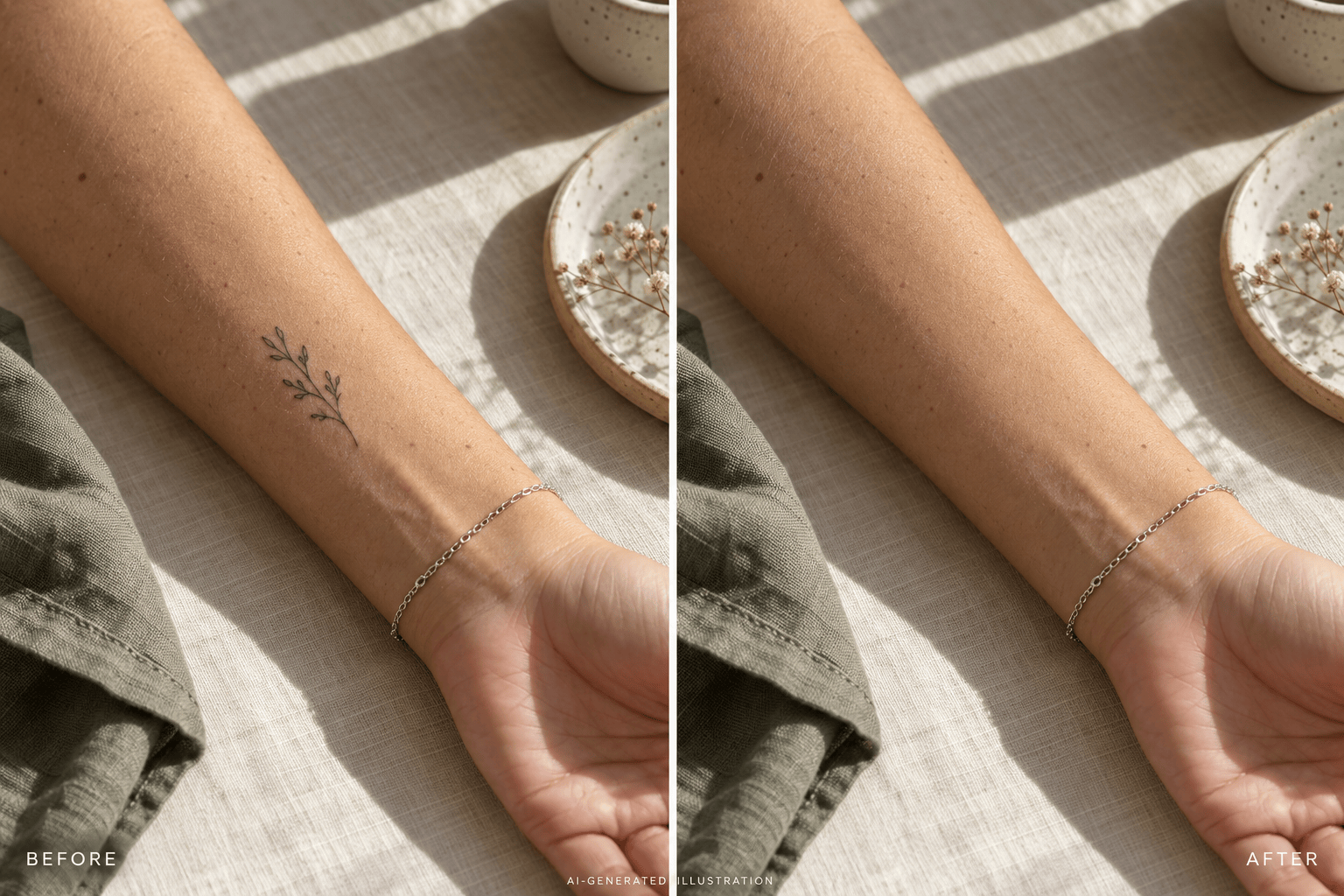
Remove the small wrist tattoo in my uploaded photo. Keep the bracelet, wrist folds and fine hairs.
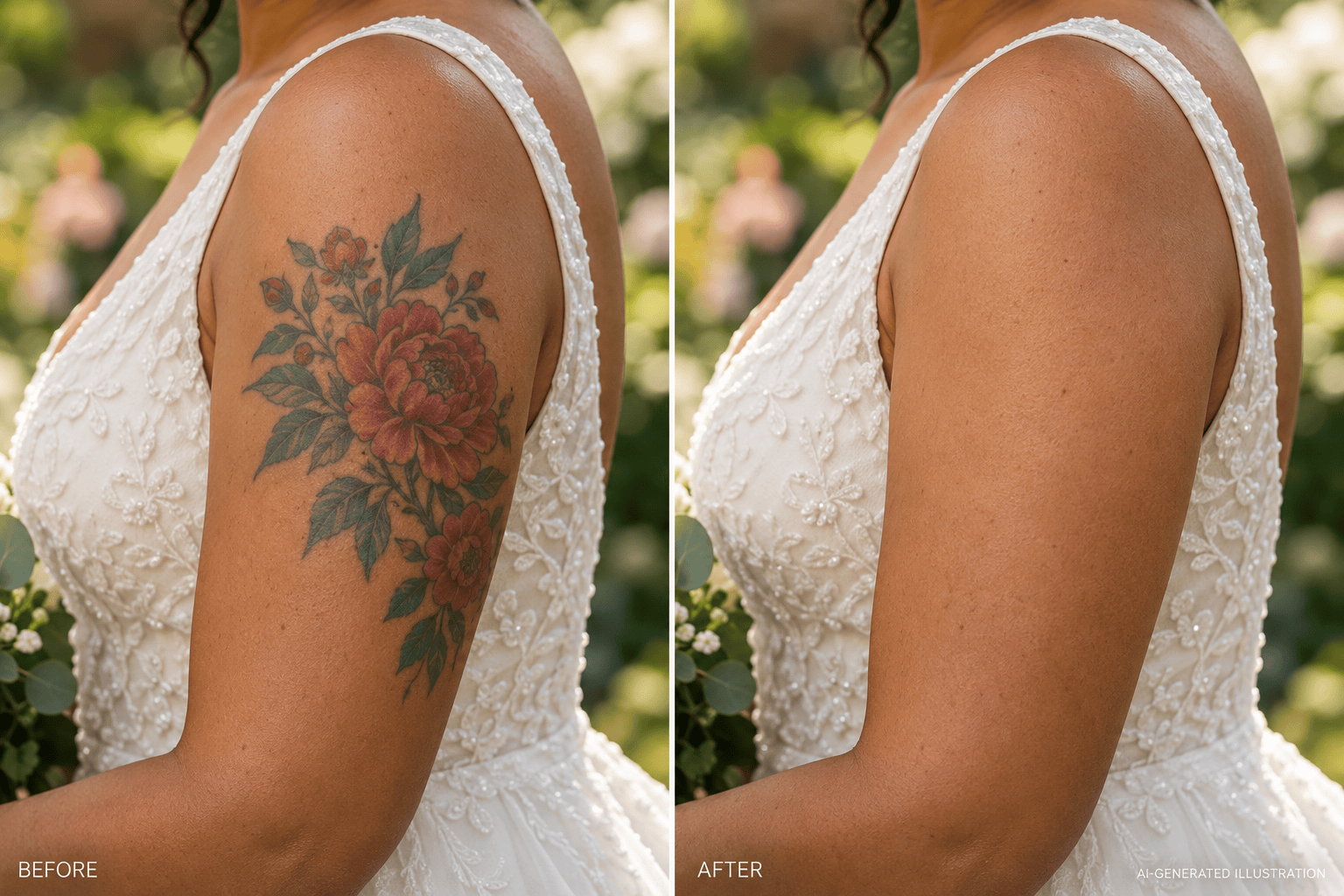
Remove the colored shoulder tattoo from this wedding photo. Preserve the dress edge and warm light on the skin.
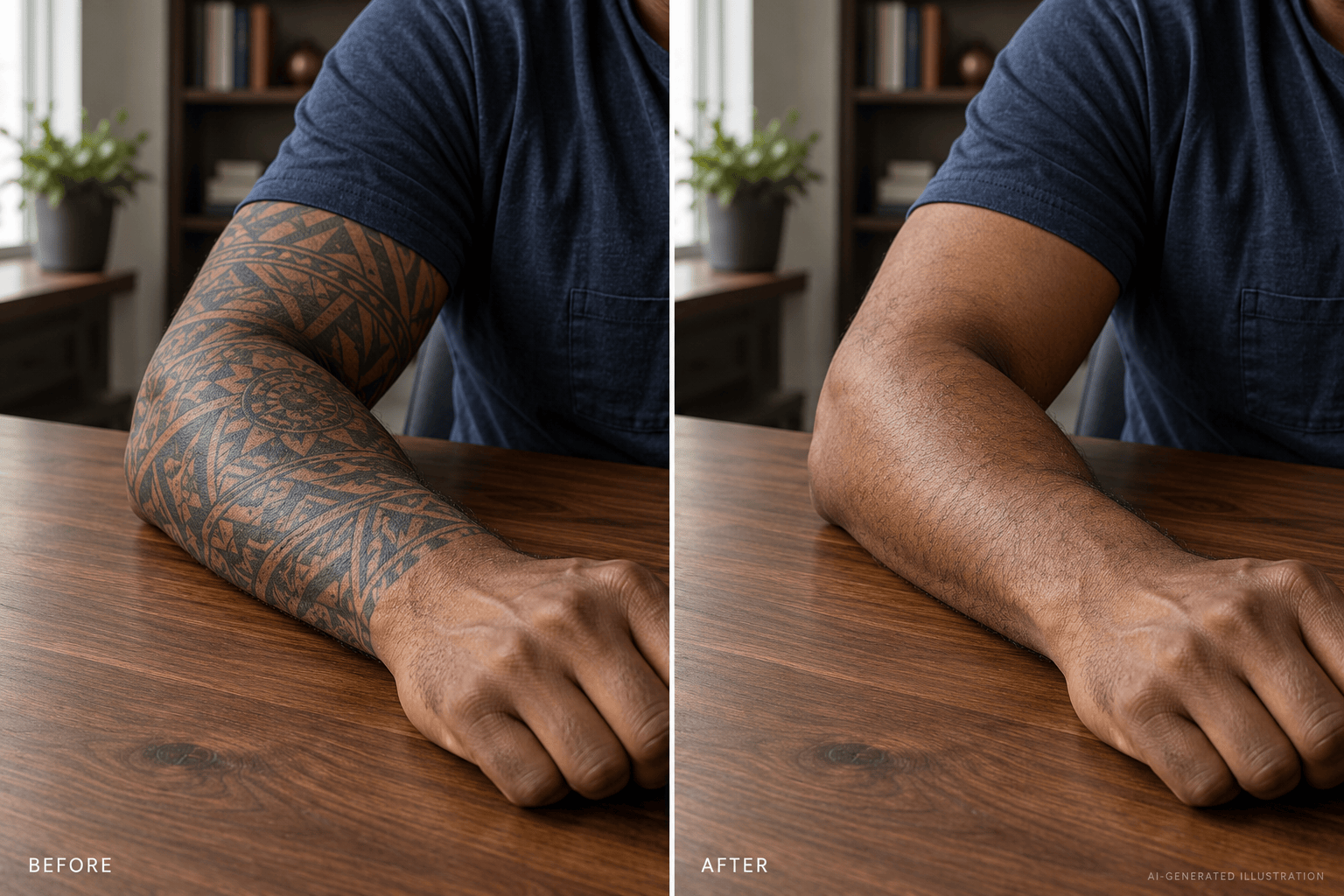
Remove the sleeve tattoo from the visible forearm. Match the surrounding skin texture without flattening the elbow shadow.
Remove only the neck tattoo on the person on the left. Keep the other person and all other tattoos unchanged.
Refine the edited area: remove the remaining blue ink halo and match the surrounding skin tone without smoothing the whole arm.
Revise the tattoo removal around the wristwatch. Restore the watch edge and natural wrist crease using the original photo as reference.





