Remove Emojis from Photoswith AI
How to Remove Emojis from Photos with AI
Upload Your Photo
Say What to Remove
Review the Filled Area
Download the Cleaned Photo

Remove the Sticker, Keep Your Creative Direction
Describe the Exact Overlay
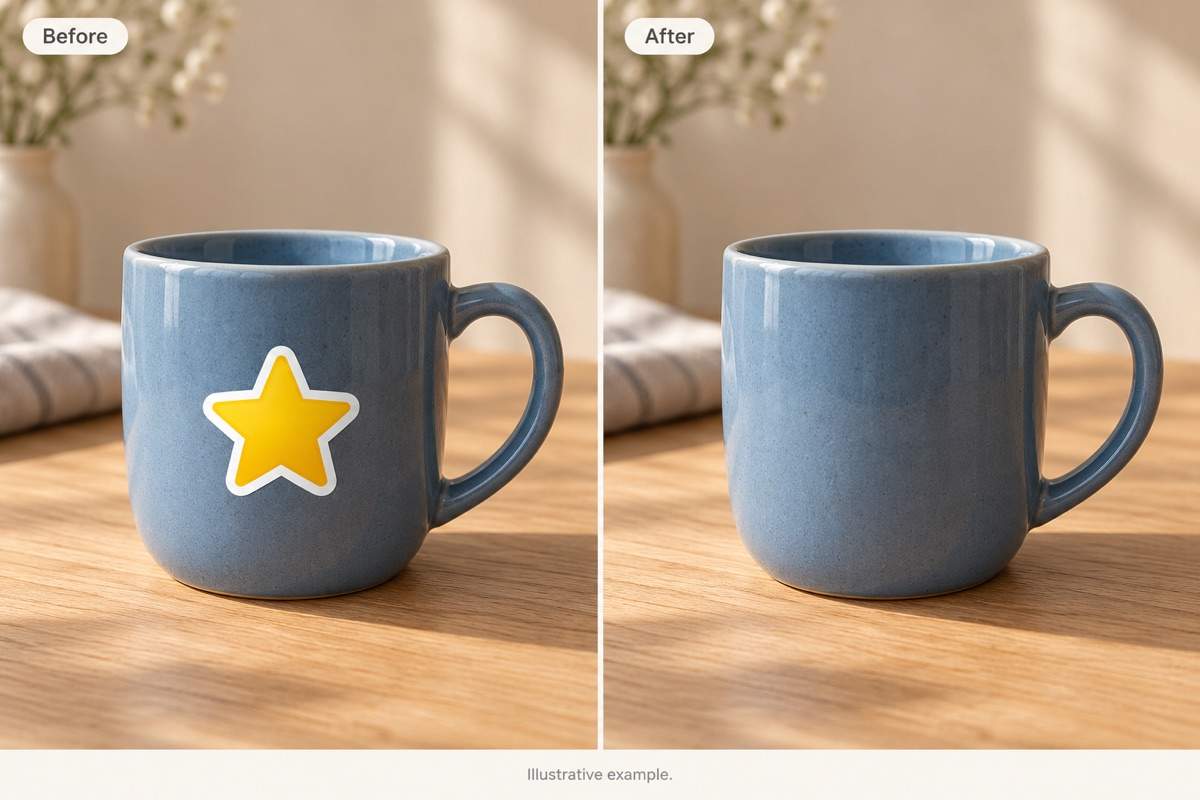
Use everyday language to remove stickers with AI. Specify “the yellow star on the mug” instead of learning a complex editing workflow.
Work from Your Own Image
Upload the photo you want to edit. Ask for a fill that follows the surrounding sky, wall, fabric, or surface.
Set Clear Preservation Rules
Tell the AI sticker remover to keep the framing, colors, and visible subject details. Compare the result to catch unintended changes.
Repair Small Leftovers in Chat
A bright outline or mismatched patch does not have to be the final result. Use Chat Edit to request a more consistent edge or texture.
Reuse the Cleaned Photo
Export as PNG or JPG, or continue editing your image. For a fresh decoration, try our AI sticker generator.
Try with Free Credits
New users get free AI credits after signup to try online emoji removal. Exports are watermark-free; further use depends on available credits.
Get a Cleaner Fill Without Losing Important Details
- Start with the Best Source: Use the original-size photo when available. Repeated screenshots and compression can make edges harder to repair.
- Name What Should Stay: Identify nearby people, objects, lettering, or decorations that must remain in the image.
- Check the Whole Outline: Include sticker borders, glow, and shadows in your request. Inspect the fill for repeated patterns or blur.
- Know What AI Can Rebuild: AI generates a plausible replacement for covered pixels. It cannot verify the original face, wording, or detail hidden beneath an opaque emoji.
Targeted Fixes for Common Emoji Removal Problems
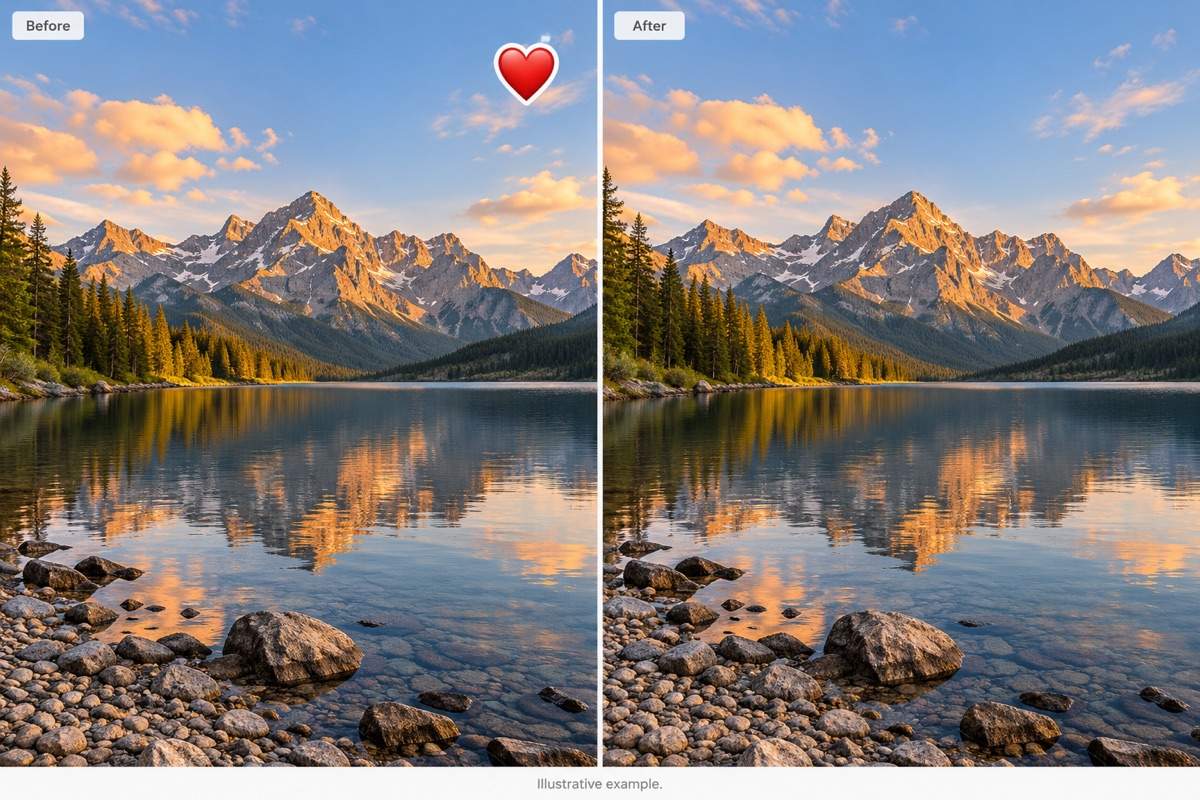
Remove the heart emoji from the sky in my uploaded travel photo. Match the surrounding sky gradient and keep the horizon unchanged.
Remove the star sticker from the mug in my product photo. Match the ceramic surface and lighting; keep the handle and silhouette unchanged.
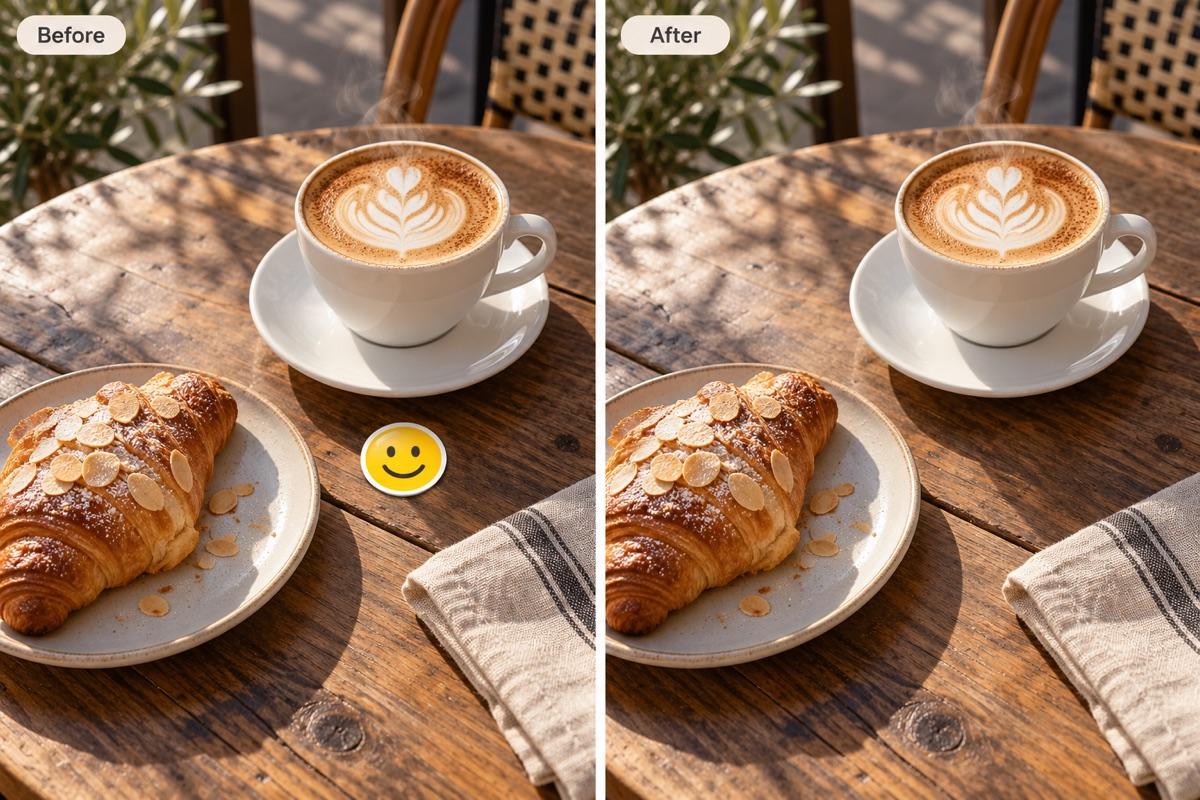
Remove only the smiley overlay from my saved Instagram photo. Keep the other decorative stickers and the original crop.
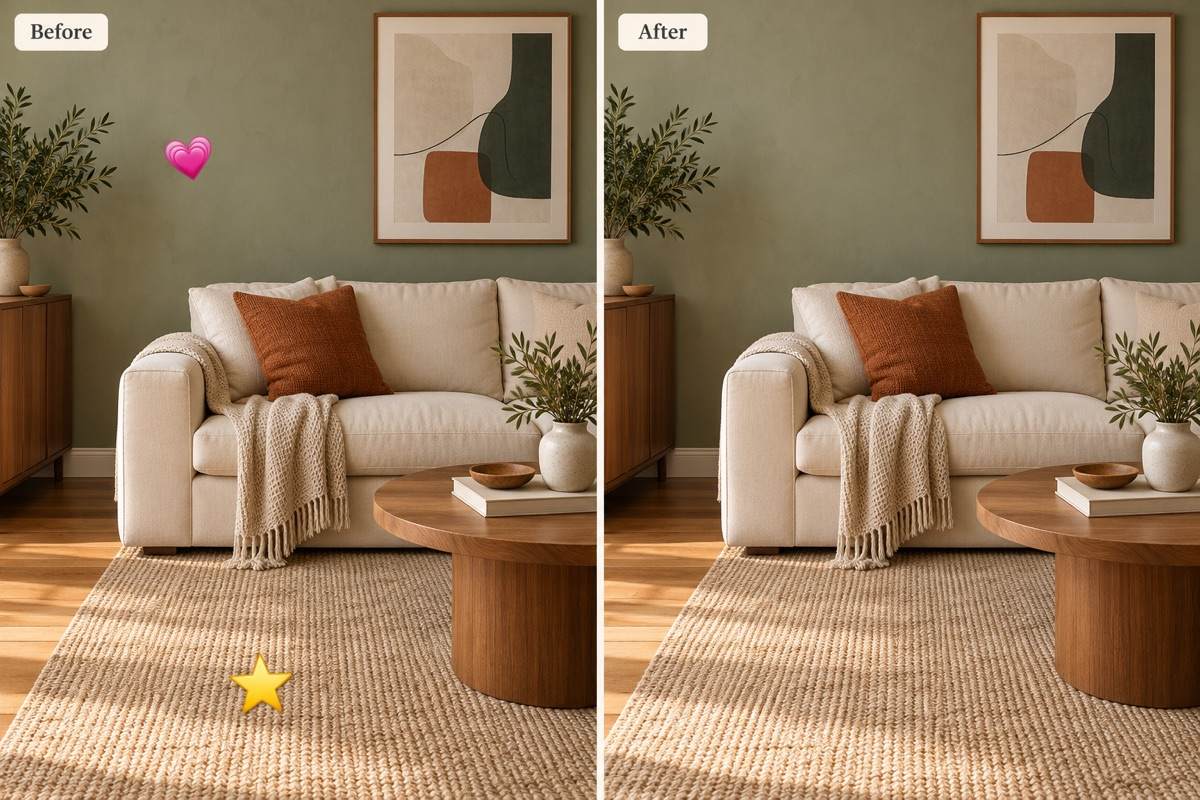
Remove the two emojis on the wall and rug in my uploaded room photo. Match each surrounding texture and keep the furniture unchanged.
Clean up the colored outline and shadow left by the removed sticker. Blend this small area with the surrounding texture without softening nearby details.
Refine the blurry patch left after emoji removal. Match nearby texture and lighting, without changing the rest of the photo.





