Try Online with Free CreditsAI Portrait to Landscape Converter
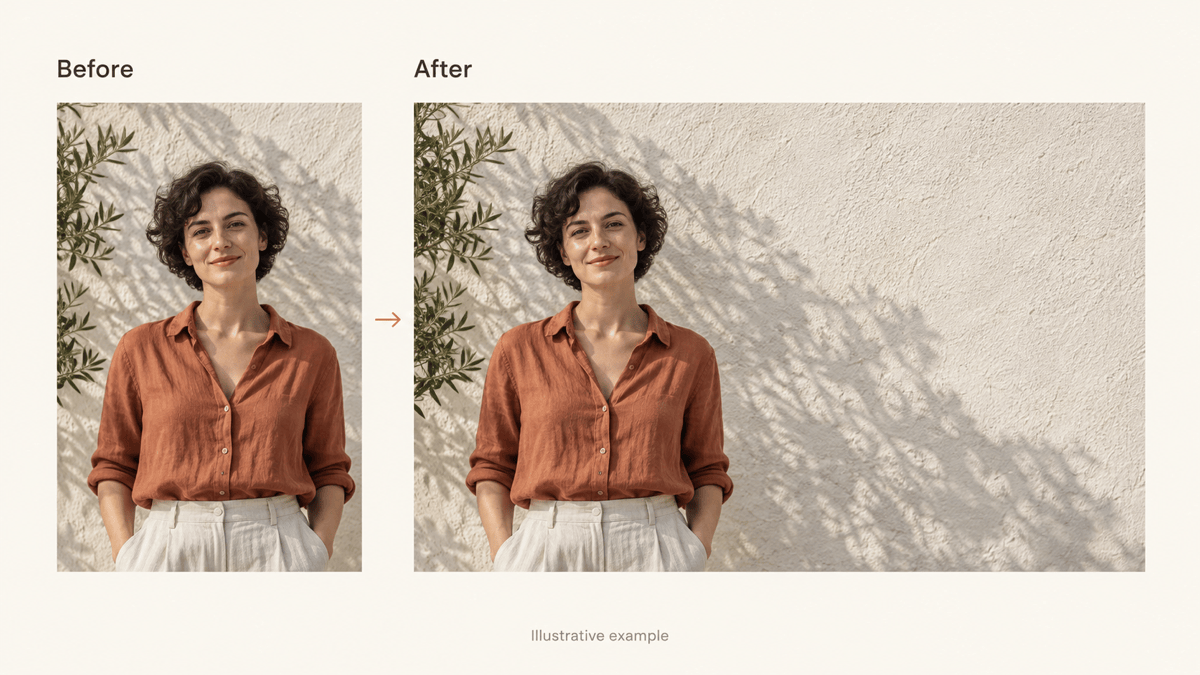
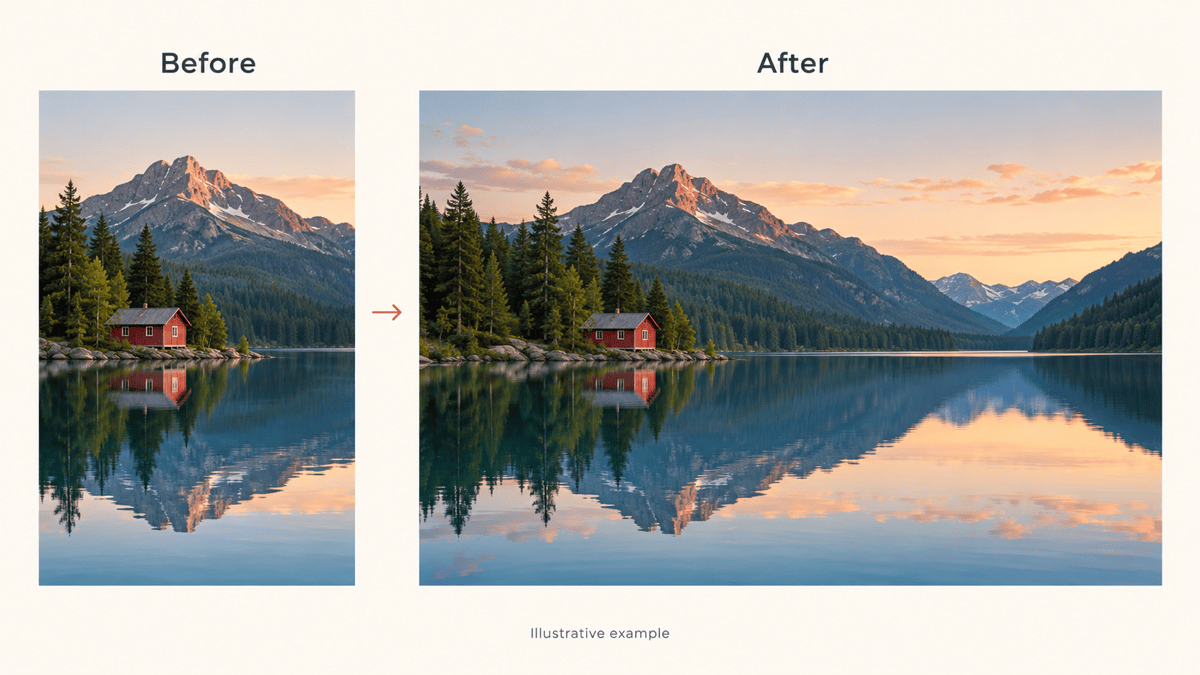
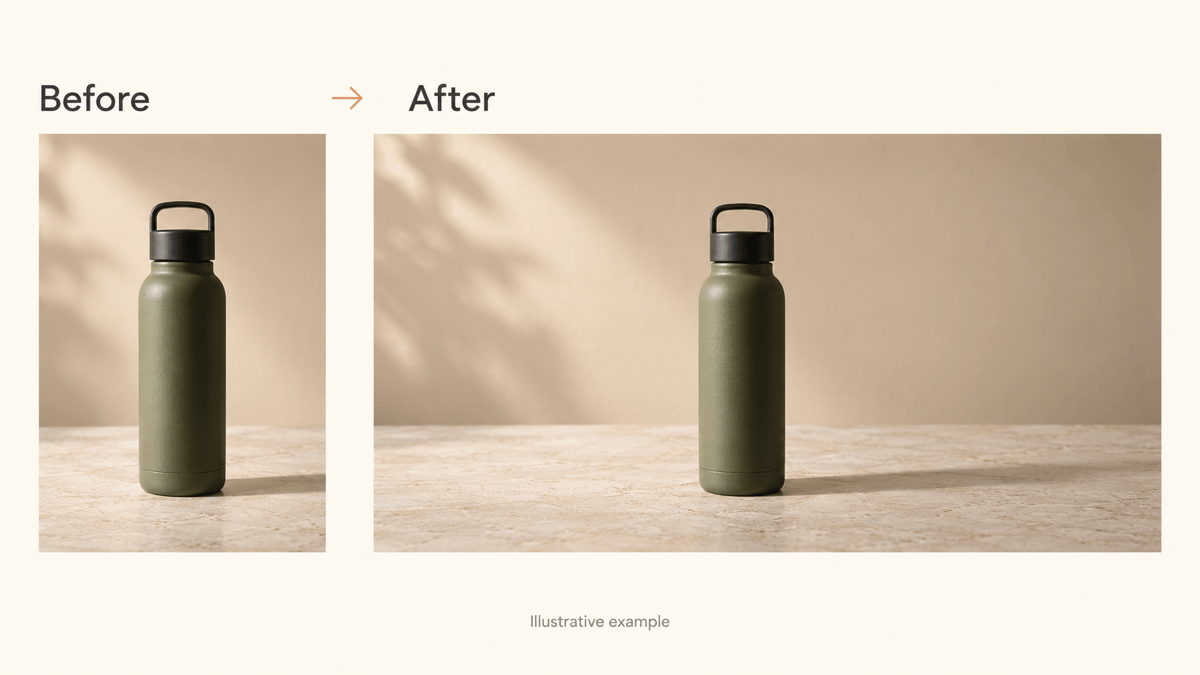
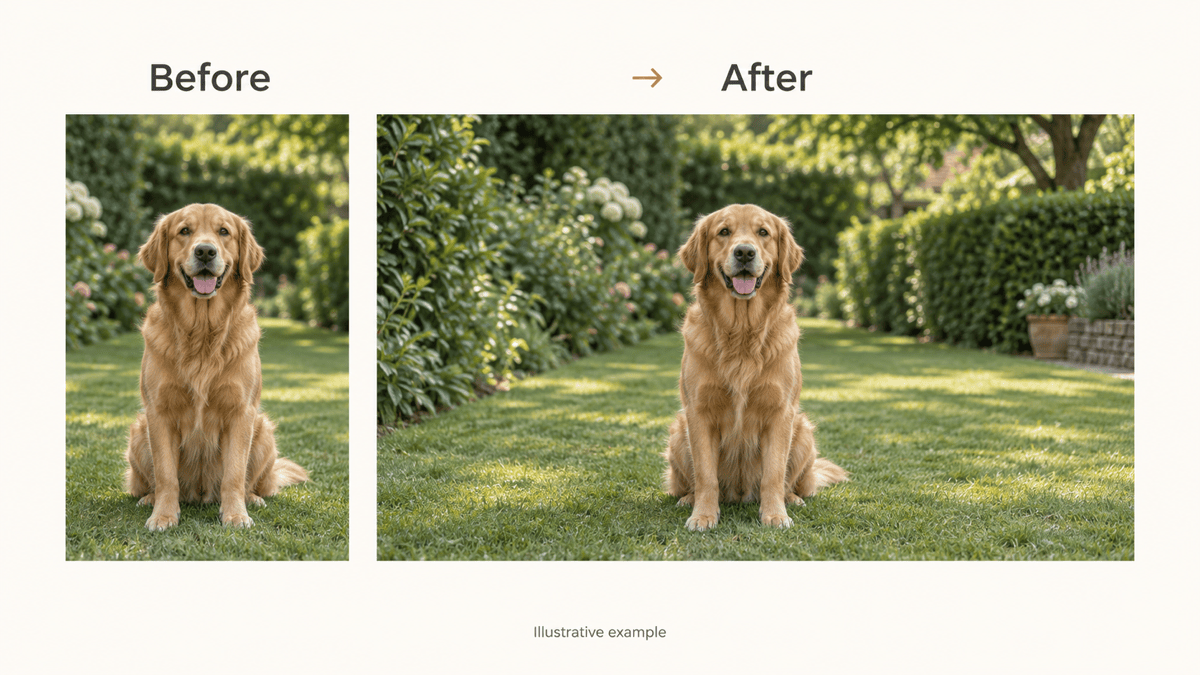
How to Turn a Portrait Photo into Landscape with AI
Upload Your Vertical Photo
Request a Wider Frame
Check the Subject and New Edges
Download and Check the Fit

More Room for the Photo You Want to Use
Work from Your Own Photo
Upload the shot you already have. This vertical to horizontal photo converter uses it as the starting point for a wider composition.
Extend the Background
Ask to convert a portrait photo to landscape without cropping the subject. Generate surrounding scenery instead of stretching the person or squeezing the product.
Leave Space Where You Need It
A website banner may need an open area beside the subject. Describe which side needs room for a headline and ask to keep that area simple.
Refine Details in Chat
Use Chat Edit to address repeated objects, mismatched shadows, or changes to the original. Ask for a focused revision while retaining the parts that work.
Make Versions for Different Layouts
Request a wide thumbnail and a separate presentation image from the same upload. Review each version for subject placement and background continuity.
Try It with Free Credits
Sign up for free AI credits and test your photo online. Download watermark-free PNG or JPG files; further generations depend on available credits.
What to Check Before and After Expanding a Photo
- Start with a Clear Original: Upload the largest clean version you have. Blurry faces and tightly cropped objects leave less useful detail to work with.
- Choose the Frame for Its Destination: 16:9 suits many widescreen layouts; 4:3 or 3:2 offers a less dramatic extension. Check the required ratio and dimensions for your specific placement.
- Compare Important Details: Inspect faces, hands, product labels, straight lines, and shadows. Ask for a correction if they have changed or the new background looks inconsistent.
- Treat New Scenery as Generated: AI invents what lies outside the frame. It cannot recover the real scene that the camera did not capture. Keep the original when factual accuracy matters.
Fix Common Portrait-to-Landscape Problems
The face changed in the wider version. Use my original upload again, keep the person’s facial features, expression, and clothing as close as possible, and extend only the background. Do not add another person.
The expanded sides have visible seams. Blend the new background into the original by matching its lighting, texture, and depth of field. Keep the current subject placement.
The horizon bends at the edge of my travel photo. Align the new horizon with the original and continue the shoreline naturally. Keep the wider landscape frame.
I need this portrait photo as a website banner, but there is no room for a headline. Add more background on the left, keep the subject on the right, and leave the new area uncluttered. Do not add text.
The product looks stretched in the horizontal image. Return to my uploaded photo as the reference. Keep its proportions and label design as close as possible, and extend the tabletop and backdrop instead.
My portrait-to-landscape wallpaper has distracting duplicate objects. Remove the repeated objects in the added areas and continue a simple background. Keep the original subject and the requested 16:9 frame.





