Free OnlineAI Pixel Art Upscaler
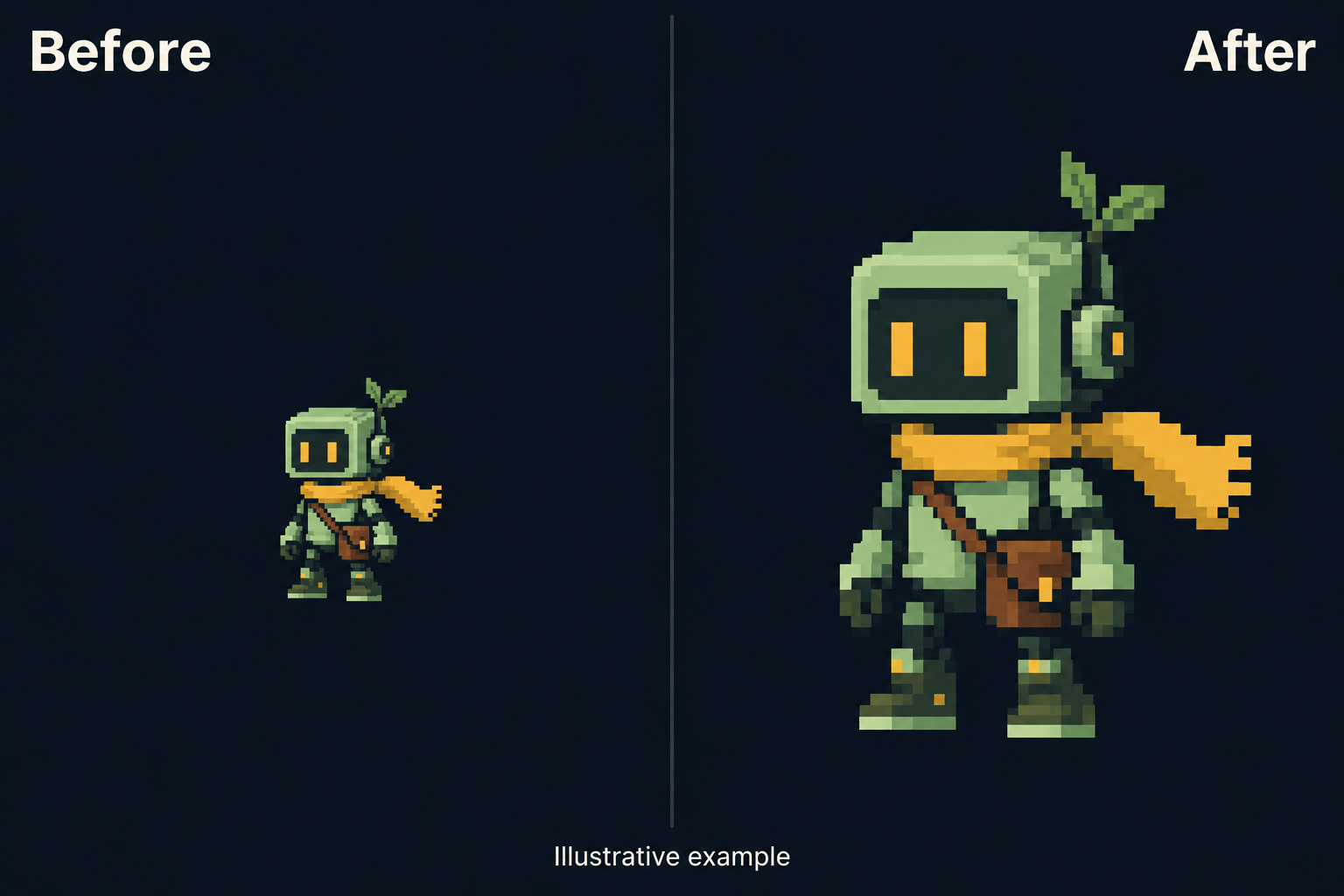
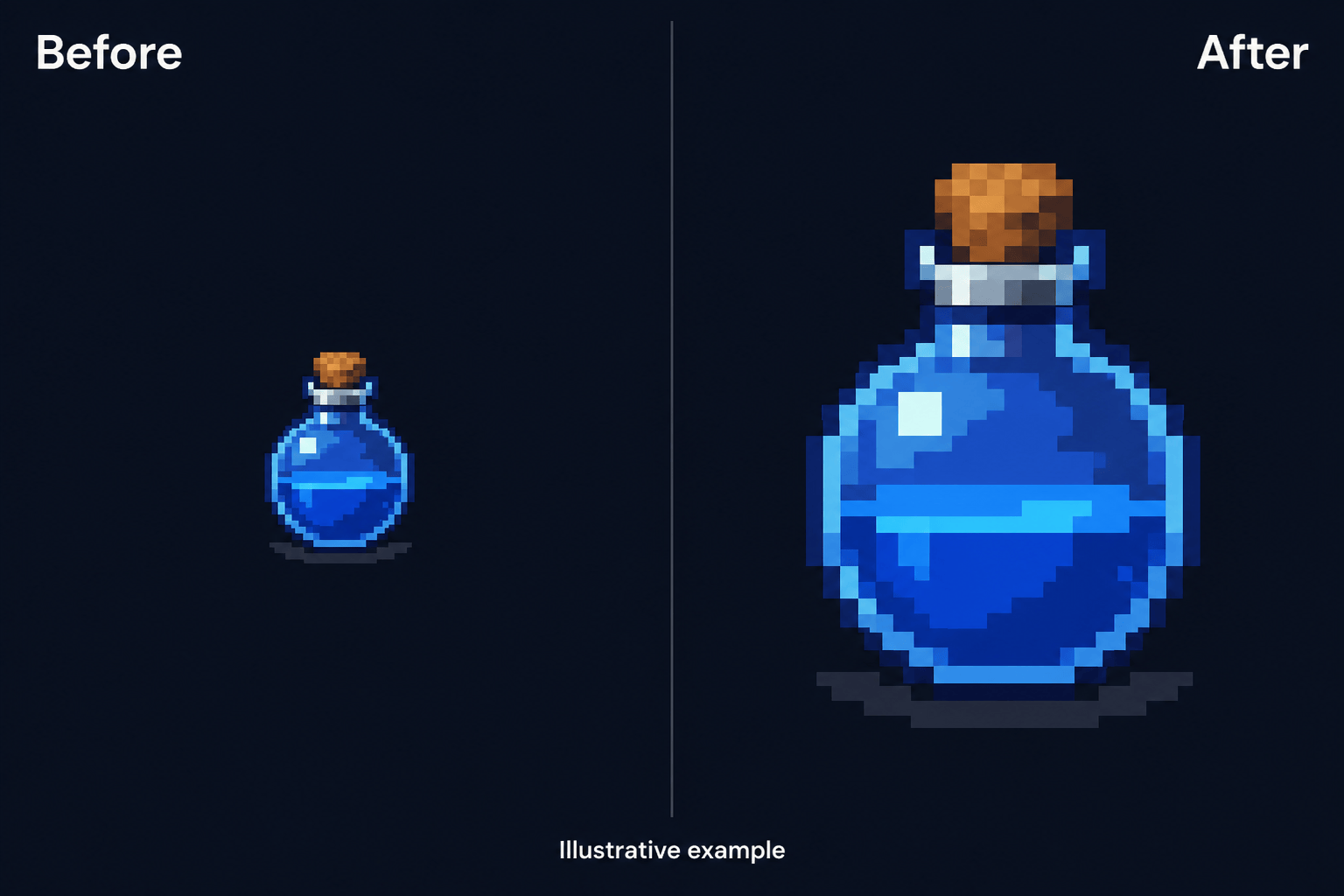
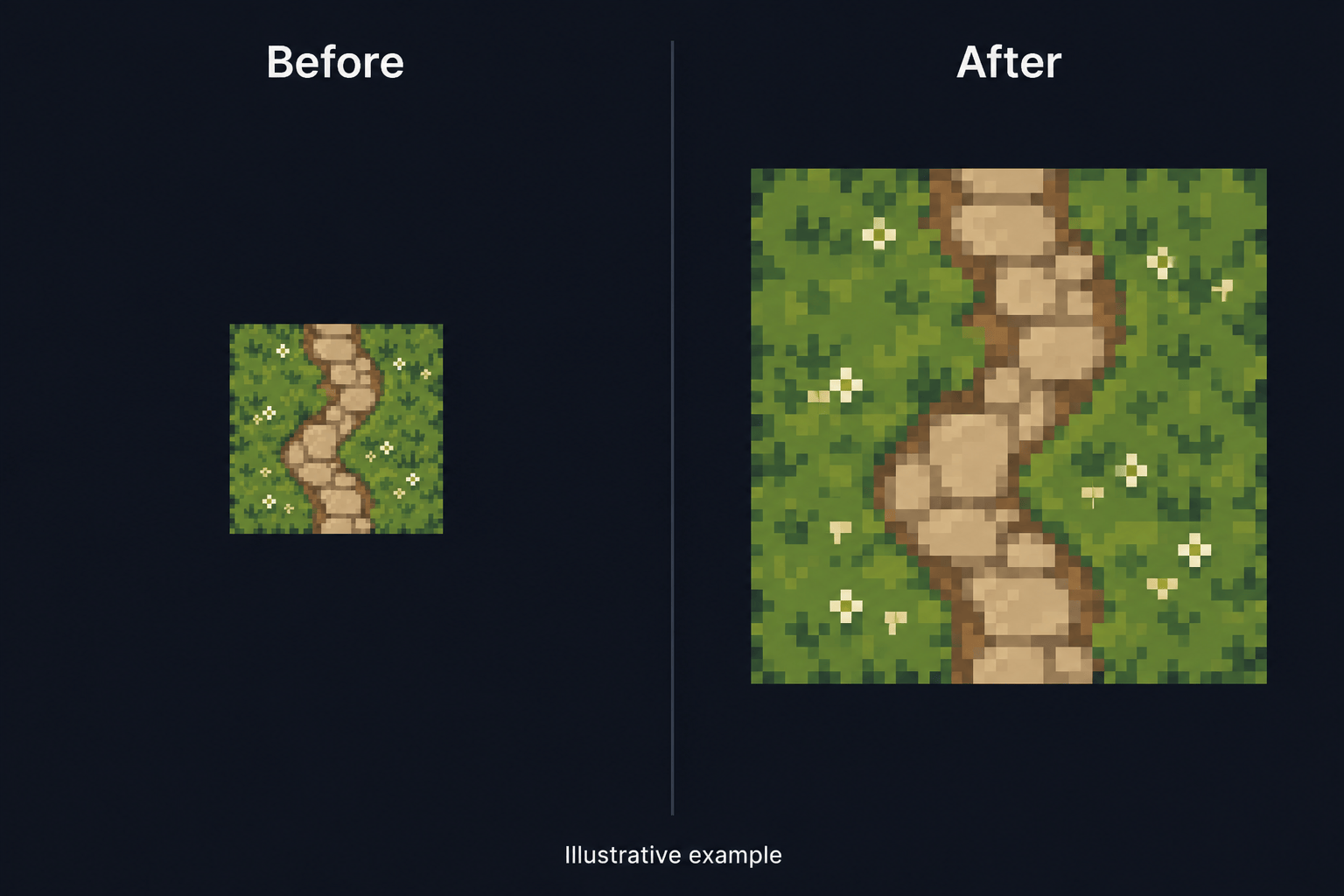
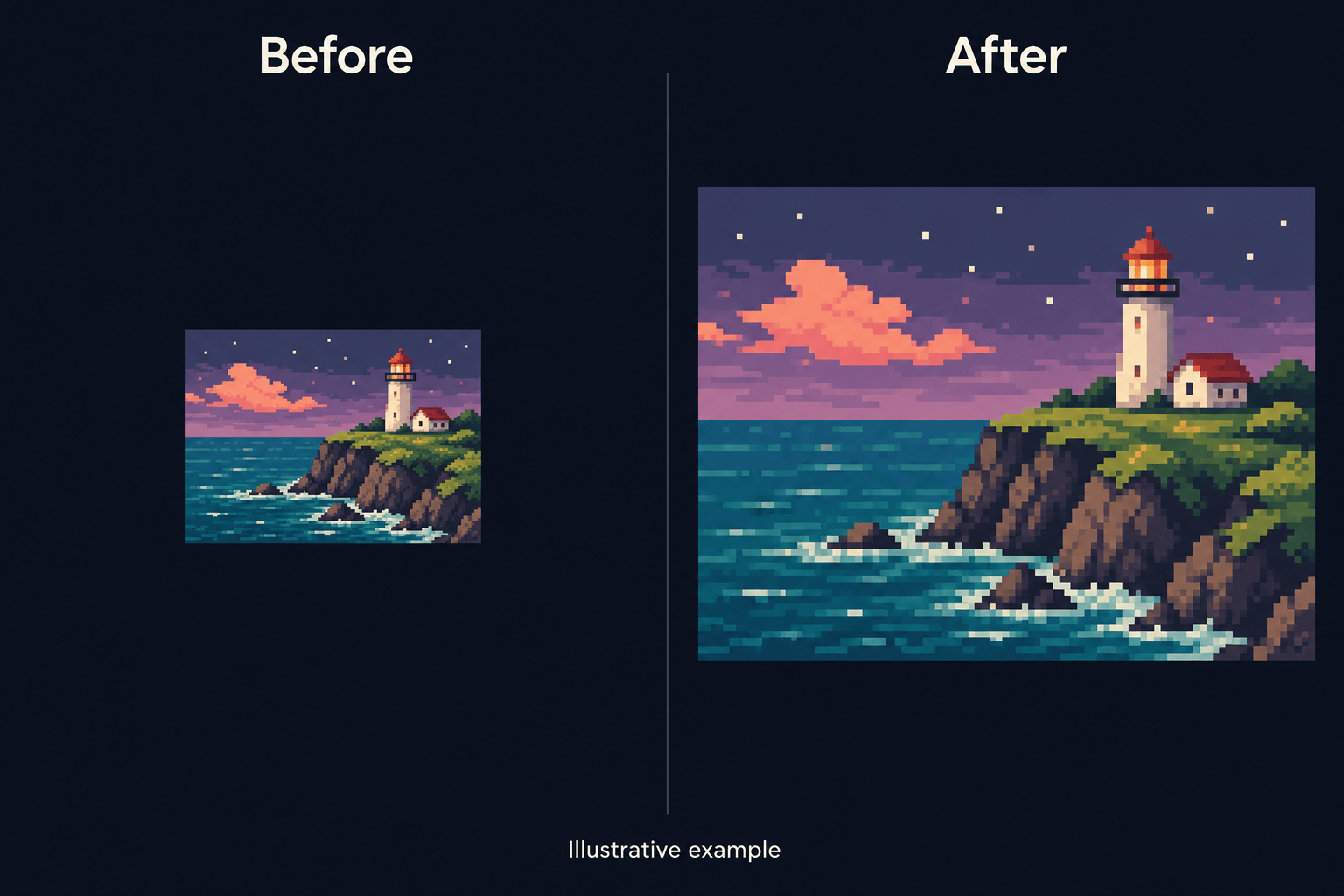
How to Upscale Pixel Art with AI
Upload the Original Artwork
Set the Preservation Priorities
Compare and Correct
Download and Check the Size

More Control over Your Pixel Art Enlargement
Start from Your Own Pixels
Upload existing art as the starting point. This online pixel art enlarger helps you develop a larger version of a recognizable character, item, or scene.
Describe the Retro Look to Keep
Ask for a limited palette, stepped outlines, and simple shading. Your instructions guide the AI enhancement; review fine details against the source.
Fix the Details That Drift
Use Chat Edit to target a missing highlight or an altered face. Request one focused correction while keeping the rest of the composition.
Prepare Standalone Sprites
Ask Mew Design to remove the background for a transparent PNG. Check the cutout on light and dark backgrounds for stray pixels or halos.
Use a Style Reference
Upload a companion asset to show the palette and shading you want. A pixel art enhancer is more useful when the whole set follows a clear visual direction.
Reuse Your Art Direction
Turn an approved workflow into a Mew Skill for future assets. Reuse your palette, outline preferences, and export guidance with less repeated briefing.
How to Enlarge Pixel Art Without Unwanted Blur
- Use a Clean Source: Prefer the original PNG over a screenshot or compressed JPG. Compression artifacts can be mistaken for intentional detail.
- Choose a Sensible Scale: For exact scaling, 2× or 4× keeps pixel blocks even. Request your target dimensions for AI edits, then verify the exported size.
- Protect the Palette: Name the colors and shading patterns to retain. Dithering is intentional pixel texture, so avoid blanket requests to remove all noise.
- Inspect Small Features: Check eyes, one-pixel highlights, outlines, and transparent edges. A larger image is useful only if the original design still reads correctly.
Targeted Fixes for Enlarged Pixel Art
Refine my uploaded sprite: remove the soft halo around its outline and restore crisp, stepped edges. Keep its pose and silhouette unchanged.
Correct the colors in this enlarged pixel art using my original image as the reference. Remove added gradients and bring the shading back toward the original palette.
Remove the background from my uploaded pixel art icon. Keep the small gaps inside the design and prepare a transparent PNG without a white border.
Restore the eyes and small highlights in this enlarged character using the original as a reference. Do not add new facial features, accessories, or textures.
Refine this enlarged terrain tile. Match the grass colors and edge pattern to my reference, and avoid new objects near the borders. I will check the repeated tiles for seams.
Prepare my uploaded pixel landscape for a larger portfolio display. Keep the composition and blocky shading; add clear space around the artwork instead of stretching it.





