Free OnlineAI Pixel Art Generator
How to Create Pixel Art with AI
Choose Text or an Image
Define the Pixel Style
Generate and Refine
Remove, Export, and Check

Why Use Mew Design for AI Pixel Art Generation
From Words to Retro Worlds
Use our AI pixel art generator from text to create character concepts, icons, avatars, items, and complete scenes from a natural-language brief.
Turn Images into Pixel Art
Upload a photo, sketch, or style reference for an AI image-to-pixel-art workflow. Tell the agent which subject, markings, pose, or composition should remain recognizable.
Refine the Pixels by Chat
Use Chat Edit when the first draft feels too smooth, busy, or off-style. Ask for a limited palette, stronger clusters, harder edges, simpler shading, or a different crop.
Explore Coordinated Variations
Generate related versions for characters, props, or environments while repeating the same palette, lighting, scale, and viewpoint. Review each result before treating it as a matched asset set.
Create Clean Cutout Assets
After generation, ask Mew Design to remove the background and export a transparent PNG for an avatar, icon, item, or character concept. Check fine edges before use.
Reuse a Proven Art Direction
Turn a successful palette, rendering style, and output method into a reusable Mew Skill. Future pixel art requests can start with the same working rules and less repeated setup.
How to Prompt an AI Pixel Art Maker
- Name the asset: Say whether you need a character sprite, icon, item, avatar, environment, tile-like texture, or isometric building.
- Set the pixel language: Choose an 8-bit or 16-bit direction, low or moderate pixel density, limited palette, outline style, and whether dithering is welcome.
- Control the view: Specify front, side, top-down, or isometric view; full-body or cropped framing; pose; padding; and whether the background should be transparent.
- Protect what matters: For image-to-pixel-art edits, state which face, markings, silhouette, colors, or composition must remain recognizable and what may change.
Text-to-Pixel-Art Prompts You Can Try
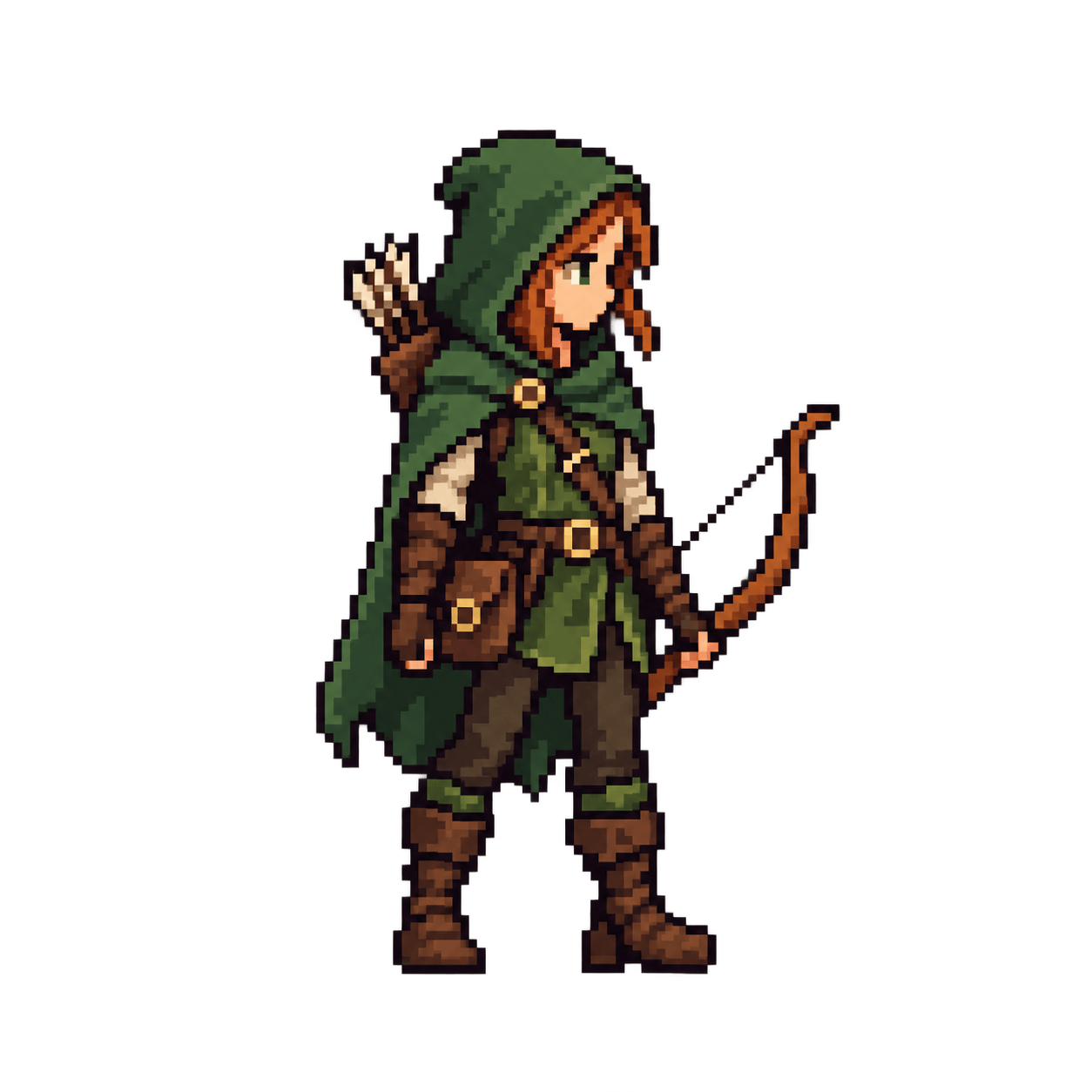
Create a full-body 16-bit fantasy ranger character sprite, side view, forest-green hood, copper bow, clear silhouette, limited 16-color palette, hard square pixels, simple two-step shading, transparent background, centered with padding.
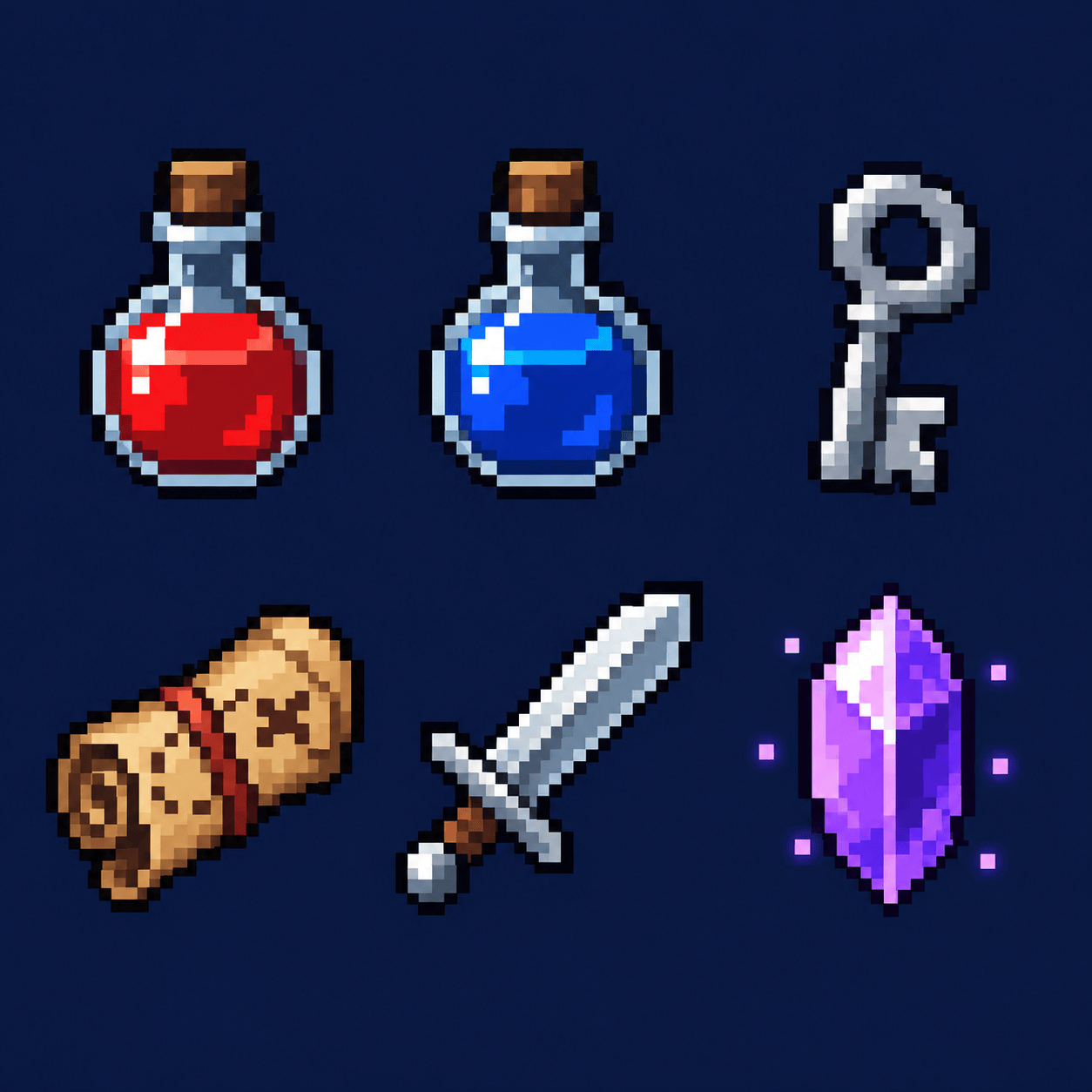
Generate a cohesive set of six 8-bit RPG inventory icons: health potion, mana potion, iron key, leather map, silver sword, and glowing crystal. Use one shared 12-color palette, dark outlines, consistent scale, square canvas, and transparent background.
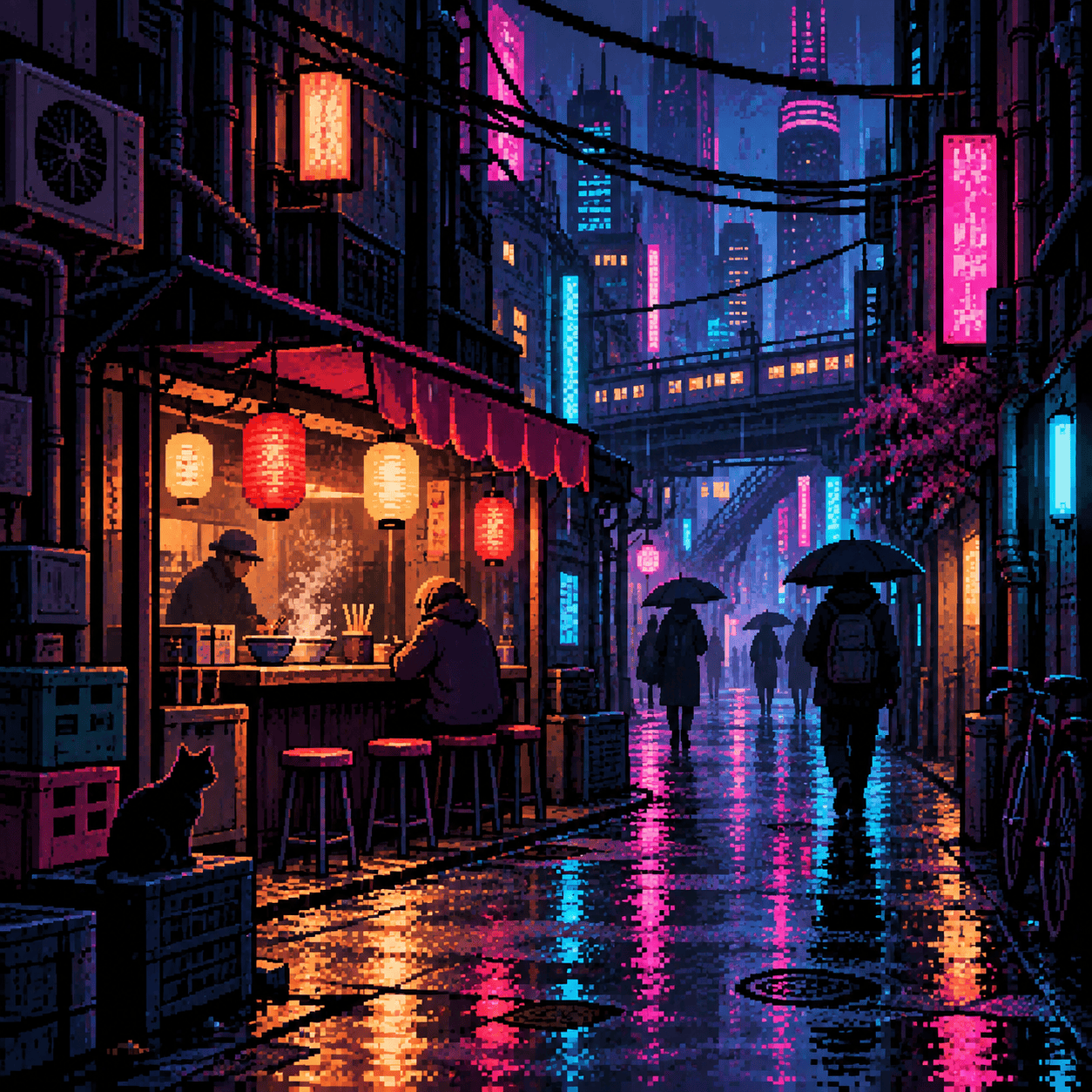
Create a square 16-bit cyberpunk alley at night with a noodle stall, rain reflections, overhead cables, and tiny pedestrians. Use magenta, cyan, indigo, and amber, crisp pixel clusters, controlled dithering, and no smooth gradients.
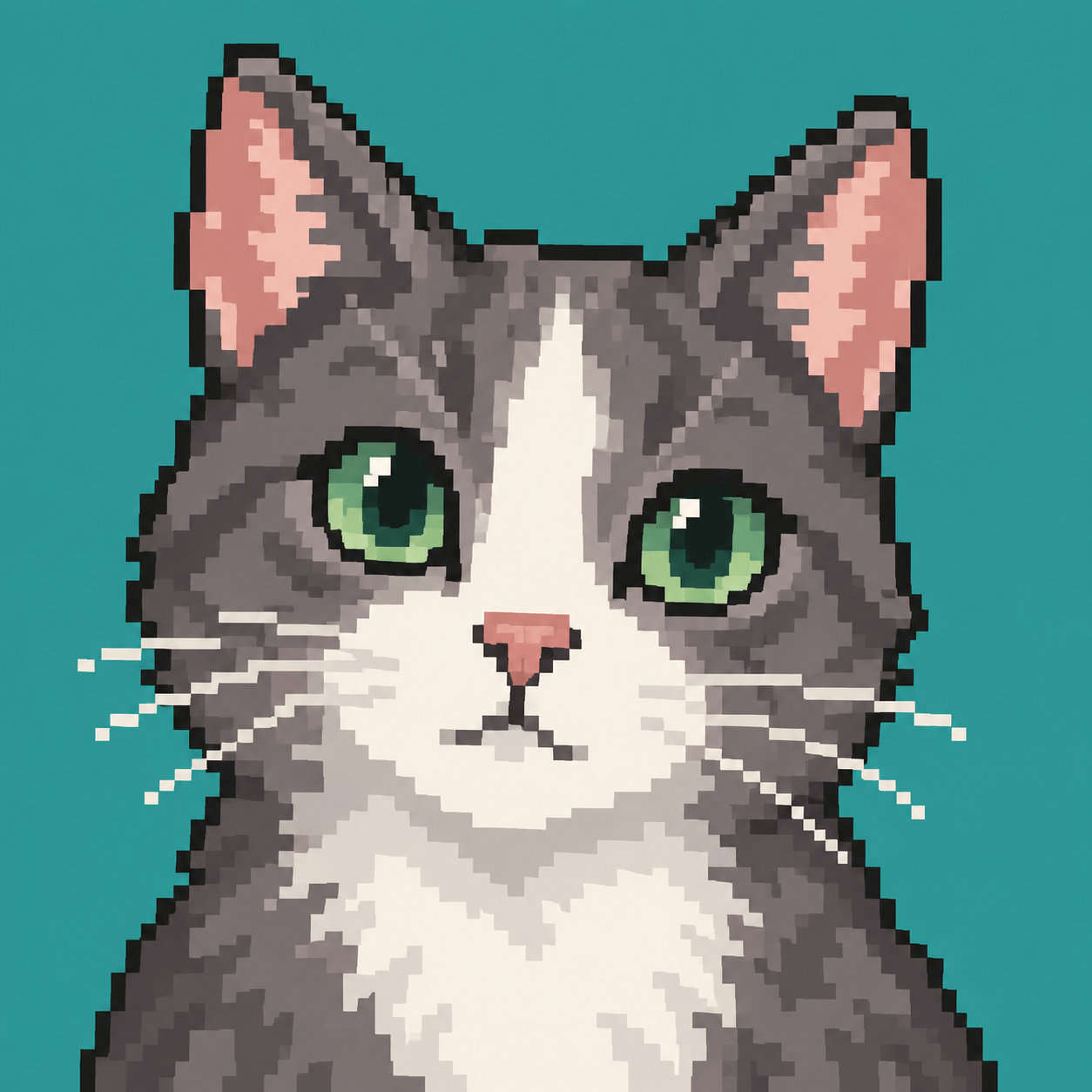
Turn my uploaded cat photo into a cute 8-bit pixel art avatar. Keep the cat's white nose stripe, green eyes, ear shape, and calm expression recognizable. Use a simple teal background and a limited warm-gray palette.
Create an isometric pixel art potion shop with a red tile roof, round window, hanging herb sign, wooden shelves visible inside, and two glowing bottles by the door. Use a cozy 16-bit palette and clean diagonal edges.
Generate a retro pixel art illustration for a square social post: a small astronaut tending plants inside a moon greenhouse, deep navy space outside, limited pastel palette, readable silhouette, crisp square pixels, and generous border space.