Free to Try OnlineAI Photo to Illustration
How to Create an Illustration from a Photo with AI
Upload the Photo You Want to Transform
Generate an Illustrated Version
Compare and Refine the Details
Download for Your Next Project

Your Photo, with Room for Creative Direction
Build on a Photo That Matters
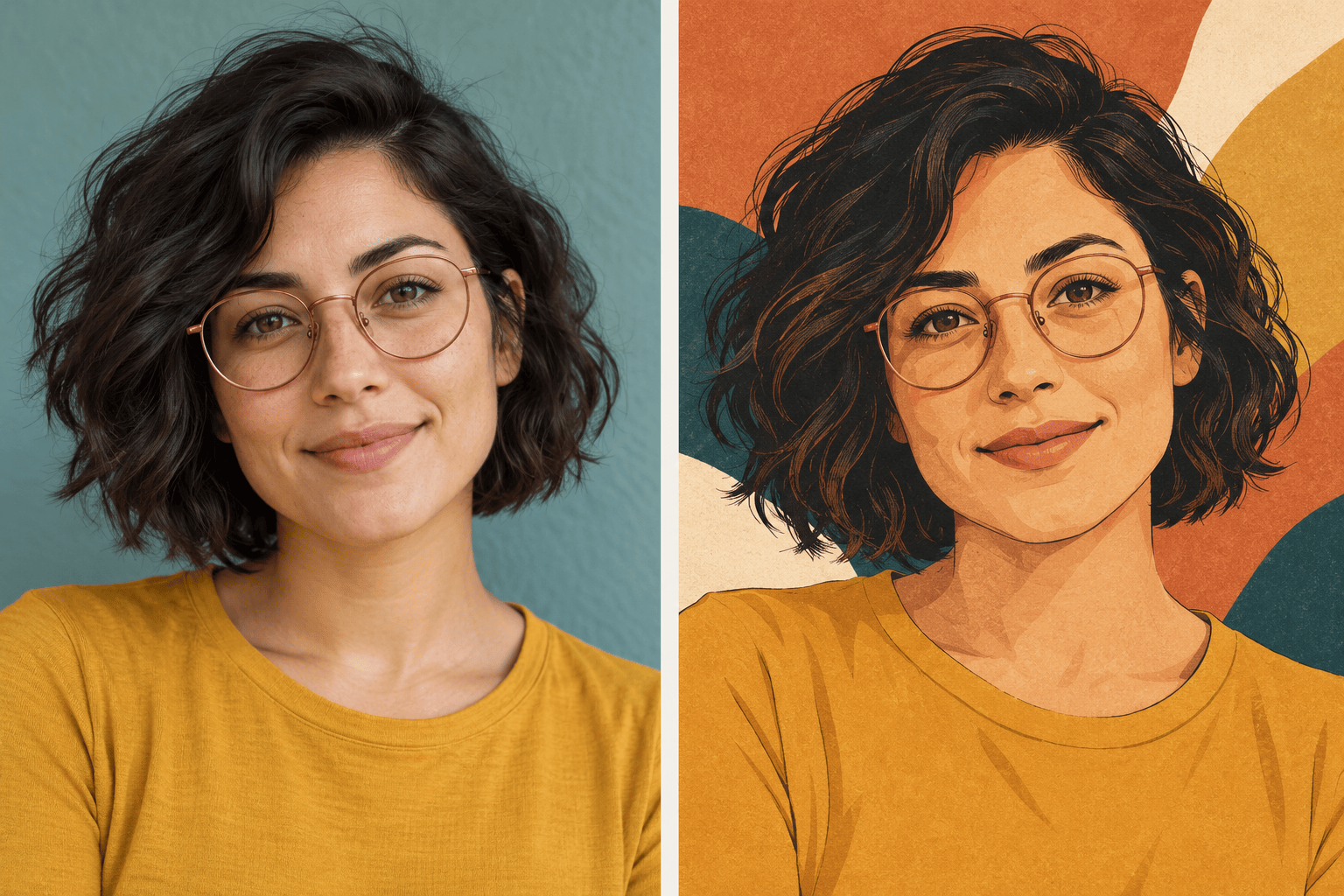
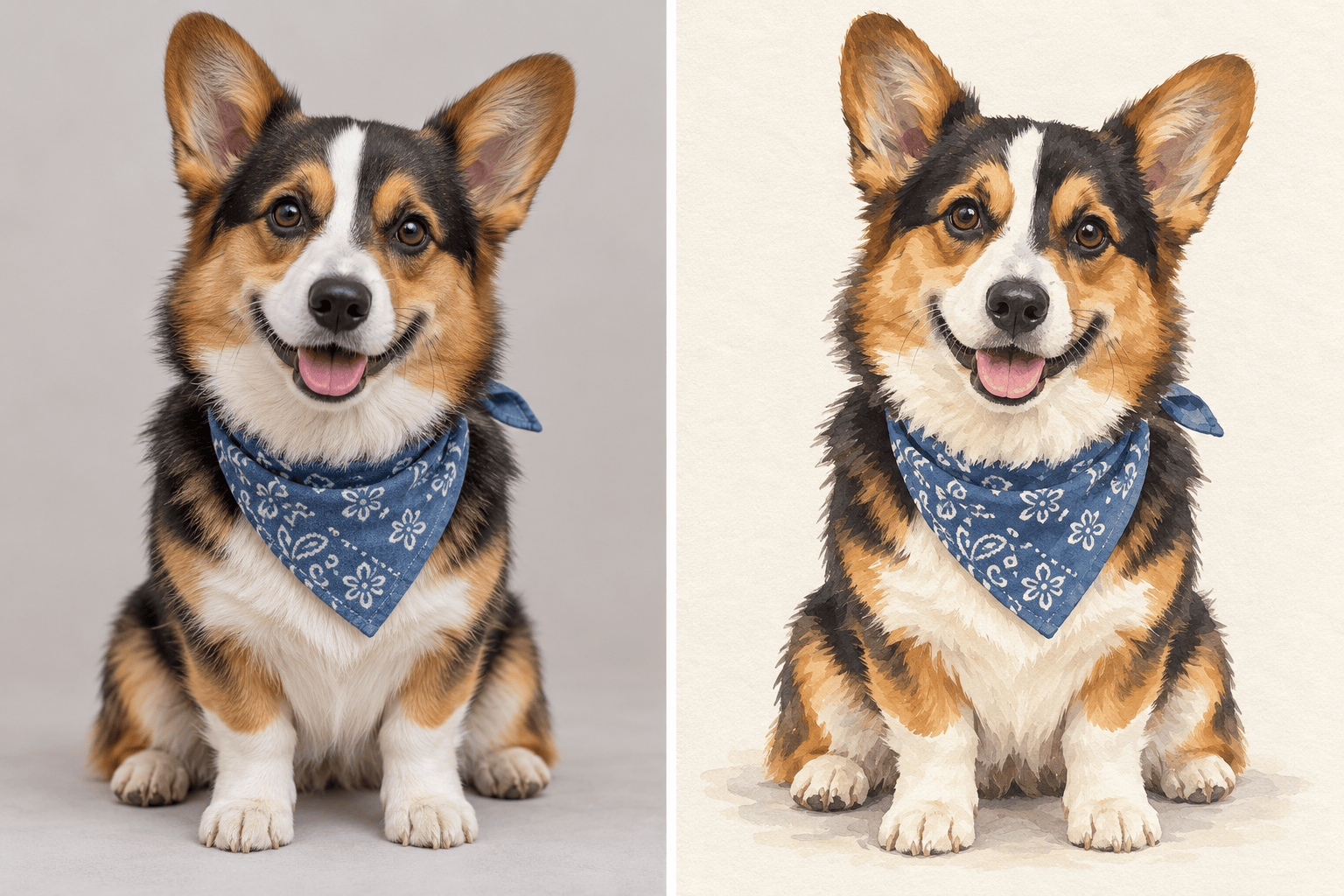
Use a selfie, a pet portrait, or a place you love as the starting point. Tell our image-to-illustration AI which features make the subject recognizable.
Explore More Than One Look
Turn a photo into a watercolor illustration, try clean line art, or compare flat-color editorial styles. Describe the medium without learning drawing software.
Make Specific Changes in Chat
Ask for thinner outlines, quieter colors, or fewer background details. Chat Edit lets you refine the illustration with focused follow-up requests.
Bring a Separate Style Reference
Upload an illustration you like alongside your photo. Identify which image supplies the subject and which guides the palette, linework, and texture.
Give the Subject a Clean Background
Ask to remove the background for a transparent PNG. For cutout borders and themed packs, continue with our AI sticker generator.
Reuse a Look Across New Photos
Save an approved palette, line style, and workflow as a Mew Skill for future illustrations. Reduce repeated setup while reviewing each result for consistency.
Choose a Photo That Will Illustrate Well
- Subject Clarity: Choose a sharp, well-lit photo with the whole subject visible. Heavy filters, blur, and deep shadows leave less useful detail.
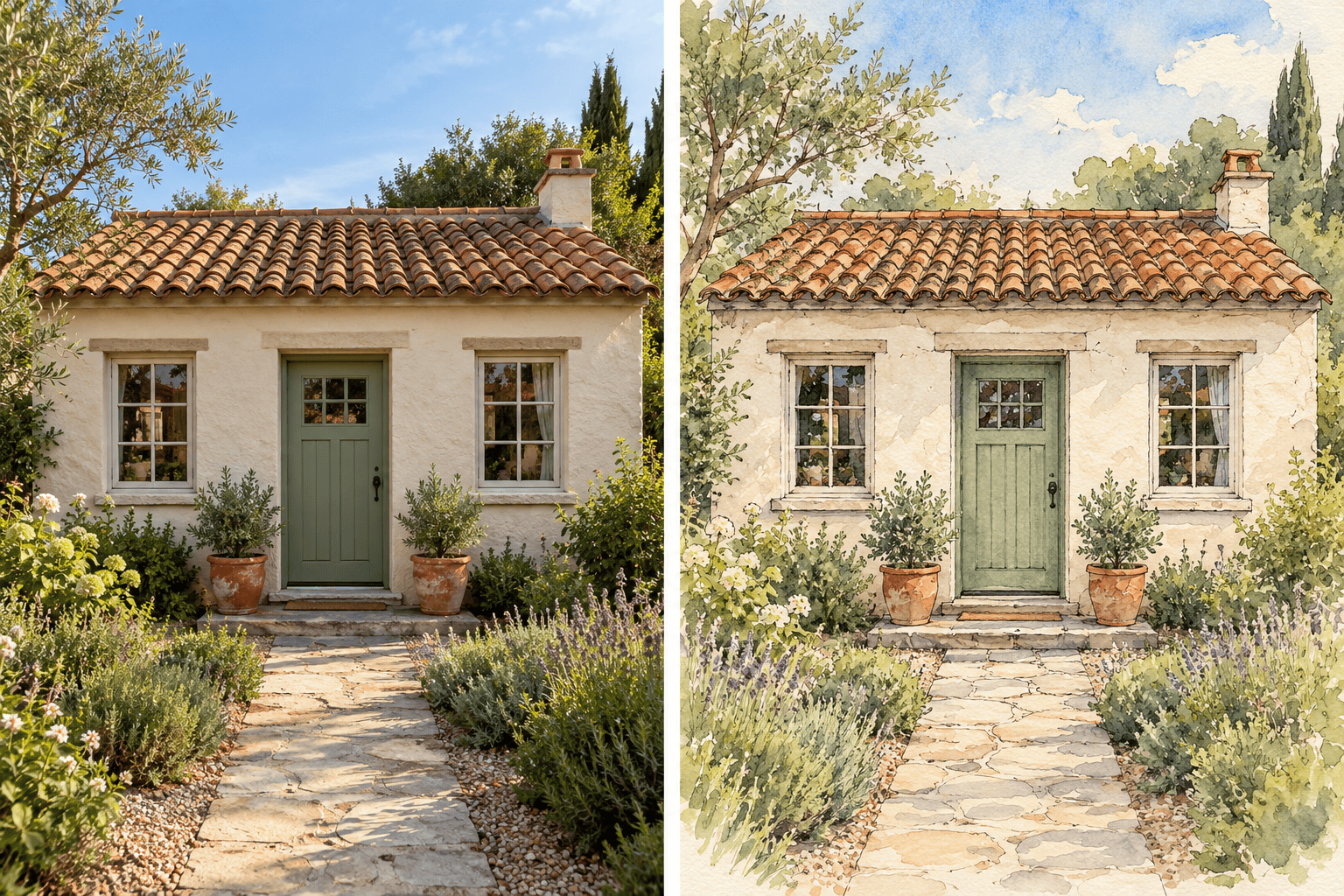
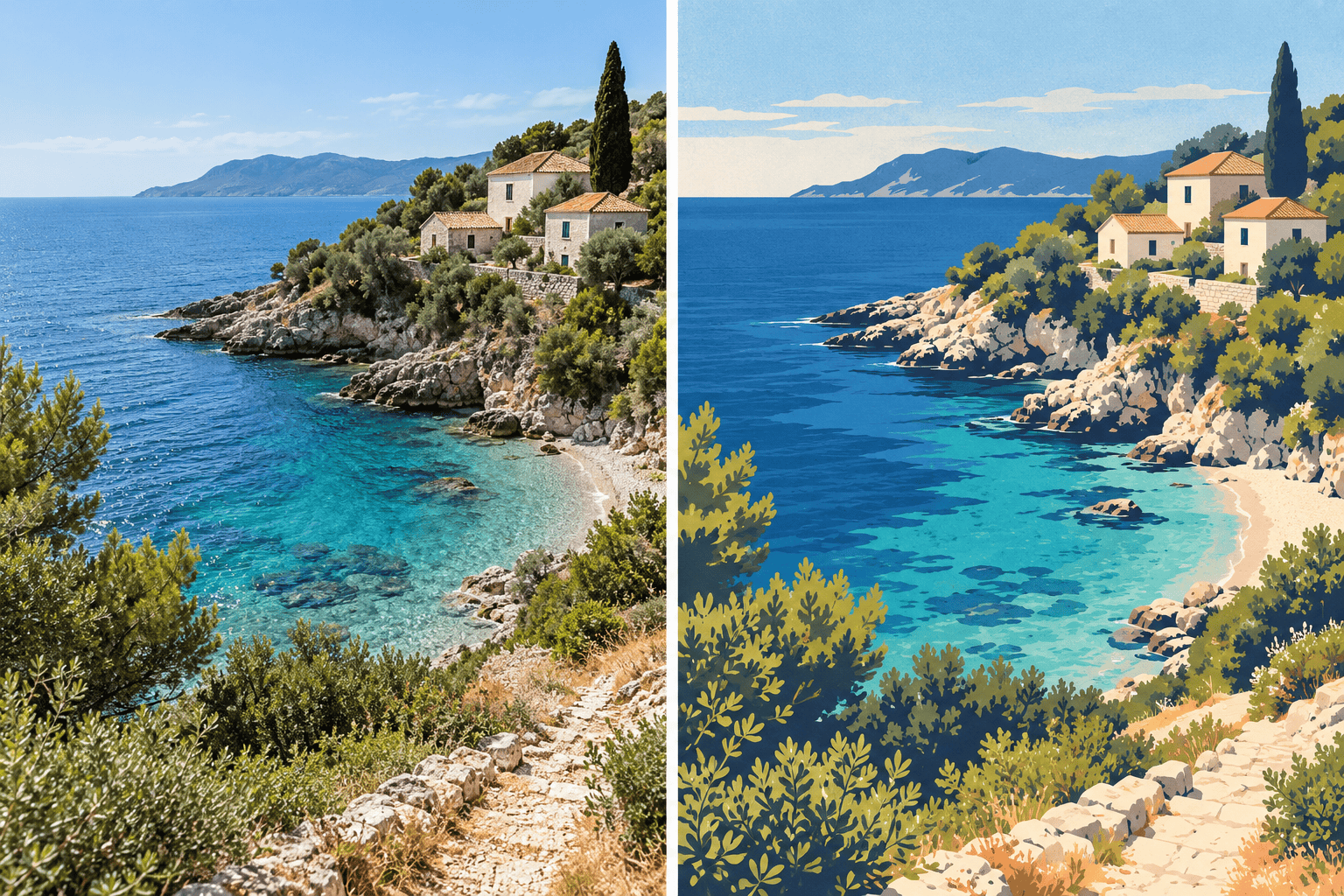
- Details to Preserve: Name the important features: a smile, fur markings, the roofline, or the coastline. Separate them from details you want changed.
- Style and Background: Specify the medium and whether to keep, simplify, or remove the setting. A style reference should guide the finish, not replace your subject.
- Final Crop: Say whether the artwork is for a square avatar, a vertical gift print, or a wide travel print. Leave room around faces and other important edges.
Fix Common Photo-to-Illustration Problems
Use my original portrait to revise this illustration. Restore the face shape, eye spacing, and natural smile. Keep the current ink style without enlarging the eyes.
Check my original pet photo and correct the fur patches, ear shape, and eye color in the illustration. Keep the gouache texture and the same pose.
Simplify the busy background in this illustration to a few soft shapes. Keep the subject’s outline clear and preserve the original pose and clothing.
Make this photo-based line art cleaner. Remove small distracting lines and use a consistent thin outline, while keeping the main facial features readable.
Revise this house illustration against my photo. Restore the window positions, roof shape, and doorway. Keep the watercolor washes and avoid adding architectural details.
Turn my uploaded travel photo into a flat, vector-style illustration. Keep the coastline and main buildings, use a limited palette, and replace photographic texture with solid shapes.





