Free OnlineAI Photo Stitch
How to Stitch Photos Together with AI
Choose Compatible Source Photos
Assign Each Photo a Role
Generate One Coherent Scene
Inspect, Refine, and Export

Why Use Mew Design for AI Photo Stitching
Build One Scene from Visual References
Upload portraits, objects, pets, rooms, or landscapes as references. This online AI photo stitcher uses them to generate a new combined image instead of leaving obvious rectangular cutouts.
Tell the AI What Must Stay
A useful merge is not only about blending edges. Specify the identity, pose, product proportions, label position, clothing, or background structure that matters before you combine two photos with AI.
Direct Light, Scale, and Perspective
Ask Mew Design to align shadow direction, color temperature, subject size, camera height, and depth of field so separate sources feel more at home in the same frame.
Repair the Composite Through Chat
If a face drifts or an object feels pasted on, use Chat Edit to target that issue while asking the agent to preserve the parts that already work.
Explore More Than One Arrangement
Generate alternate placements, backgrounds, crops, and moods from the same source pair. Compare variations before choosing the most believable or useful seamless photo composite.
Start with Free AI Credits
Try the free AI photo stitch workflow with signup credits. Refine your result online and export finished images without a watermark when you are ready.
Prepare Photos That Stitch More Naturally
- Match the Sources: Similar viewpoints, lighting, sharpness, and subject scale reduce the amount of reconstruction needed and make a believable join easier.
- Name Each Role: State which image is the base scene, subject, product, background, or style reference instead of saying only “combine these photos.”
- List Protected Details: Call out facial identity, expression, body shape, product geometry, label placement, room structure, or any detail that should not be redesigned.
- Describe the Integration: Specify placement, relative size, contact shadows, light direction, camera angle, and depth of field, then inspect the result before sharing it.
AI Photo Stitch Requests for Real Projects
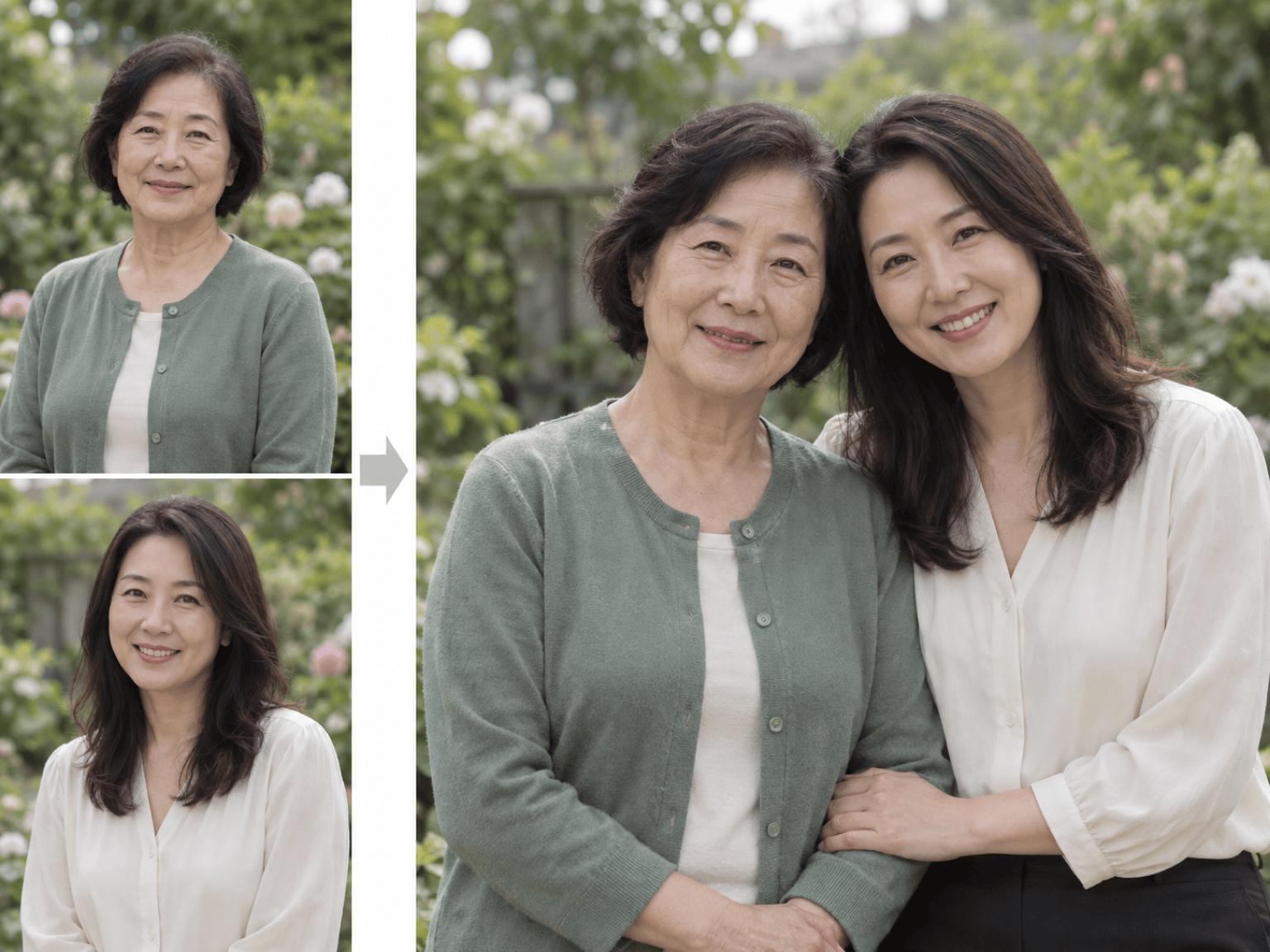
Put Two People Together: Combine @[person 1] and @[person 2] into one natural outdoor portrait. Preserve both faces, hairstyles, expressions, clothing, and body proportions. Place them at the same eye level, match soft overcast light and shadow direction, and use a realistic park background with no extra people or limbs.
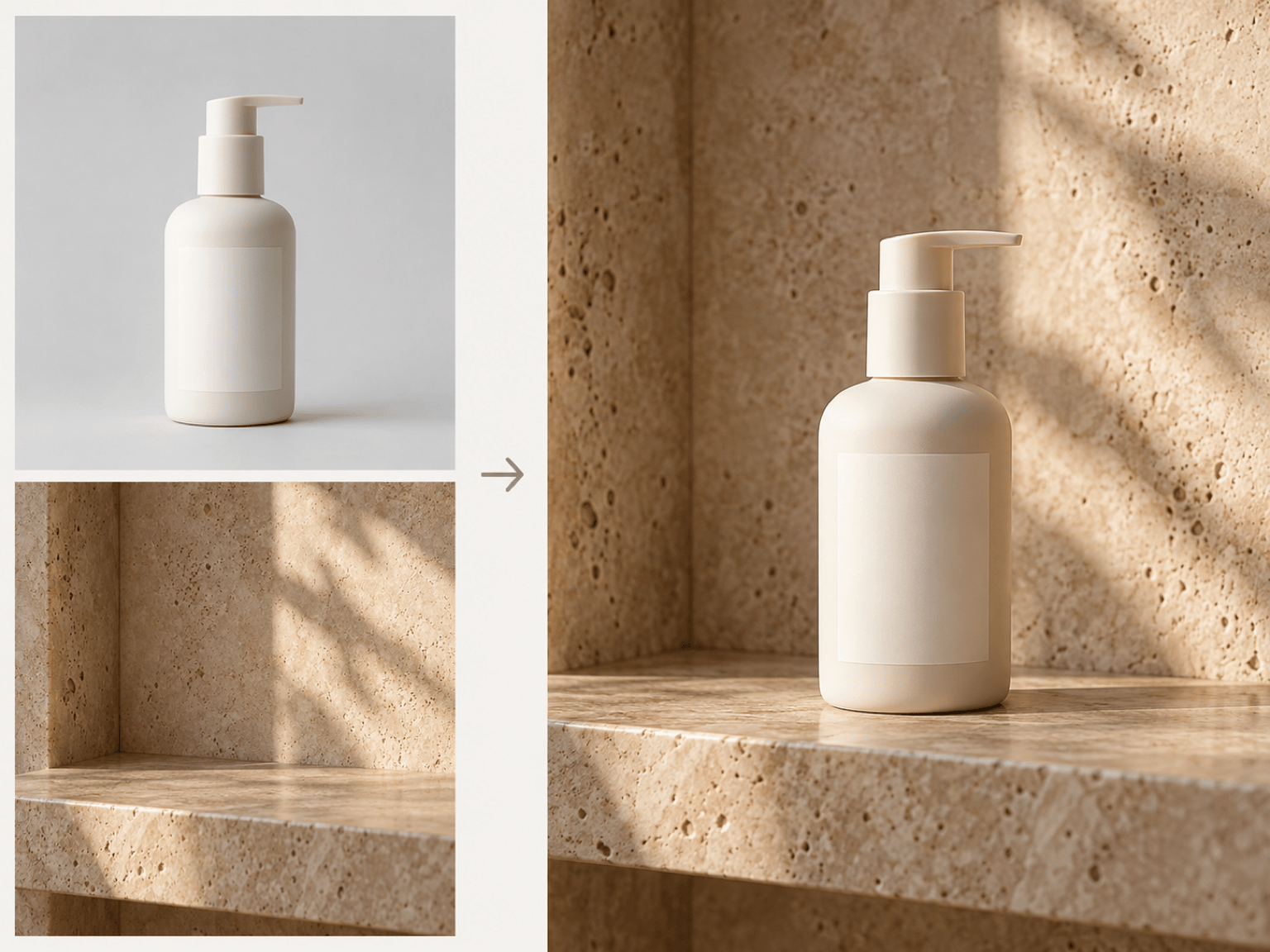
Stage a Product in a New Setting: Place the product from @[packshot] on the stone counter in @[lifestyle background]. Keep its exact silhouette, cap, label proportions, and material finish. Match perspective, warm side light, contact shadow, and reflections; add no new text, logos, or props.
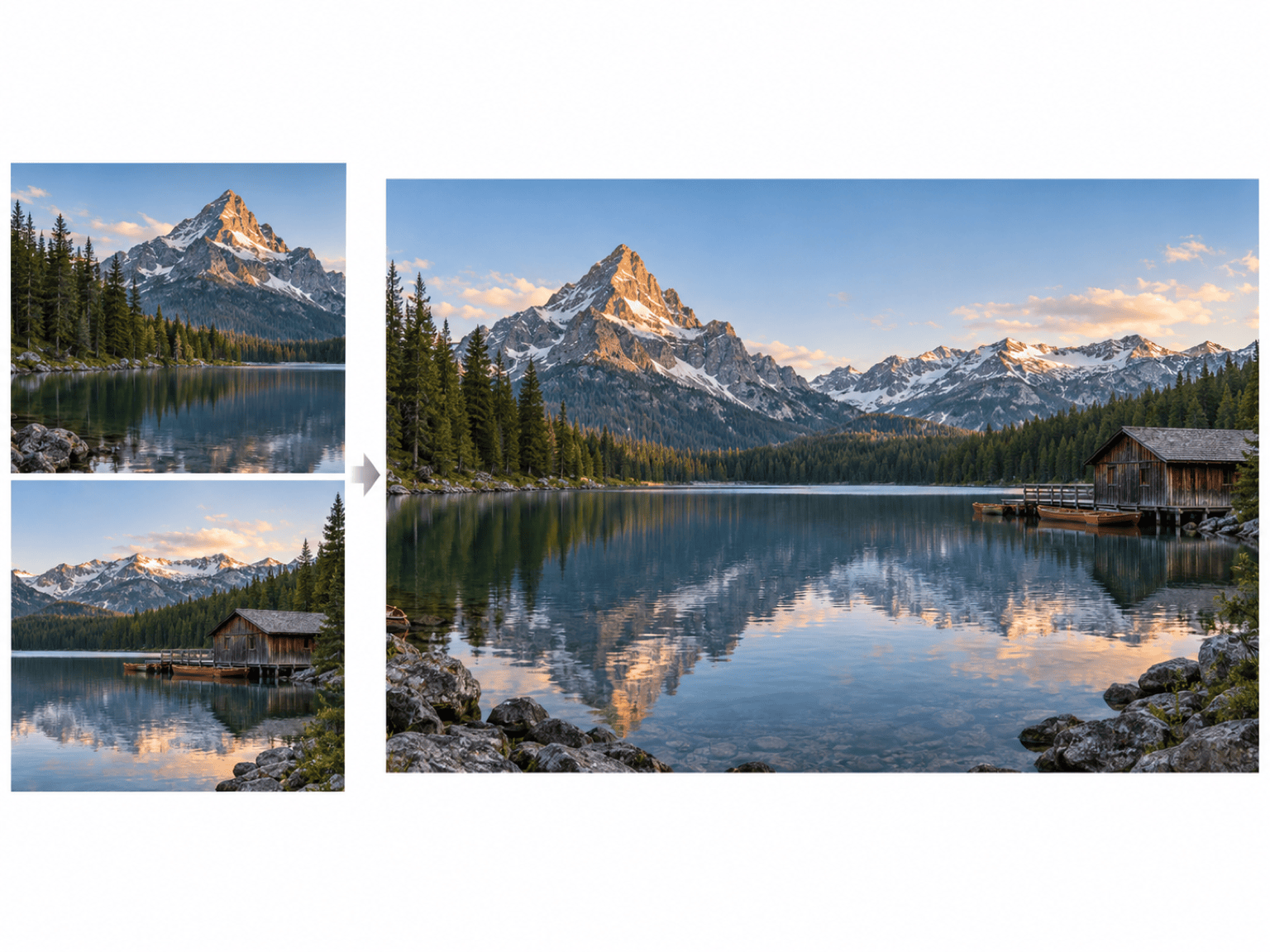
Create a Panorama-Style Travel Scene: Use @[landscape left] and @[landscape right] as references for one wide mountain-lake view. Preserve the recognizable shoreline and peaks, bridge the center naturally, balance exposure and color, and remove duplicate objects or visible seams.
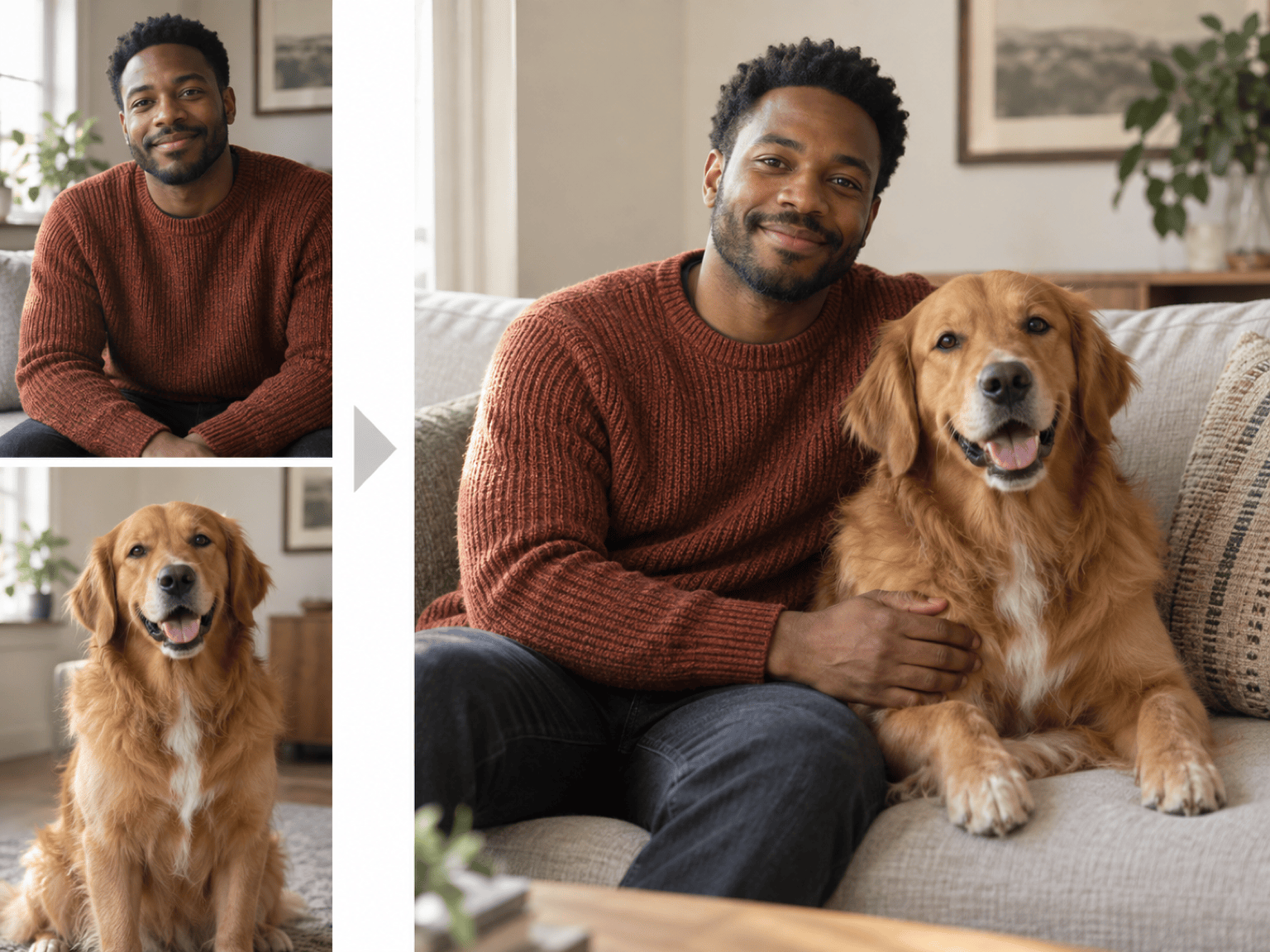
Bring a Pet and Owner into One Photo: Combine the person from @[owner portrait] with the dog from @[pet portrait] in a relaxed living-room scene. Preserve the person’s face and the dog’s markings, match scale and warm window light, and create natural contact where the owner’s hand rests on the dog.
Add a Missing Person to a Group: Insert the person from @[individual portrait] into the open space in @[group photo]. Keep every existing person unchanged, preserve the added person’s identity and outfit, and match camera height, body scale, grain, color, and shadow direction.
Make a Side-by-Side Comparison: Arrange @[before photo] and @[after photo] in one clean horizontal comparison. Do not regenerate or retouch either source. Match crop height, leave an even divider, use a neutral background, and export one image with no labels, logos, or extra decoration.





