Free OnlineAI Photo Border Generator

How to Add a Border to a Photo with AI
Upload the Photo You Want to Frame
Describe the Border and What to Preserve
Generate a Frame That Fits the Photo
Fine-Tune and Export

A Photo Frame Maker That Starts with Your Image
Keep the Photo as the Main Subject
Upload the original as an image reference and state what must stay unchanged. This image-to-image workflow helps the border surround the picture instead of replacing the people, products, or scenery you care about.
Create Borders Beyond Fixed Presets
Describe linen mats, torn paper, metallic corners, film perforations, painted flowers, holiday details, or a restrained brand-color outline. Our AI photo frame generator turns the idea into a custom visual direction.
Design for the Final Destination
Ask this online AI photo frame maker for a square profile image, 4:5 feed post, story graphic, printable keepsake, or another practical format. Mention the destination so the border and negative space support the composition.
Adjust the Edges Through Conversation
If the first border feels too busy or covers an important detail, use Chat Edit and request a narrower edge, quieter corner decoration, different texture, or more breathing room without starting over.
Explore a Coordinated Set of Variations
Generate several directions around the same photograph, from a minimal white border to a richer themed frame. Compare coherent options before choosing the version that best fits your post, card, gift, or campaign.
Try It Free and Export Without a Watermark
New users receive free AI credits after signup. Use the free AI photo border generator to test a concept, refine the result, and export a clean PNG or JPG without a watermark.
How to Prompt AI for the Right Photo Border
- Define the frame: Name the style or material, such as clean white mat, vintage film, ornate gold, watercolor flowers, torn paper, or a simple colored outline.
- Control coverage: Say whether the border should be narrow or wide, touch all four outer edges, keep the center unobstructed, and avoid covering faces, hands, products, or text.
- Protect the original: List the identity, pose, expression, lighting, colors, crop, and background details that should remain unchanged.
- Name the destination: Specify an aspect ratio and use, such as a 4:5 Instagram post, square profile photo, printable wedding keepsake, birthday card, or product listing.
Photo Border Prompts for Popular Styles
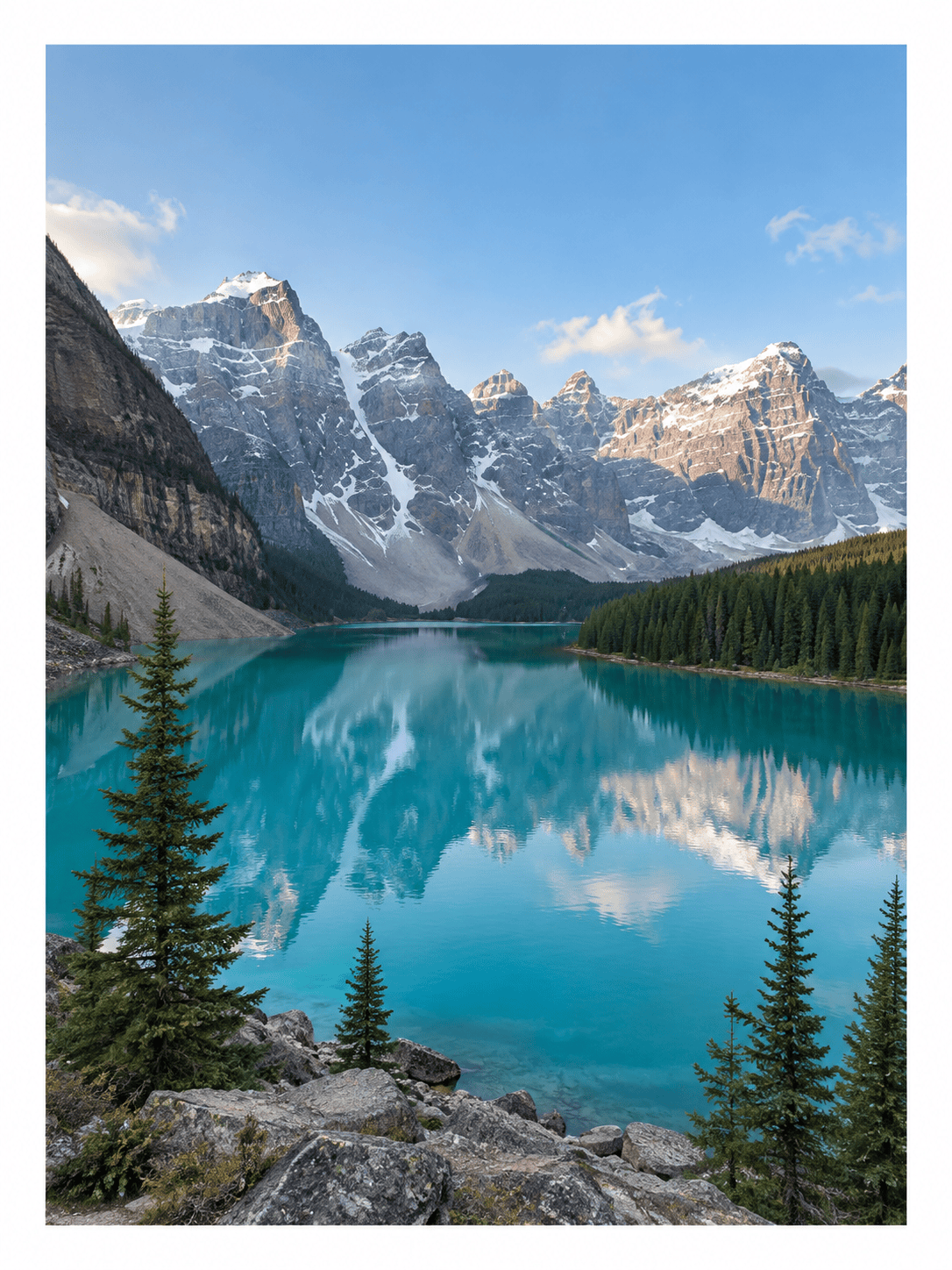
Minimal Instagram Border: Use my uploaded travel photo as the unchanged center. Add an even, clean white gallery border on all four sides with generous but balanced spacing. Preserve the landscape, colors, crop, and people exactly. Format as a vertical 4:5 Instagram post with no text or watermark.
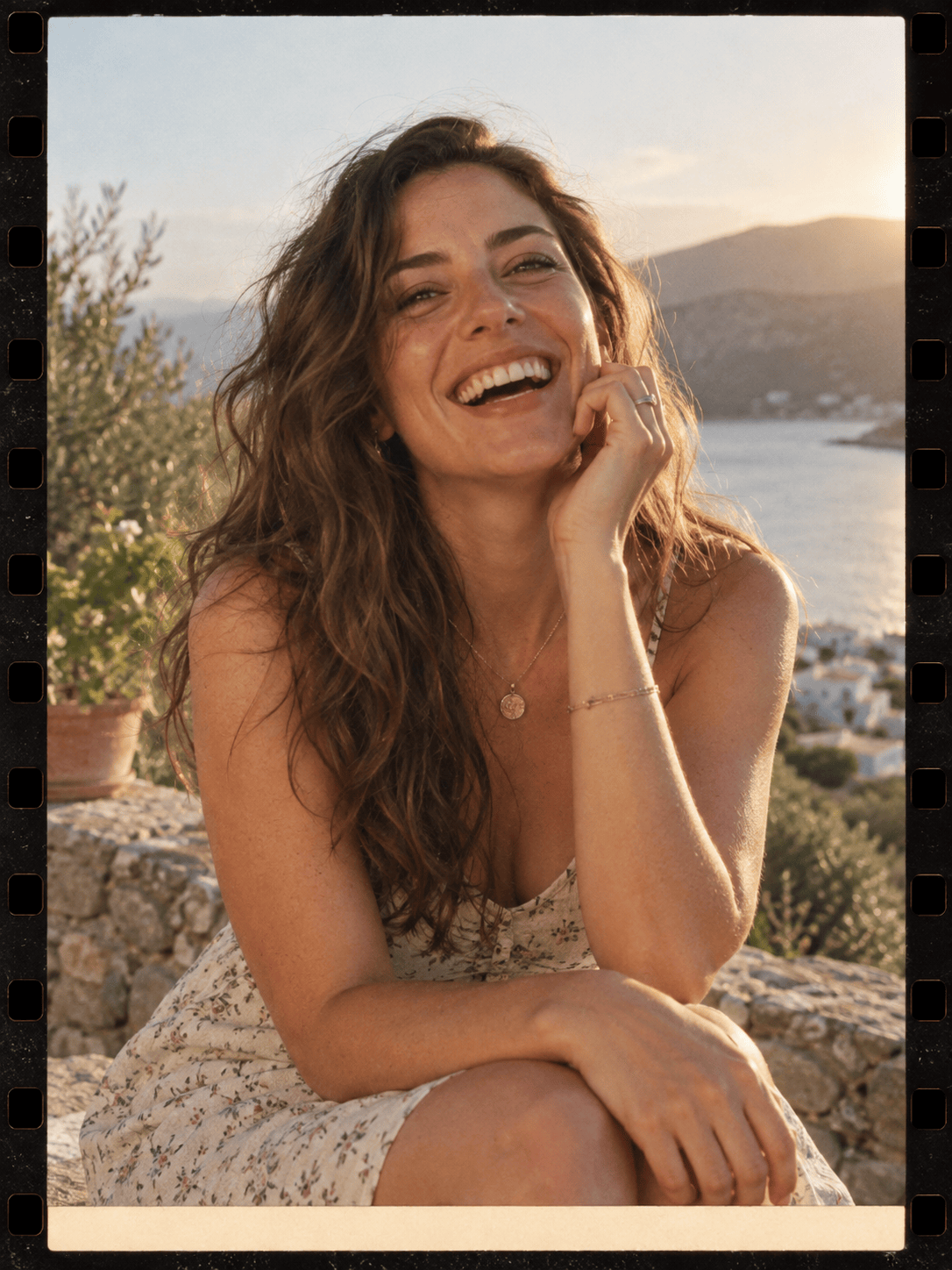
Vintage Film Frame: Frame my portrait with a narrow black 35 mm film-strip border, subtle perforations, slight grain, and a warm ivory date area at the bottom. Keep the face, expression, hair, clothing, and lighting unchanged. Do not place decoration over the subject.
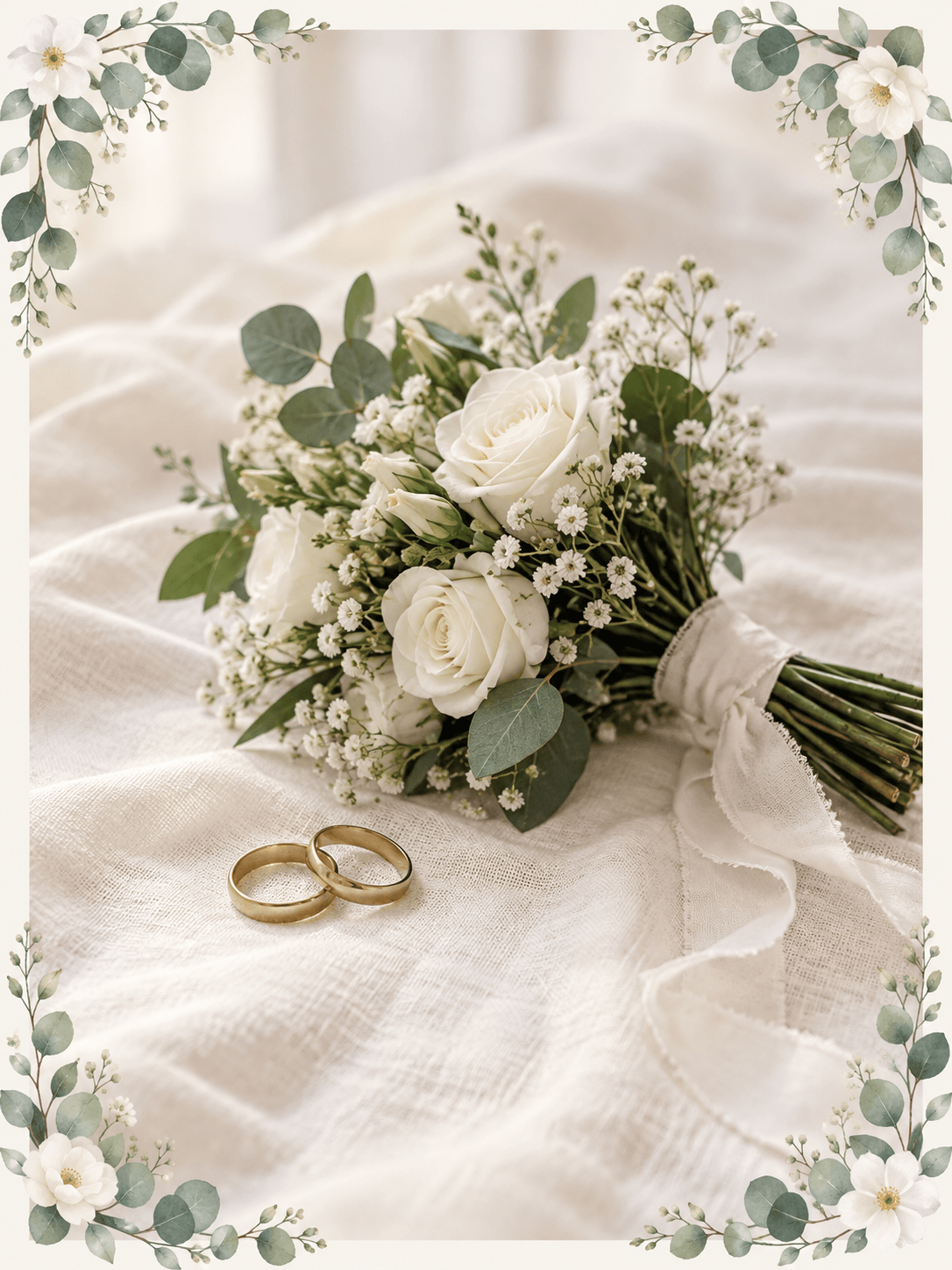
Wedding Floral Border: Add a refined ivory border with small watercolor eucalyptus leaves and white flowers concentrated in the corners. Keep the couple fully visible and preserve their faces, clothing, pose, and venue. Leave a quiet area below for a date that I can add later.
Birthday Scrapbook Frame: Surround this family photo with a playful cut-paper border in coral, yellow, and sky blue. Add small confetti and star shapes only along the outer edges. Preserve every face and hand, keep the center clear, and make the final image suitable for a digital birthday card.
Branded Product Border: Add a slim geometric border around my product photo using navy, cream, and one gold accent line. Keep the product, label, shadow, and background unchanged. Maintain ample white space and deliver a square composition for an online shop post.
Holiday Photo Frame: Create a tasteful winter border with frosted pine, tiny warm lights, and soft snow texture around the perimeter. Keep the pet and indoor scene unchanged, avoid covering the ears or paws, and format the framed photo as a printable 5:7 holiday card.





