Free OnlineAI Office Background Generator
How to Create an Office Background with AI
Decide What the Call Needs to Communicate
Set the Room and Camera Logic
Reserve Space for the Speaker
Generate, Preview, and Tune on Camera

Office Backgrounds That Work After the Camera Turns On
Design Around the Speaker, Not an Empty Room
A beautiful interior can fail as a video-call backdrop. This AI office background maker lets you request a calm center, side-weighted details, and a horizon that sits naturally behind a seated presenter.
Control the Professional Signal
Move from a warm home office to a restrained executive suite, creative studio, legal conference room, wellness practice, or technical workspace. Describe materials and lighting that fit the people you meet, not a generic stock-photo office.
Make Branding Visible, Not Intrusive
To create a virtual office background with a logo, upload an authorized mark, color reference, or existing backdrop. Ask the AI to preserve the mark and place it away from your head, with enough contrast and margin to remain legible after video compression.
Create a Cohesive Set for the Team
Generate several virtual office backgrounds from one art direction while varying the room, window view, or prop arrangement. A shared palette and camera position can keep distributed teams visually connected without giving everyone an identical scene.
Replace a Headshot Background, Too
The same workspace can support profile photos. Upload a portrait, reference it with @, and ask Mew Design to replace only the existing background with a softly focused office while preserving the person's face, hair, clothing, pose, and edges.
Correct the Detail That Breaks the Illusion
Use Chat Edit to straighten shelves, remove a chair behind your shoulders, dim a window, simplify book spines, or reposition a logo. Start with free AI credits and download finished office backgrounds without a watermark as JPG or PNG.
Write an Office Background Prompt That Survives a Video Call
- Protect the Presenter Zone: Ask for a low-detail area behind the head and shoulders. Place high-contrast windows, plants, lamps, artwork, and branding toward the sides so the person remains the focus.
- Make the Architecture Plausible: Request straight verticals, a seated eye-level camera, realistic room depth, consistent window light, grounded furniture, and a normal lens feel rather than an exaggerated showroom view.
- Use Brand Assets Deliberately: Upload only an authorized logo or color reference, identify it with @, and specify size, side, contrast, and safe margin. Avoid placing critical branding in the central speaker area.
- Remove Video-Call Distractions: Exclude people, readable book spines, tiny text, reflective screens, tangled chair backs, floating décor, harsh backlight, clutter, fisheye distortion, and objects that appear to grow from the speaker's head.
Office Background Prompts for Calls, Teams, and Headshots
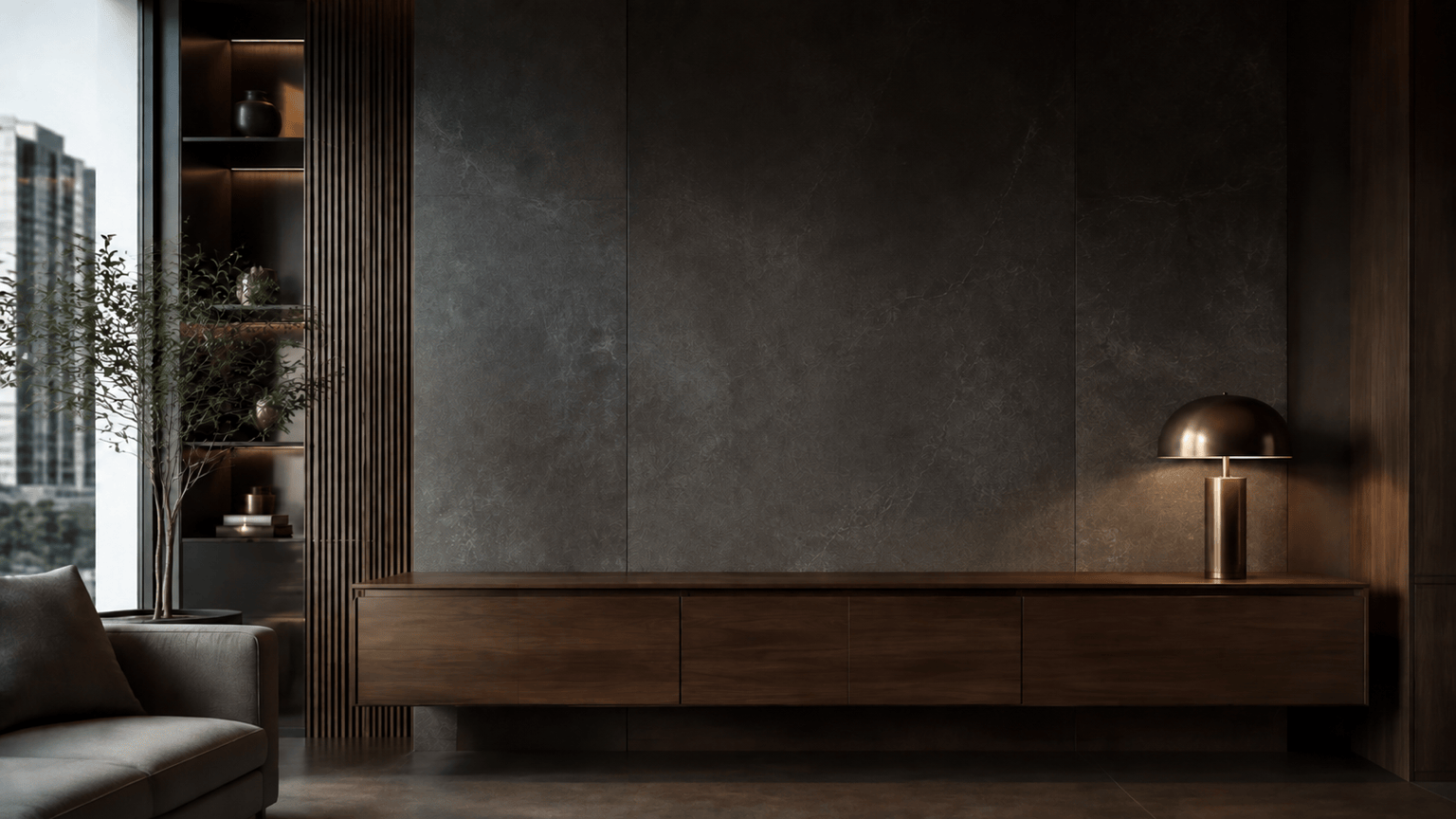
Executive Zoom background: Create a photorealistic 16:9 executive office for client meetings, seated eye-level camera, charcoal stone wall, warm walnut credenza, subtle brass lamp on the far right, soft daylight from the far left, calm central space for one speaker, moderate depth of field, no desk foreground, chair behind the person, people, readable text, logo, or fisheye distortion.
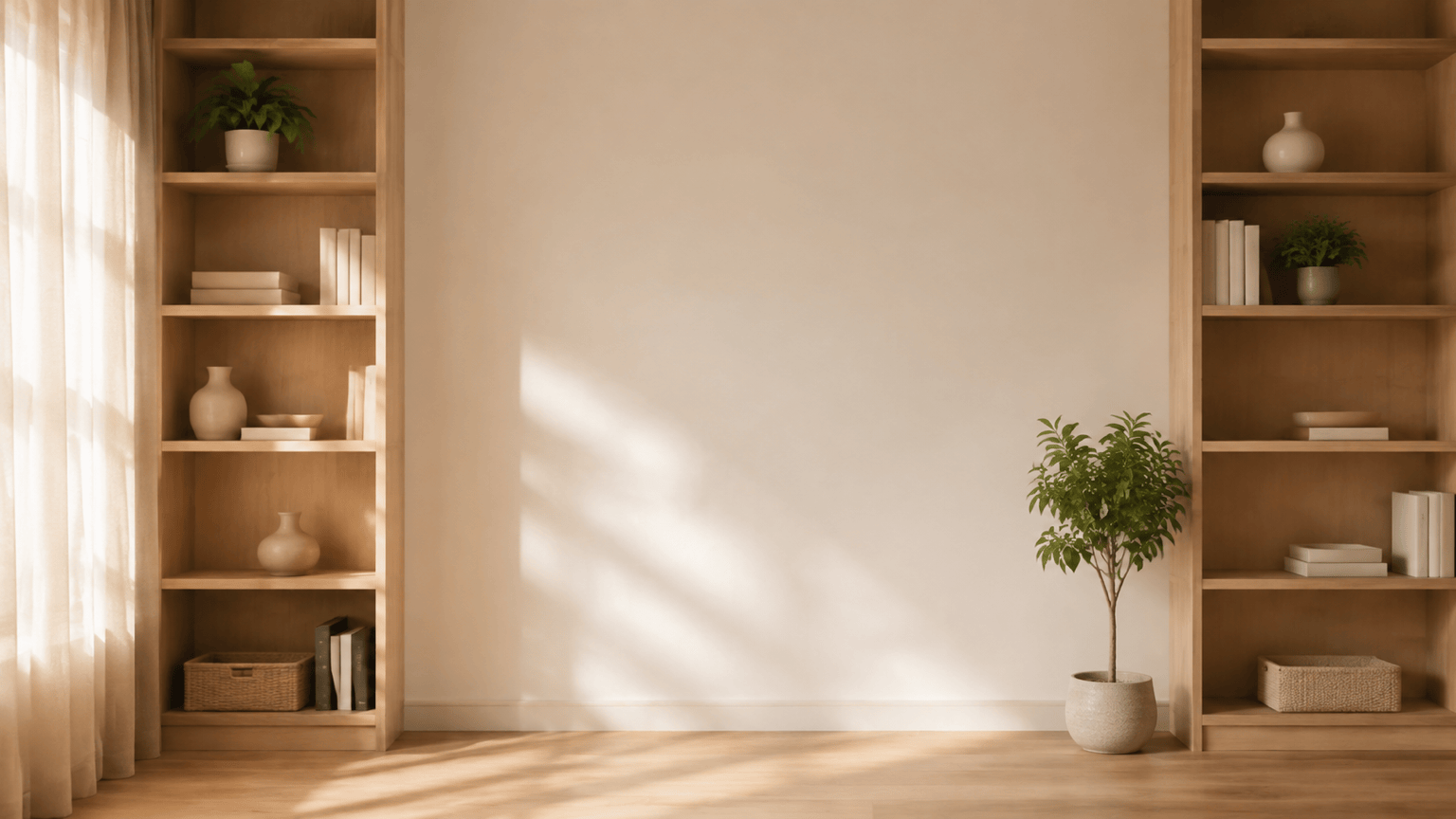
Home office background: Generate a bright but professional 16:9 home office for coaching calls, pale oak shelves limited to the outer thirds, two small plants, warm white wall, linen curtain at the left edge, soft morning light, realistic apartment scale, uncluttered center behind the webcam speaker, no bed, kitchen items, personal photos, readable book titles, or people.
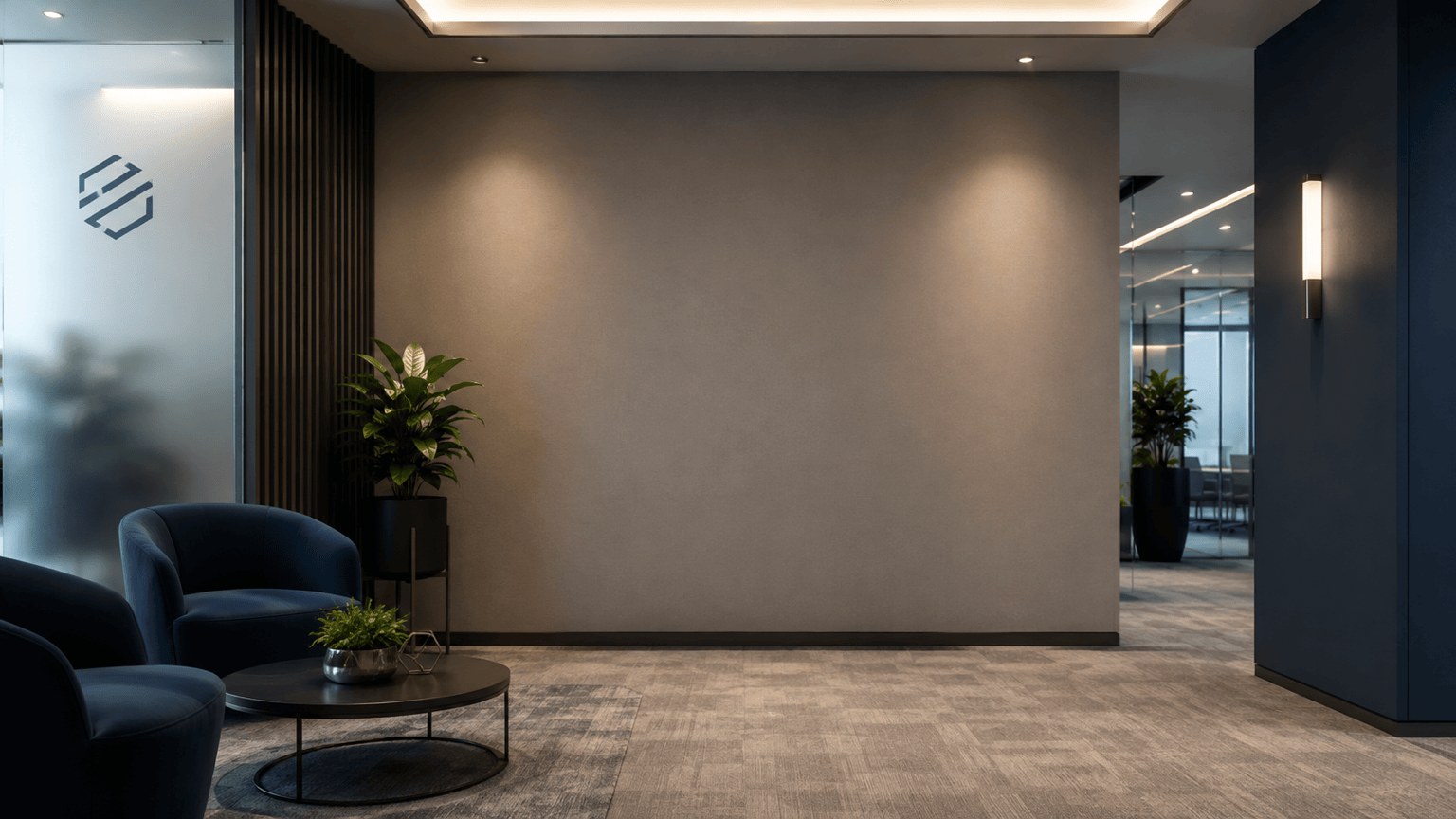
Branded virtual office: Use @[authorized_logo] exactly as provided on a frosted-glass panel in the upper-left area of a modern reception lounge. 16:9, navy and warm gray brand palette, soft indirect lighting, seated camera height, generous central speaker zone, realistic reflections, logo small but legible with safe margins, no extra words, altered logo, people, or bright window behind the presenter.
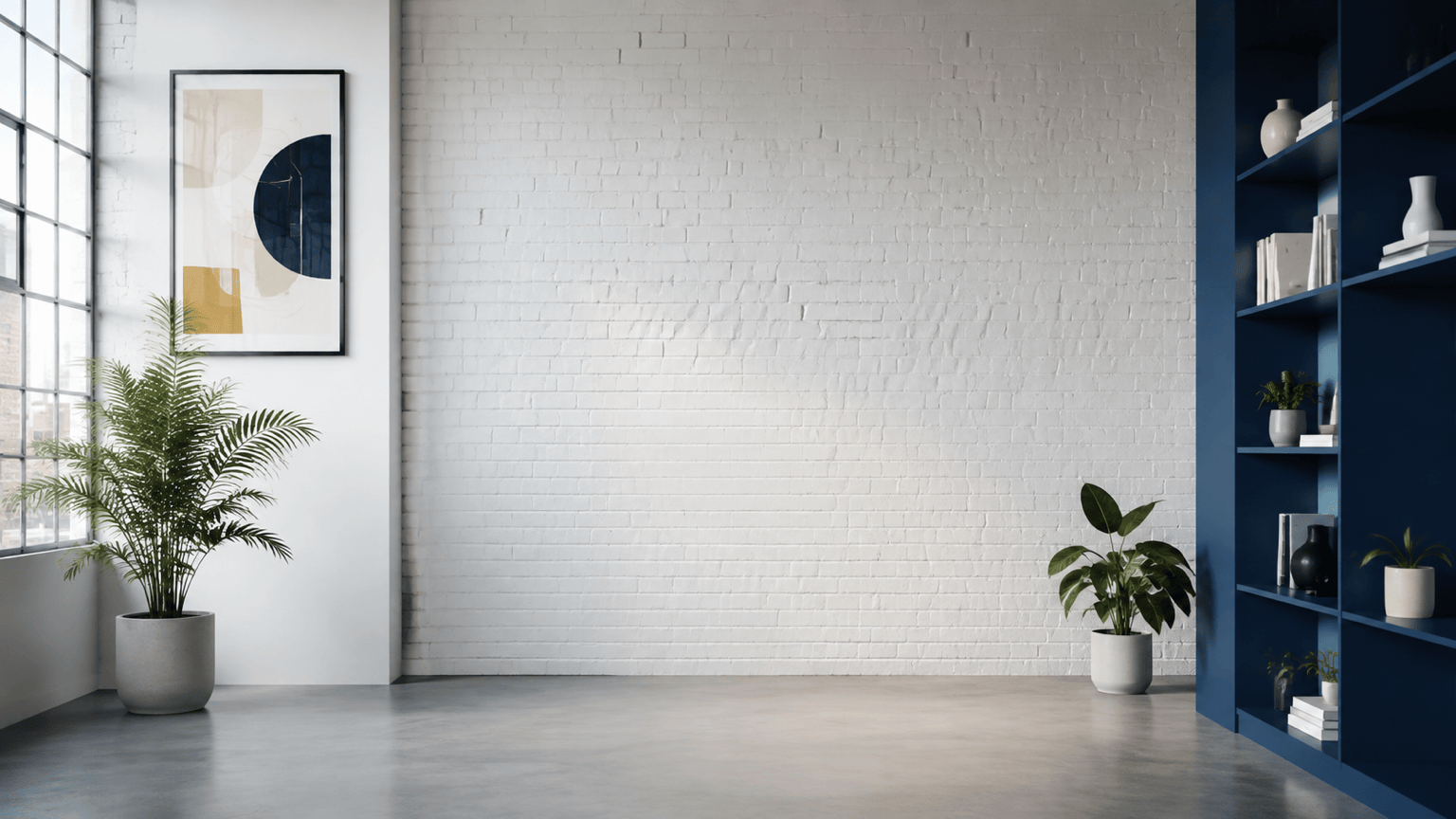
Creative Teams background: Make a 16:9 contemporary agency studio with white brick, one cobalt accent shelf on the far right, framed abstract art on the far left, diffused north-facing daylight, realistic coworking scale, straight lines, and a simple center for the speaker. Energetic but not playful; no desks crossing the foreground, neon signs, readable text, people, or visual clutter.
Webinar training background: Create a polished 16:9 training-room backdrop with a softly lit acoustic wall, narrow vertical light strips at both outer edges, a blank presentation panel off to the right, muted blue-gray palette, balanced symmetry, slight depth blur, and clear central space for a standing presenter. No audience, chairs behind the body, text, diagrams, logos, or harsh highlights.
Office background for a headshot: Replace only the background of @[portrait] with a softly blurred modern office in warm neutrals. Preserve the person's identity, facial features, hair strands, clothing, pose, crop, and edge detail. Match the original key light and camera angle; add believable depth without changing the subject. No new accessories, text, logo, other people, or heavy retouching.





