Free OnlineAI Nose Job Simulator
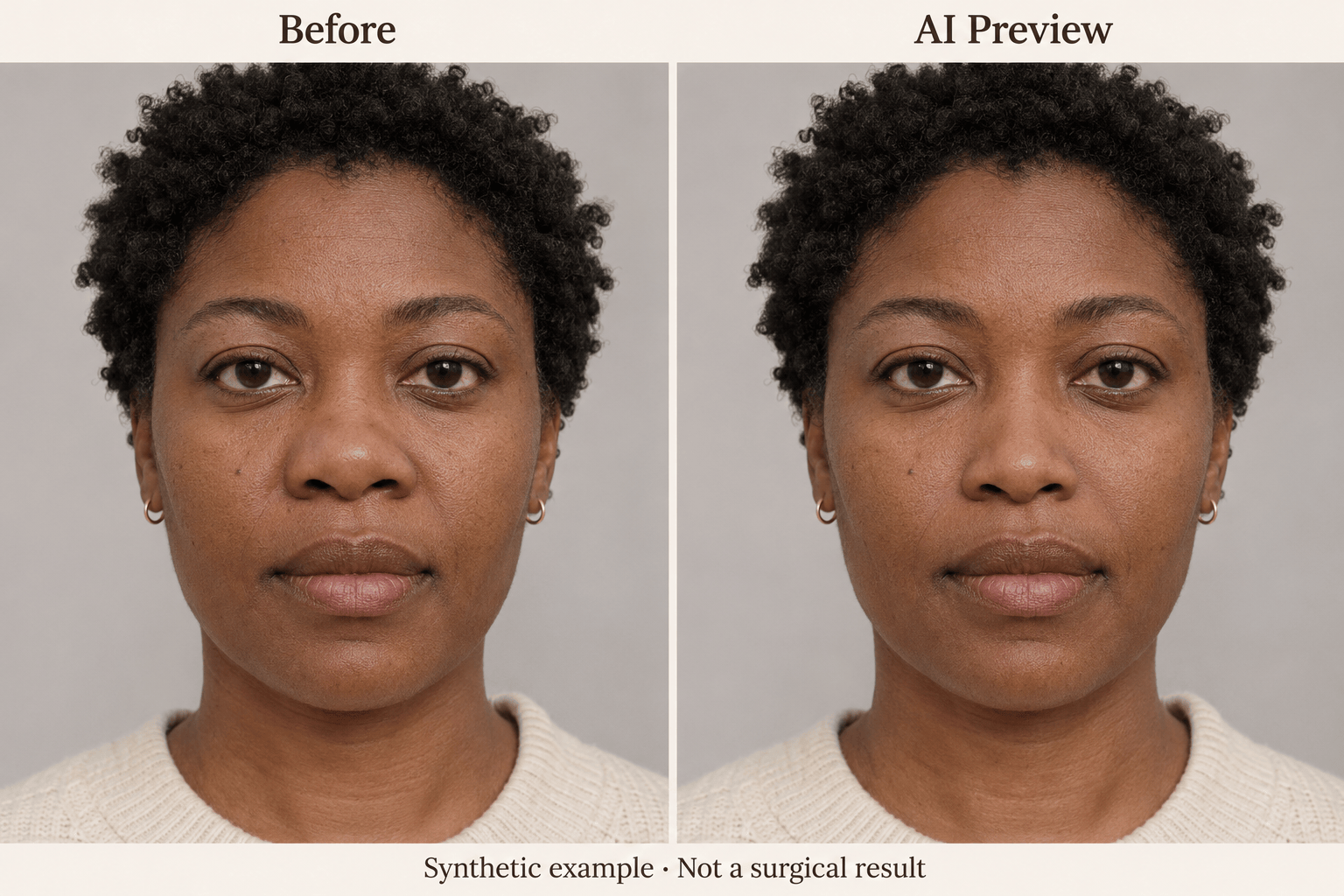
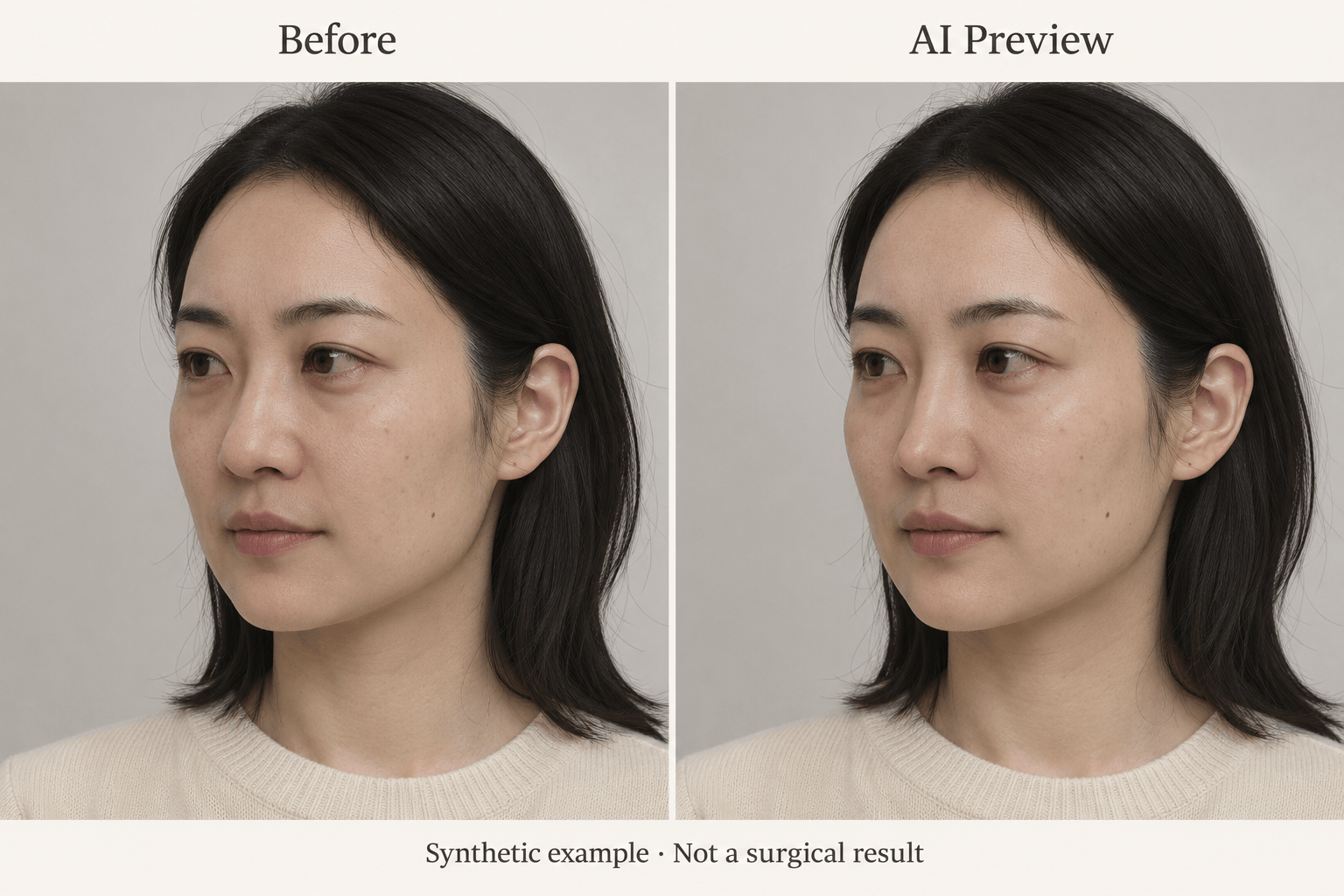
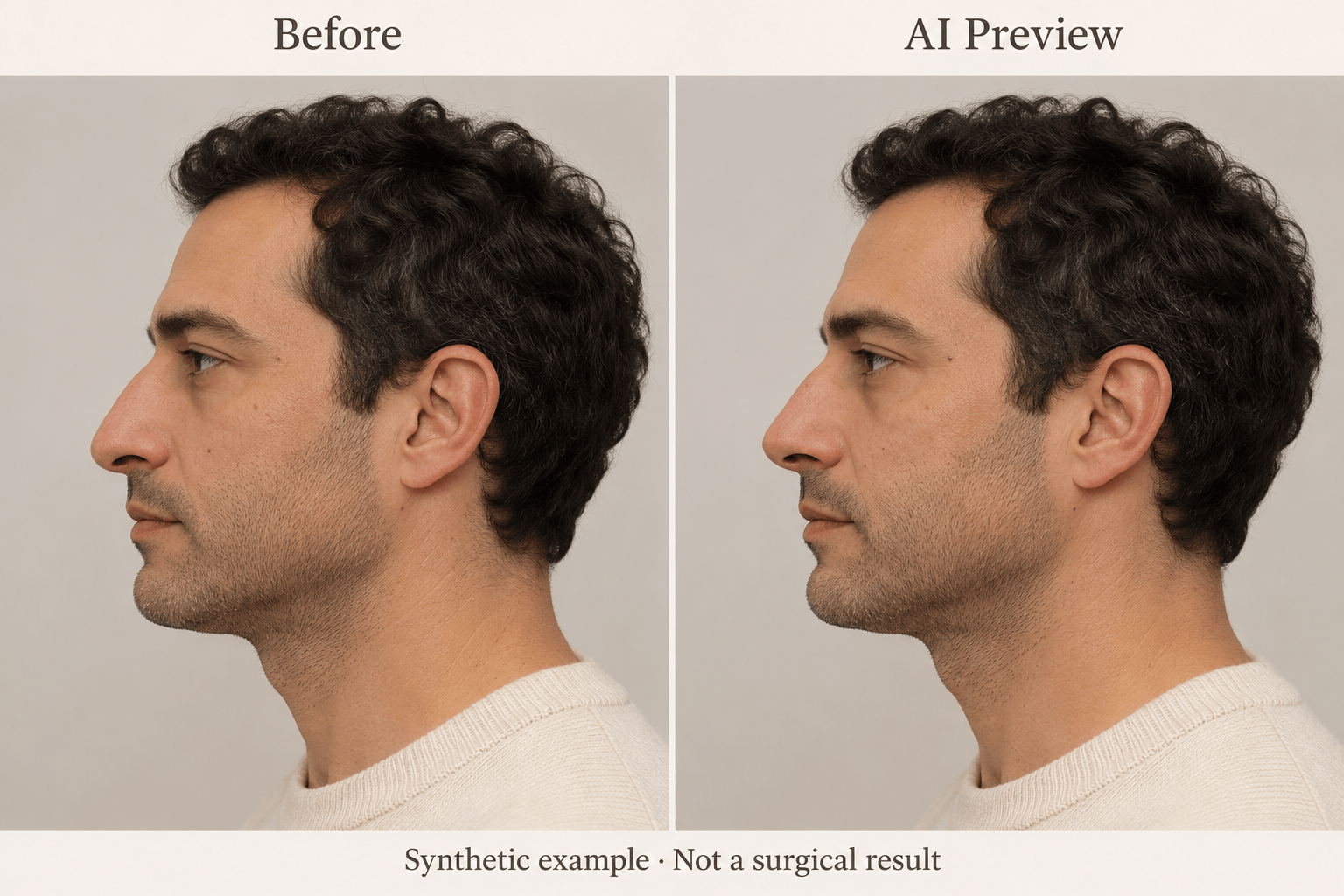
How to Create a Virtual Nose Job Preview with AI
Upload a Clear Portrait
Describe the Nose Change
Compare and Refine
Save Your Visual Reference
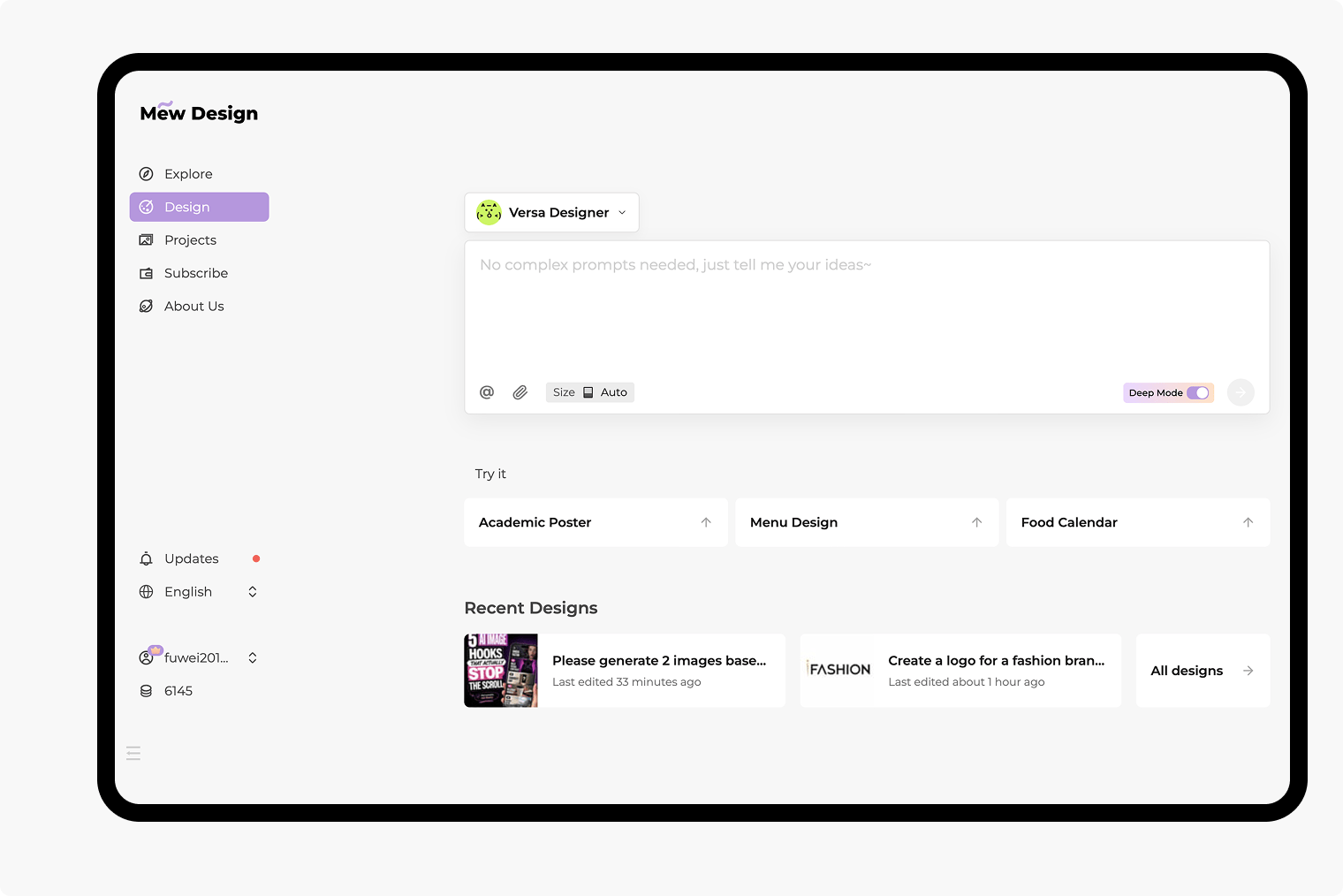
An AI Rhinoplasty Simulator for Your Own Photos
Work from Your Own Photo
Explore a virtual nose job using an uploaded portrait. Your photo gives the editor a reference for your face, pose, and lighting.
Focus on One Feature
Use this AI rhinoplasty simulator to explore a smoother bridge, a different tip contour, or a modest width change. Describe the adjustment instead of applying a fixed beauty filter.
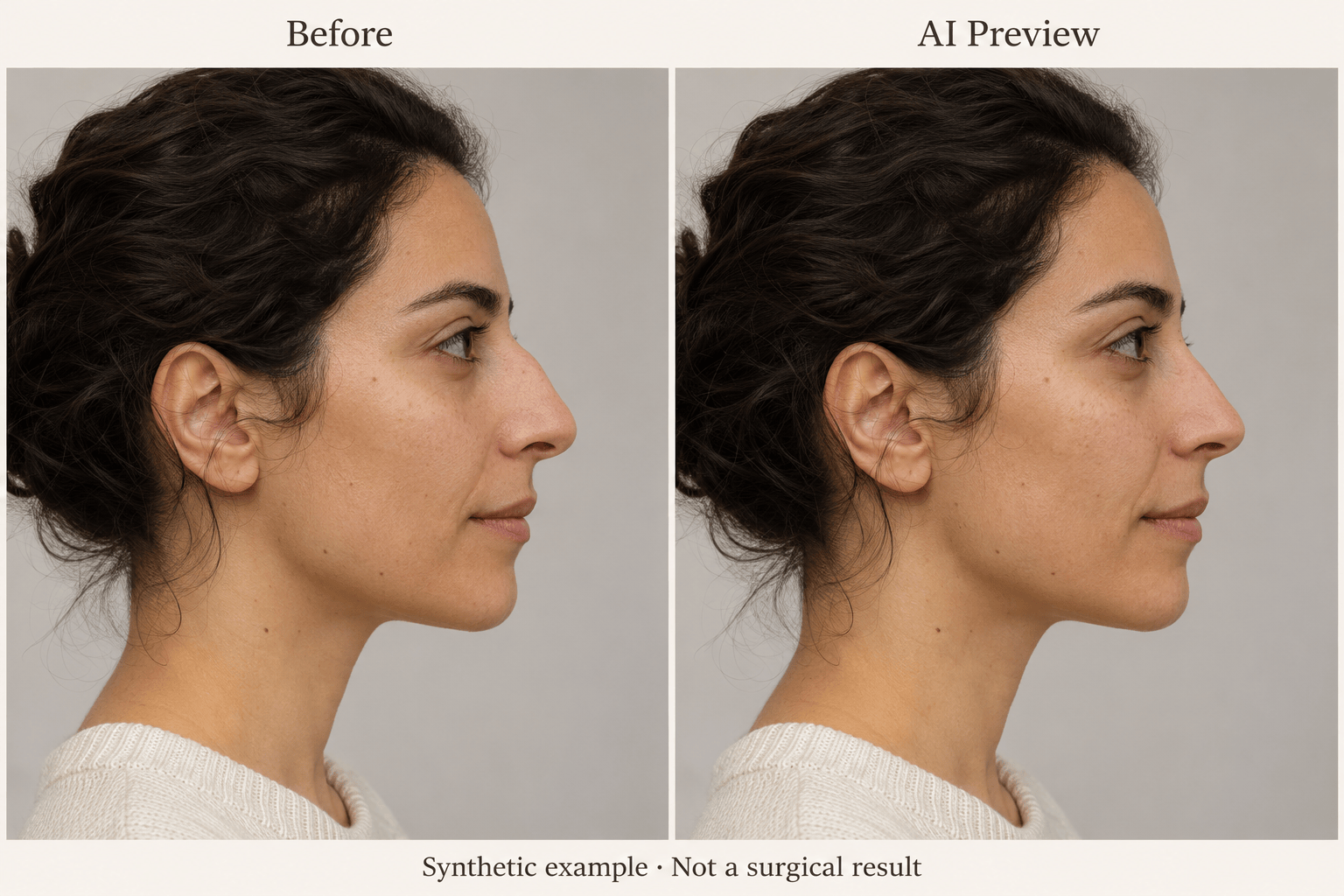
Compare Nose Changes Before and After
Ask for your original and edited portrait together in a nose job before and after preview. Check matching crop and scale so the change is easier to assess.
Dial Back Changes in Chat
Ask for a smaller adjustment or restore details outside the nose with Chat Edit. Review the whole face, since AI edits can change more than you requested.
Choose How Your Preview Is Made
Choose an available image model manually, or let Mew Auto select one for your photo and request. Mew Design offers the latest leading image models and adds new releases promptly.
Try It Online with Free Credits
Sign up for free AI credits to test a nose preview in your browser. Generation uses credits; further use may require a paid plan. Download finished images without watermarks.
How to Choose Photos for a Nose Job Simulation
- Match the View to the Question: A side profile shows the bridge outline and tip projection. A front view helps you compare visible width and nostril shape.
- Keep the Camera Setup Consistent: Use even light and a relaxed expression. Avoid very close wide-angle selfies and compare images at the same crop and scale.
- Name What Must Stay the Same: Ask to preserve the rest of your face, natural skin texture, pose, and background. Check these details after every edit.
- Keep the Preview in Perspective: A convincing image does not establish what surgery can achieve. Use it to describe a visual preference, not to decide whether a procedure is suitable.
Virtual Nose Job Examples: Bridge, Tip, and Width
Bridge profile: Use my side-profile photo to soften the visible bridge hump slightly. Keep the tip position and the rest of my face unchanged. Create an illustrative AI preview.
Rounded or bulbous tip: Use my three-quarter portrait to preview a slightly more defined nose tip. Keep the bridge, nostril shape, and other facial features unchanged. Avoid an exaggerated pointed tip.
Front-view width: Use my front-facing photo to preview a modest reduction in visible nose width. Preserve natural asymmetry, skin texture, and the rest of my face.
Tip position: Use my side-profile photo to preview a small upward change in tip angle. Keep the bridge and chin unchanged and avoid an exaggerated upturned look.
Subtle alternative: From my original photo, create a less pronounced version of the nose edit. Keep my distinctive facial features and show the original beside the AI preview.
Restore unrelated details: Compare the edit with my original photo. Restore changes to my eyes, lips, chin, skin, and background. Retain only the requested nose adjustment.