Free OnlineAI Multiple Face Swap
How to Swap Multiple Faces in One Photo with AI
Upload the Group Photo and Source Faces
Write a Clear Face Map
Generate the Group Face Swap
Inspect, Refine, and Export

A More Controllable AI Group Face Swap
Map Different Identities in One Prompt
Use the AI multiple face swap workflow to specify which reference belongs to each visible person. Position and clothing cues help prevent source portraits from being assigned to the wrong face.
Change Only the People You Choose
A selective group photo face swap can replace two or three faces while leaving everyone else alone. State who should change and who must remain untouched.
Blend Faces into the Existing Scene
Ask the AI to match the original perspective, skin tone, light direction, sharpness, and camera grain so each replacement belongs in the same photograph.
Protect Poses, Outfits, and Backgrounds
Use preservation instructions to keep the group composition, hair, clothes, hands, crop, and setting intact while the selected facial identities change.
Correct One Detail Through Chat
If one face looks off, click Chat Edit and describe that local correction. You can request a better angle, cleaner jawline, softer edge, or closer identity match without rewriting the whole idea.
Free to Try with Clean Image Exports
Test the online multi face swap with free AI credits after signup, explore another mapping or creative version, and export watermark-free PNG or JPG results.
How to Write a Precise Multi-Face Swap Prompt
- Map Every Replacement: Name the source image and the intended person using unambiguous cues such as left, center, blue shirt, or holding a phone.
- Define What Must Stay: List the people and scene details that should remain unchanged, including pose, expression, hair, outfit, hands, background, and crop when relevant.
- Match the Source Quality: Choose sharp portraits with visible facial features. Similar camera angles and light directions usually reduce mask-like edges and perspective conflicts.
- Set a Responsible Use: Use your own images or get permission from everyone whose likeness appears. Avoid deceptive impersonation, harassment, or misleading public content.
Multi-Face Swap Prompts for Real Group Photos
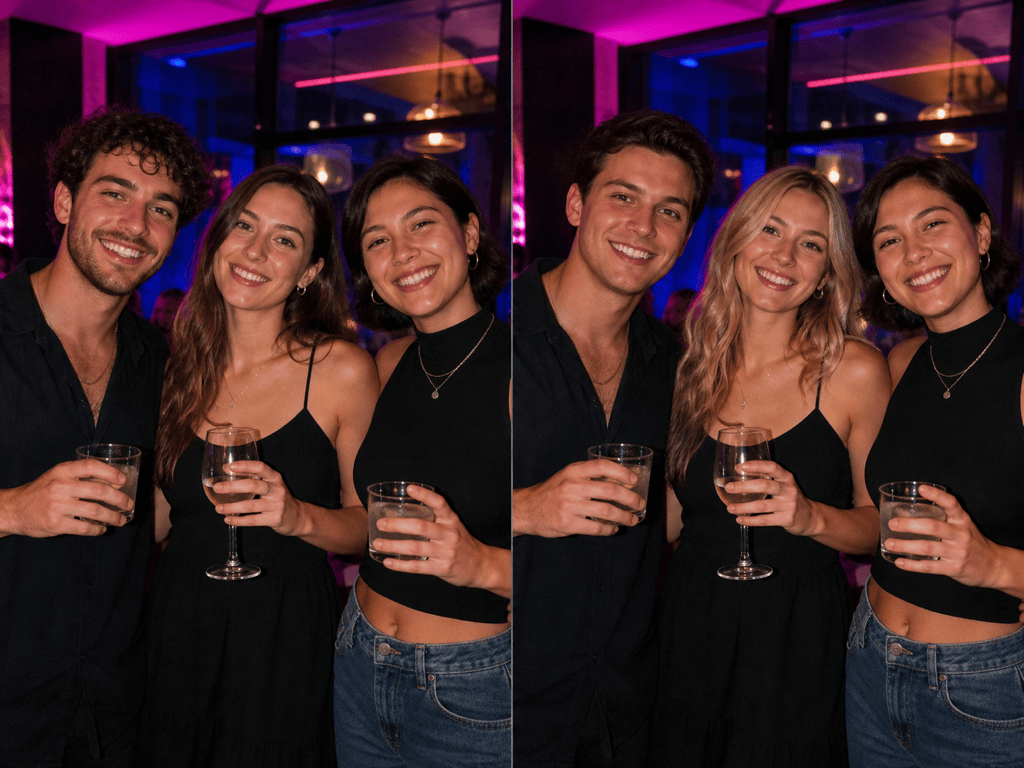
Friends at a Party: Use @[party-group] as the base. Replace the woman on the left with @[face-A], the man in the center with @[face-B], and the man on the right with @[face-C]. Keep each body, hairstyle, outfit, pose, glass, background, crop, and colored party lighting unchanged. Match skin tone, perspective, focus, and grain for a natural group photo.
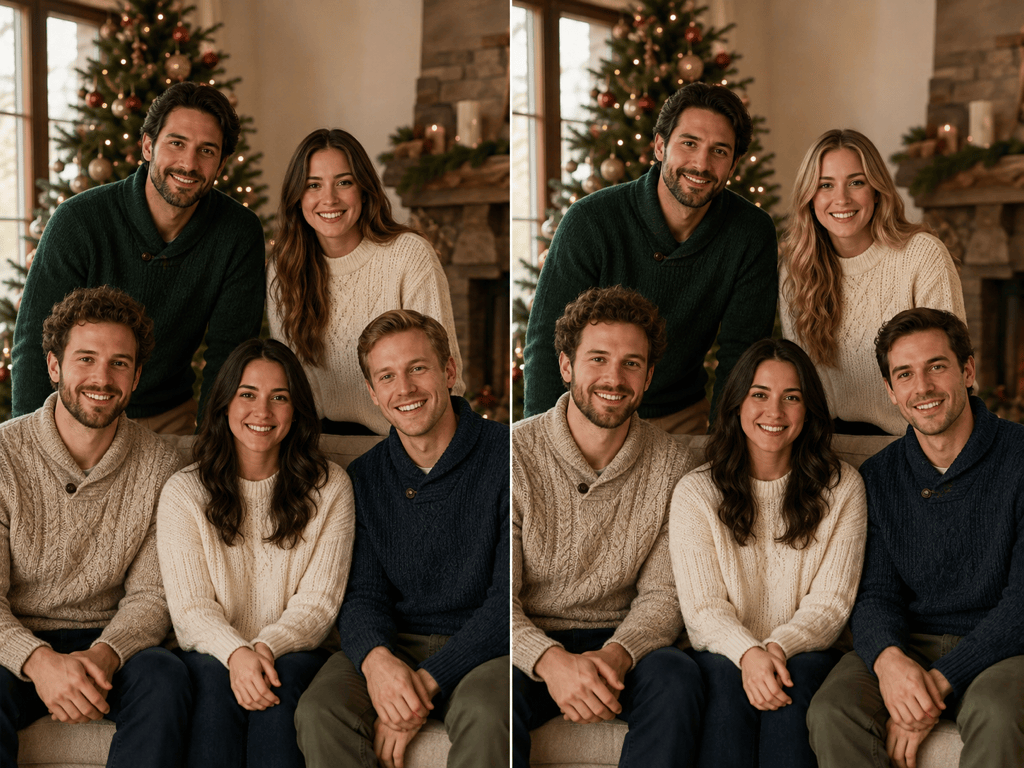
Family Photo Expression Fix: Use @[family-photo] as the base. Replace only the two closed-eye faces with the same people from @[alternate-mom] and @[alternate-son]. Keep every identity accurate, preserve all other relatives, and match the original smiles, head angles, warm daylight, lens softness, and holiday-card composition.
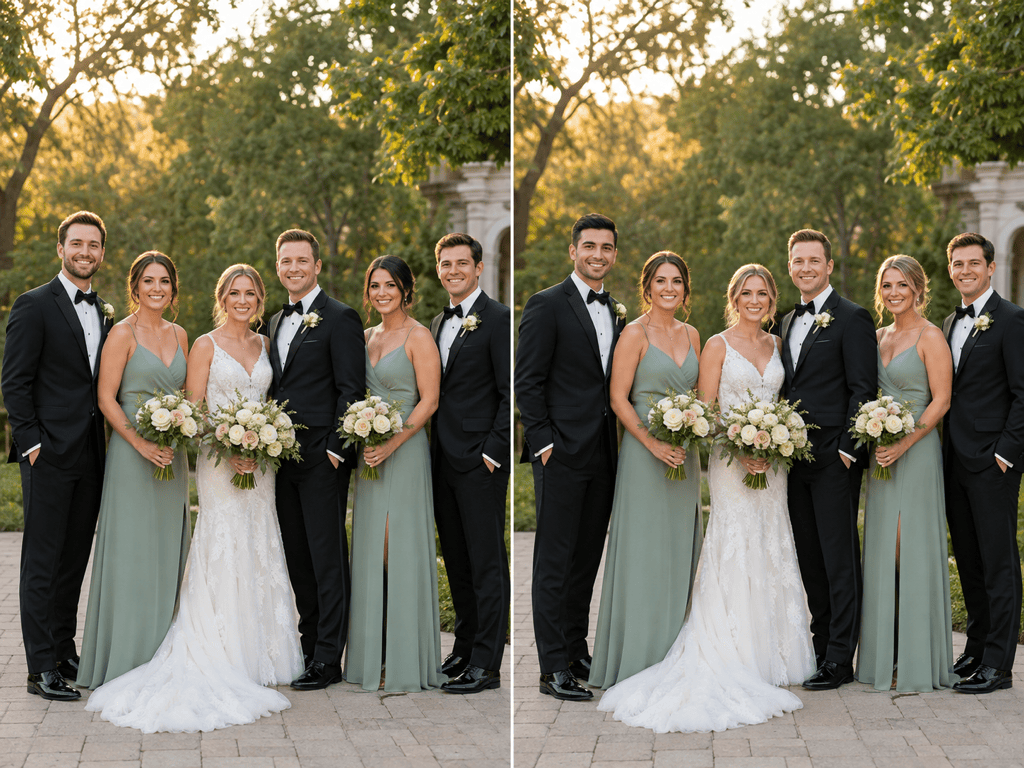
Wedding Party Edit: In @[wedding-group], map @[portrait-bridesmaid] to the bridesmaid second from the right and @[portrait-groomsman] to the groomsman at the far left. Keep the bride, groom, formalwear, bouquets, body poses, venue, and shallow depth of field unchanged. Blend both replacements into the soft evening light.
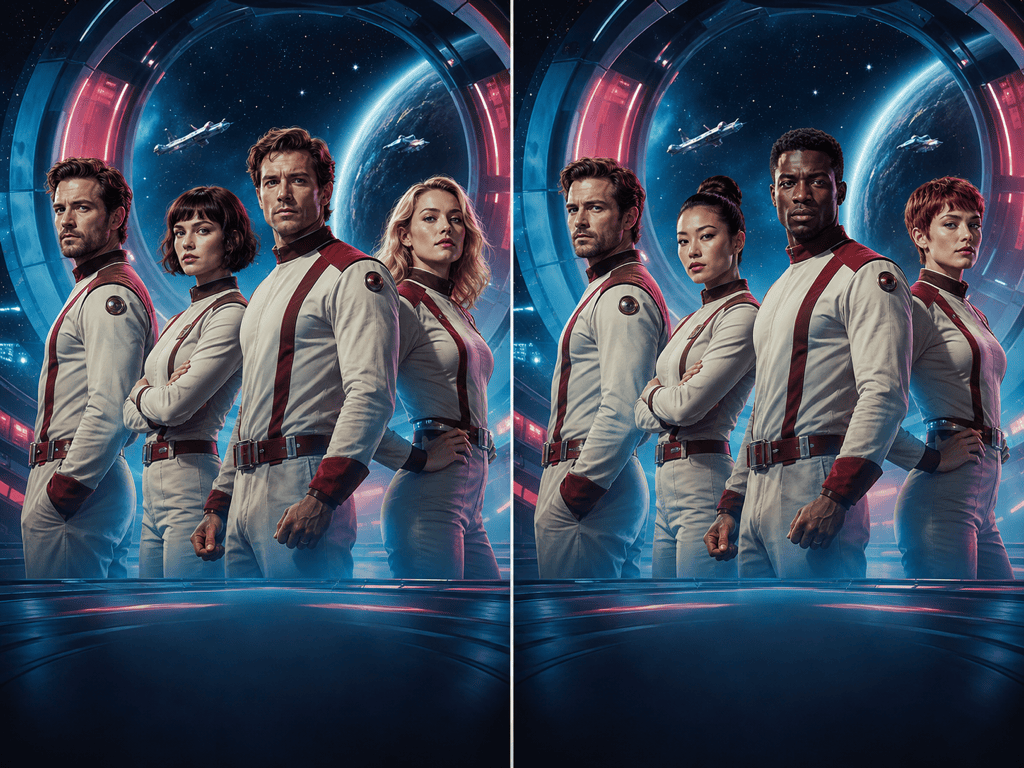
Fictional Movie Cast: Use @[retro-movie-poster] as the base and replace the three central fictional characters with @[actor-A], @[actor-B], and @[actor-C] from left to right. Preserve costumes, dramatic expressions, painted poster texture, title area, and neon color grade. Use only consenting adult reference images and do not imitate real celebrities.
Creative Team Lineup: Edit @[team-photo] for an approved campaign mockup. Replace the front-left person with @[model-A] and the back-right person with @[model-B]. Leave the other team members unchanged. Preserve jerseys, logos, stance, stadium background, rim lighting, camera angle, and crisp editorial finish.
One Face on the Whole Group: Use @[group-selfie] as the base and apply @[consenting-face] to all four visible people for a playful private meme. Keep every hairstyle, expression, body, outfit, hand position, background, and phone-camera lighting distinct so the repeated identity still fits each person naturally.





