Free OnlineAI Magic Photo Generator
How to Transform Your Photos with AI
Upload a Clear Photo
Choose the Transformation
Check and Refine the Details
Export Your New Look

Photo Effects You Can Shape in Chat
Start with Your Own Subject
Upload a selfie, portrait, or pet photo as the starting point. Tell the AI magic photo editor which features matter, such as freckles, glasses, or fur markings.
Describe a Style Beyond a Filter
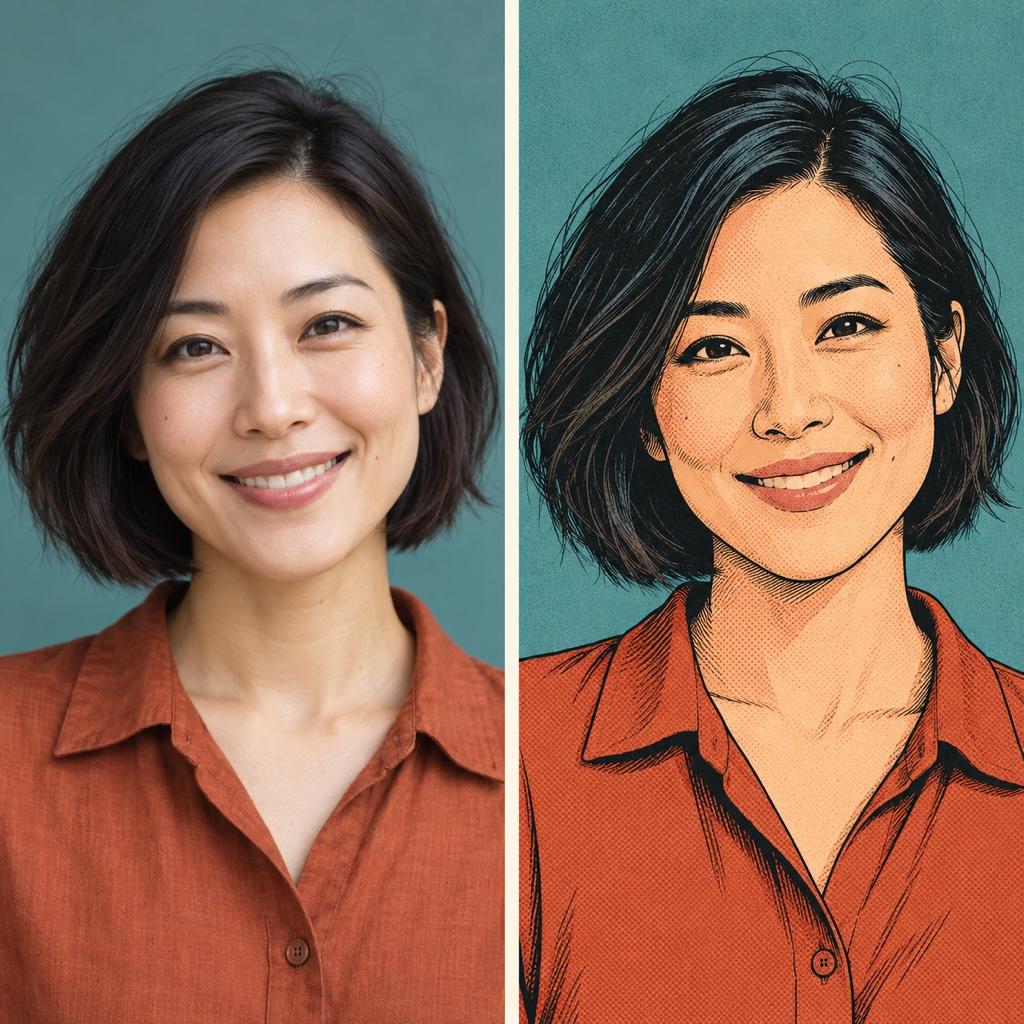
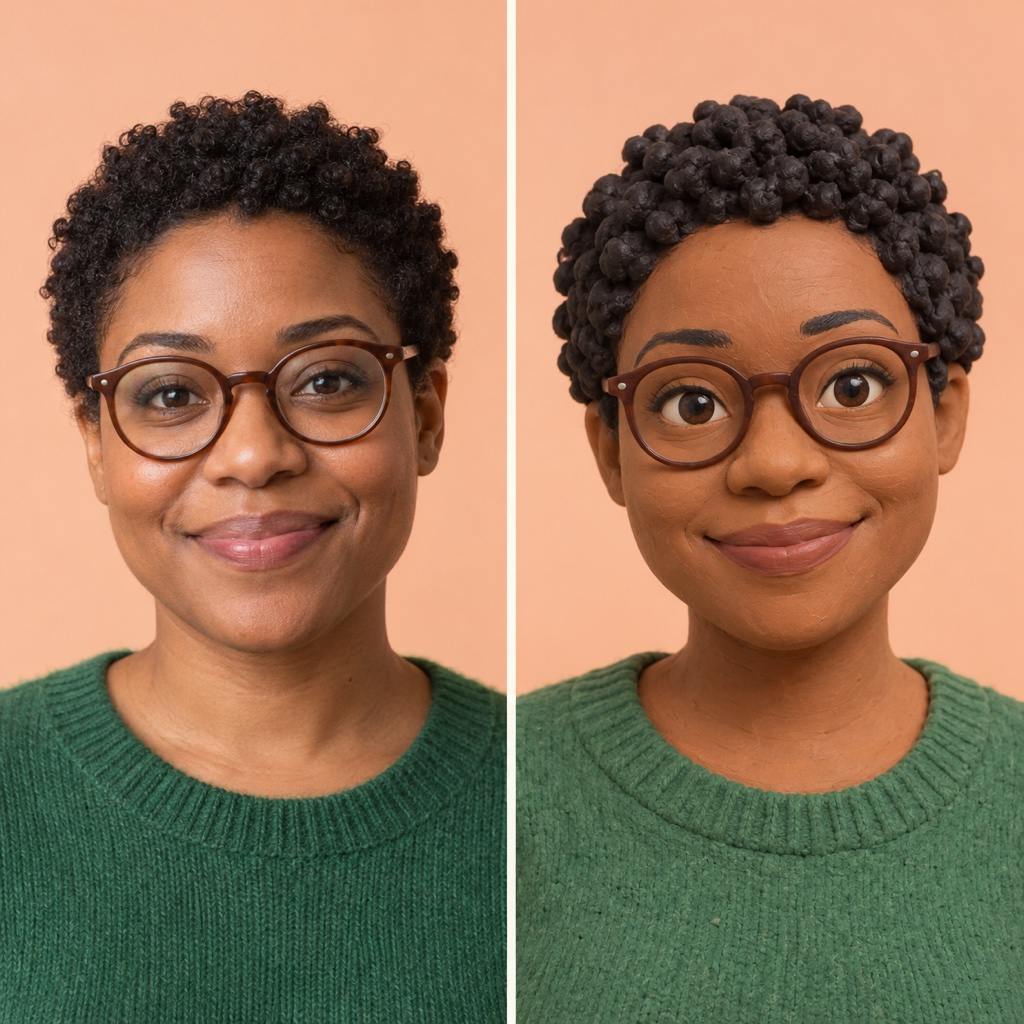
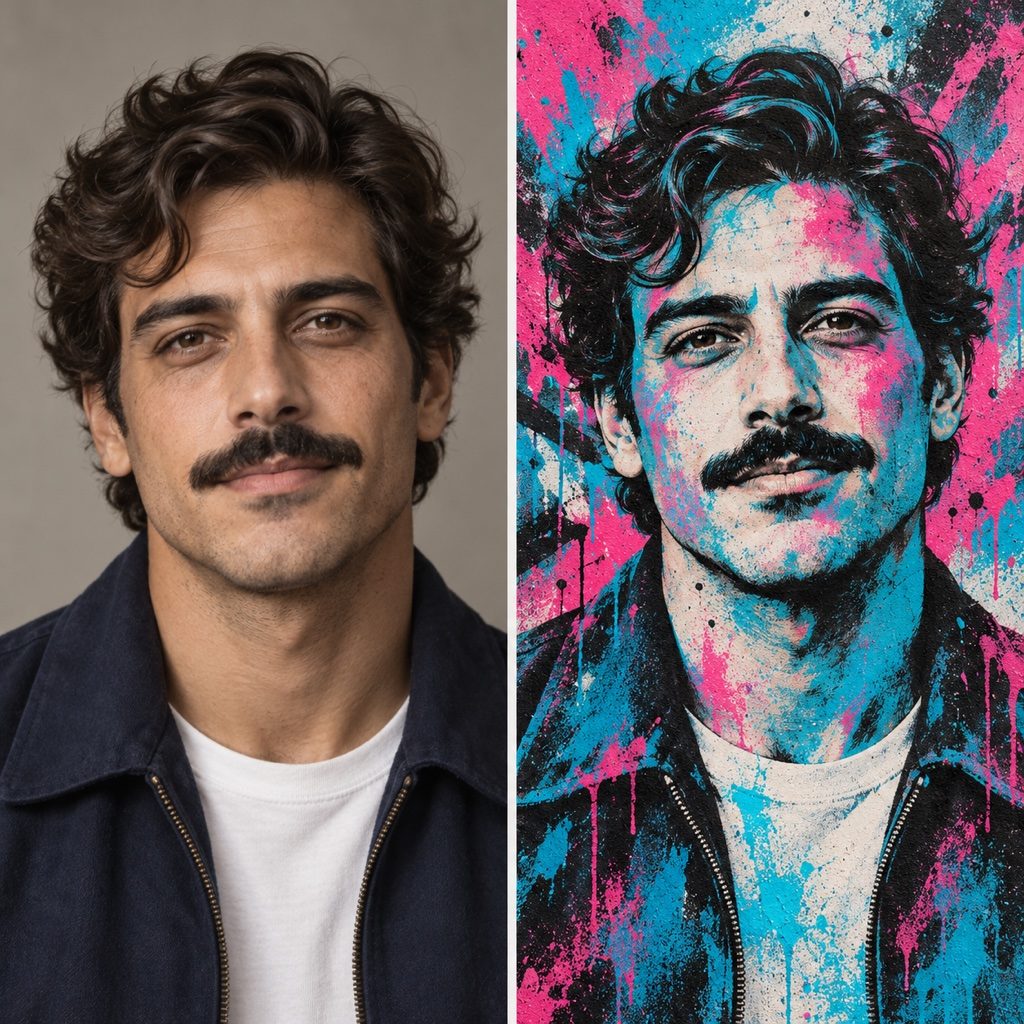
Use this AI photo effects generator to request ink outlines, soft clay texture, or spray-paint color. Explain the finish you want instead of relying on a preset alone.
Correct the Parts That Feel Off
Use Chat Edit to soften exaggerated eyes, restore an accessory, or reduce background clutter. You can keep refining the image instead of accepting the first attempt.
Use a Visual Style Reference
Upload a reference image to guide the palette, texture, or mood. Explain which image supplies the subject and which supplies the style to make your request clearer.
Explore Looks for Your Profile
Try a comic portrait and a clay avatar from the same selfie. Compare the results at a small size and choose the version that is easiest to recognize.
Try Online, Then Share
Test photo transformations with free AI credits after signup. Export PNG or JPG files without watermarks for avatars and social posts; additional use may require paid credits.
Keep Your Photo Recognizable When Changing Styles
- Choose a Clear Source: Use a sharp, evenly lit photo with an unobstructed face. Avoid tiny screenshots, strong beauty filters, and deep shadows.
- Separate Subject and Style: Say which uploaded image is your subject. If you add a style reference, specify that only its colors or texture should guide the result.
- Name What Must Stay: Mention the expression, hairstyle, glasses, clothing, or pet markings you want retained. Strong stylization can still alter details; compare the result with the original.
- Choose the Final Framing: For an avatar, keep the face centered and leave room for a circular crop. For a social post, request enough background to frame the subject without distractions.
Fix Common AI Photo Transformation Problems
Make this cartoon portrait closer to my original photo. Reduce the oversized eyes and restore my original smile and face shape. Keep the comic outlines and current colors.
Refine this clay avatar so it looks handmade rather than glossy plastic. Add subtle clay texture and softer lighting. Keep my hairstyle, glasses, and expression.
Simplify the graffiti effect around my portrait. Keep spray-paint texture and bold colors in the background, but remove marks covering my eyes and mouth. Do not add lettering.
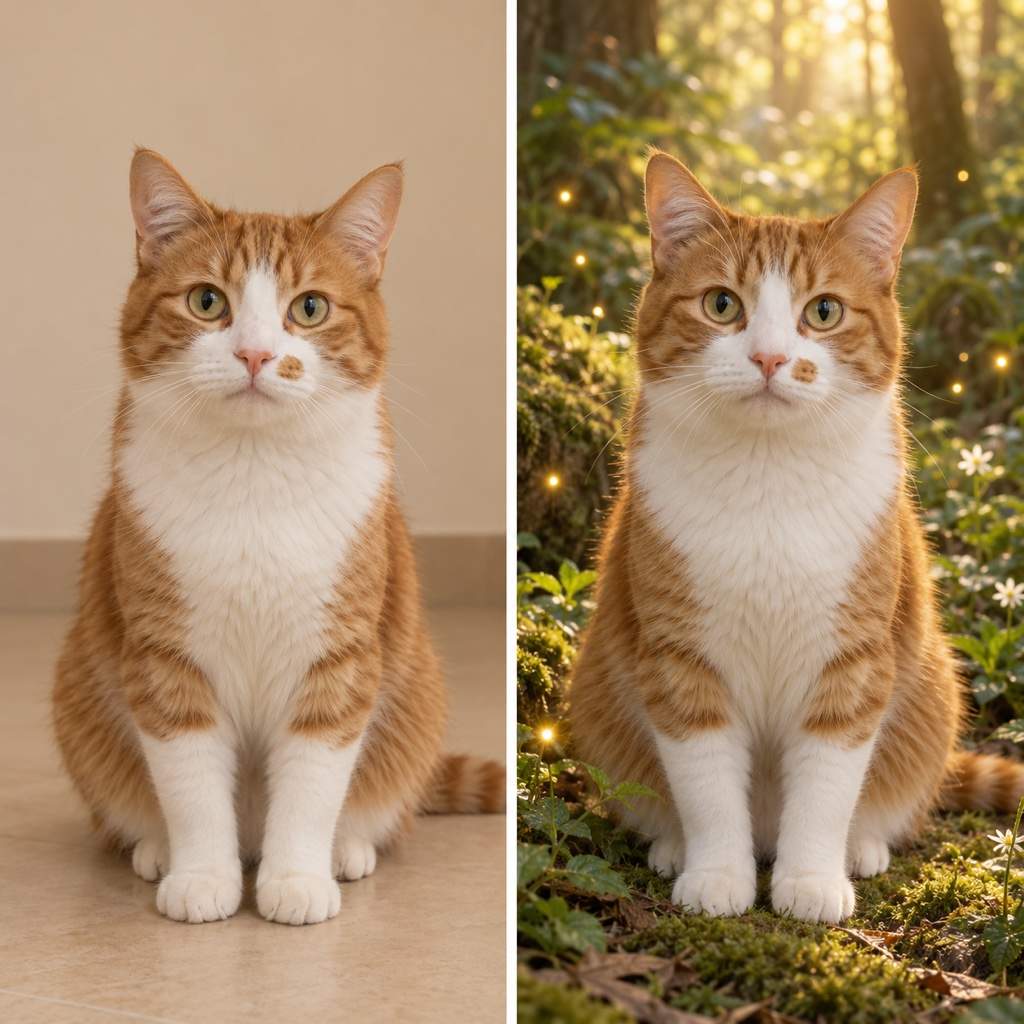
Change the background of my uploaded photo to a softly lit fantasy forest. Keep my face, clothes, and pose as close to the source as possible. Match the light around my hair to the new scene.
Restore my pet’s original fur markings and ear shape in this stylized image. Use the uploaded photo as the reference. Keep the illustrated texture and the new background.
Reframe this image as a square profile picture. Keep my whole head visible with space around it for a circular crop. Simplify the background and preserve the current face and style.





