Free OnlineAI macOS App Icon Generator


How to Create a macOS App Icon with AI
Start with the Product Metaphor
Build a Layered Visual Direction
Review It in Mac Contexts
Prepare the Xcode Handoff

From Product Metaphor to Mac-Ready Visual Direction
Translate Utility into a Memorable Object
Describe a code editor, focus timer, audio tool, file organizer, or creative app. Mew Design turns its real purpose into an original visual metaphor instead of dropping a generic glyph onto a stock background.
Explore Materials Without Baking the Mask
Try opaque paper, enamel, metal, glass, soft 3D, or clean illustrated layers while keeping the source canvas square. macOS supplies the outer rounded mask, so your artwork stays flexible for system rendering.
Keep the Core Mark Stable Across Appearances
Create a recognizable composition first, then explore palette and material adjustments for light, dark, clear, or tinted presentation without changing the app's central identity.
Judge the Icon at Dock Scale
Ask for fewer shapes, thicker edges, stronger contrast, or a cleaner focal point when fine detail disappears. Small-size clarity matters in the Dock, Spotlight results, Finder lists, and settings views.
Refine Layers and Lighting in Chat
Upload a sketch, approved brand element, or material reference, then use Chat Edit to change the silhouette, separate foreground layers, soften highlights, or remove visual clutter without restarting the brief.
Prototype Before Xcode Packaging
Use free AI credits after signup to compare several macOS app icon concepts online. Choose the direction with the best meaning and recognition before investing time in Icon Composer effects, appearance previews, and final engineering assets.
How to Prompt for a Native-Feeling Mac App Icon
- Separate the Layers: Define a full-canvas background and one or two foreground subjects so the composition can be refined or rebuilt in Icon Composer later.
- Direct Material and Light: Name the material, palette, camera angle, and lighting quality instead of requesting a vague premium or Apple-like look.
- Protect the Identity: Keep the focal object centered and consistent across appearance ideas. Do not bake the outer rounded mask into the source artwork.
- Add a Small-Size Check: Request simple shapes, no tiny text, and recognition around 32 pixels. Verify originality and current Apple requirements before release.
macOS App Icon Prompts for Desktop Products
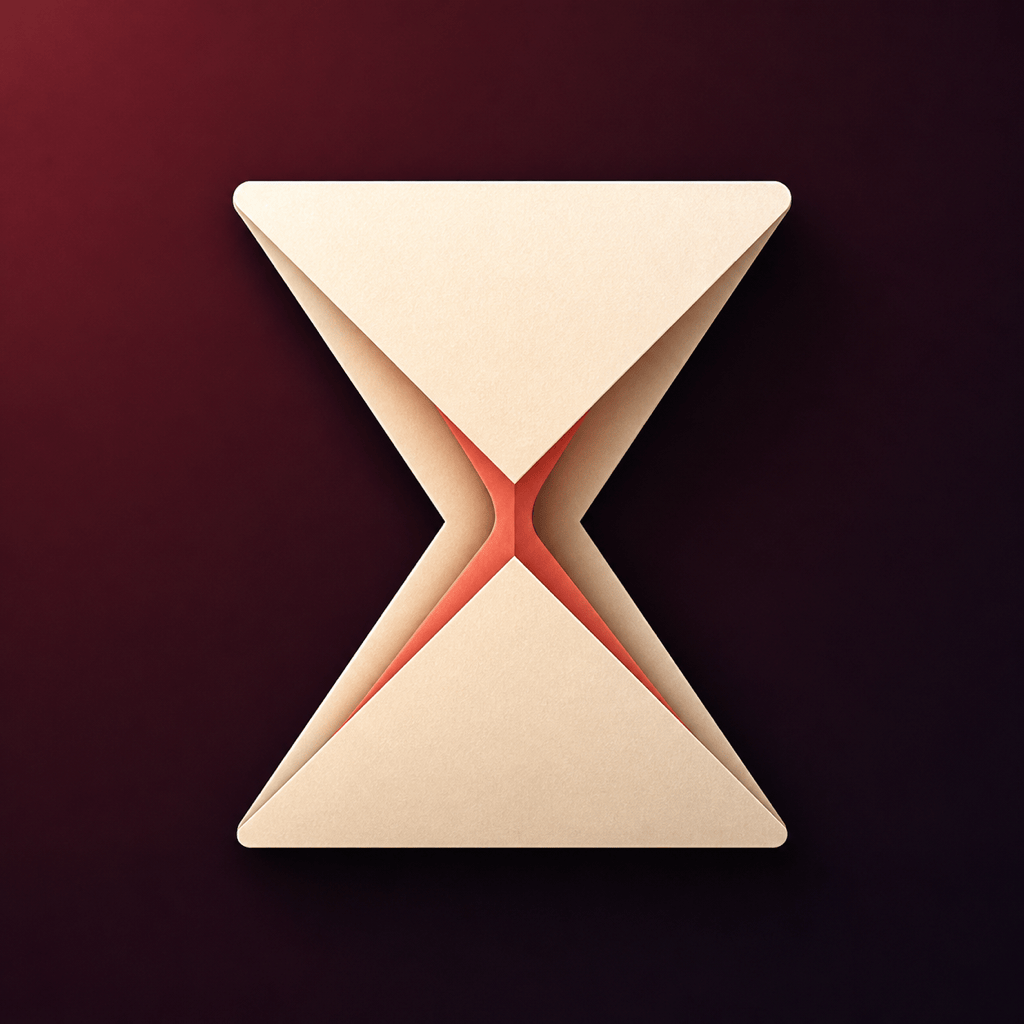
Create square macOS app icon artwork for an original focus timer. Show one hourglass folded from warm ivory paper with a coral center, on a deep burgundy-to-charcoal background. Use a bold centered silhouette, subtle paper depth, two foreground layers, no letters, no clock numerals, no rounded outer frame, and clear recognition at 32 pixels.
Design a Mac developer tool icon for a local database workspace. Build one unified mark from three translucent cobalt cylinders and a small brass index tab, lit from the upper left against midnight blue. Keep the forms simple, layered, and distinct in dark appearance; exclude terminal logos, database brand marks, text, and a baked system mask.
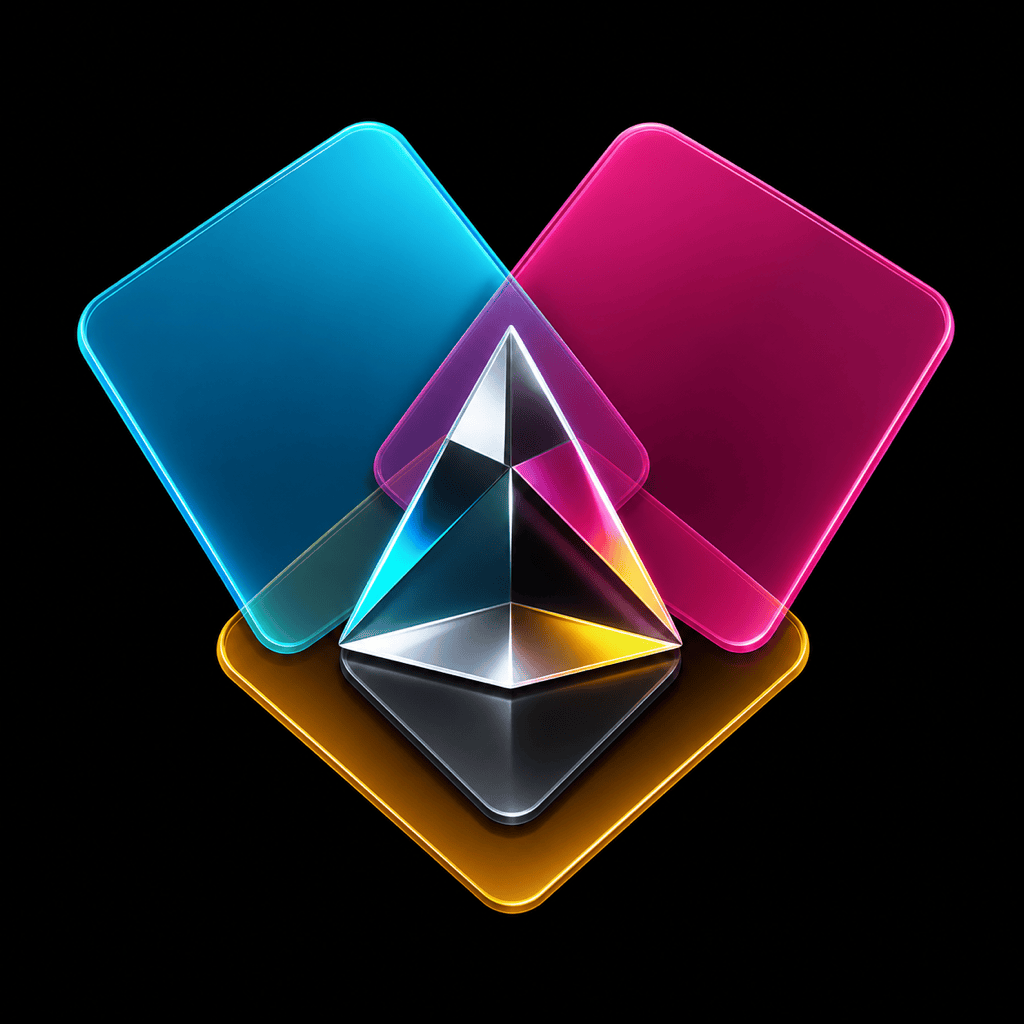
Generate original macOS icon artwork for a color-palette utility. Arrange three overlapping translucent swatches around a compact glass prism, using cyan, magenta, amber, and graphite. Give each layer clean edges and controlled highlights, preserve the same silhouette for tinted appearance exploration, and avoid color-wheel trademarks or interface screenshots.
Make a square Mac audio utility icon with one tuning fork flowing into a single waveform. Use brushed dark metal, amber light, and a restrained teal accent on a slate background, with generous negative space and strong contrast at Dock size. No music-service logos, letters, device hardware, outer rounded mask, or external system shadow.
Create macOS app icon artwork for a calm file-organizing tool. Use one origami archive tray holding a small constellation of four paper dots, in cream, indigo, and soft violet. Keep the scene centered, illustrated rather than photographic, simple enough for Finder list sizes, and free of folders copied from macOS, Finder faces, labels, or Apple branding.
Design an AI Mac app icon for a desktop weather journal. Combine one sculpted cloud with a thin isobar ribbon and a small matte sun disk, using mist blue, warm yellow, and graphite. Use separate square background and foreground layers, readable depth without fine line clutter, no temperature text, no existing weather-app symbols, and a stable core mark across appearance variants.