Free OnlineAI Lipstick Try On
How to Try On Lipstick With AI
Start With a Well-Lit Selfie
Name the Shade and Finish
Generate the Lip-Only Edit
Compare, Refine, and Save

See Lip Color on Your Own Face Before You Commit
Control More Than the Color
A believable lipstick preview depends on hue, undertone, coverage, and material finish. Describe a muted rose satin, opaque blue-red matte, sheer coral gloss, or another combination in everyday language.
Use Your Portrait and a Color Reference
Upload the face you want to edit and, when useful, add a product photo or swatch as a visual guide. Image-to-image editing makes it easier to add lipstick to a photo without tracing a mask by hand.
Keep the Edit Focused on the Lips
Tell the AI lipstick try on to preserve identity, expression, skin texture, teeth, lip shape, hair, lighting, and background. Clear invariants help separate the requested color change from the rest of the portrait.
Build a Fair Shade Comparison
Generate nude, red, berry, or statement-color versions from the same photo instead of comparing different selfies. Stable pose, crop, and lighting make the visible difference easier to judge.
Correct One Detail in Chat
If the finish looks too shiny or color reaches the teeth, use Chat Edit and request one focused correction. You can preserve a successful face and background while adjusting the lip edge, opacity, warmth, or highlights.
Try It Free and Export Cleanly
New users receive free AI credits after signup to test the online virtual lipstick try on. When the preview is ready, download a watermark-free PNG or JPG for a mood board, makeup plan, or social post.
What Makes a Lipstick Preview Look Believable
- Use Neutral Light: Choose a sharp, front-facing photo without strong color casts, beauty filters, backlight, hair across the mouth, or blown highlights on the lips.
- Describe the Full Lip Look: Include color family, warm/cool/neutral undertone, light or full coverage, and matte, satin, cream, velvet, sheer, or gloss finish.
- Protect the Face: State that identity, lip shape, teeth, inner mouth, skin texture, expression, surrounding makeup, hair, lighting, and background must stay unchanged.
- Verify the Real Product: Native lip color, formula opacity, lighting, camera processing, and screen calibration can all shift appearance. Check the real lipstick in natural light before buying or wearing it for an important event.
Lip Colors and Finishes to Preview
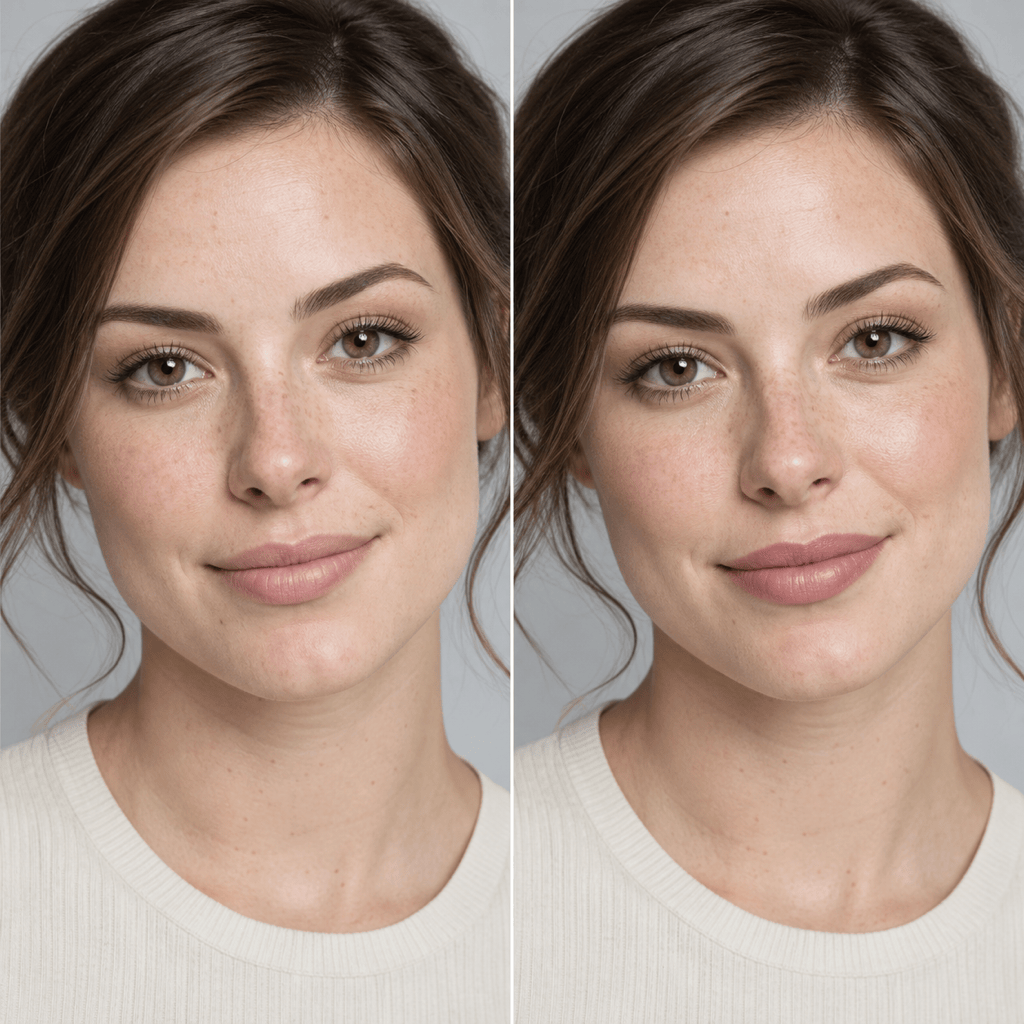
Apply a soft rose-nude lipstick with a neutral undertone, medium coverage, and natural satin finish to my uploaded portrait. Change only the lips; preserve lip lines, face, teeth, expression, skin texture, makeup, lighting, and background.
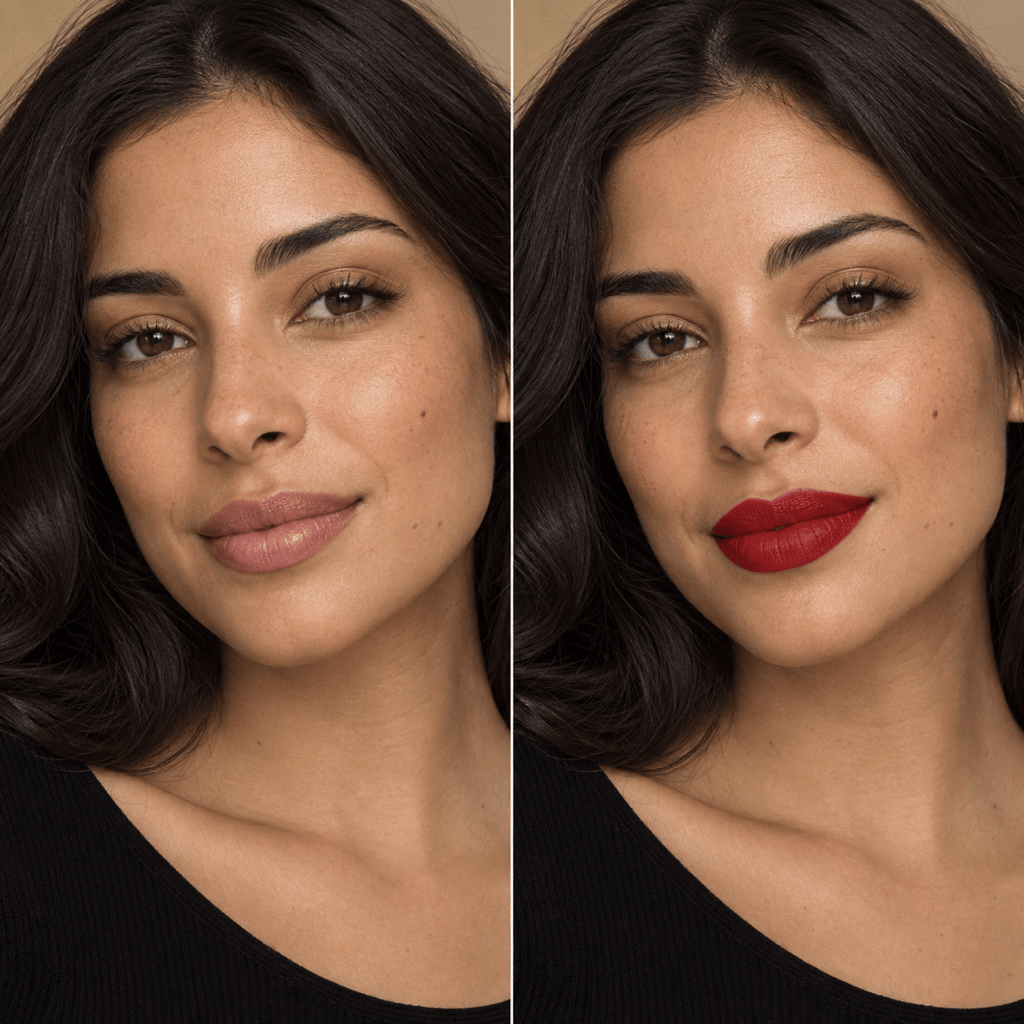
Try a classic blue-red lipstick with full, even pigment and a refined matte finish. Keep the natural lip shape and texture visible, protect the teeth and inner mouth, and leave every other part of the photo unchanged.
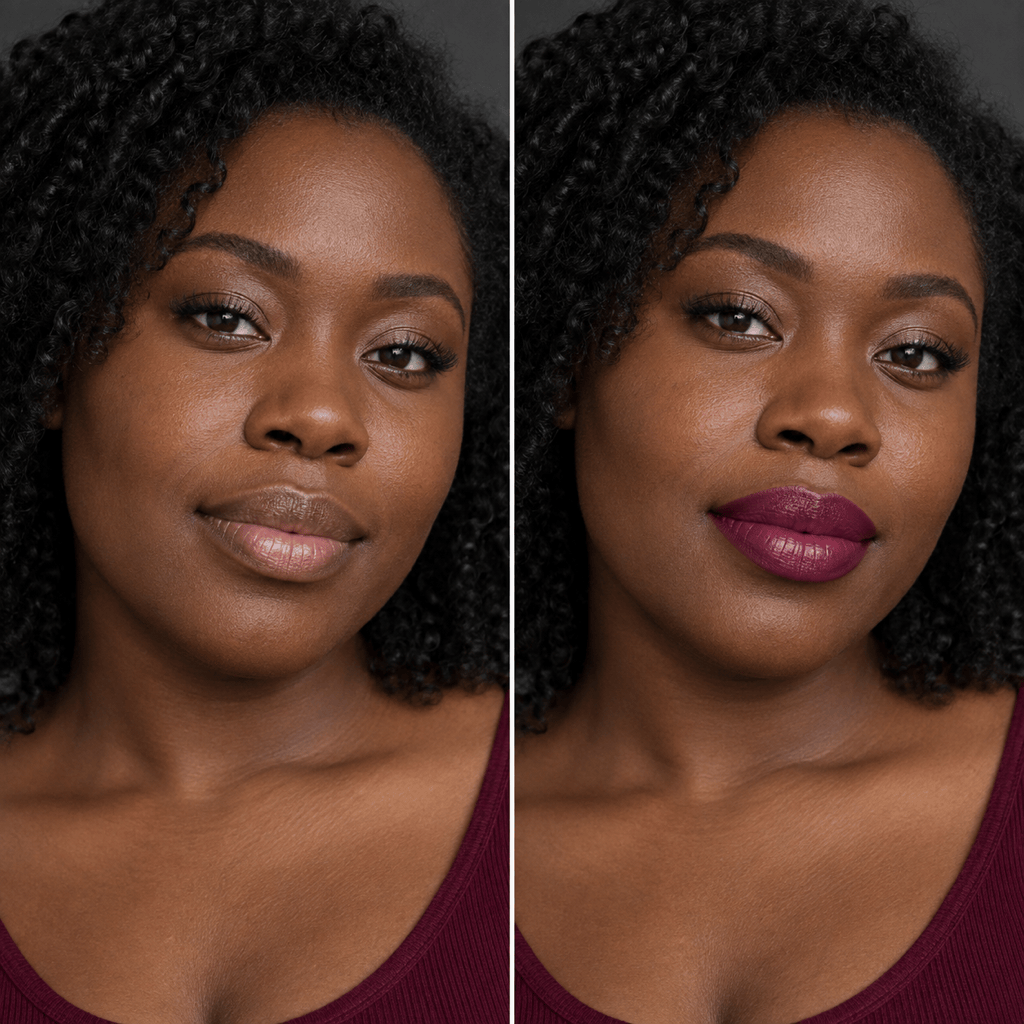
Add a deep berry-plum lip color with a balanced cool undertone and creamy finish. Keep realistic lip texture and soft highlights; do not reshape the mouth, smooth the skin, change the teeth, or alter the surrounding makeup.
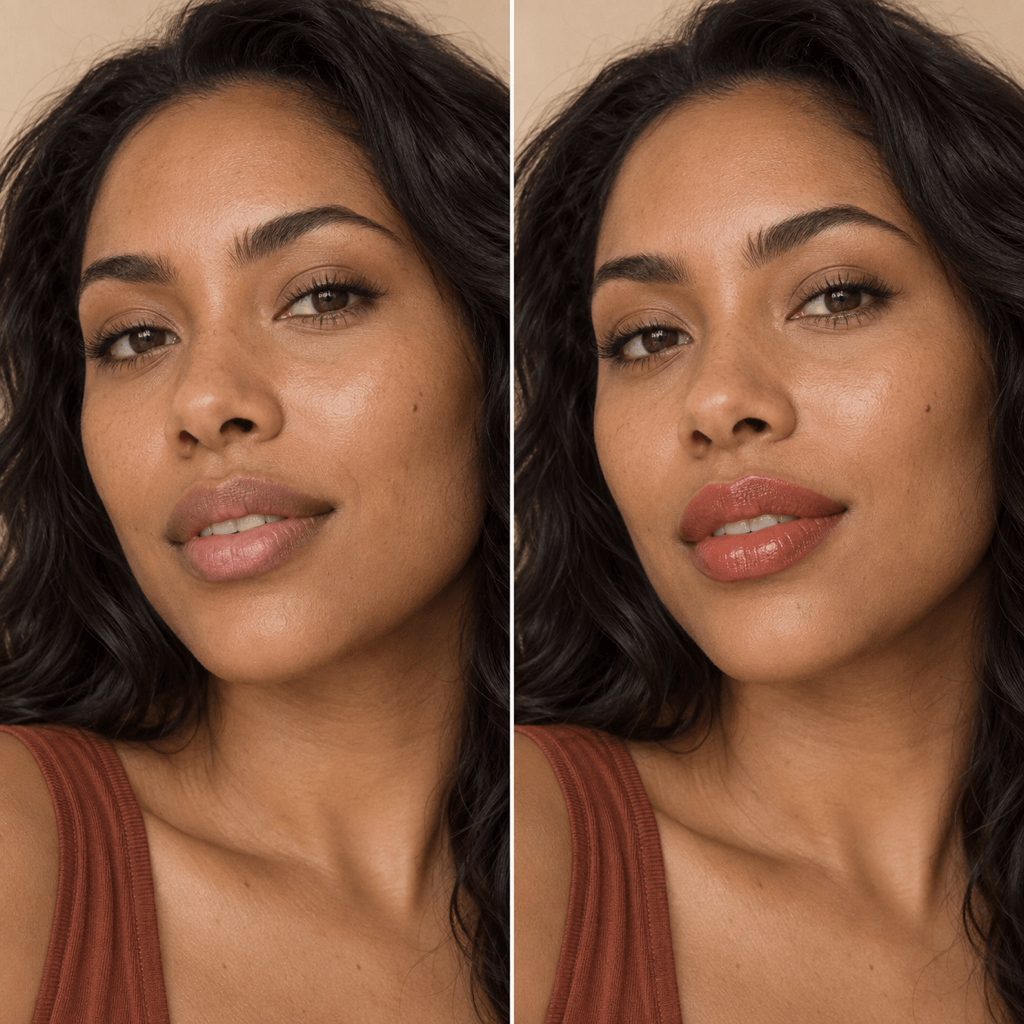
Preview a warm terracotta lipstick with medium-full coverage and a soft velvet finish. Apply color only inside the existing lip boundary and preserve the person, expression, face, hair, clothing, crop, light, and background.
Try a fresh coral lip tint with warm undertones, sheer coverage, and subtle gloss. Let the original lip texture show through, keep highlights consistent with the photo, and make no changes outside the lips.
From the same uploaded portrait, create three separate virtual lipstick previews: muted mauve satin, brick red matte, and cocoa nude cream. Keep identity, lip shape, pose, crop, lighting, teeth, skin, and background identical so I can compare the shades fairly.





