Free OnlineAI Lipstick Shade Finder
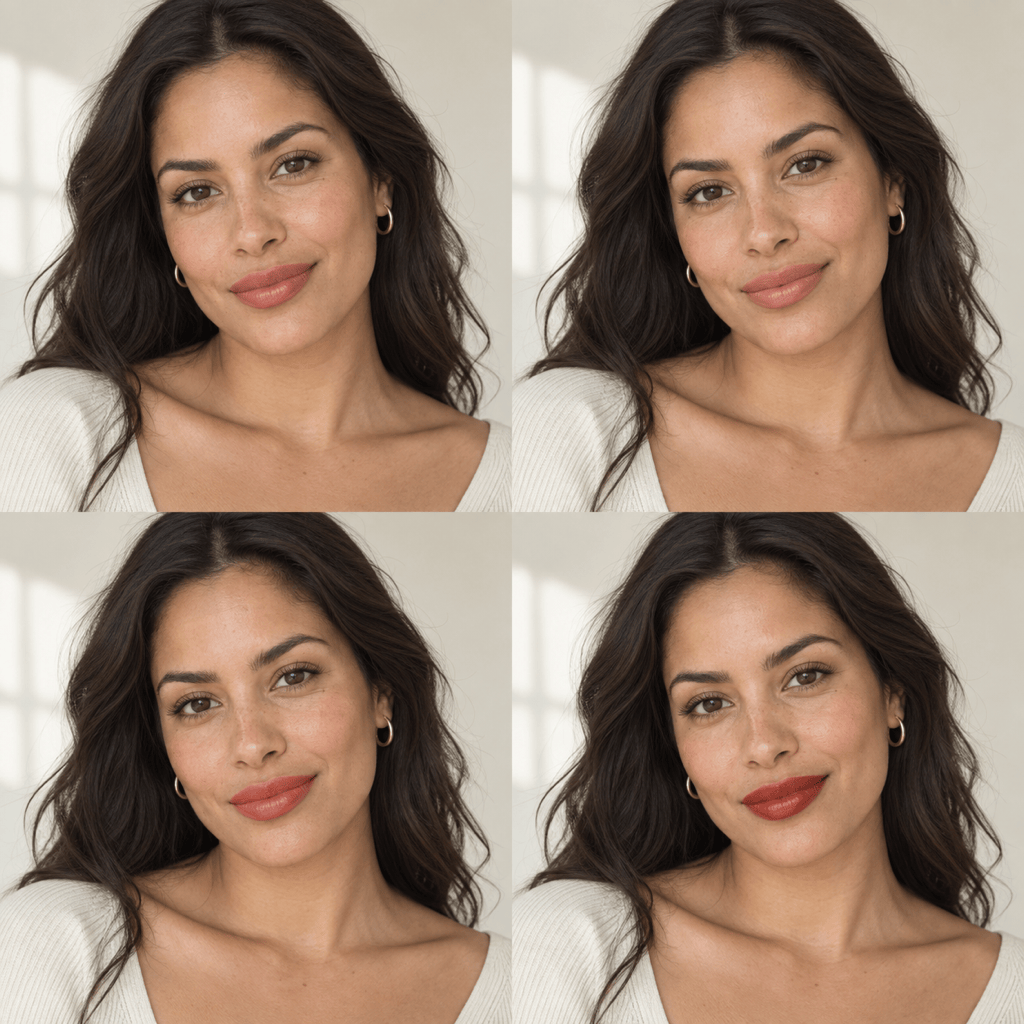
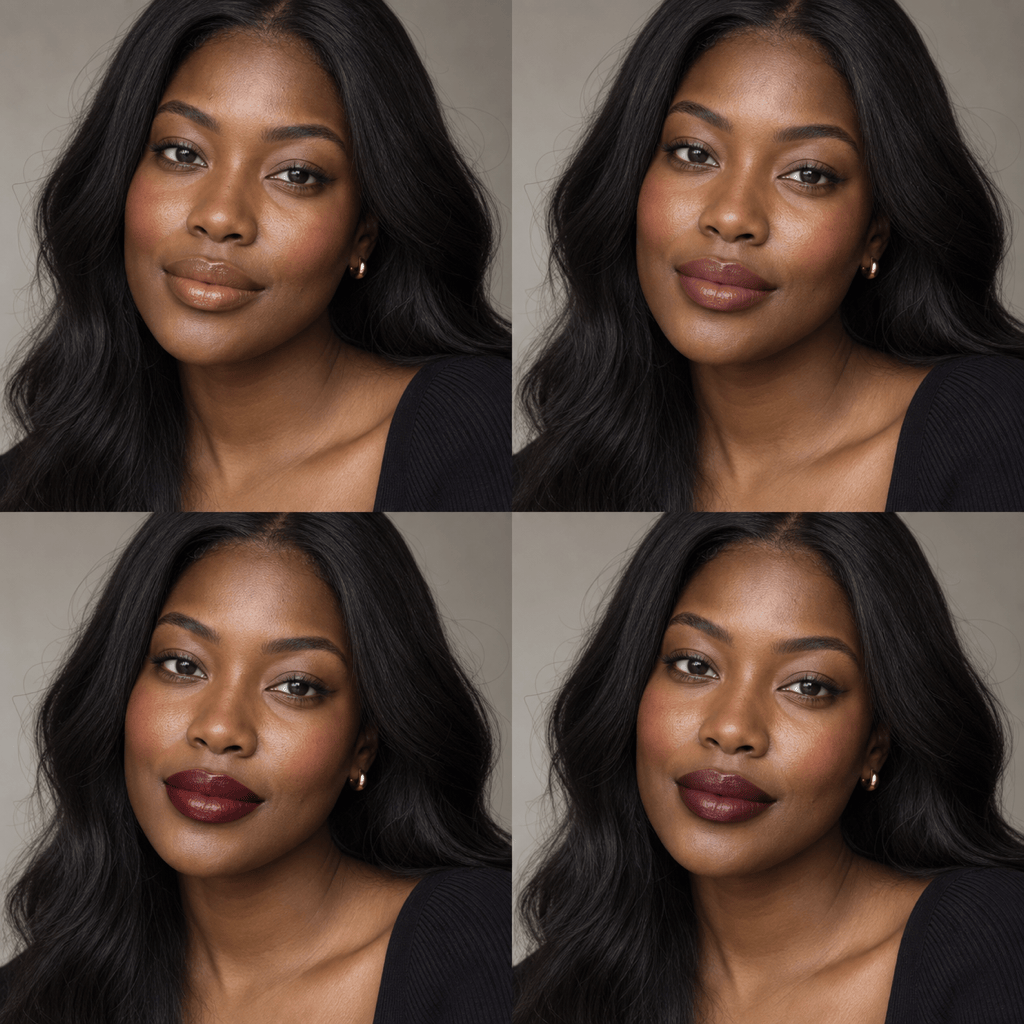
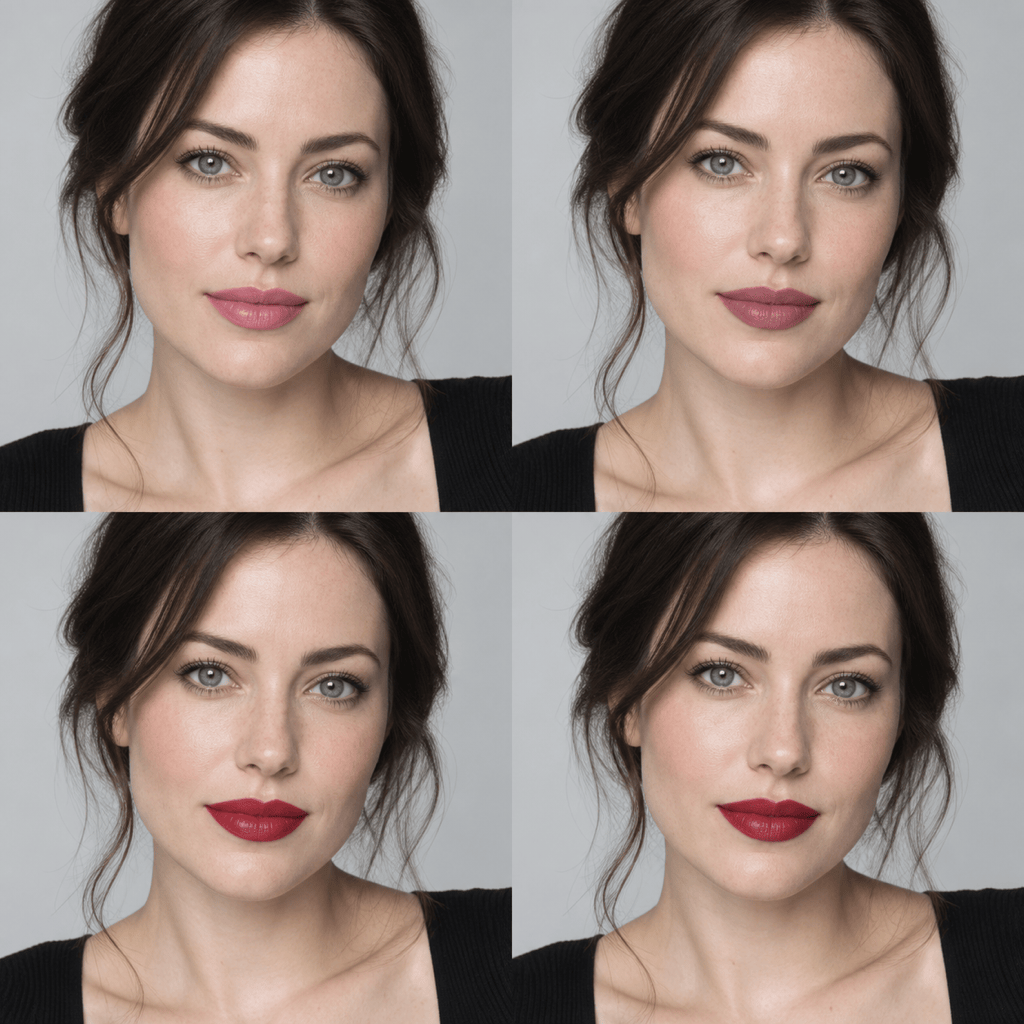
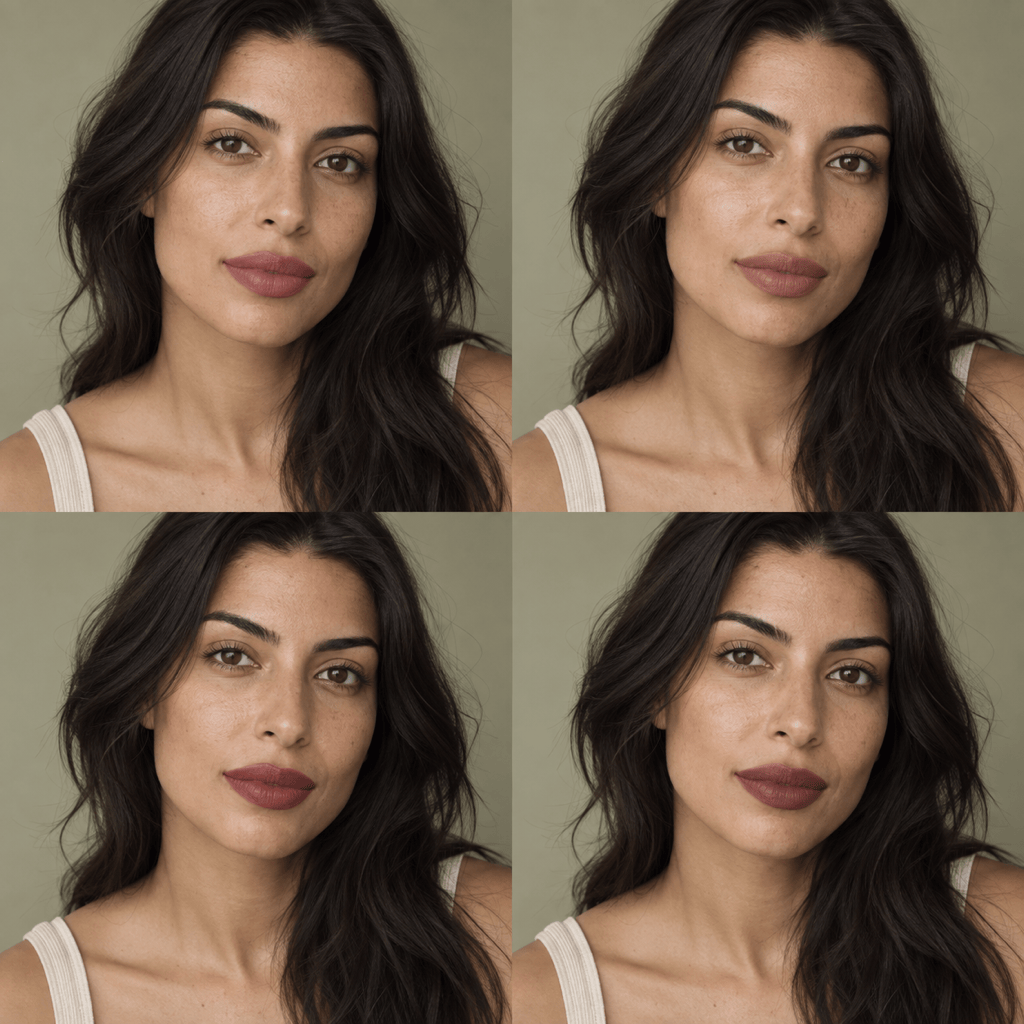
How to Preview Lipstick Shades with AI
Upload a Clear, Bare-Lip Selfie
Describe the Shades You Want to Compare
Generate Consistent Try-On Versions
Refine, Export, and Check in Person

Why Explore Lipstick Shades with Mew Design
Start from Your Own Photo or Reference
Upload a selfie for a personalized preview, or add a reference image when you already have a lip color direction in mind. The AI uses the visual context instead of starting from a generic face.
Keep the Comparison About Lip Color
Tell the AI to preserve your facial features, skin tone, natural lip shape, teeth, hair, pose, and lighting. A stable baseline makes each virtual lipstick try-on easier to judge.
Compare Shade Families Side by Side
This AI lipstick shade matcher can explore muted nudes, warm corals, cool reds, deep berries, rose browns, and bolder colors as a coherent set rather than isolated edits.
Control Color, Coverage, and Finish
Use the AI lip color changer to test a sheer tint, soft satin, velvet matte, or high-shine gloss while keeping the hue consistent, then compare intensity without changing the rest of your look.
Fine-Tune the Look Through Chat
If a shade feels too orange, cool, bright, pale, or saturated, use Chat Edit to request one focused correction while preserving the versions that already work.
Try Ideas Before You Commit
Start with free AI credits after signup and export watermark-free PNG or JPG previews. Use the images as a shortlist for an in-store swatch, an online order, or your next makeup look.
Prepare a Reliable Lipstick Try-On Photo
- Use Soft Daylight: Face a window or another neutral light source. Avoid strong yellow bathroom light, colored LEDs, deep shadow, or blown-out highlights.
- Keep Lips Clear and Visible: Start with bare lips or a very neutral balm. Use a front-facing angle, relaxed expression, sharp focus, and no hair or accessories covering the mouth.
- Remove Filters and Color Casts: Beauty filters, automatic skin smoothing, white-balance shifts, and heavy foundation can change the comparison baseline.
- Name What Must Stay the Same: Ask the AI to preserve identity, complexion, lip shape, teeth, pose, other makeup, lighting, and background while changing only the lipstick.
Try Lipstick Shades for Different Looks
Everyday Nude: Use my uploaded selfie and create three natural lipstick previews: warm peach nude, neutral rose-beige, and cool mauve nude. Keep my identity, skin tone, natural lip shape, other makeup, lighting, and background unchanged. Use soft satin coverage.
Find My Red Direction: Compare an orange-red, balanced true red, blue-red, and deep brick red on the same uploaded portrait. Change only the lipstick color, use the same satin finish and intensity, and preserve every other facial and image detail.
Deep-Skin Nude Comparison: On my uploaded photo, compare caramel nude, cocoa rose, rich rose brown, and deep berry-brown. Keep the colors saturated enough to avoid an ashy effect. Preserve my complexion, natural lip shape, and the rest of the image.
Olive-Undertone Shortlist: Using my selfie, create separate lipstick versions in muted rose, cinnamon nude, terracotta, and plum brown. Keep my face and lighting identical across versions and do not change my skin tone or other makeup.
Compare One Color in Four Finishes: Apply the same medium rose shade as sheer tint, soft satin, velvet matte, and glossy lacquer on four consistent versions of my portrait. Keep hue, face, lips, teeth, skin, pose, and background unchanged.
Match a Reference Color Direction: Apply the lipstick color and finish direction from my reference image to my selfie. Preserve my identity, skin tone, natural lip texture, other makeup, lighting, and background. Treat it as a visual approximation, not an exact brand shade match.





