Free OnlineAI Image Object Remover
How to Remove an Object from a Photo with AI
Upload a Clear Source Photo
Name the Exact Distraction
Generate the Cleaned Photo
Inspect, Refine, and Export

Why Use Mew Design as Your AI Photo Object Remover
Describe the Edit in Everyday Language
You do not need Photoshop tools or a technical masking workflow. Tell the AI image object remover which distraction should disappear and what the cleared area should look like.
Protect the Subject and Composition
Add preservation instructions such as “keep the person, pose, crop, lighting, and background unchanged.” This gives the agent clear boundaries for a precise image-to-image edit.
Account for Shadows and Reflections
Objects often leave visual traces. Ask the AI object remover to erase the related shadow, reflection, cable, or contact mark in the same edit so the scene reads naturally.
Repair Difficult Areas Through Chat
Complex tiles, railings, foliage, and patterned fabric may need another pass. Use Chat Edit to target a leftover edge or texture mismatch without rewriting the whole request.
Clean Photos for Real-World Use
Remove unwanted objects from travel shots, product listings, property photos, portraits, and social content while keeping the original visual purpose intact.
Try It Online and Export Without a Watermark
New users can test the free AI object remover with signup credits, refine the result in the same conversation, and export the finished photo as PNG or JPG without a watermark.
How to Get Cleaner Object Removal Results
- Use a Clear Original: Higher-resolution photos with visible surrounding texture give the AI more reliable context than compressed screenshots or heavily blurred images.
- Remove One Main Object at a Time: Separate passes are easier to review than one broad request that erases several unrelated areas at once.
- Include the Object's Visual Effects: Call out cast shadows, reflections, wires, or marks that belong to the object so they are not left behind.
- Expect Extra Care on Complex Patterns: Large overlapping objects, faces, text-heavy areas, fences, and repeating architecture may need a smaller selection or a targeted Chat Edit correction.
Object Removal Prompts for Common Photo Problems
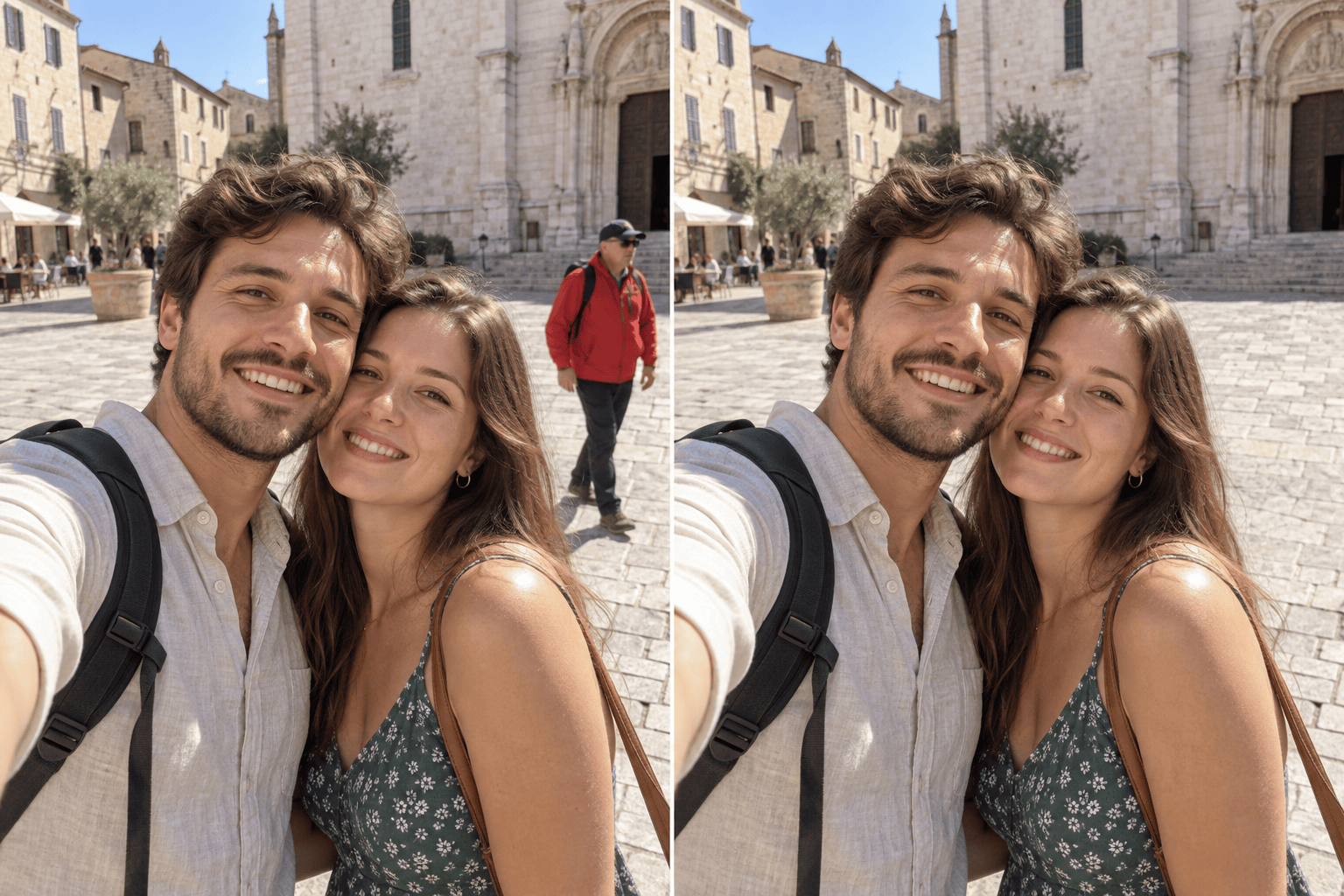
Travel photo: Remove the tourist in the red jacket behind the couple and erase the tourist's shadow. Rebuild the stone plaza naturally. Keep the couple, landmark, framing, and daylight unchanged.
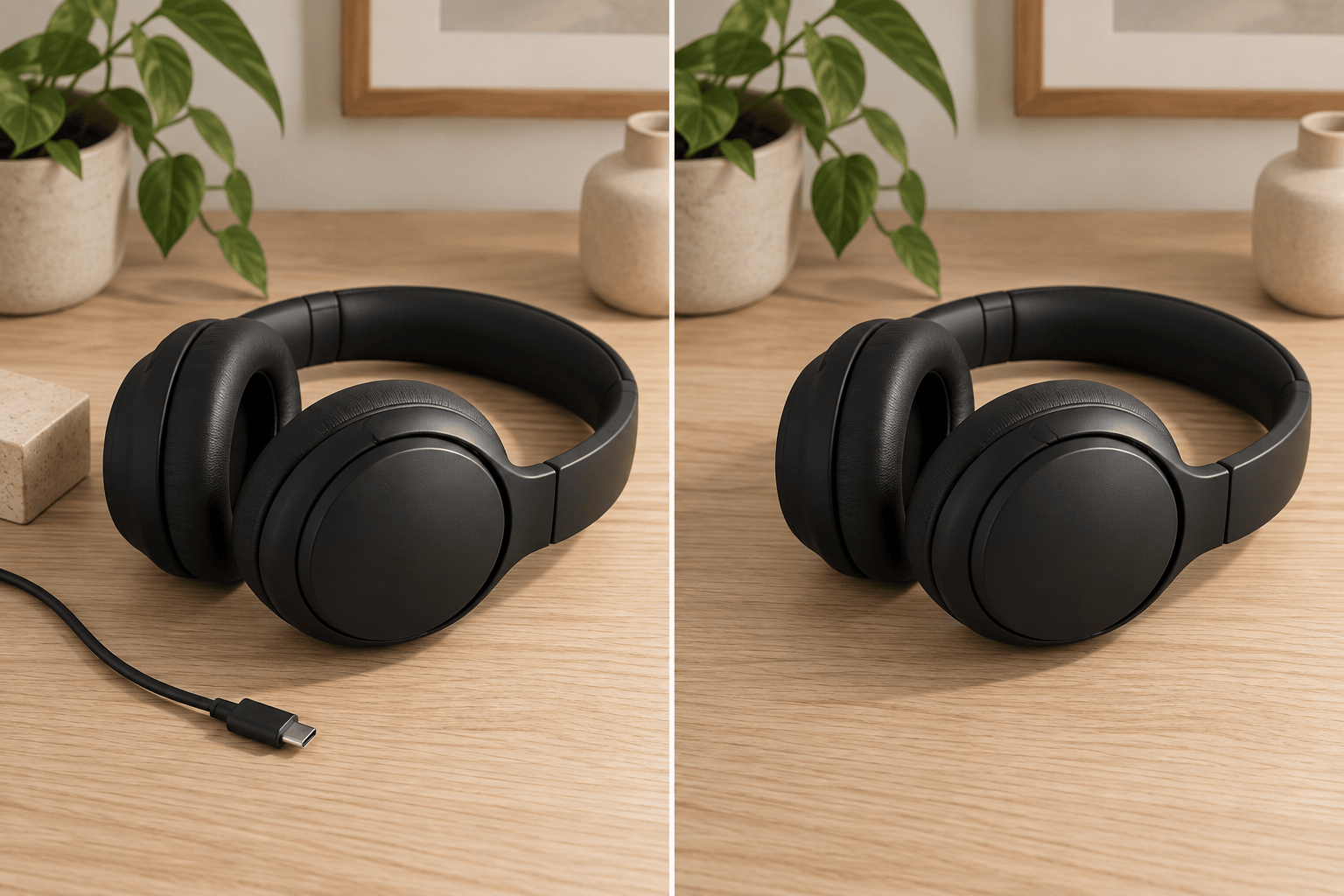
Product photo: Remove the charging cable and small styling block beside the headphones. Continue the tabletop texture and preserve the product, its shadow, label, camera angle, and color exactly.
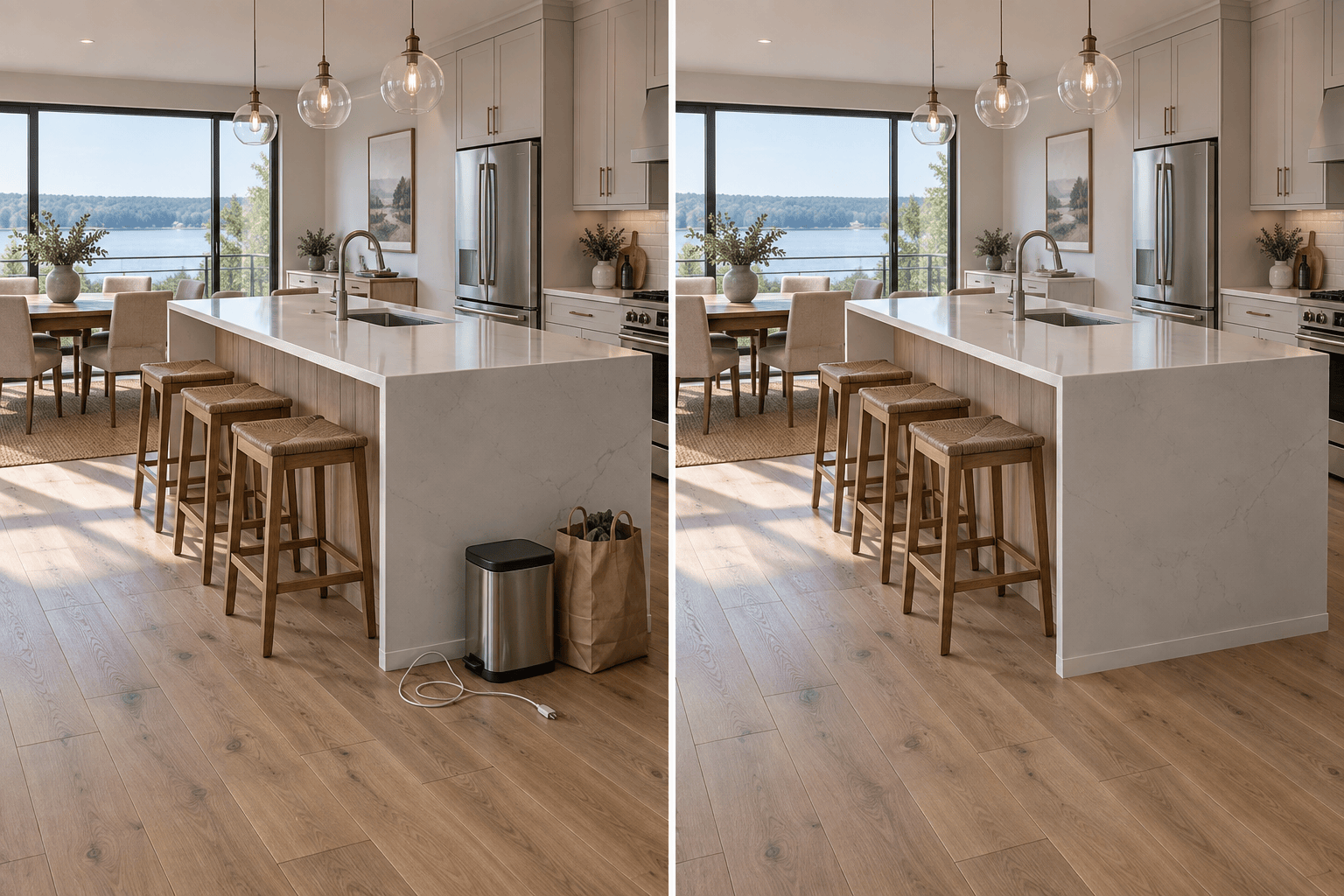
Real estate photo: Remove the trash bin and loose items beside the kitchen island. Reconstruct the floor and cabinet edges while keeping every fixed feature, light source, and line of perspective unchanged.
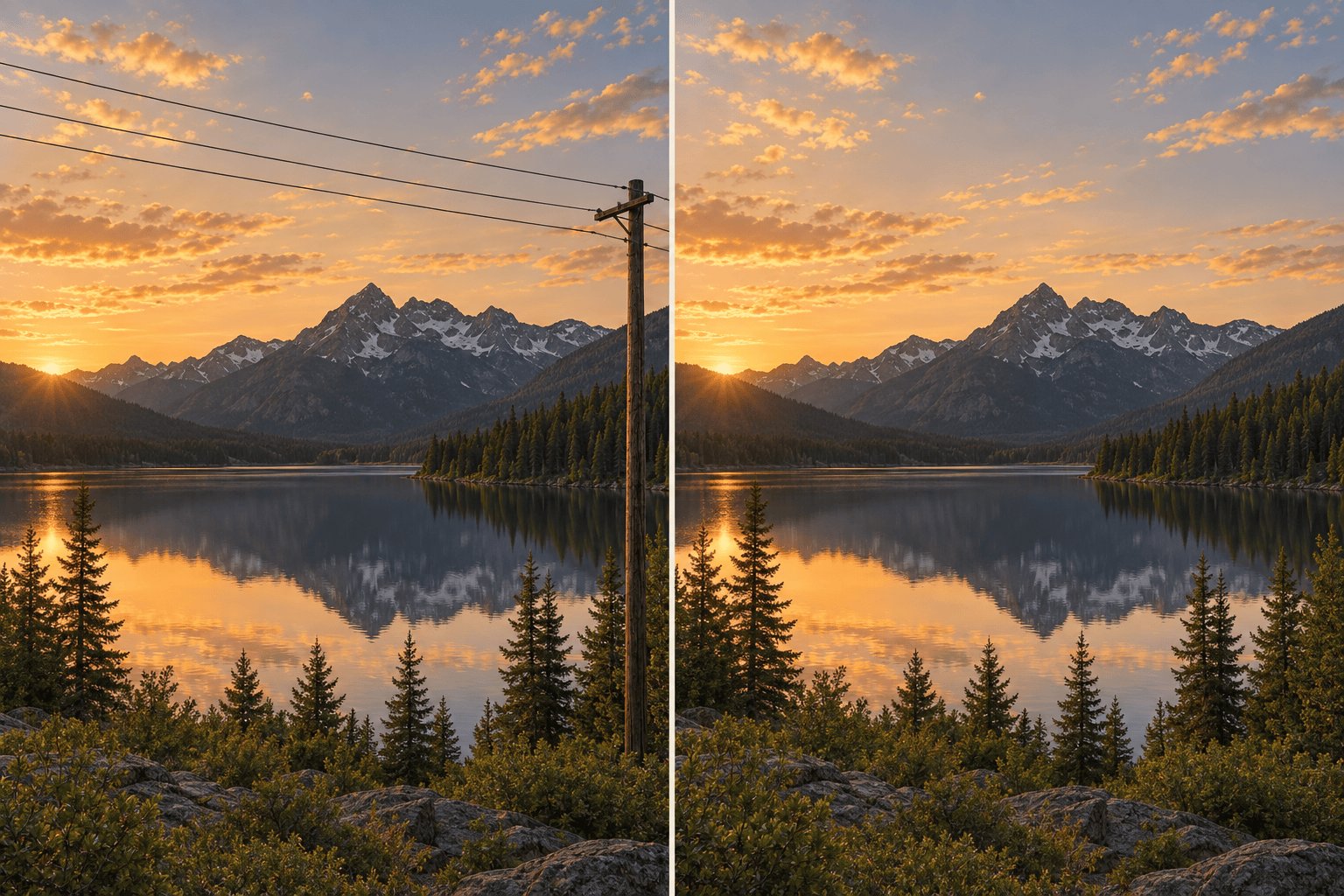
Landscape photo: Remove the power lines crossing the sky and the utility pole near the frame edge. Restore natural clouds and foliage without changing the mountains, horizon, or color grade.
Portrait photo: Remove the stray hand entering from the left edge and rebuild the blurred background. Keep the person's face, hair, clothing, pose, skin texture, and lighting unchanged.
Old photo cleanup: Remove the small dust spots and one vertical scratch. Restore the nearby grain and tones while preserving every face, printed detail, border, and original black-and-white character.





