Free to Try OnlineAI Image Enhancer
How to Enhance Photos with AI
Upload Your Best Original
Describe a Focused Improvement
Compare and Refine
Export for Your Destination

More Control over How Your Photos Improve
Work from Your Own Photo
Upload the image you want to improve. The AI photo enhancer uses your source and instructions, so you can ask for an edit tied to a specific photo.
Explain the Problem in Plain Language
Request brighter shadows, less visible noise, or clearer subject detail. You do not need a complex prompt to enhance image quality online.
Refine an Overprocessed Result
Use Chat Edit to ask for gentler contrast or less smoothing. Compare each revision with the original to choose a more natural finish.
Give Product Photos a Consistent Direction
Use a reference image to communicate lighting and color preferences across listings. Check every result for accurate shape, material, and color.
Reuse Your Editing Approach
Save a successful product-photo workflow as a Mew Skill, including lighting preferences and details to protect. Reuse it for future images with less repeated briefing.
Try Before Committing
New users can test edits with free AI credits after signup. Exports are watermark-free; available resolution and credit use depend on the current workflow and plan.
Keep Enhanced Photos Looking Natural
- Start with More Detail: Use the largest original file you have. Repeated screenshots and compressed copies give AI less reliable information.
- Name What Must Stay: Identify facial features, lettering, product shape, and color before requesting a change. Preservation instructions guide the edit but do not guarantee an exact match.
- Inspect at Full Size: Compare both versions at the same scale. Look for plastic skin, bright edge halos, repeated textures, or altered letters.
- Separate Clarity from Size: Enhancement changes appearance; upscaling increases pixel dimensions. Check the exported size instead of assuming that a sharper preview is a larger image.
Targeted Fixes for Common Photo Problems
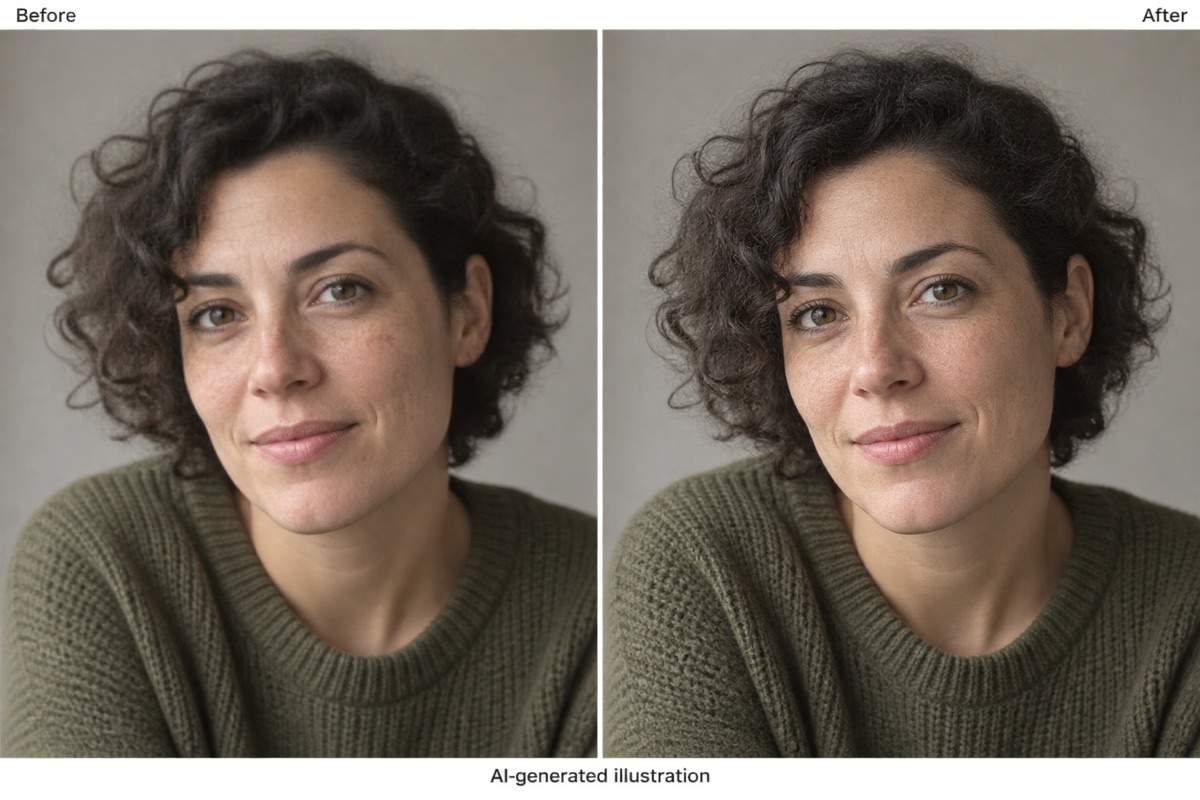
Unblur this uploaded portrait gently. Improve visible eye and hair detail while keeping the same identity, expression, skin texture, and framing. Avoid beauty retouching.
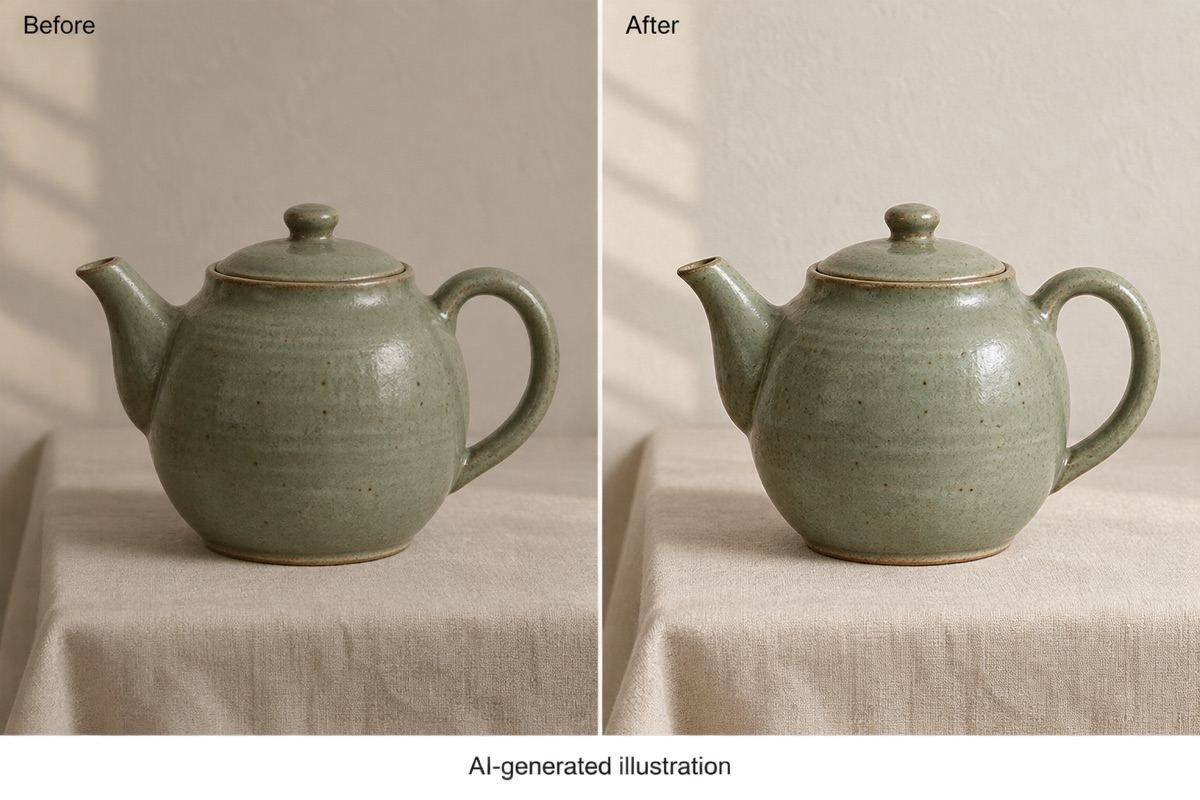
Enhance this product photo for an online listing. Balance the lighting and clarify visible edges. Keep the product shape, material, color, logo, and background unchanged; do not invent label text.
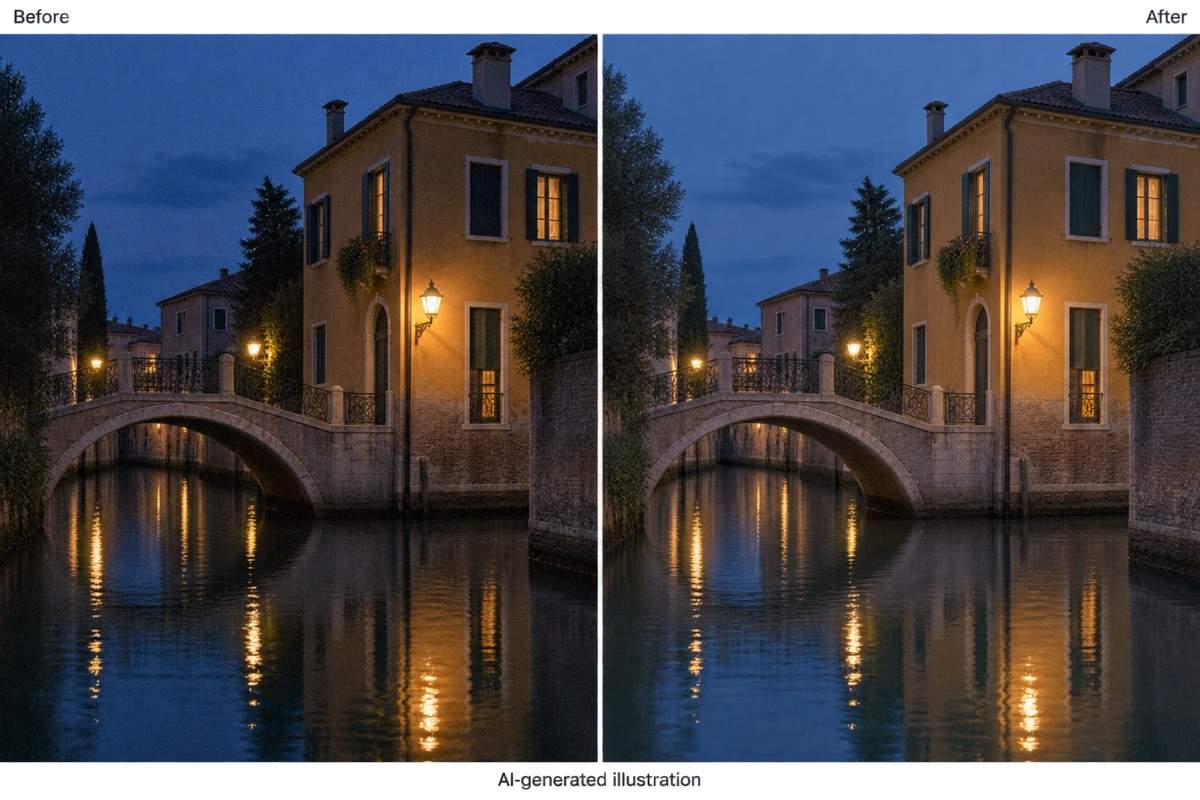
Improve this low-light photo by reducing visible color noise and gently lifting shadows. Keep the nighttime mood and highlight detail; do not turn the scene into daylight.
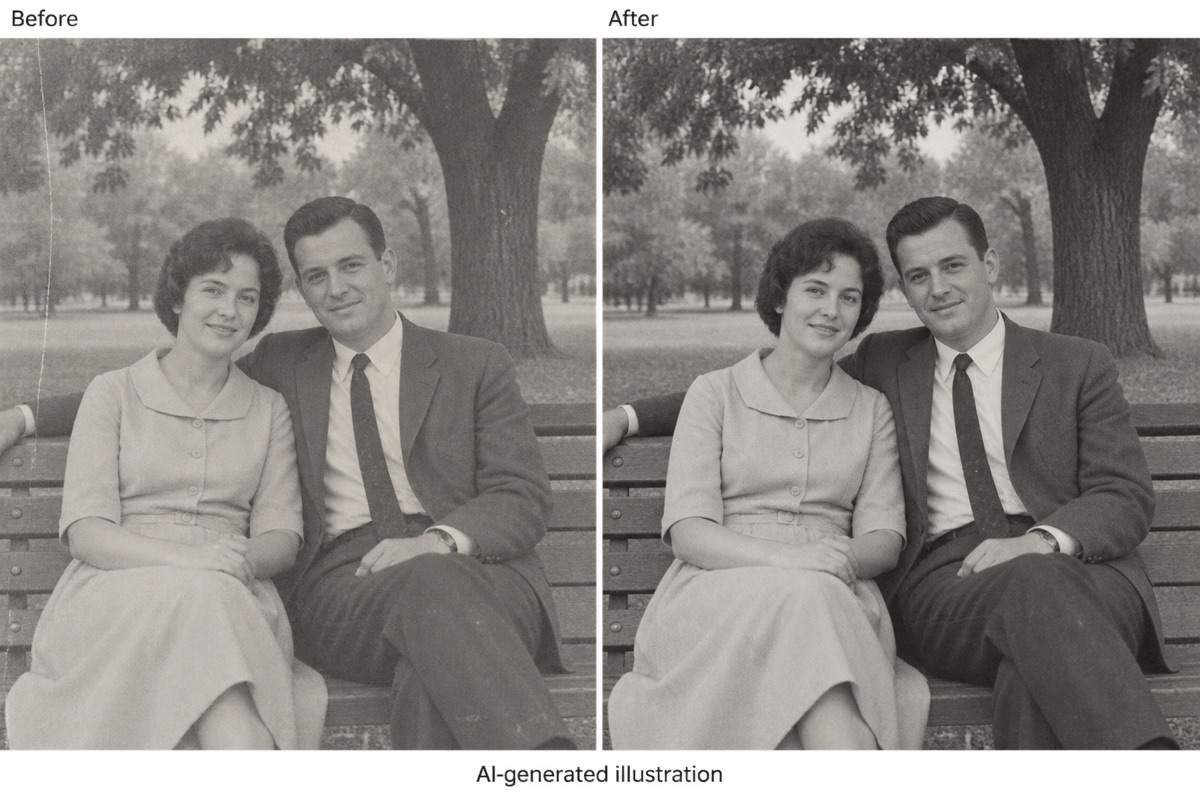
Improve this scanned old photo with gentle contrast and cleanup of small visible marks. Keep the original monochrome tones, facial features, clothing, and composition; do not colorize it.
Reduce visible compression blocks in this uploaded image. Keep the existing composition and avoid inventing fine texture or lettering. Make a restrained edit for social sharing.
Revise this enhanced photo to look less processed. Reduce edge halos, oversaturated colors, and excessive skin smoothing. Use my original upload as the reference for a natural finish.





