Free OnlineAI Hair Generator
How to Create a Hairstyle Preview with AI
Upload a Clear Photo
Describe Your New Hair
Refine the Hair Only
Save Your Salon Reference
Why Try AI Hairstyles on Your Own Photo?
Compare Haircuts on Your Face
Upload your portrait to our AI hairstyle generator and compare a bob, longer layers or a shorter cut on the same face. Request hair-only changes to make each preview easier to judge.
Go Beyond a Preset Haircut
Describe a chin-length bob, curtain bangs or a textured crop. Combine the length and finish you want in plain language instead of searching for an exact preset.
Test Color Separately
Preview copper, brunette or highlights with our AI hair color changer while asking to retain your haircut. Compare shades on the same photo before choosing a direction for your next salon visit.
Bring a Hairstyle Reference
Upload a second image for the cut or fringe you like. Identify which photo is you and which is the hair reference, and explain which details to borrow.
Choose How You Generate
Select an available image model yourself, or let Mew Auto choose for your photo and requested edit. Mew Design brings the latest leading image models into one workflow and adds new releases promptly.
Fine-Tune Before You Decide
Use Chat Edit for focused adjustments, then export a watermark-free PNG or JPG. Free signup credits let you test the workflow; further generation depends on available credits.
Get a More Useful Virtual Hairstyle Try-On
- Show the Hairline: Use an unobstructed portrait with even lighting. Avoid hats, heavy beauty filters and tightly cropped hair.
- Keep Your Texture: Say whether your hair is straight, wavy, curly or coily. Request the same texture unless a texture change is intentional.
- Check More Than the Cut: Compare facial features, ears, hairline and background against the original. A flattering preview is less useful if your face has changed.
- Treat It as a Reference: AI cannot predict shrinkage, growth patterns, chemical color results or daily styling effort. Discuss feasibility with your stylist.
Try Haircuts, Bangs and Colors on Your Photo
Use my photo to preview short hair with a jaw-length bob. Keep my natural texture and hair color, and preserve my face, expression, clothes and background.
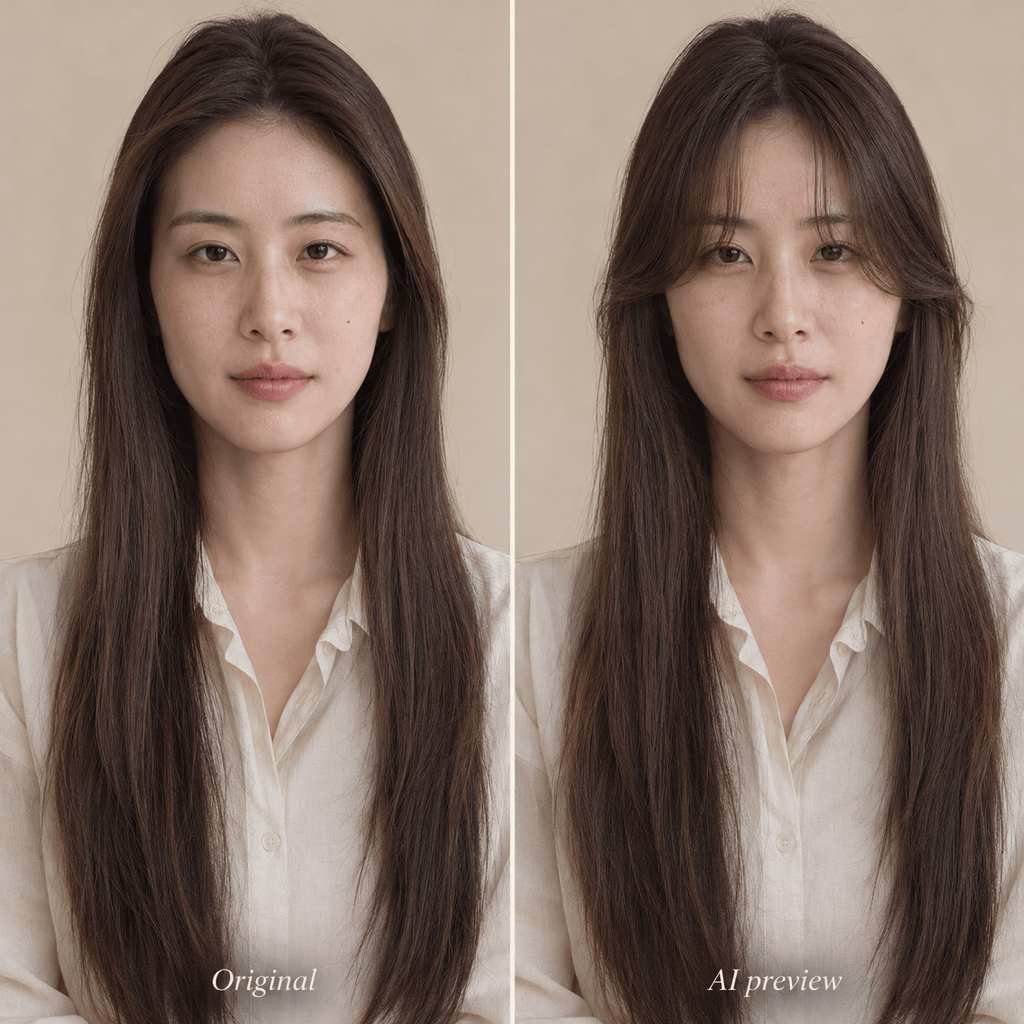
Add soft curtain bangs to my uploaded portrait, opening around the cheekbones. Keep the rest of my hair length and color, my face and the original photo unchanged.
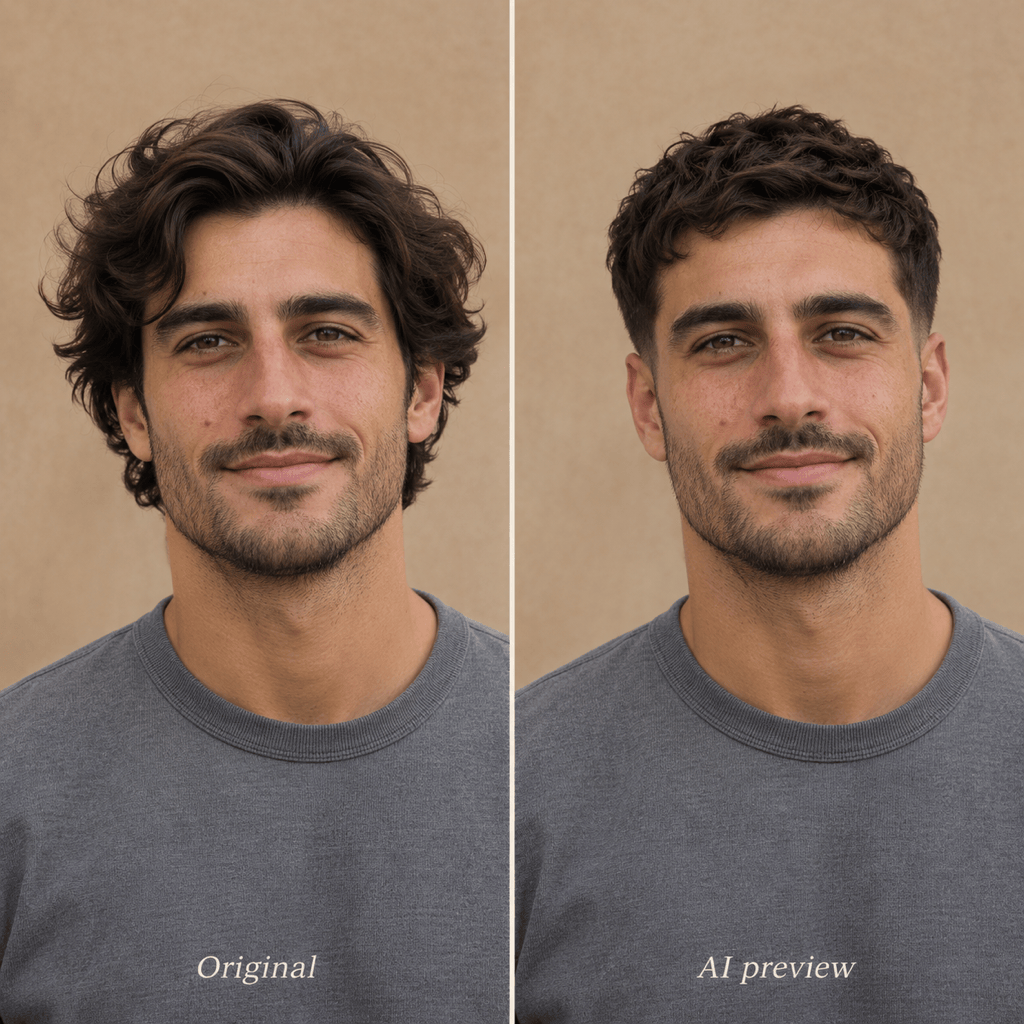
Use my portrait to preview a men’s textured crop with a low taper. Keep my natural hairline and density, face, facial hair, lighting and background unchanged.
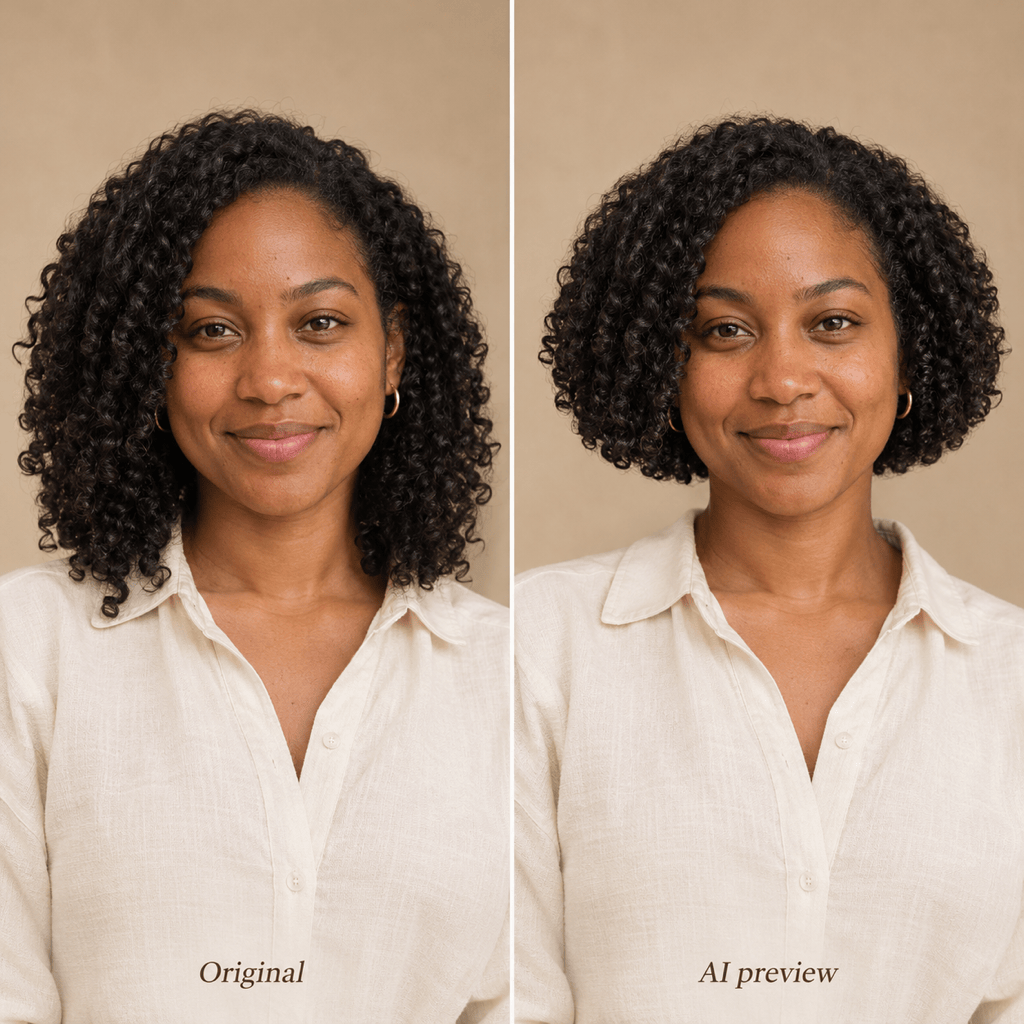
Preview a rounded, shoulder-length cut on my curly hair. Preserve my existing curl pattern and color rather than making the curls looser. Keep my face and the rest of the photo unchanged.
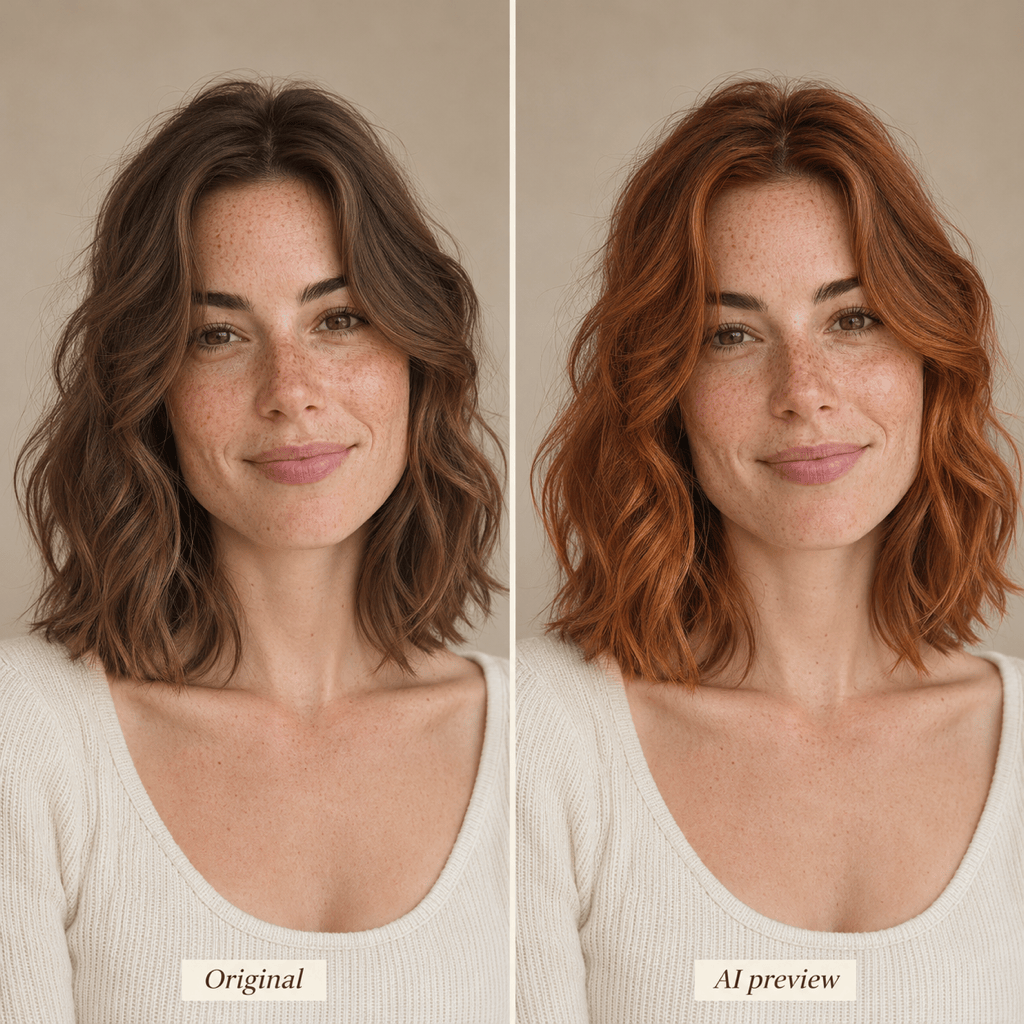
Change only the hair color in my photo to a warm copper shade. Preserve the haircut, texture, skin tone, face and original lighting so I can compare the color.
Use the first uploaded photo as my portrait and the second as a hairstyle reference. Borrow the reference’s layers and fringe while keeping my own texture, color, facial features and background.