Free OnlineAI Family Photos Generator
Bring everyone into one believable frame with Mew Design - AI Design Agent. Our AI family photo generator combines individual pictures into a cohesive family portrait, then lets you refine faces, poses, outfits, lighting, and scenery through chat. Create a studio portrait, reunion keepsake, holiday card photo, or family picture with pets without arranging one perfect group shoot.

How to Create a Family Photo with AI

Start from clear photos of each person, define the group arrangement, and refine the result until it feels like one real photo rather than a collage.
1

Choose Clear Family Photos

Upload or reference a clear, well-lit image of each family member. Front-facing or three-quarter portraits with visible eyes and hairlines give the AI family portrait generator stronger identity cues.
2

Describe the Group Portrait

Tell Mew Design who belongs in the photo, where each person should stand or sit, the setting, wardrobe palette, mood, and any details that must remain unchanged. Plain language is enough.
3

Generate and Check Every Person

The AI design agent plans a cohesive composition and creates the first family portrait. Check faces, ages, relative heights, hands, shadows, and whether every intended person and pet appears exactly once.
4

Refine, Download, and Share

Use Chat Edit to correct one detail at a time, such as a face, pose, outfit, crop, or background, while preserving the parts that already work. Export the finished photo as PNG or JPG for a frame, card, album, or social post.
How to create family photos with AI

A Family Portrait Maker Built for Real-Life Gaps

Combine Photos Taken Apart

Use separate portraits as references when relatives live far away or missed the same event. This online AI family photo maker composes them into one scene instead of a cut-and-paste collage.

Guide Identity with References

Upload clear images for the people and pets you want included, then state which facial features, hairstyles, ages, and body proportions should stay recognizable in the new portrait.

Fix One Detail Through Chat

If one face, hand, expression, or shadow feels wrong, click Chat Edit and request a focused correction while asking Mew Design to keep the rest of the family photo unchanged.

Explore Portrait Styles Together

Create realistic studio, outdoor, vintage, watercolor, or seasonal versions from the same family references. Generate coordinated variations without rebuilding the group from scratch.

Prepare Keepsakes in Useful Formats

Download watermark-free PNG or JPG files for wall prints, photo books, announcements, and family Christmas cards. Review the final crop and resolution for your intended print size.

Reuse a Family Card Workflow

Turn a successful holiday or milestone portrait method into a Mew Skill. Reuse the visual direction, arrangement rules, and output preferences for future family designs with less repeated setup.

Choose Better Photos for a More Natural Result

Use @mom-photo, @dad-photo, @grandparents-photo, and @kids-photo to create one realistic multigenerational family portrait. Arrange the grandparents seated in the center, with the adults and children standing naturally around them. Keep every face, age, skin tone, hairstyle, and relative height recognizable. Match the lighting, eye level, scale, and shadows across the group. Do not add or remove people.
Input quality usually matters more than an elaborate prompt. Choose photos that make each face easy to recognize and give the generator enough information to build a believable group.
  • Show faces clearly: Prefer front-facing or three-quarter views with visible eyes, natural skin tone, sharp focus, and no sunglasses, beauty filters, or hands covering the face.
  • Match the camera when possible: Photos with similar eye level, head angle, light direction, and resolution are easier to combine into one natural family portrait.
  • Plan the arrangement: Name every person, state who should sit or stand together, and mention realistic age and height relationships before generation.
  • Set identity boundaries: Ask the AI to preserve recognizable faces and change only the setting, outfits, or pose. Review the result carefully because reference-based generation can still alter details.

Family Photo Ideas You Can Generate

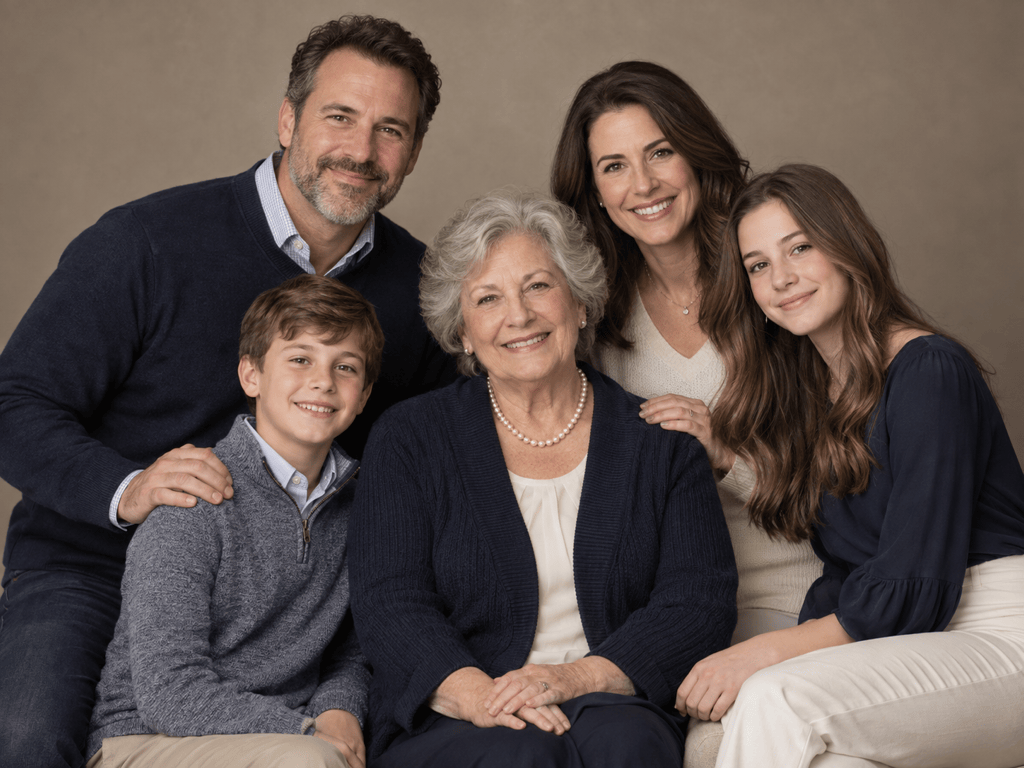
Create a realistic studio family portrait from my uploaded individual photos. Include all five people exactly once, keep their faces and ages recognizable, coordinate navy, cream, and soft gray outfits, and use balanced softbox lighting on a warm neutral backdrop.

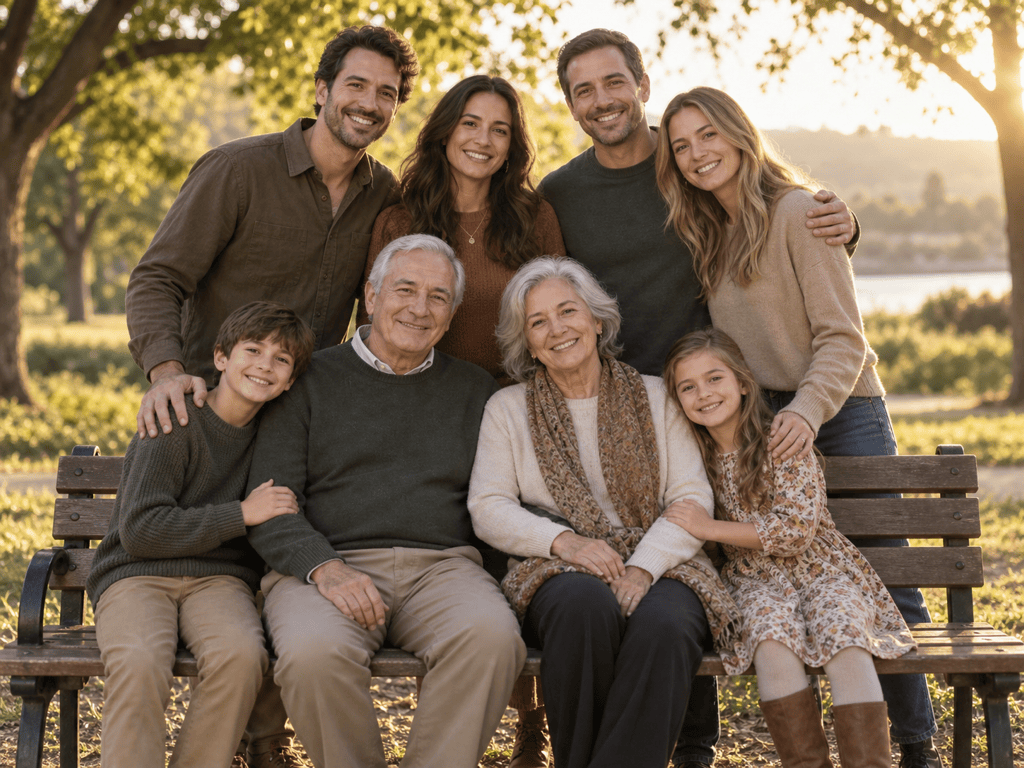
Combine my separate photos into a multigenerational family reunion portrait in a leafy park at golden hour. Seat the grandparents in front, place their adult children behind them, and arrange the grandchildren naturally at both sides. Match scale, eye level, light, and shadows.

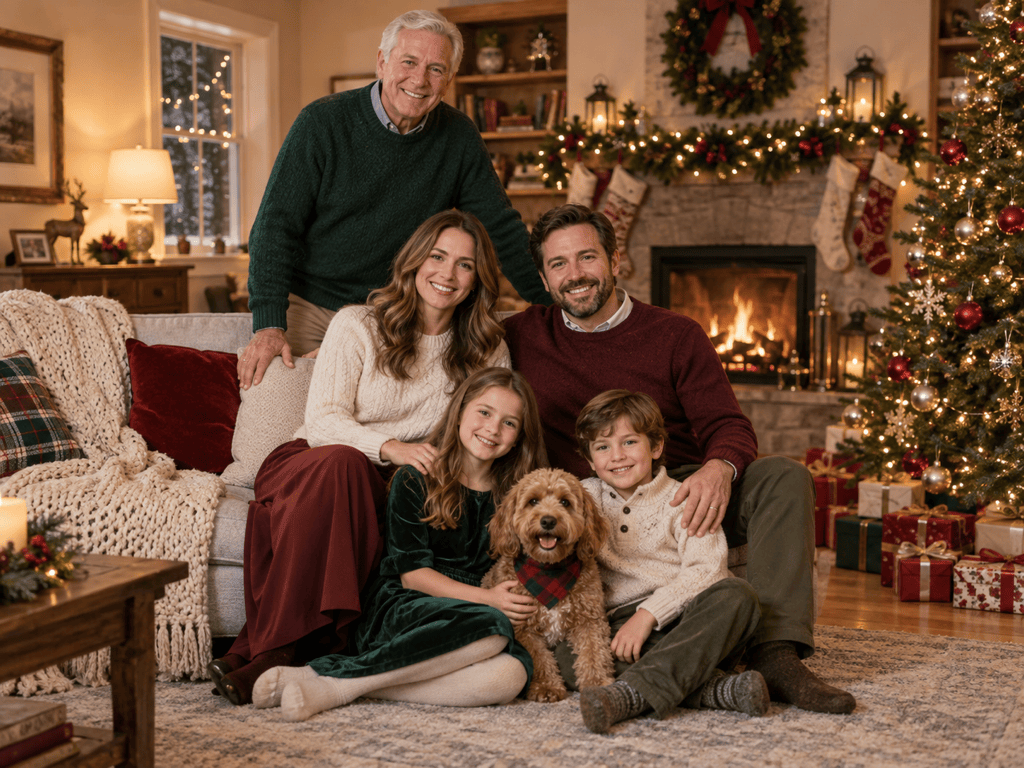
Turn my family reference photos into a cozy Christmas card portrait by a decorated fireplace. Keep every face unchanged, add coordinated burgundy and forest-green winter outfits, include our dog beside the children, and leave clean space around the group for a later greeting.

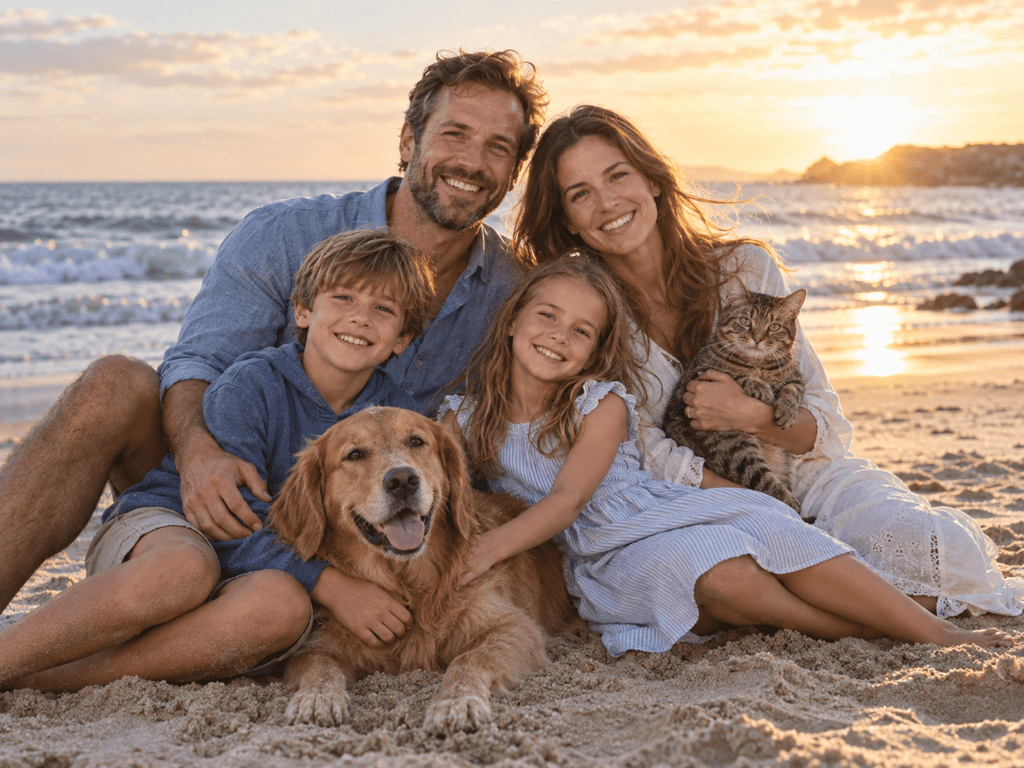
Create a candid beach family photo from the uploaded portraits. Show the parents and two children walking together near the water at sunset, preserve facial identity and age, use natural movement and wind, and keep skin tones and lighting consistent.

Add the missing family member from @portrait-reference to @group-photo. Place them naturally at the open side of the group, preserve everyone else's faces, clothing, pose, and background, and match the new person's perspective, height, lighting, grain, and shadow.

Create a gentle watercolor family portrait from the uploaded photos, including the grandparents, parents, two children, and cat. Preserve recognizable facial features and relative ages, use a cohesive seated composition, soft paper texture, muted warm colors, and no text.


FAQs About AI Family Photo Generation

Yes. Upload or reference clear photos of each person and describe the group arrangement. The AI family photos generator can build one cohesive portrait, but you should verify every face, person count, hand, and proportion before using it.
Yes. New users can sign up for free AI credits, generate and refine a family portrait online, and export watermark-free results. Credit use depends on the generation workflow you choose.
Reference photos help guide identity, but no generative edit should be treated as a perfect copy. Use clear inputs, state what must remain recognizable, then inspect each face closely and use Chat Edit for focused corrections.
Yes. A multigenerational family portrait or family photo with pets works best when each subject has a clear reference and the prompt states the exact number of people and animals, their arrangement, and relative sizes.
You can use an available portrait as a reference for a respectful keepsake. Confirm that you have the right to use the photo, consider the wishes of close family members, and label the result as AI-created when others could mistake it for a real historical image.
Choose sharp, well-lit photos with visible eyes, natural color, little occlusion, and front-facing or three-quarter angles. Similar eye level, camera distance, and light direction help the final group look more coherent.
Yes. Use Chat Edit to request coordinated clothing, a different setting, a corrected expression, or a tighter crop. Change one issue at a time and explicitly ask to preserve the faces and areas that already look right.
Yes. Export as PNG or JPG for cards, albums, frames, and social media. Before printing, check identity, hands, edges, image resolution, and crop, and make sure you have permission from the people shown.

Ready to Generate Designs With AI?

Get Started - 50 Free Credits
No credit card required
Š 2025 - 2026 Mew Design, MAGOAI LTD.All rights reserved.