Free OnlineAI Face Fixer
How to Fix a Face with AI
Upload and Name the Problem
Generate a Focused Repair
Check the Face Up Close
Download the Reviewed Portrait

Face Repairs You Can Guide and Refine
Work from the Image You Have
Upload a real photo or generated portrait. This AI face enhancer supports image-based editing, so your request starts with the picture you want to improve.
Describe the Facial Error
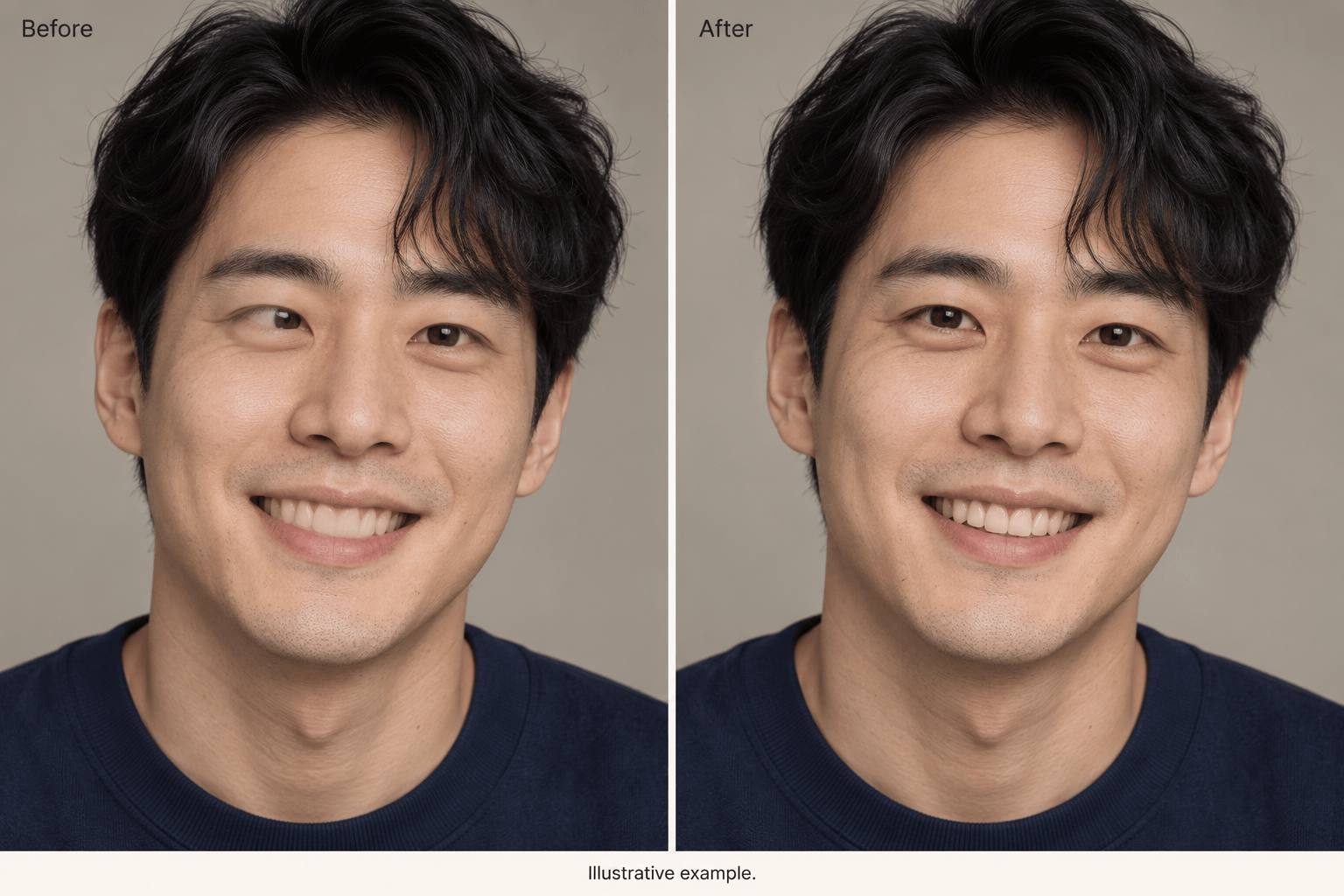
Point out crossed pupils, a distorted smile or skin that looks too smooth. Give a targeted instruction instead of requesting a complete portrait redesign.
Add a Clear Reference
Upload another photo of the same person to guide facial details. Explain which image needs repair and which is the reference; check the result for changes in likeness.
Adjust an Overdone Correction
Use Chat Edit to ask for less smoothing, gentler sharpening or a closer match to the original expression. Refine one issue at a time.
Compare Subtle Variations
Request another version with a lighter correction. For AI face restoration, compare recognizable features as well as sharpness before choosing an edit.
Take the Portrait into Your Project
Download watermark-free PNG or JPG images for profiles and creative layouts. Free signup credits let you try the workflow; generation and edits use credits.
How to Keep a Face Looking Like Itself
- Start with the Best Source: Use the original photo or scan when available. A tiny screenshot or heavily compressed copy gives an AI face enhancer less detail to work with.
- Separate Damage from Character: Specify the defect. Keep natural asymmetry, wrinkles and freckles unless you explicitly want to change them.
- Inspect the Small Details: Zoom in on pupils, eyelids, teeth, glasses and hairlines. Check that texture and lighting still match the rest of the image.
- Know When to Stop: Heavy blur or missing features can lead AI to invent details. If identity drifts, return to the original and request a smaller correction.
Common Face Problems and Targeted Fixes
Fix distorted eyes in my uploaded AI portrait. Align the pupils with the existing gaze and correct the eyelids. Preserve natural asymmetry, face shape, expression and lighting.
Repair the warped teeth in my uploaded AI image. Make the visible teeth and lip edges plausible while keeping the same smile, mouth opening and facial proportions.
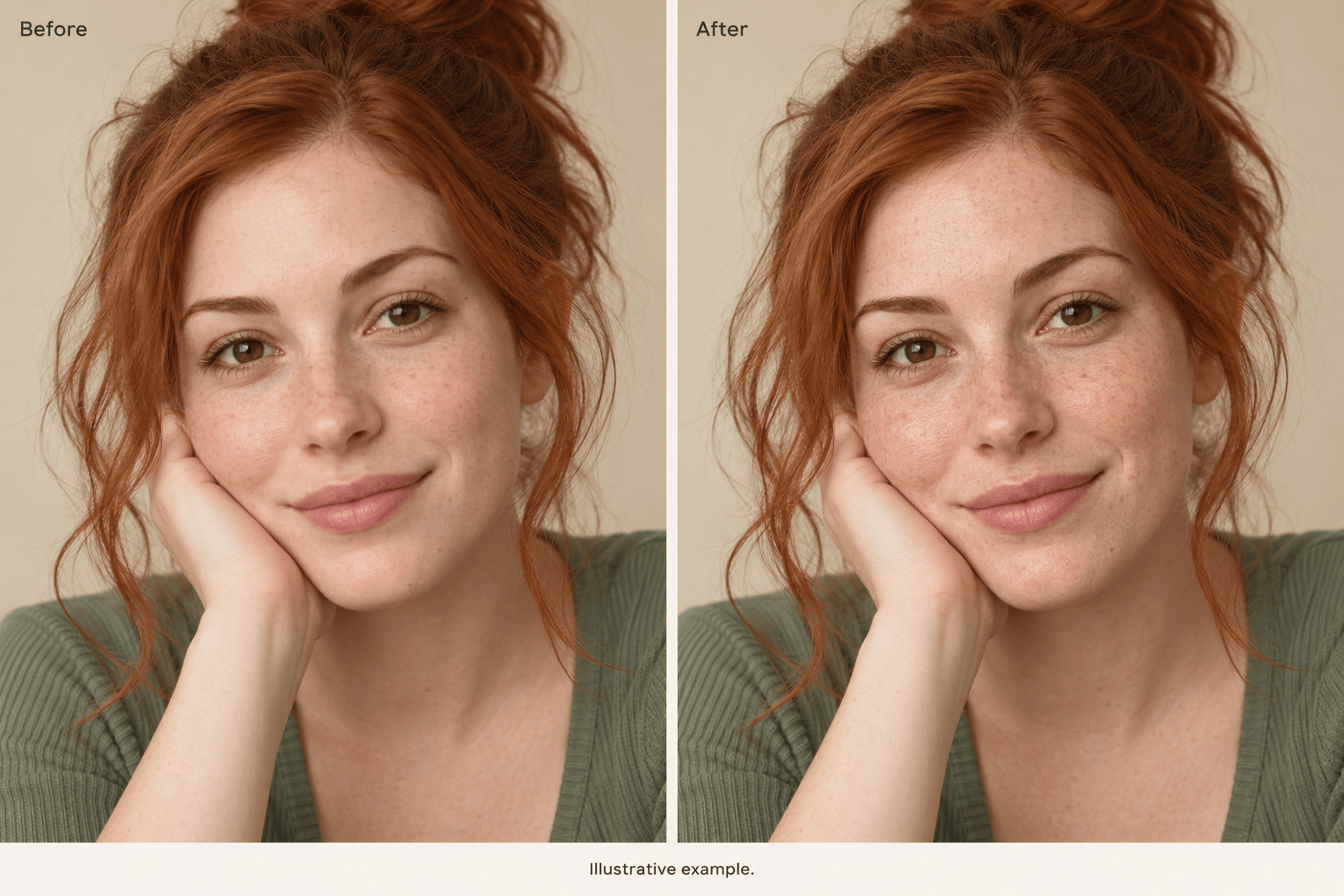
Improve the blurry face in my uploaded photo with gentle detail enhancement. Keep skin texture and expression natural. Avoid sharp halos or inventing a different face.
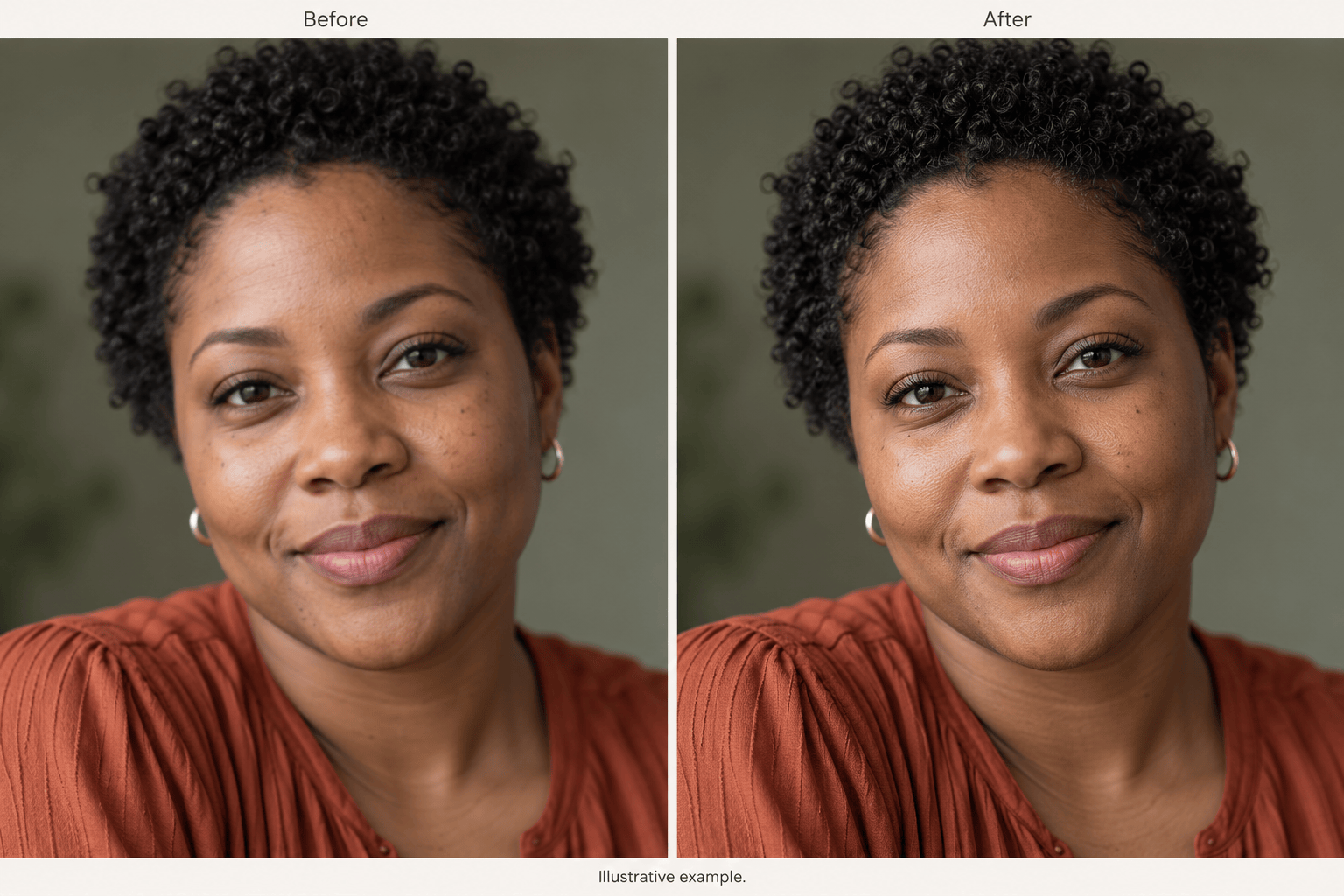
Reduce the plastic-looking skin in my uploaded AI portrait. Add restrained, natural texture while preserving the skin tone, freckles, age, facial features and original lighting.
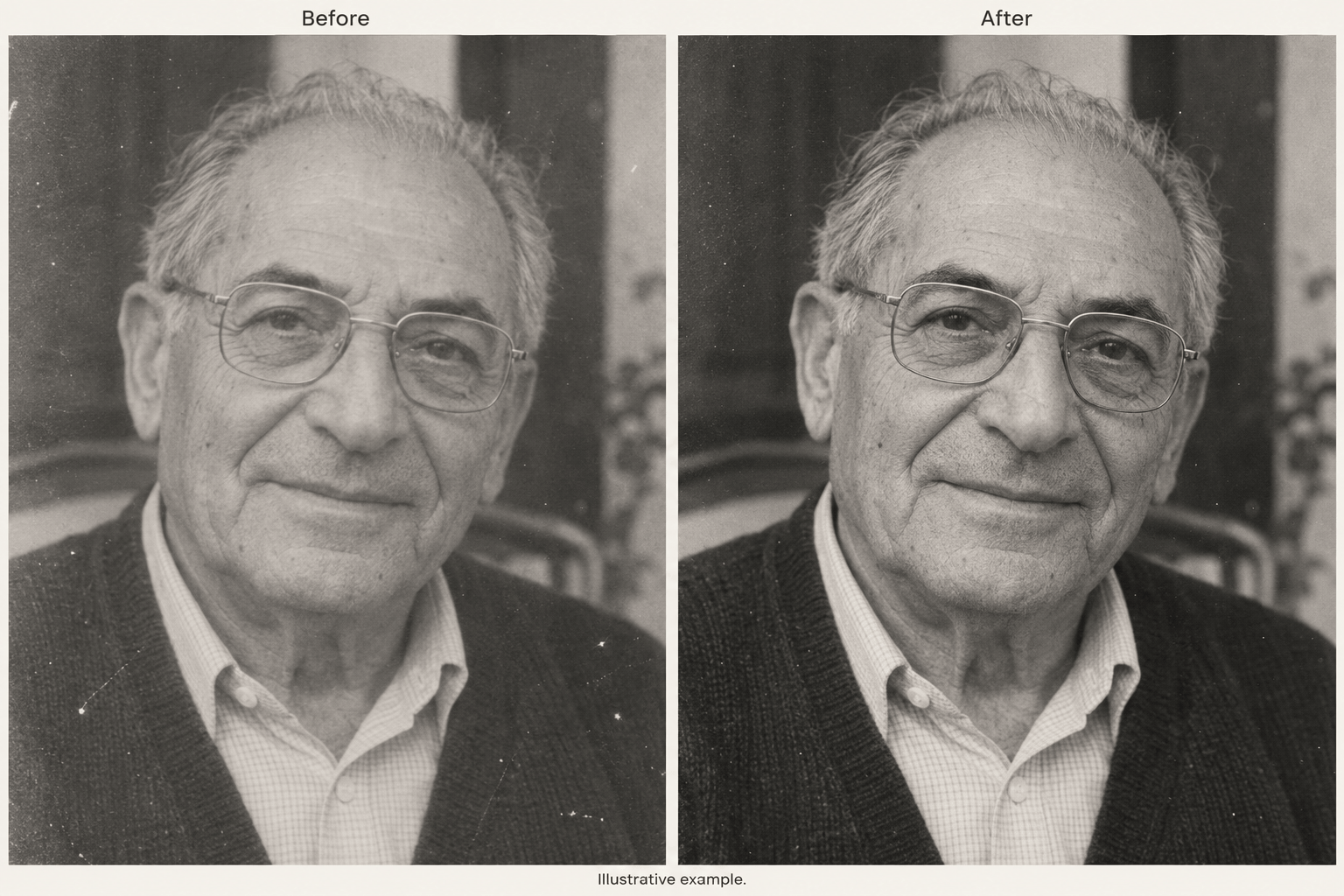
Restore the faded face in my uploaded old photo. Reduce light noise and improve visible detail conservatively. Keep the original black-and-white tones, wrinkles, expression and period feel.
In my uploaded group photo, improve only the soft face of the person on the far left. Keep the other faces, clothing, background and framing unchanged. Use a subtle correction.





