Free OnlineAI Eye Color Changer
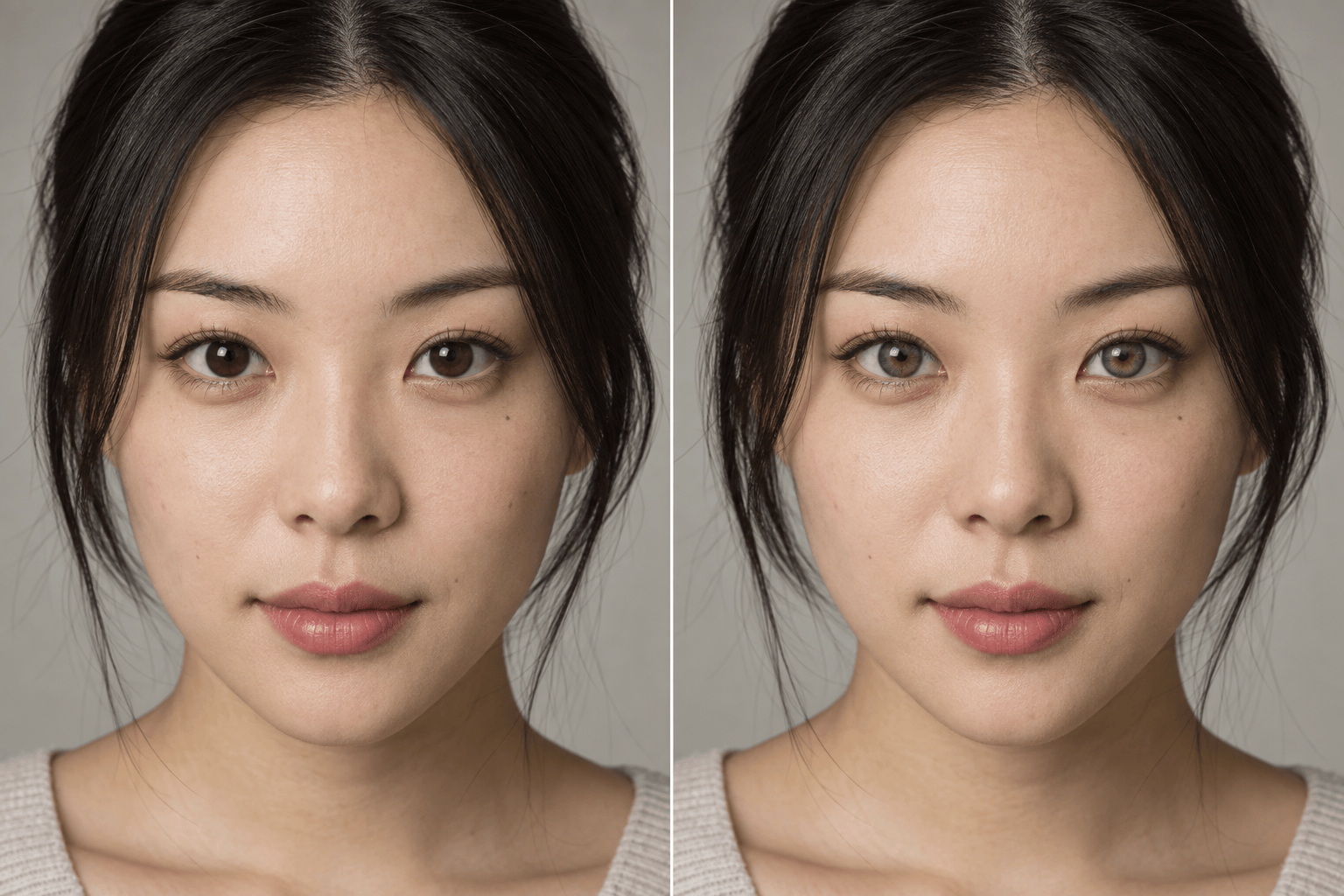
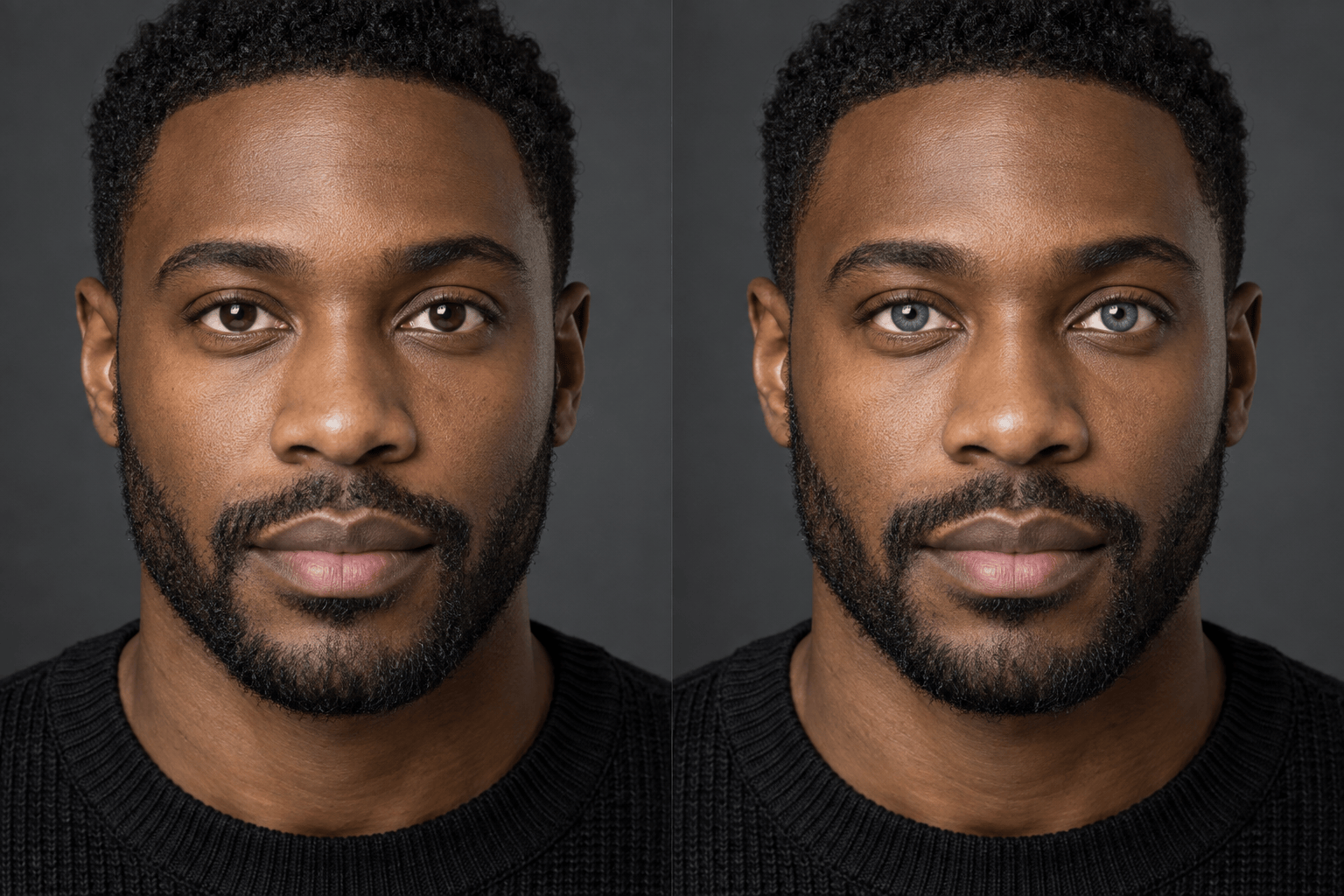
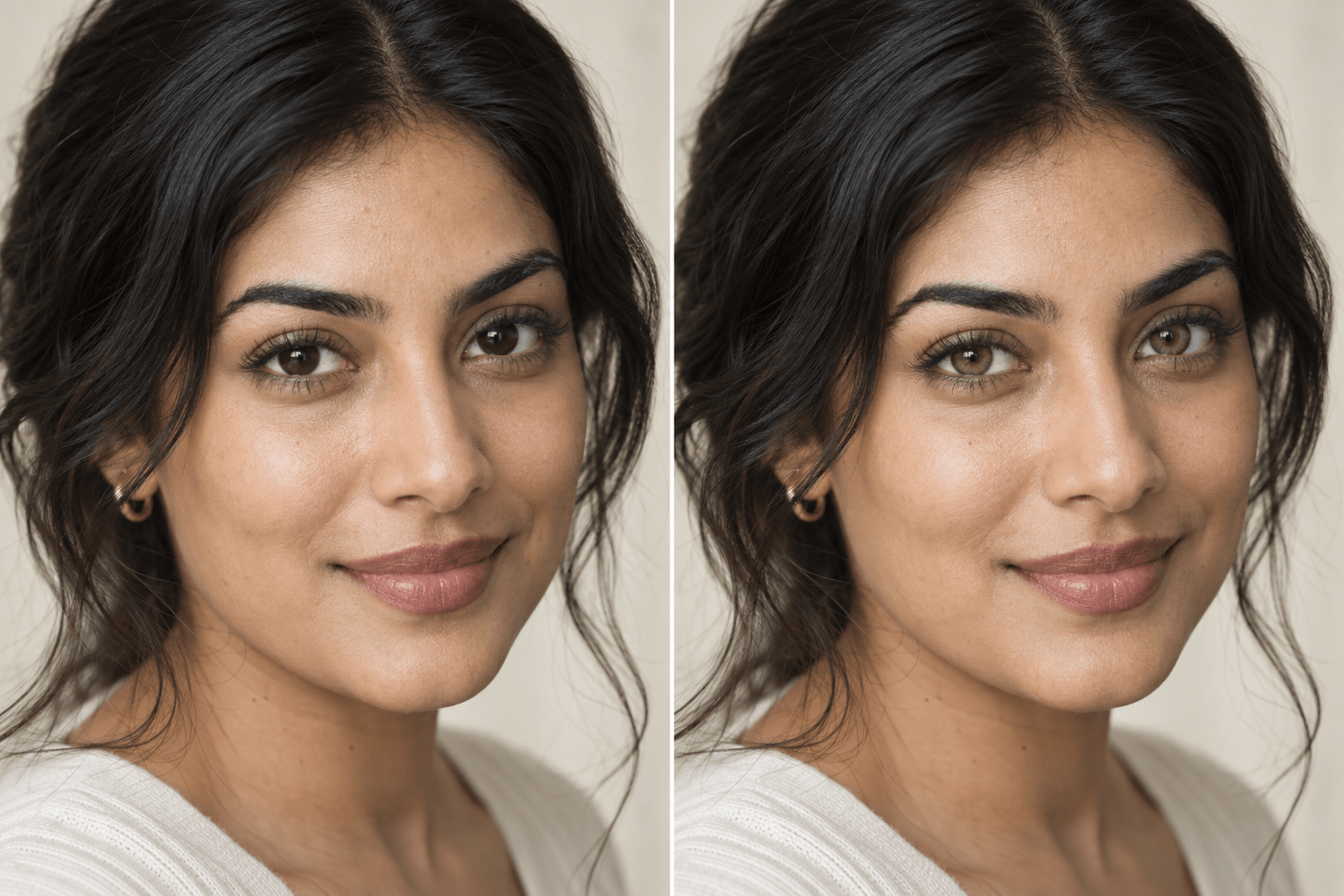
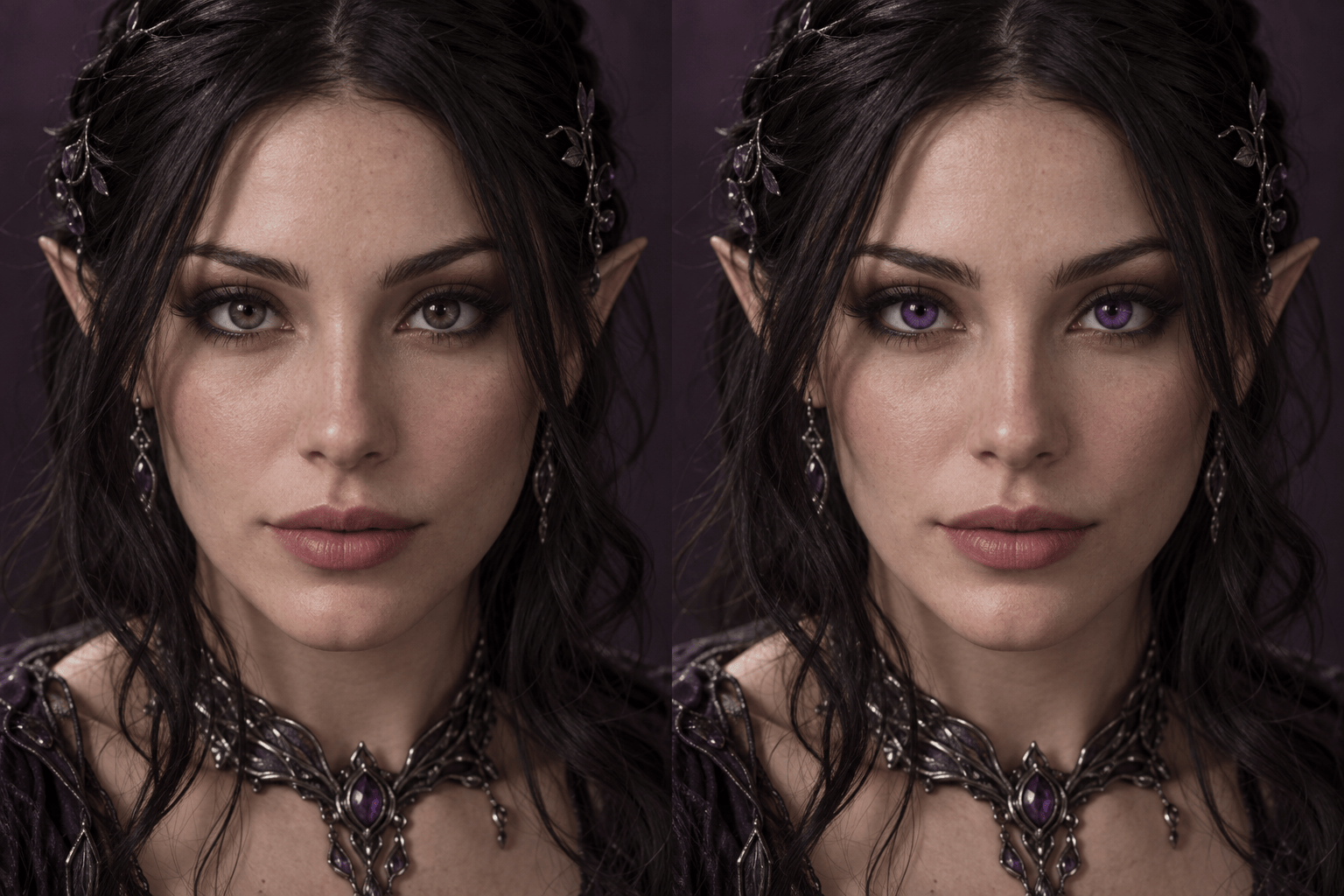
Mew Design - AI Design Agent helps you change eye color in a photo with a plain-language request. Upload a clear selfie, choose natural blue, green, hazel, or gray eyes—or try a fantasy shade—and keep the person, iris texture, catchlights, and lighting consistent. Use this online AI eye color editor to preview colored contacts, refine a headshot, or finish a cosplay look without painting manual masks.

How to Change Eye Color in a Photo with AI

Start with a clear portrait, describe the exact shade and what must stay unchanged, then inspect and refine the result.
1

Upload a Clear Portrait

Choose a front-facing selfie or close portrait with even light and both irises visible. Heavy blur, deep shadows, sunglasses, or hair over the eyes can make a precise edit harder.
2

Describe the New Eye Color

Tell the AI eye color changer the shade, undertone, and intensity you want. Add preservation instructions such as keeping the pupils, iris fibers, catchlights, face, makeup, and background unchanged.
3

Generate and Inspect Both Eyes

Mew Design reads the portrait and applies the requested color in context. Zoom in to check that both eyes match, the color stays inside each iris, and the original reflections still fit the lighting.
4

Refine and Download

Use Chat Edit to make the shade lighter, darker, warmer, cooler, or more subtle, or ask for one-eye color and heterochromia. Download the finished portrait as PNG or JPG for profiles, social posts, or creative projects.
How to change eye color with AI

Why Use Mew Design to Change Eye Color with AI

Edit Eyes Through Conversation

Skip layers and hand-drawn masks. Upload a portrait and tell Mew Design which eye color to change, which shade to use, and which details must remain untouched.

Protect the Person and Portrait

Ask the image-to-image editor to preserve facial identity, skin tone, hair, makeup, expression, clothing, crop, and background while limiting the requested change to the irises.

Keep Iris Detail Believable

A realistic eye color changer should retain the pupil, radial iris fibers, limbal ring, shadow, depth, and catchlights instead of placing a flat color over the eye.

Match a Shade or Reference

Describe a precise tone such as cool gray-blue or warm amber-hazel, or upload a visual reference when you want the AI eye color editor to follow a specific direction.

Correct Small Issues with Chat Edit

If one eye looks brighter, the tint spills beyond the iris, or the result feels too intense, request a focused correction without restarting the entire portrait edit.

Try Looks Before You Commit

Use free credits after signup to compare natural contact-lens shades or bold character colors. Export finished images without a watermark when the look is ready.

How to Get a Natural Eye Color Change

Change both irises from dark brown to a soft olive green with subtle golden flecks. Preserve the original pupils, iris fibers, limbal rings, catchlights, eyelids, sclera, facial identity, skin texture, makeup, lighting, crop, and background. Apply the same believable intensity to both eyes and do not alter anything outside the irises.
The best AI eye color changes begin with visible irises and a precise edit request. Describe the result as a controlled photo correction, not a new portrait, so the successful parts of the source image are easier to preserve.
  • Choose a Clear Source: Use a sharp, well-lit portrait where the iris boundaries, pupils, and reflections are easy to see.
  • Name the Exact Shade: Specify undertone and intensity, such as muted olive green, cool gray-blue, warm amber-hazel, or luminous violet.
  • List What Must Stay: Protect identity, eye shape, pupils, iris texture, catchlights, skin, makeup, expression, hair, and background.
  • Define the Scope: Say whether to recolor both eyes evenly, edit only the left or right eye, or create intentional heterochromia.

Eye Color Change Requests for Every Look

Natural Green Eyes: Change both dark brown irises to a muted olive green with subtle amber near the pupils. Preserve the original iris fibers, limbal rings, catchlights, face, skin, makeup, lighting, and background. Keep the color believable and equal in both eyes.

Blue Contact Lens Preview: Change both eyes to a cool light blue that looks like realistic colored contacts. Keep the pupils, iris texture, highlights, eyelids, sclera, facial identity, and portrait lighting unchanged. Use moderate intensity, not a neon tint.

Subtle Hazel Enhancement: Shift the existing brown eye color to warm hazel with soft green at the outer iris and golden brown around the pupil. Do not change the eye shape, face, skin tone, makeup, crop, or background.

Professional Gray Eyes: Change both irises to a natural slate gray with faint blue undertones. Preserve the original shadows and catchlights so the result suits a realistic professional headshot. Leave every other part of the photo unchanged.

Natural Heterochromia: Keep the left eye brown and change only the right iris to muted green. Match the lighting and texture of the original eye, keep the transition inside the iris edge, and preserve all facial details and the background.

Fantasy Violet Cosplay: Change both eyes to deep violet with a subtle luminous inner ring for a fantasy character look. Retain clear pupils, iris fibers, catchlights, eyelids, face, costume, and scene lighting. Make the effect dramatic but still integrated into the photo.


FAQs About the AI Eye Color Changer

Upload a clear portrait, describe the new shade, and state what should stay unchanged. Generate the edit, inspect both irises at full size, then use Chat Edit for lighter, darker, or more subtle corrections before downloading.
You can try it with free AI credits after signup. Use the credits to generate and refine eye-color edits, then download finished images without a watermark.
Natural results depend on the source photo and your instructions. Use a sharp image, choose a believable shade and intensity, and ask to preserve iris fibers, pupils, limbal rings, shadows, and catchlights instead of applying a flat tint.
Use a front-facing or three-quarter portrait with even lighting, high focus, and clearly visible irises. Avoid tiny faces, motion blur, deep eye shadows, tinted glasses, and heavy hair obstruction when possible.
Yes. Try natural blue, green, gray, hazel, or amber shades on your own photo and compare versions. The result is a visual preview only; actual contacts can look different because of material, fit, lighting, and your natural iris color.
Yes. Specify left eye, right eye, or both eyes, and request intentional heterochromia or creative shades such as violet, crimson, silver, or glowing amber. Include preservation instructions to keep the effect controlled.
No. It edits the appearance of eye color in a digital image only. It is not a medical tool, contact lens, treatment, or eye-color procedure.
You can export the finished edited portrait as PNG or JPG for profile photos, social posts, thumbnails, cosplay references, and other digital uses.

Ready to Generate Designs With AI?

Get Started - 50 Free Credits
No credit card required
© 2025 - 2026 Mew Design, MAGOAI LTD.All rights reserved.