Free OnlineAI Day to Night Photo Converter
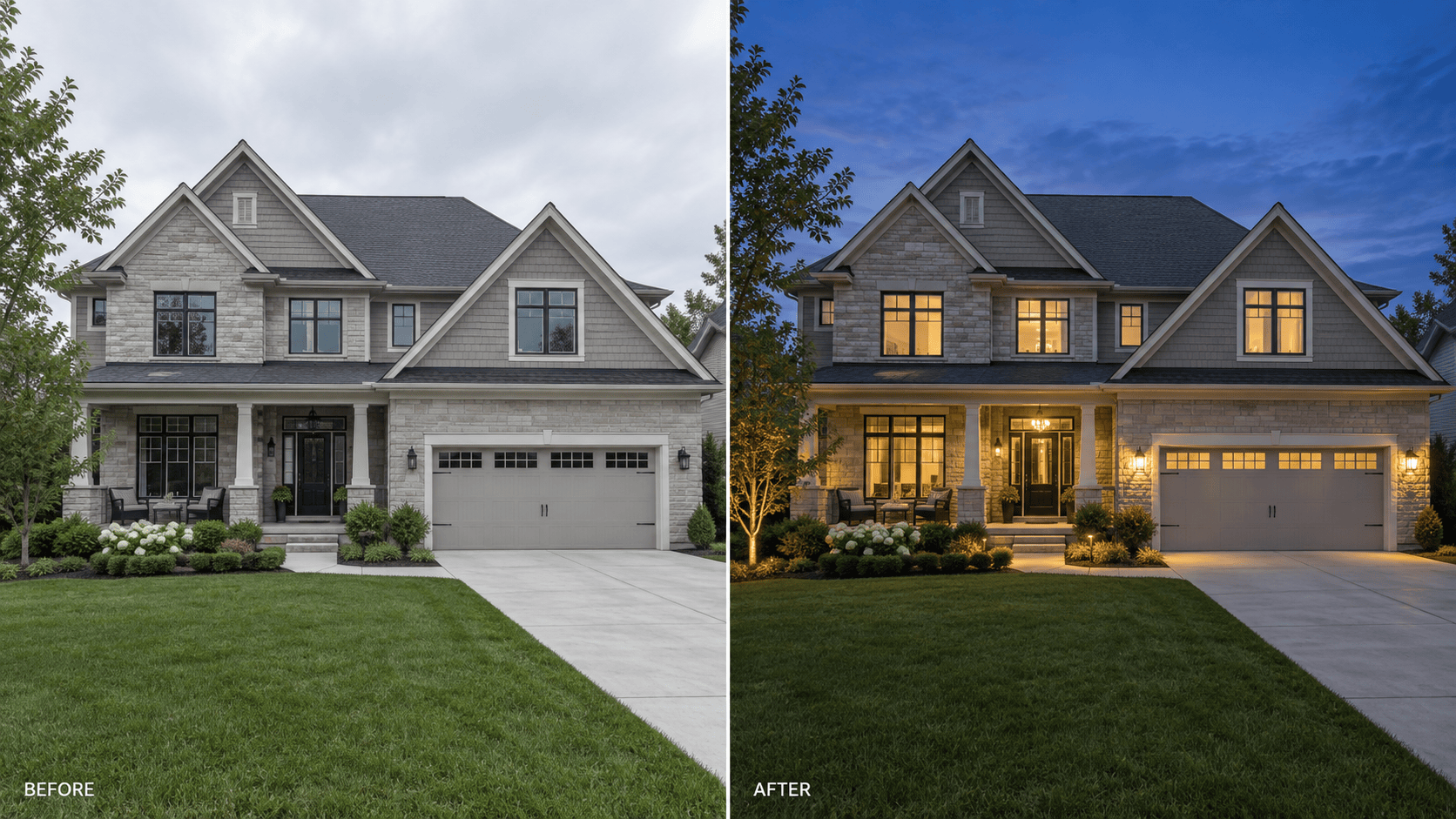
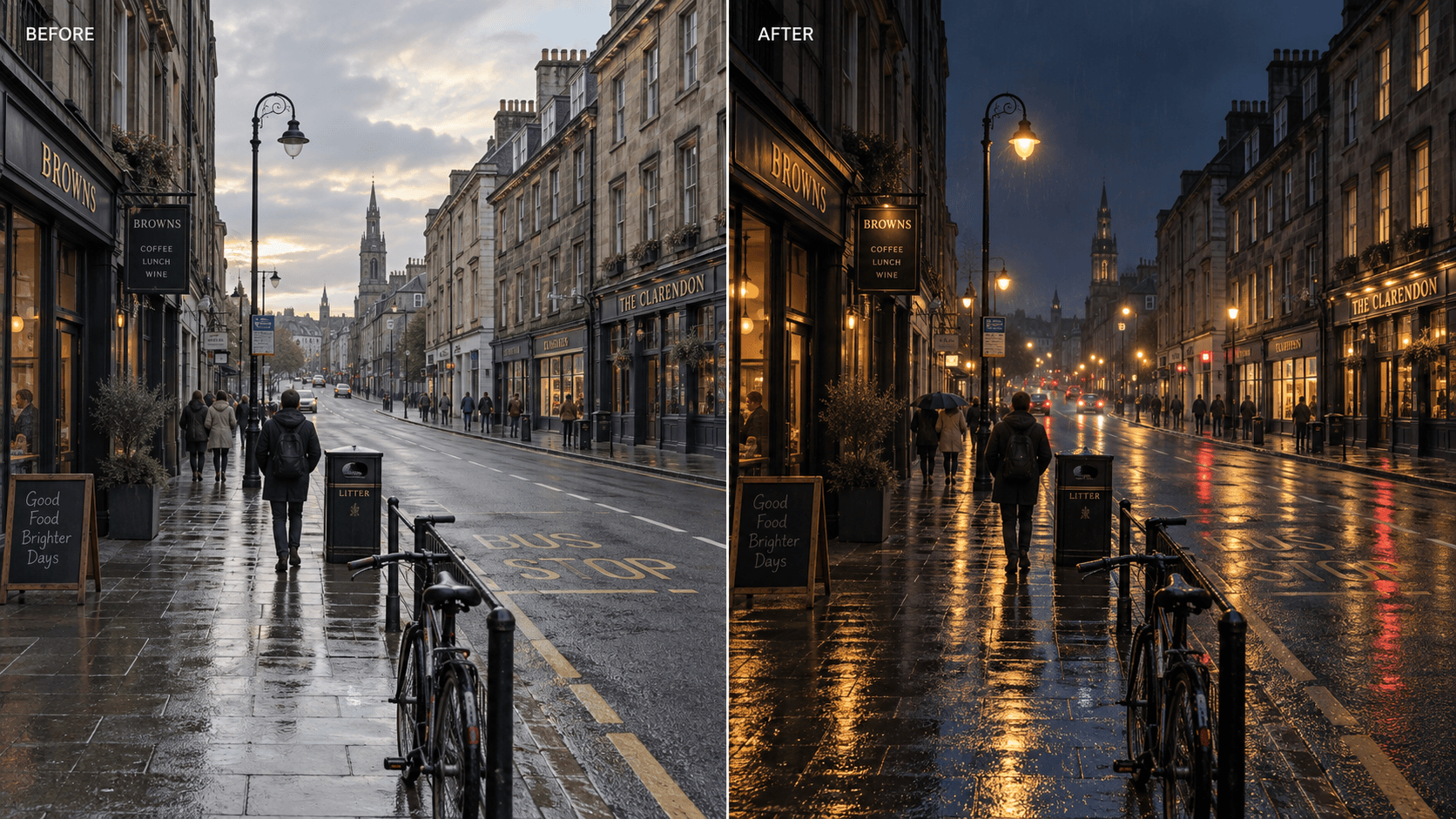
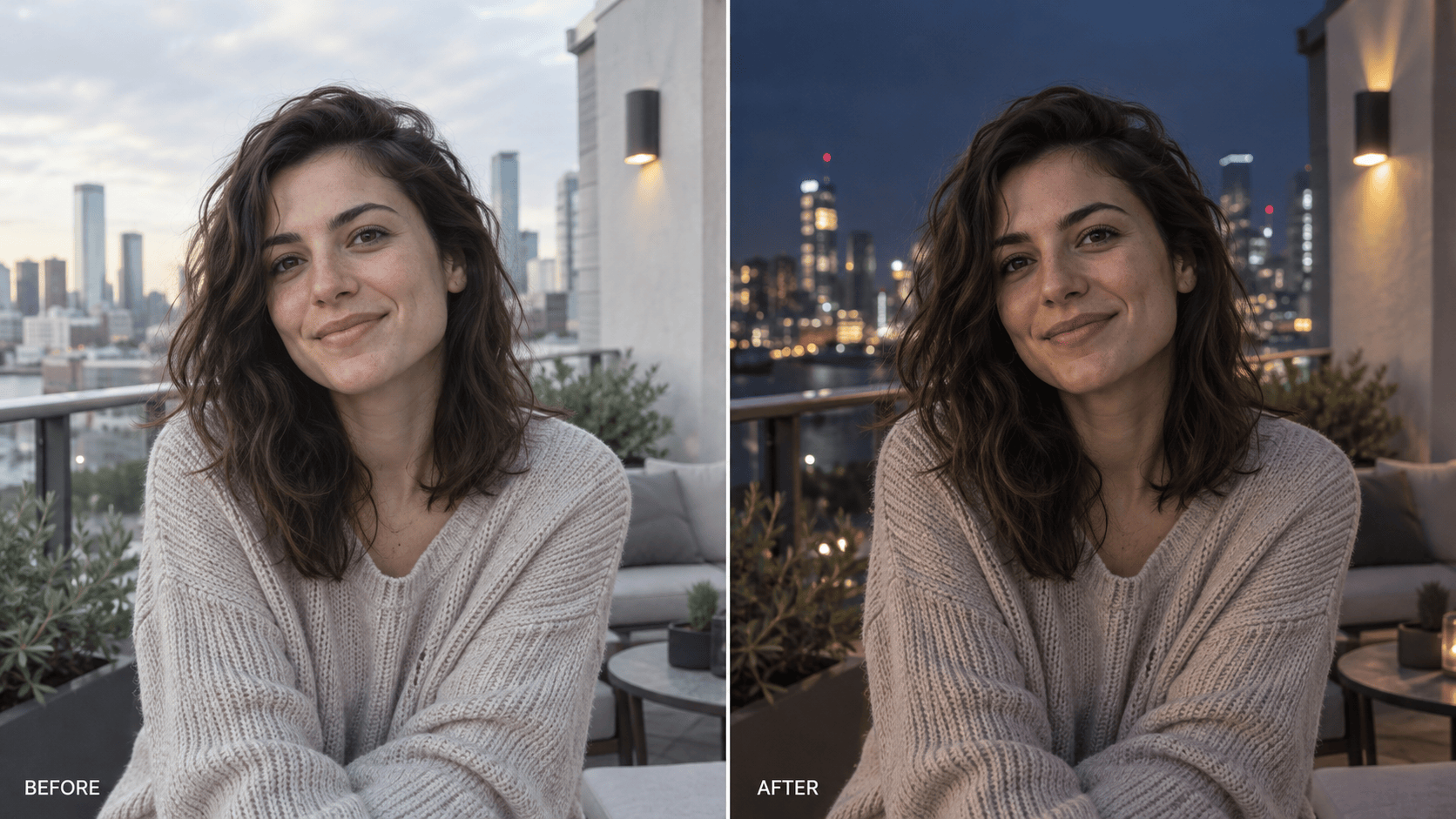
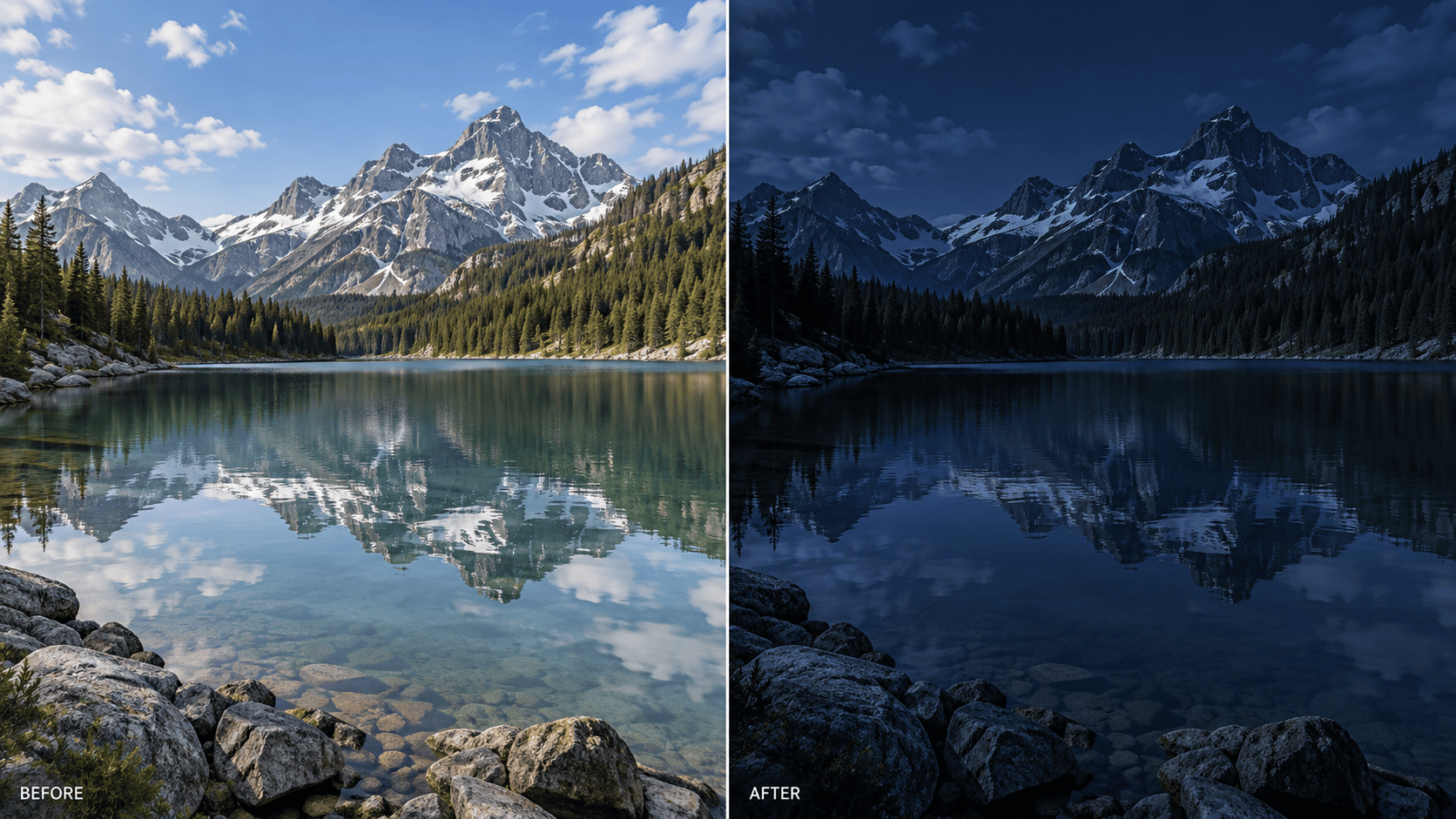
How to Turn a Day Photo into Night with AI
Upload a Clear Daytime Photo
Describe the Night You Want
Generate the Night Version
Check, Refine, and Export

Why Use Mew Design for Day-to-Night Photo Editing
Edit the Photo You Already Have
Upload the daytime image as the visual source. Our AI day to night photo converter works from its subject, viewpoint, and composition instead of asking you to rebuild the scene from scratch.
Direct the Lighting in Plain Language
Specify warm window light, cool moonlight, streetlamp pools, headlight reflections, or a subtle dusk sky. Natural-language control makes the result more intentional than a one-click night filter.
Protect Important Scene Details
Tell the AI what must remain unchanged, including architecture, faces, clothing, signage, products, camera angle, and crop. Clear invariants help reduce unwanted visual drift.
Explore More Than One Night Mood
Use this online day to night photo editor to compare blue hour, virtual twilight, cinematic midnight, or neon versions while keeping one source image as your visual anchor.
Repair One Unrealistic Detail at a Time
If the first edit is too dark or a light source feels wrong, click Chat Edit and request a focused correction while asking Mew Design to preserve everything else.
Try the Conversion with Free Credits
Sign up to test the free AI day to night converter with AI credits. Refine the image in the same conversation and export without a watermark when it is ready.
How to Make a Day-to-Night Edit Look Real
- Start with a workable source: Use a sharp photo with visible surface detail. Flat or overcast daylight is usually easier to transform than blown highlights, lens flare, or severe midday shadows.
- Choose a specific hour: Say whether you want sunset, blue hour, twilight, moonlit night, deep midnight, or a stylized neon scene. Each calls for different sky brightness and color.
- Name believable light sources: Identify existing windows, lamps, signs, headlights, or indoor fixtures that should glow, and ask for matching spill light or reflections on nearby surfaces.
- Lock and inspect the scene: List what must not change, then check edges, faces, text, shadows, horizons, reflections, and any newly invented objects before export.
Ready-to-Use Day-to-Night Edit Instructions
Create realistic virtual twilight from @[house photo]. Keep the property, lawn, driveway, camera angle, and landscaping unchanged. Use a natural dusk gradient, warm selected windows, and existing porch lights with subtle spill. Keep the facade bright enough for a real estate listing; do not add fixtures, vehicles, or an oversized sunset.
Turn @[street photo] into a cinematic rainy city night. Preserve every building, person, sign, storefront, and the original framing. Add believable shop and street lighting with restrained blue and amber tones, wet-pavement reflections, and soft atmospheric depth; keep all existing text unchanged and readable.
Convert @[travel landscape] from daytime to a calm moonlit night. Keep the terrain, trees, waterline, and camera position unchanged. Use a dark blue sky, subtle moonlight, and natural low-contrast reflections. Do not add a visible moon, stars, buildings, or people unless they already appear in the source.
Relight @[portrait photo] as a natural nighttime portrait. Keep the same person, face, hair, expression, clothing, pose, background geometry, and crop. Replace daylight with soft cool ambient light and one believable warm practical light, preserving natural skin texture without crushing facial shadows.
Change @[interior photo] from bright daytime to a cozy evening room. Keep all furniture, decor, windows, materials, and perspective unchanged. Darken the window view, turn on only the lamps already present, add warm pools of light and realistic shadows, and avoid an overall orange color cast.
Create a deep-night version of @[hotel exterior]. Preserve the architecture, pool shape, signage, plants, and viewpoint. Add restrained interior window glow, path lighting, subtle reflections on the water, and a clean dark sky. Keep the scene photorealistic and do not invent extra lights or redesign the property.





