Online Photo EditingAI Change Background

How to Change a Photo Background with AI
Upload a Clear Original
Choose the New Setting
Check the Subject and Edges
Download Your Finished Photo

Background Changes You Can Direct and Refine
Start with the Photo You Have
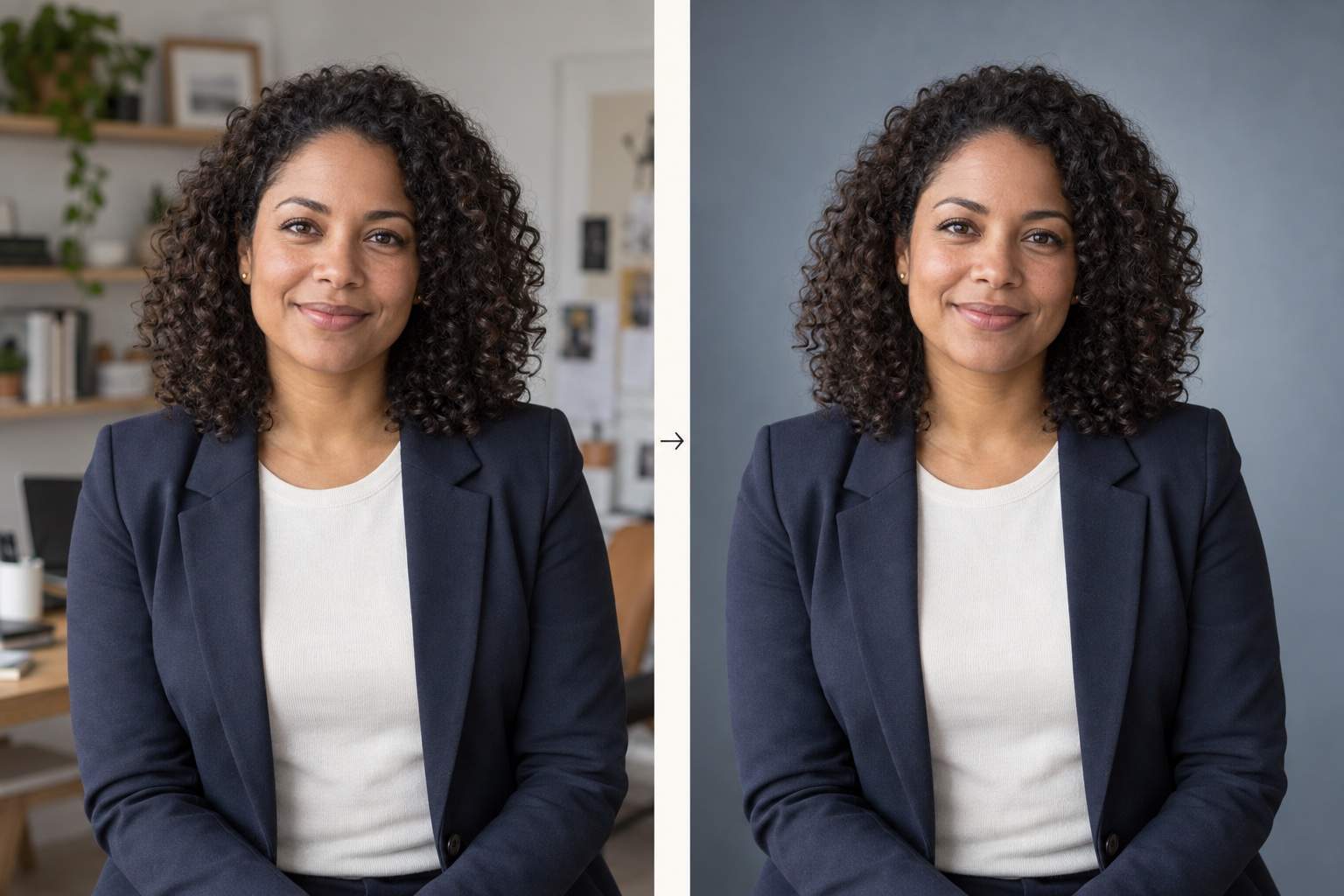
Upload your own portrait or product photo and describe a background-only edit. Name the details to preserve, then review the result against your source.
Describe a Scene or Show a Reference
This online AI background changer accepts visual references as well as text. Guide a studio look, a shop aesthetic, or a custom setting without searching for the perfect preset.
Refine Light and Edges in Chat
A convincing photo needs more than a new backdrop. Use Chat Edit to request changes to shadow softness, background brightness, or distracting edge halos.
Compare Background Directions
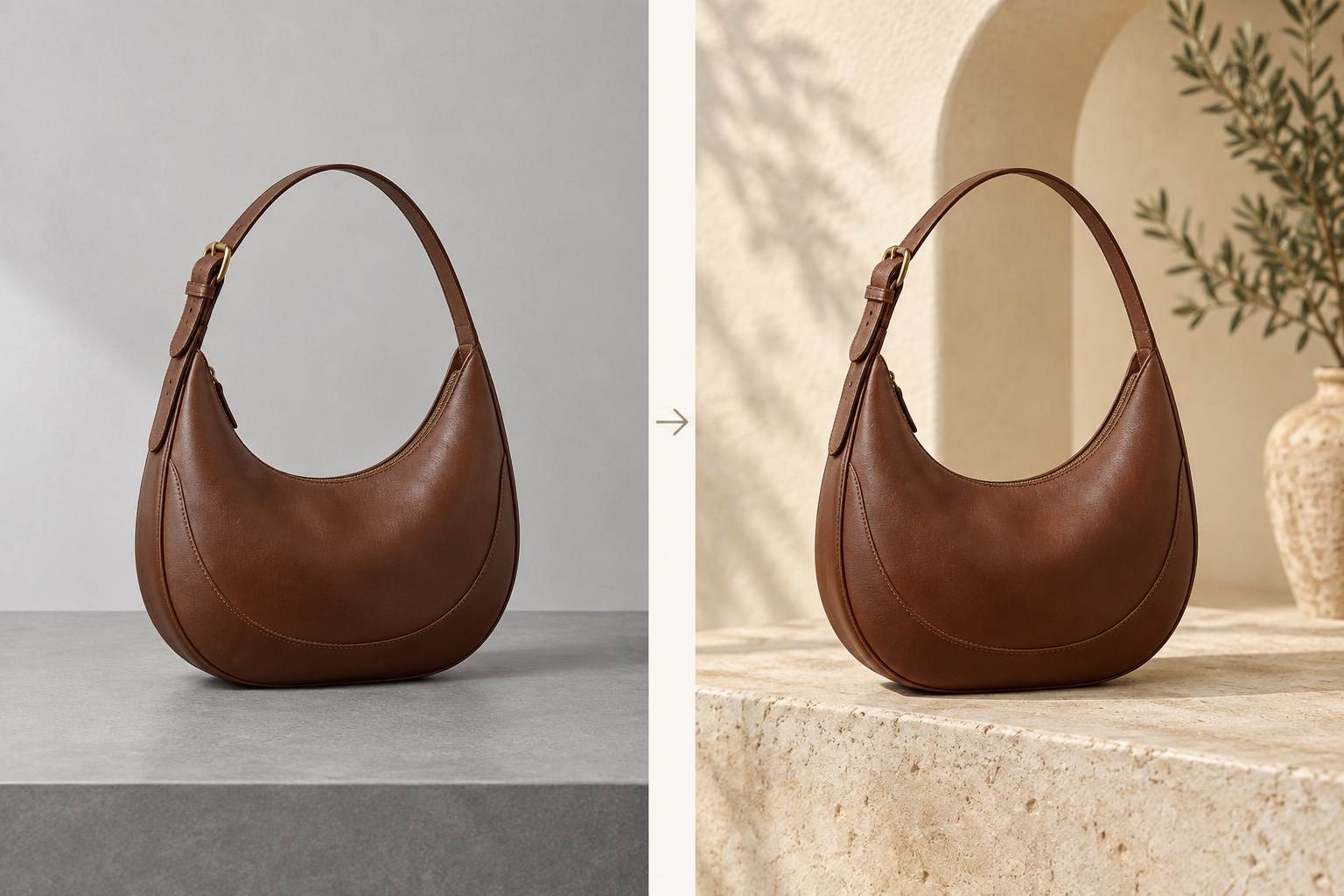
Ask for several background versions of your photo, from plain white to a lifestyle scene. Compare them for a product listing, campaign, or profile before choosing.
Reuse Your Product Photo Style
Turn an approved background workflow into a Mew Skill. Reuse your preferred palette, lighting direction, and framing for later product photos with less repeated briefing.
Try an Edit with Free Credits
Test the AI background changer for product photos or portraits with free credits after signup. Download finished images without a watermark; further generation depends on available credits.
Make the New Background Look Natural
- Start with Clear Edges: Use the sharpest original available. Motion blur, cropped hair, and objects overlapping the subject make separation harder.
- Name What Must Stay: Specify facial features, clothing, product color, labels, and proportions. These are edit instructions, not a guarantee of exact preservation.
- Match the Light and Perspective: Choose a background with a compatible camera angle and light direction. Ground products with a plausible contact shadow when the destination allows one.
- Inspect Before Sharing: Zoom in on hair, handles, glass, and small text. If a detail changes, return to the original and request a narrower edit.
Fix Common Background Replacement Problems
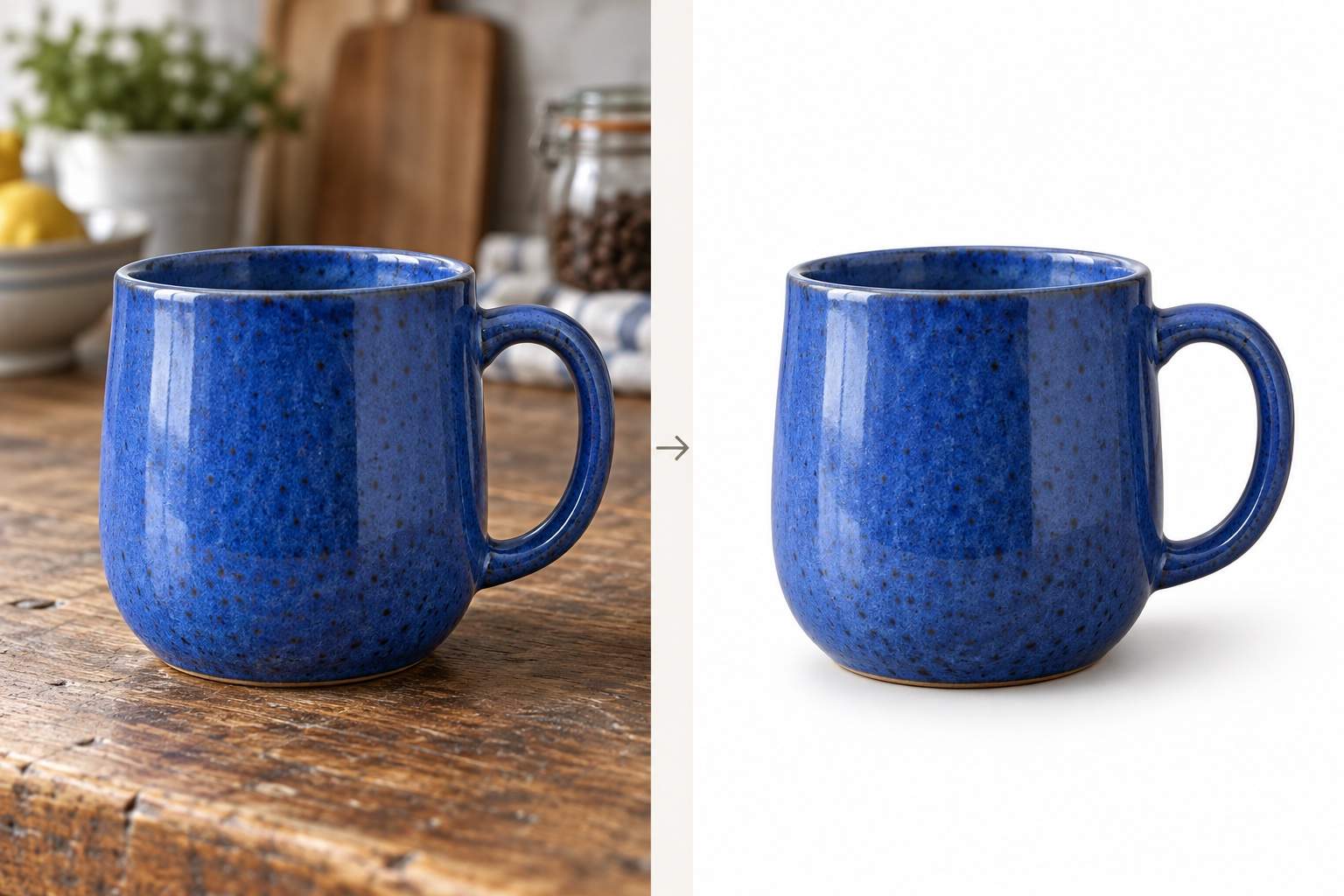
Change the photo background to white. Remove the gray gradient and unwanted props. Keep the product color, shape, and crop unchanged; do not add text.
Refine the bright halo around the hair and shoulders in this background edit. Use the original photo as the reference. Preserve fine strands, facial features, and the current background.
The product looks as if it is floating. Add a subtle contact shadow directly beneath it, consistent with the surface and existing light. Keep the product shape and position unchanged.
The new background is lit from the wrong side. Adjust the background lighting to match the subject in the original photo. Keep the subject and composition unchanged.
The background edit changed details of my subject. Start again from the original photo and replace only the background. Preserve the face or product details, colors, proportions, and crop.
Make the replacement background less distracting. Simplify the objects behind the subject and soften background detail. Keep the subject sharp and leave its appearance unchanged.





