Free OnlineAI Censor Remover
How to Remove Photo Censoring with AI
Upload an Authorized Photo
Describe the Covered Area
Generate a Reconstructed Edit
Review, Refine, and Export

Built for Careful, Context-Aware Photo Reconstruction
Replace More Than One Censor Style
Use this AI mosaic remover for pixel blocks, soft blur, solid bars, stickers, emojis, scribbles, or text overlays. Describe each obstruction so the agent knows what to change.
Guide the Edit in Plain Language
There is no need to master complex retouching tools. Explain the target area and the expected background, object, or pattern, and our AI censor remover turns that instruction into a localized image edit.
Use References When Context Is Limited
Upload a clean angle, product shot, pattern sample, or visual reference to guide the reconstruction. References are especially helpful when a large overlay hides distinctive colors or shapes.
Protect the Rest of the Composition
Tell the AI which details must remain unchanged, such as the subject, crop, lighting, logo, or background. Follow-up requests can focus the repair without restarting the entire photo.
Review Honest, Editable Results
An uncensor photo AI edit is a plausible reconstruction, not recovery of destroyed pixels. Compare the result with your source, reject invented facts, and use Chat Edit to correct visible seams or mismatched texture.
Start Online with Free AI Credits
Try the free online censor remover after signup, explore variations, and export finished edits without a watermark. PNG and JPG make the result easy to reuse in albums, listings, or creative projects.
How to Prompt AI for a Cleaner Reconstruction
- Name the target: Say where the mosaic, blur, bar, sticker, or overlay appears instead of asking to uncensor the whole image.
- Describe the fill: Mention the expected material, pattern, object, colors, lighting, perspective, and edge direction. Do not present a guess as recovered fact.
- Preserve key details: List the subject, identity, pose, product shape, text, framing, or background areas that must remain unchanged.
- Use references and small passes: Add an authorized reference image when available. For a large covered area, repair smaller sections and review each result before continuing.
AI Censor Removal Prompts for Common Photo Edits
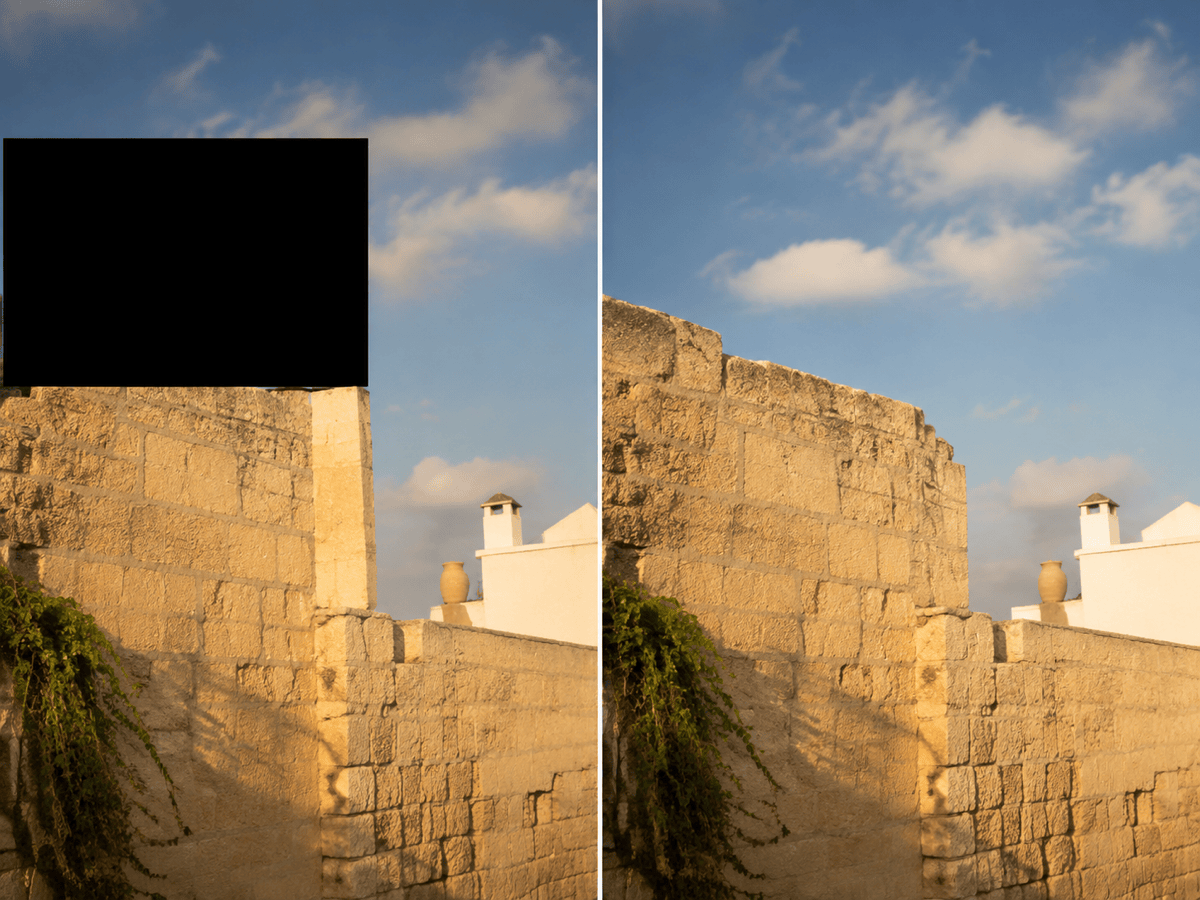
Remove Black Bar from a Travel Photo: Replace only the black bar covering the blue sky and upper edge of the white building. Continue the cloud texture, roofline, and morning light naturally. Keep the people and all visible architecture unchanged.
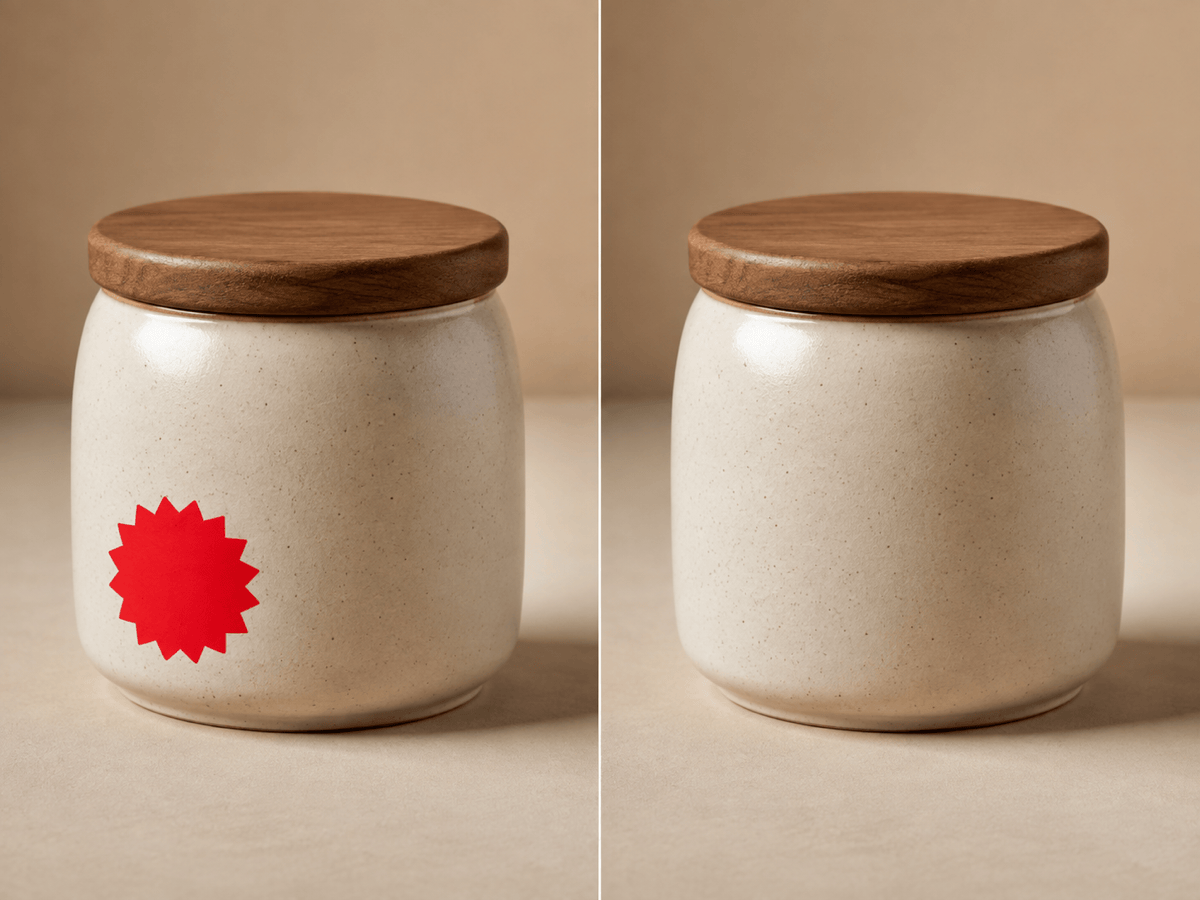
Remove a Sticker from a Product Photo: Erase the digital sale sticker on the lower-left corner of the ceramic jar. Reconstruct the cream glaze and soft tabletop shadow using the surrounding texture. Preserve the jar shape, label text, and background exactly as shown.
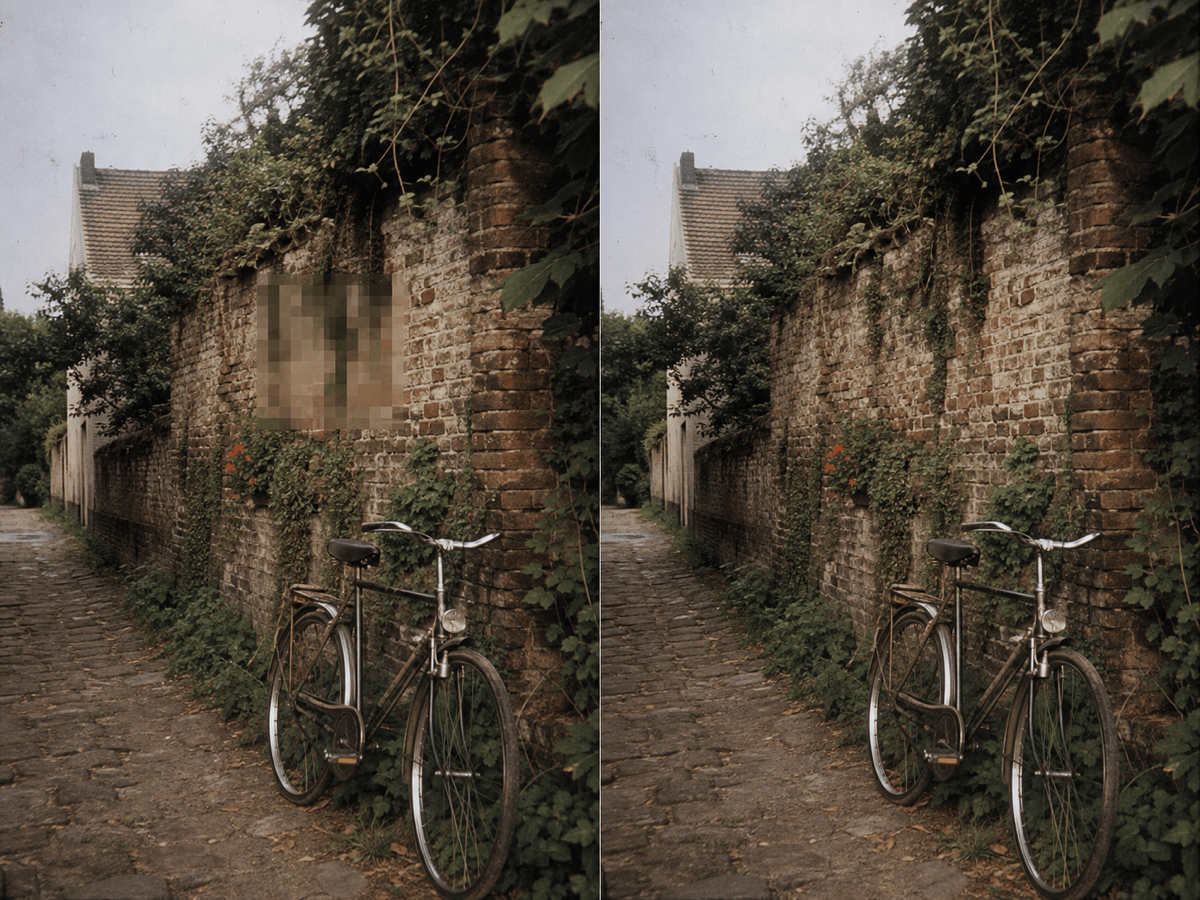
Remove Mosaic from a Landscape Photo: Replace the pixelated patch over the distant garden wall with matching brick, ivy, and depth of field. Keep the foreground bicycle, framing, and color grade unchanged. The fill should be plausible, not treated as recovered evidence.
Clean a Text Overlay from a Screenshot: Remove the large decorative caption over the plain gradient background. Continue the purple-to-blue gradient smoothly and preserve the app interface, icons, and readable text outside the selected area.
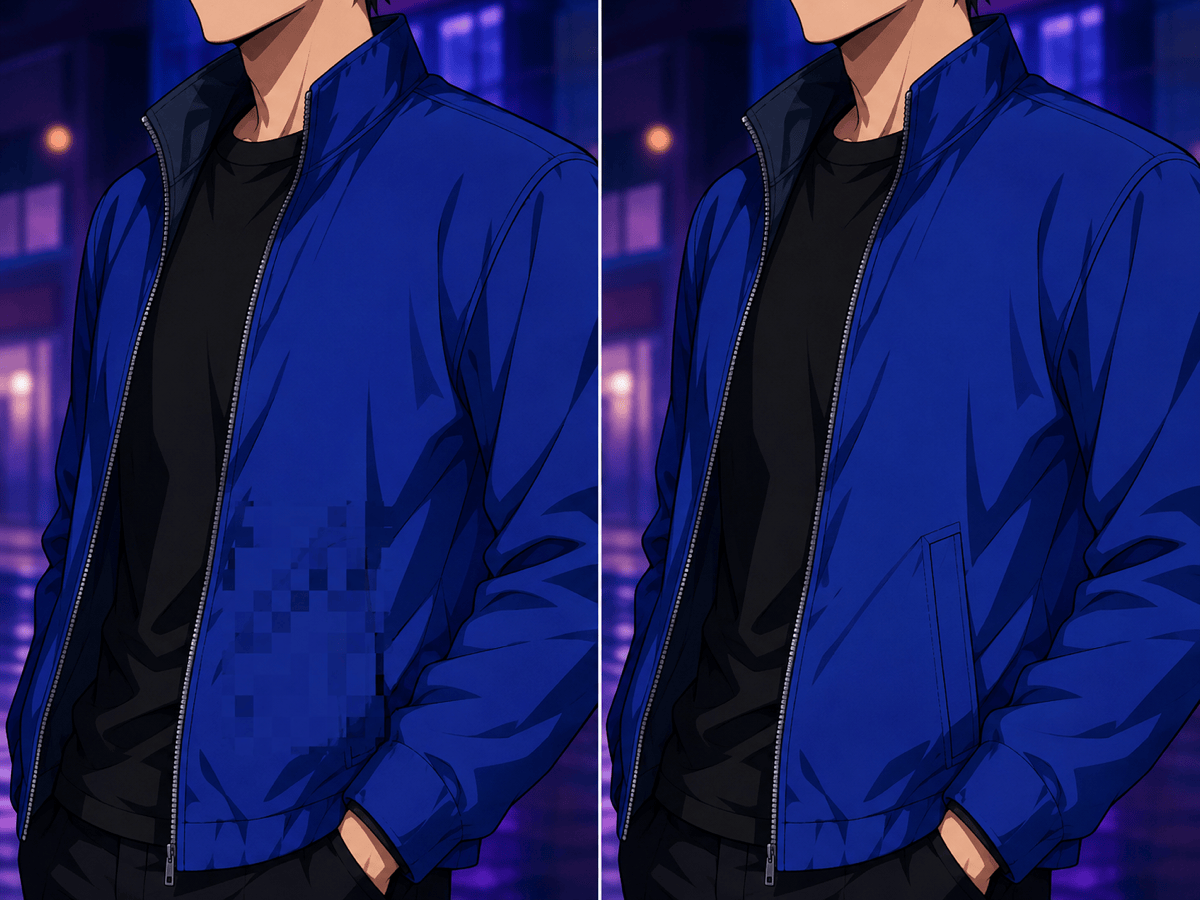
Repair a Censored Illustration: Replace the square mosaic over the character's jacket with matching blue fabric, seams, and cel-shaded highlights. Keep the character fully clothed and preserve the face, pose, line art, and background.
Reference-Guided Product Reconstruction: In @[image1], replace the blurred section of the patterned gift box using the clean pattern visible in @[image2]. Match the scale, perspective, gold foil, and studio lighting while keeping everything else in @[image1] unchanged.





