Try It Online with Free CreditsAI Braces Filter
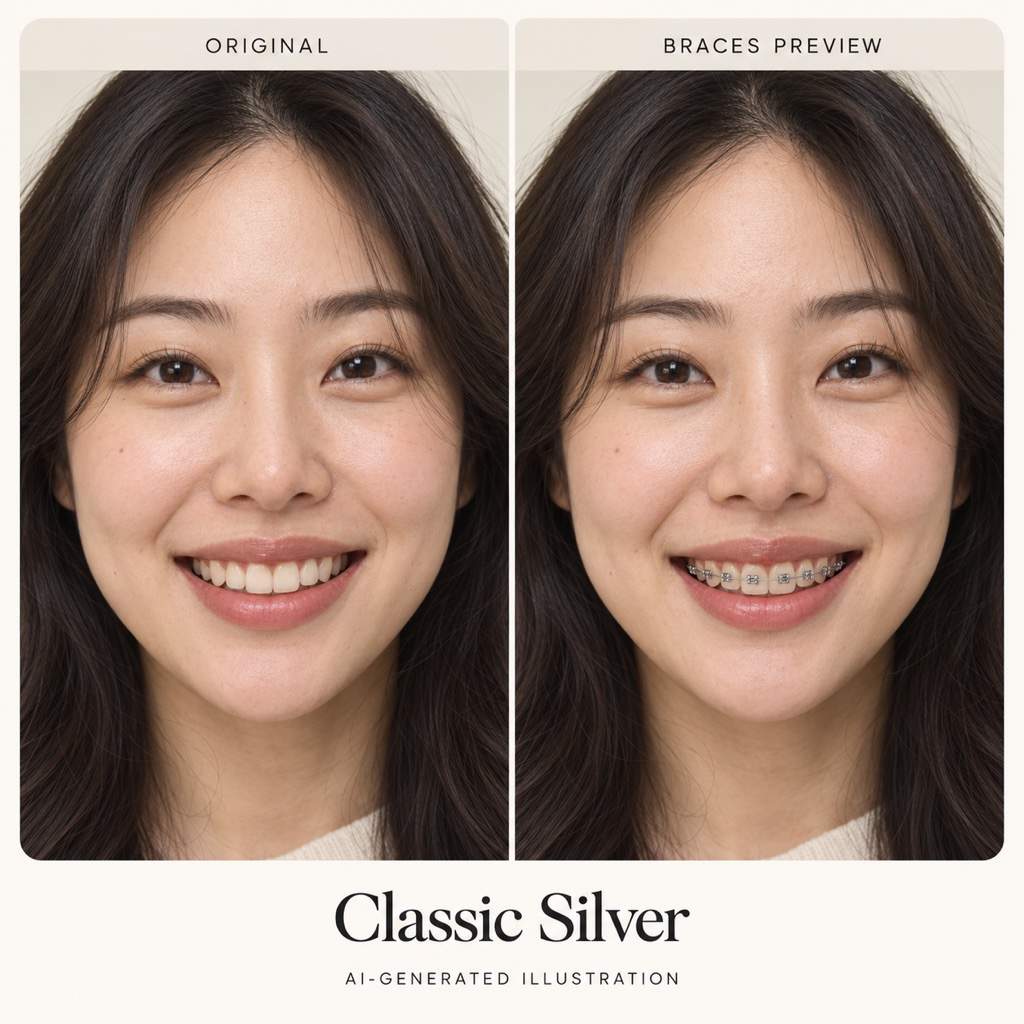
How to Add Braces to a Photo with AI
Upload a Photo with Visible Teeth
Describe the Brackets and Bands
Inspect the Smile Up Close
Save Your Favorite Look

Explore Braces Styles on Your Own Smile
Start with the Photo You Know
Upload your own portrait for a virtual braces try-on. Ask to keep the current teeth, expression, and lighting so the preview is easier to compare with the source.
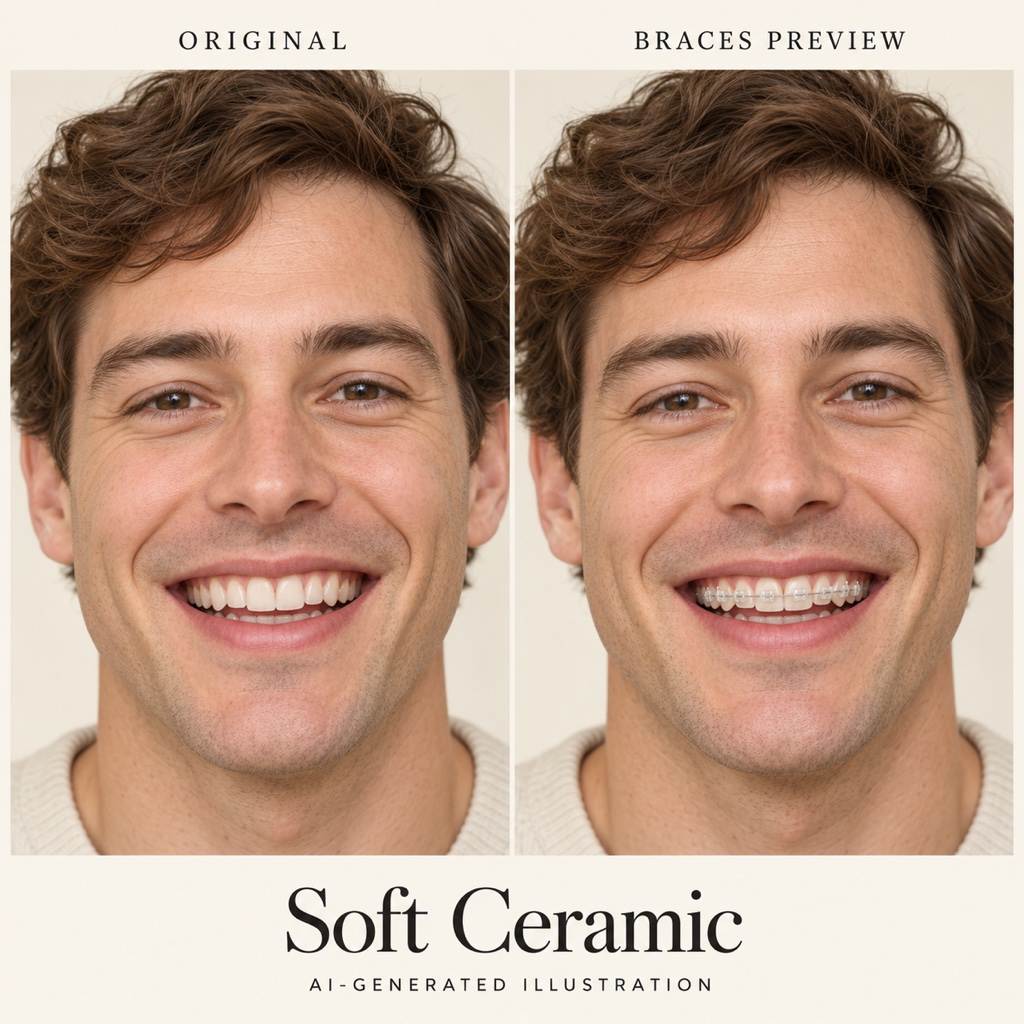
Compare Metal and Ceramic Looks
Try the visible silver of metal brackets or the softer look of tooth-colored ceramic. Our AI braces filter lets you describe each style without drawing the hardware yourself.
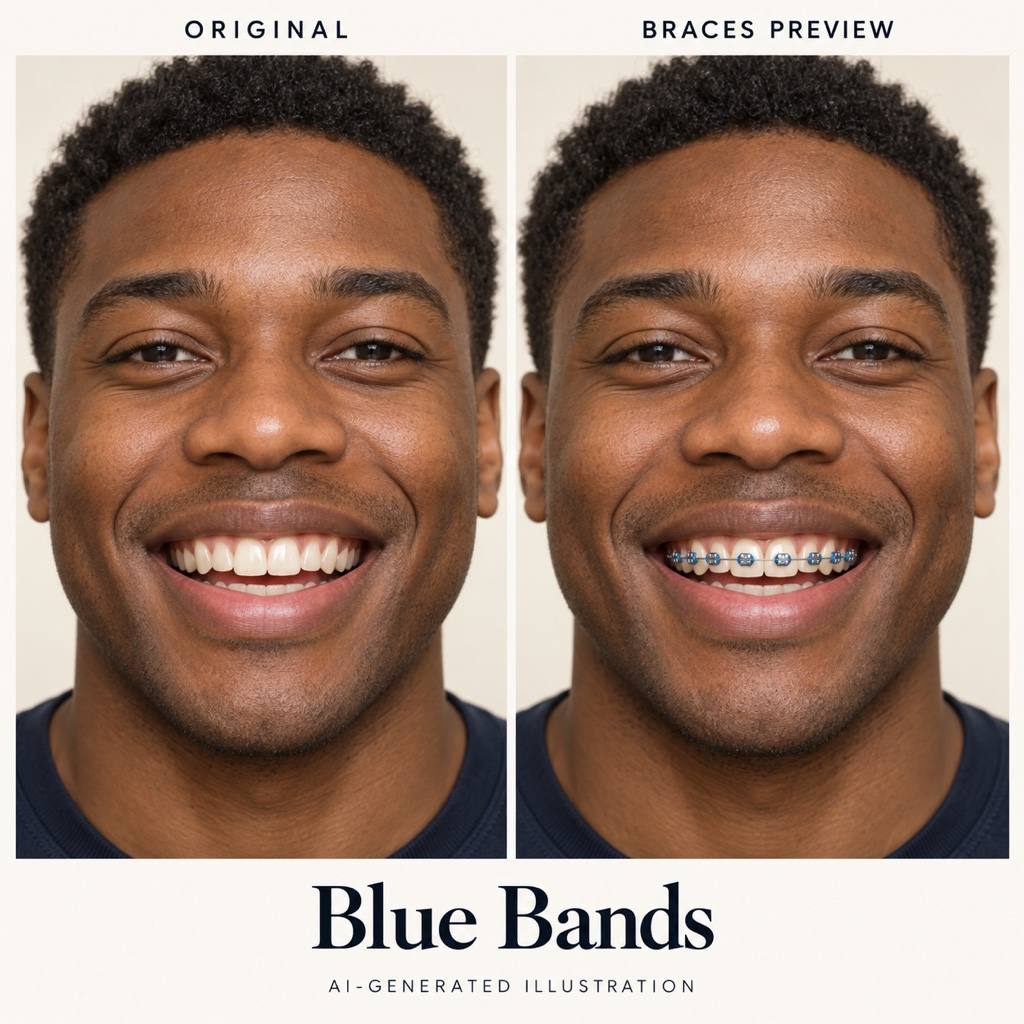
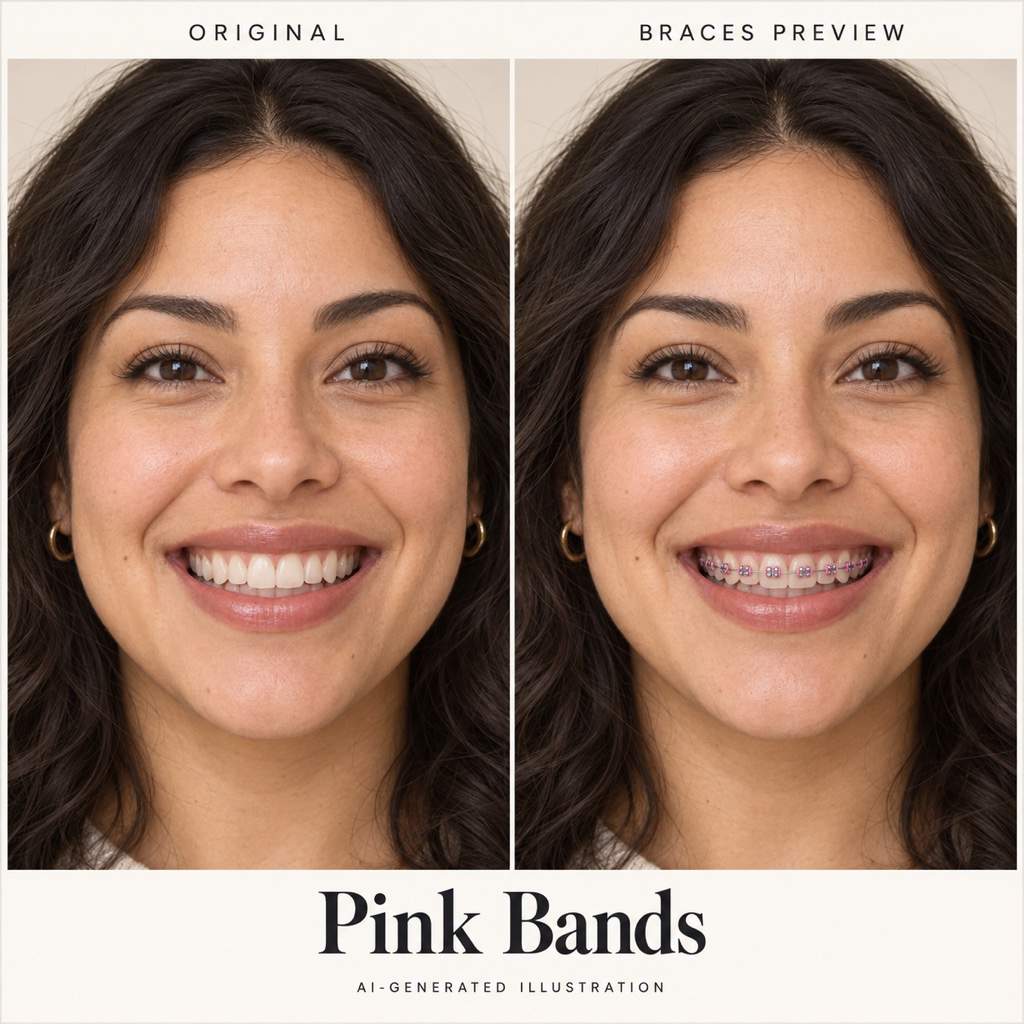
Find a Band Color You Like
Request blue, pink, purple, or another elastic color around metal brackets. Create alternatives from the same photo to compare colors against your smile.
Adjust the Details in Conversation
Use Chat Edit to ask for less shine, smaller brackets, or a wire that follows the visible teeth. Check the result for misplaced or floating details.
Bring a Style Reference
Upload a reference image when a color or bracket look is hard to describe. Explain which details to borrow and use your own portrait as the face reference.
Keep a Shareable Preview
This online braces photo editor supports watermark-free PNG and JPG exports. Try it with free signup credits; generation limits and resolution options depend on your plan.
A Clear Smile Makes a Better Starting Point
- Show the Teeth: Use an open smile. A closed mouth leaves the AI guessing what the teeth look like.
- Keep the Mouth Sharp: Choose even lighting and a clear, near-front view. Avoid blur, heavy beauty filters, and objects covering your smile.
- Name the Hardware: Specify metal or ceramic brackets and the elastic color. Clear aligners are transparent trays, not white brackets.
- Compare Before Saving: Check tooth count, spacing, lips, and bracket placement. AI can change details even when asked to preserve them.
Which Braces Look Would You Try?
Add classic silver metal braces to the visible teeth in my photo. Use small brackets and a thin wire. Keep my tooth shapes, spacing, lips, and expression unchanged.
Preview tooth-colored ceramic braces on my visible upper teeth, with a subtle wire. Keep the original tooth alignment, smile, and lighting. Do not whiten the teeth.
Add metal braces with blue elastic bands around the brackets. Keep the metal silver and retain my original teeth, lips, and expression.
Try pink elastic bands on small silver braces in my uploaded smile. Keep the color on the bands only and preserve my original tooth shapes and spacing.
Create two separate previews from my photo: metal braces with purple bands and metal braces with teal bands. Keep the same smile, tooth arrangement, and lighting in both.
Add braces only to the visible upper teeth in my photo. Leave the lower teeth as they are, use a fine silver wire, and keep my lips and expression unchanged.





