Free OnlineAI Beauty Filter
How to Retouch a Portrait with AI
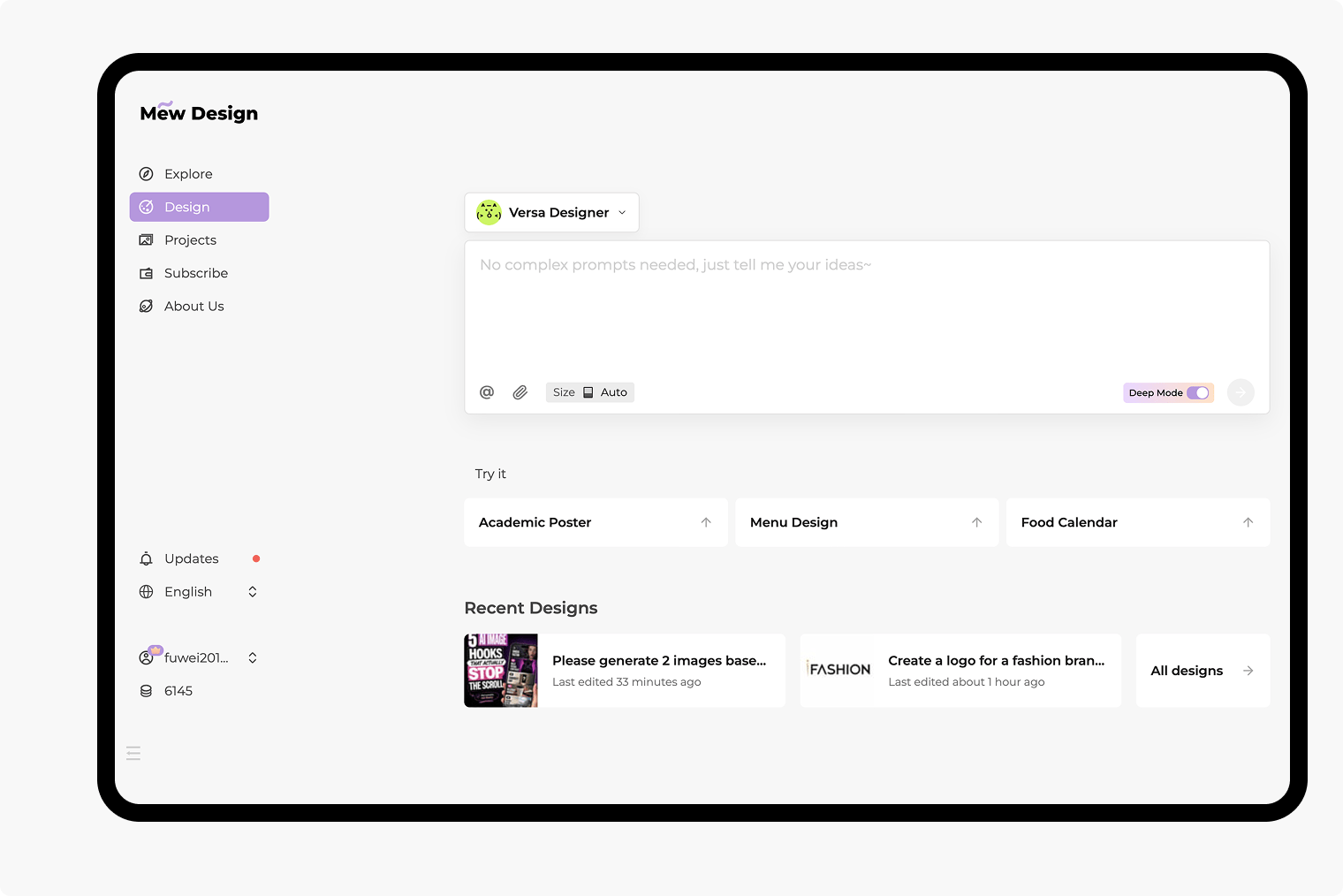
Upload a Clear Portrait
Set the Retouching Direction
Adjust Through Chat Edit
Compare and Download
AI Face Retouching for Natural-Looking Selfies
Soften Blemishes and Under-Eye Shadows
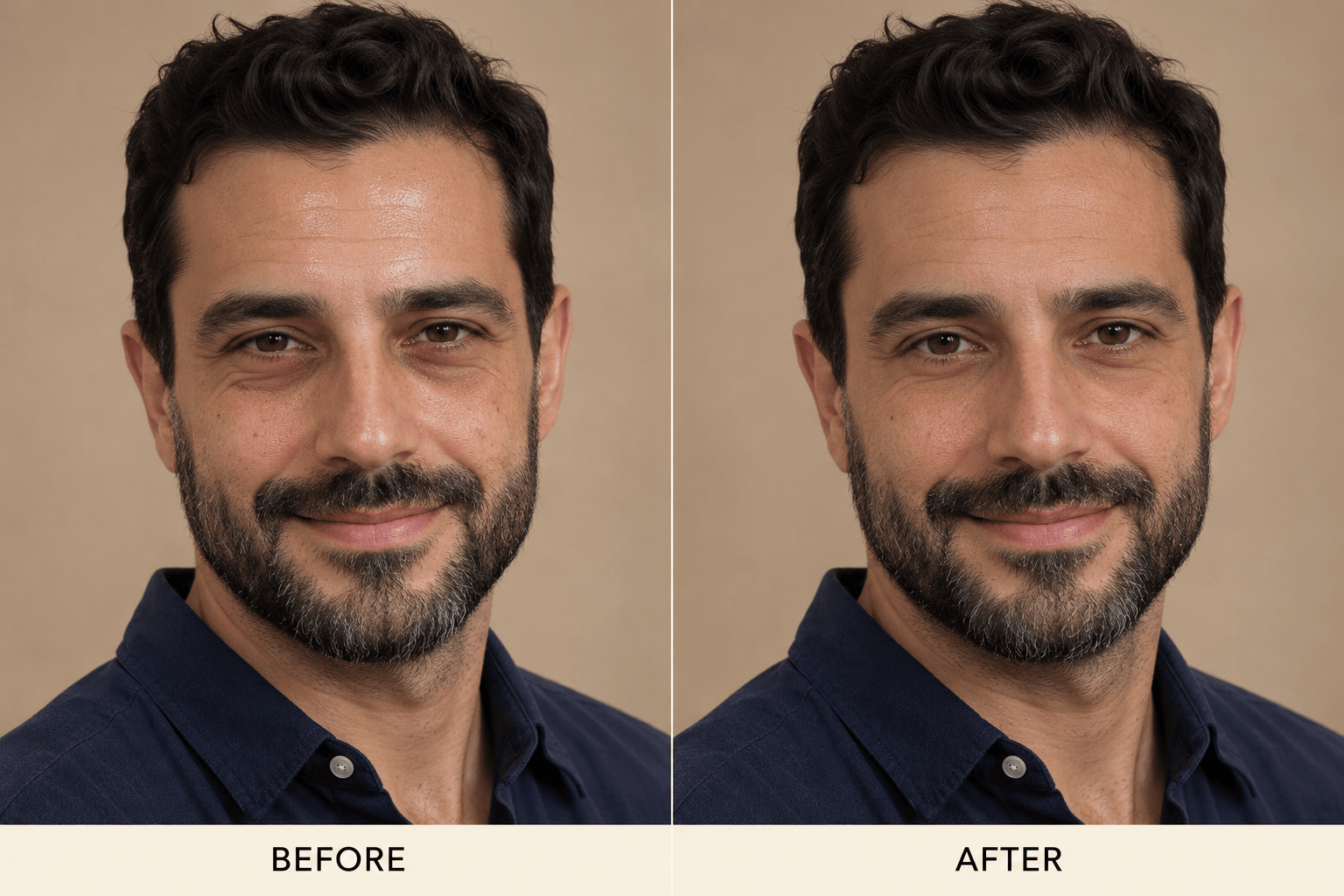
Ask our AI face retouching tool to soften visible blemishes, reduce under-eye shadows, or balance uneven light in your uploaded photo. Start with one change for a subtle result.
Smooth Skin Without a Plastic Look
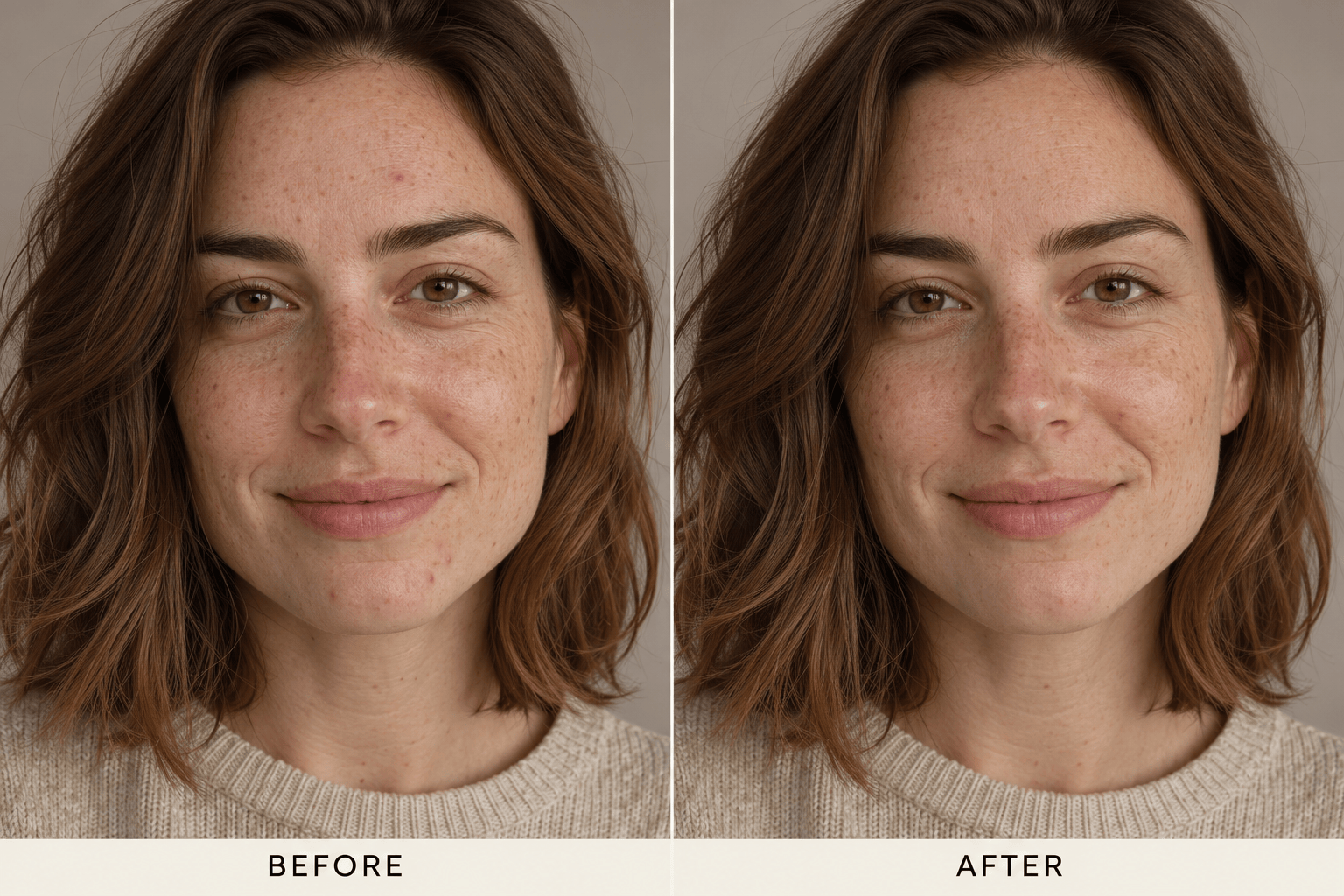
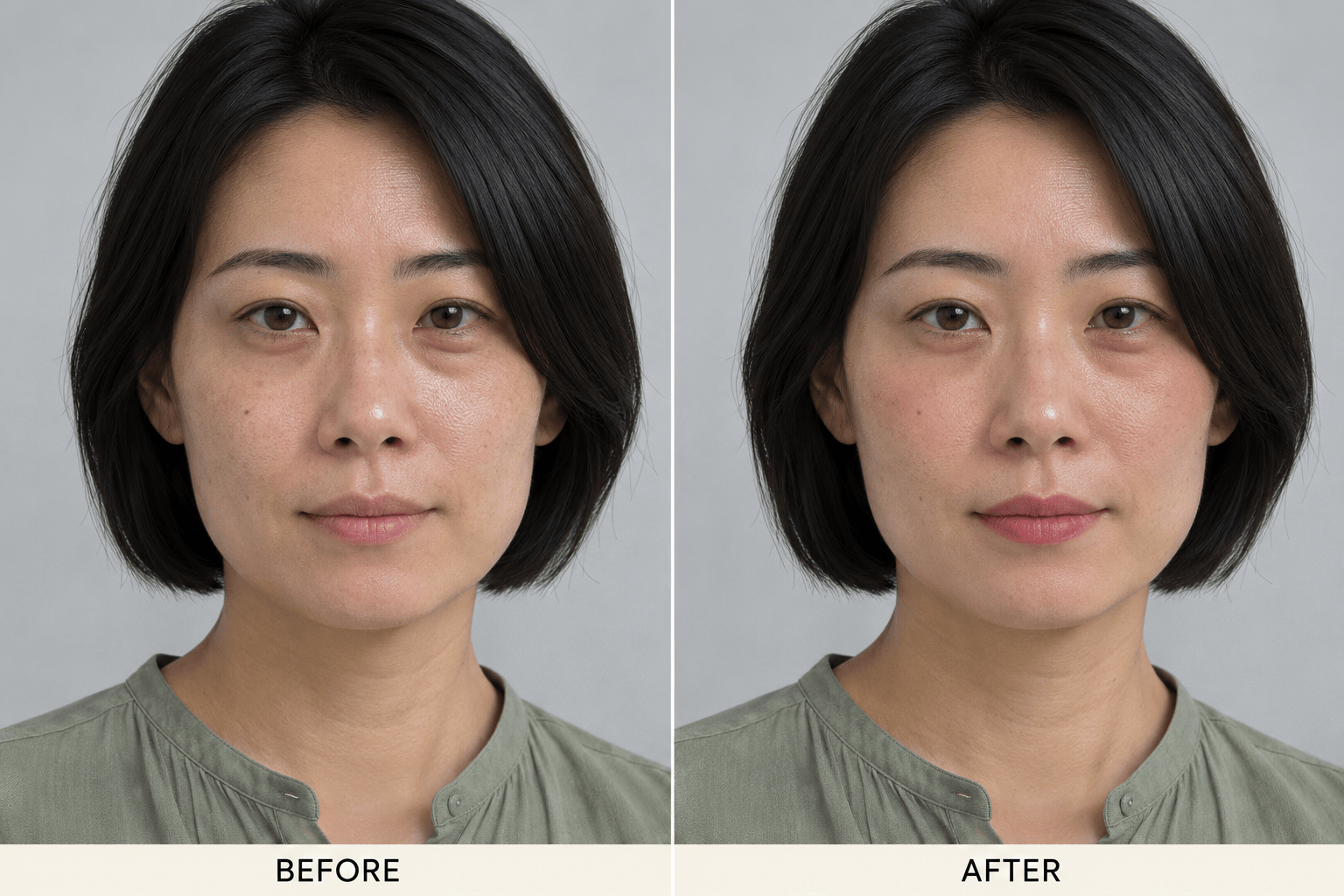
Ask the natural beauty filter to retain pores, freckles, and facial proportions. Review the result: generative edits can still change details.
Natural Retouching with or Without Makeup
Request a clean selfie without added cosmetics, or explore a soft lip tint and blush. You decide whether makeup belongs in the result.
Bring a Reference Look
Upload a reference for the lighting or makeup you like. Identify your own portrait as the face to preserve and the reference as style guidance only.
Let Mew Auto Choose
Mew Auto selects a suitable model for your portrait edit. Eligible paid plans also let you choose manually, with leading image models and new releases available in one workspace.
Try It Online, Save Without Watermarks
Try this online AI selfie enhancer with free signup credits. Export without watermarks; standard downloads are available free, while HD downloads require an active paid membership.
How to Keep Skin Texture When Retouching Selfies
- Start with Detail: Choose a sharp original without an existing strong filter. Heavy blur leaves fewer real details to preserve.
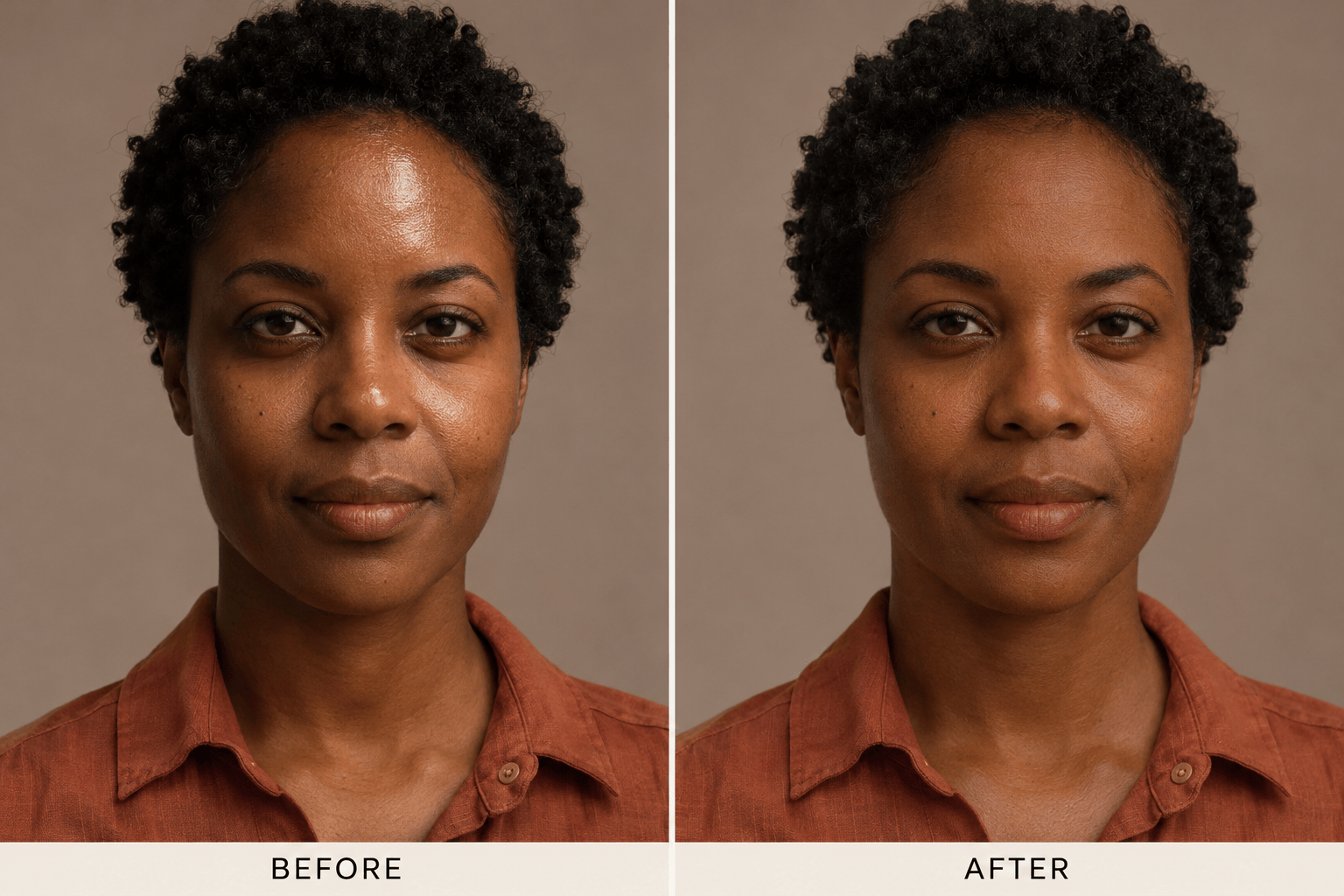
- Check Color Consistency: Compare the face with the neck. Ask to correct lighting without lightening your natural complexion.
- Keep Familiar Features: Check freckles, smile lines, eye shape, and beard edges. Request specific corrections if they drift.
- Reduce the Effect: If the result looks waxy, ask Chat Edit to restore texture using the original photo as the reference.
Beauty Filter Edits for Selfies and Profile Photos
Give my uploaded selfie a natural touch-up. Soften temporary blemishes while preserving pores and freckles. Keep my face shape and expression; add no makeup.
Balance the uneven light in my portrait while preserving my dark skin tone and undertones. Keep the face and neck consistent; avoid a pale or gray cast.
Retouch my uploaded portrait with no makeup. Reduce forehead shine gently while keeping beard texture, stubble, eyebrows, and jawline unchanged.
Refine my professional profile photo with a light touch. Soften under-eye shadows without removing smile lines. Keep my age, expression, outfit, and background.
Add subtle blush and a soft lip tint to my portrait. Keep natural skin texture and my existing facial proportions; avoid dramatic contouring or enlarged eyes.
Reduce the smoothing in this edited portrait. Use my original photo to restore pores and freckles, keeping the improved lighting and my natural complexion.