Give Your Portrait a Wedding SettingAdd a Wedding Background with AI
How to Change a Wedding Photo Background
Start with Clear Faces
Describe the Ceremony Setting
Inspect the Delicate Details
Save a Separate Edited Copy

A New Setting for a Moment Worth Keeping
Keep the Couple at the Center
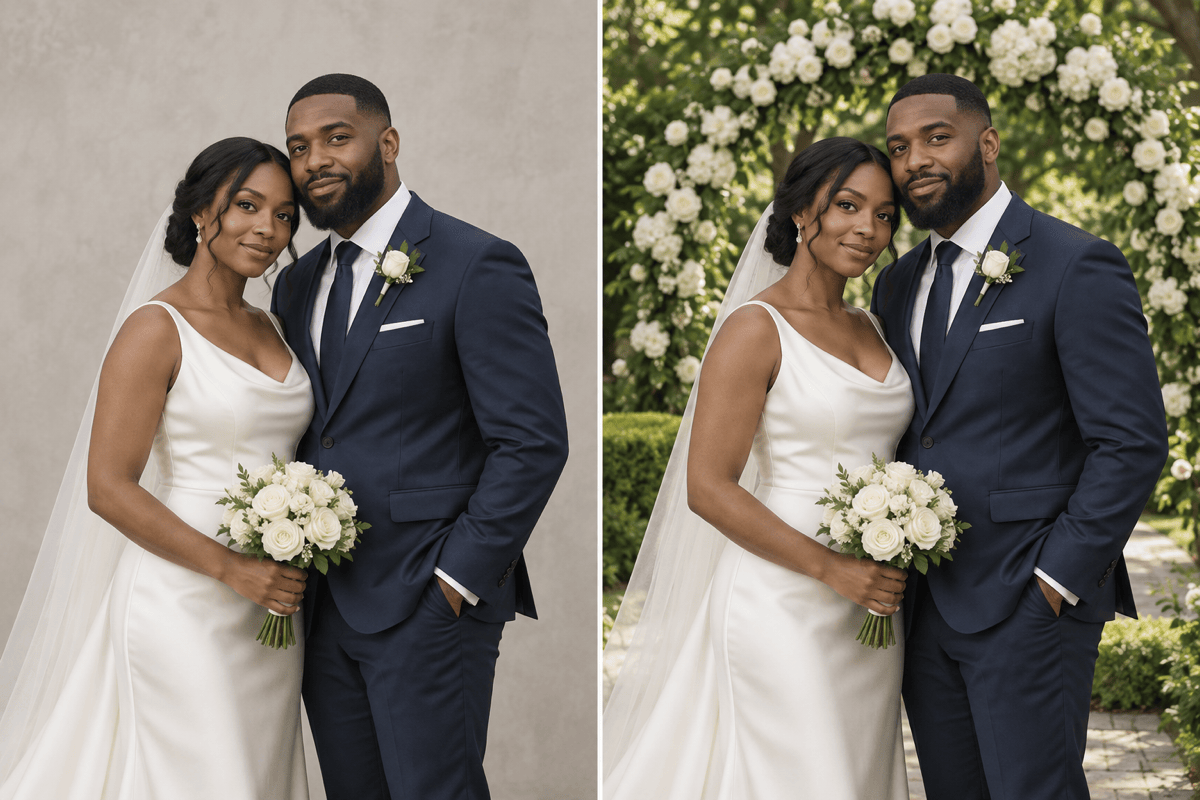
Begin with an existing portrait and request changes to the surroundings, then compare both people with the original.
Reflect Your Wedding Decor
Upload a venue or floral reference to guide the background colors, arrangements, and overall mood.
Explore Ceremony Atmospheres
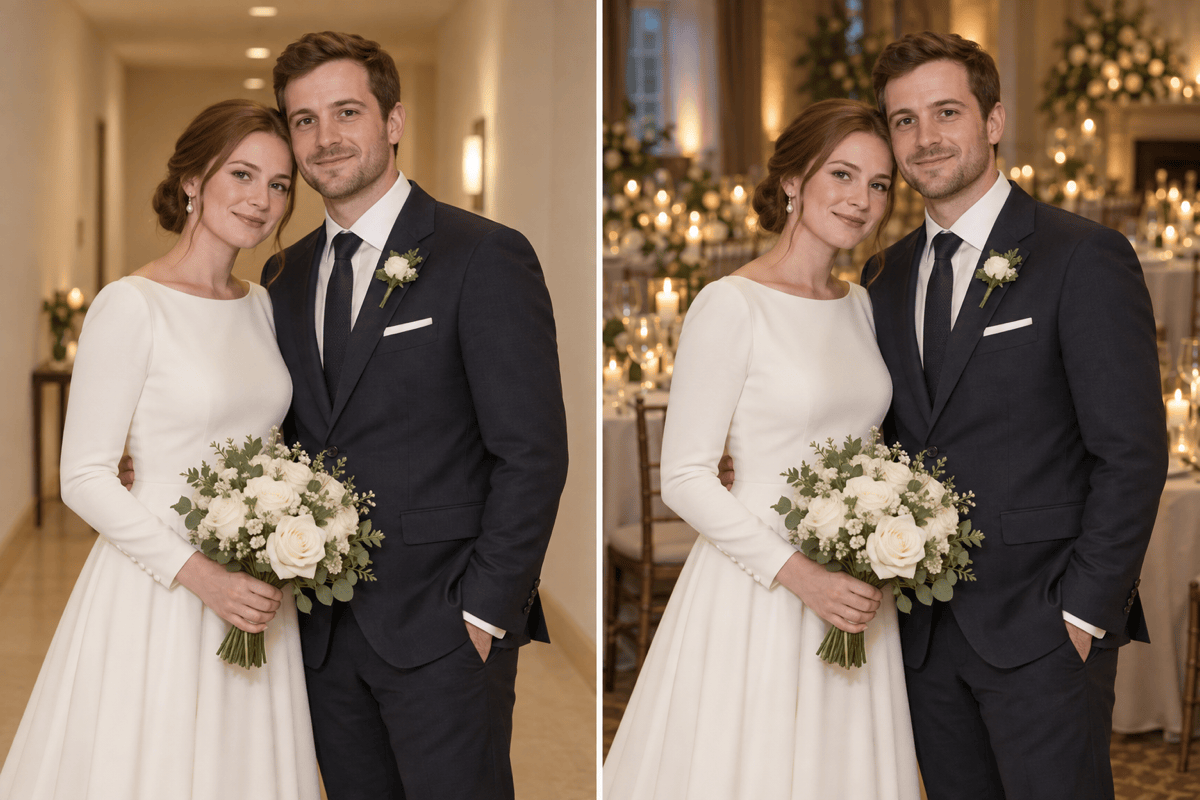
Compare a garden wedding background with a softly lit indoor setting before selecting your preferred version.
Refine Around the Dress
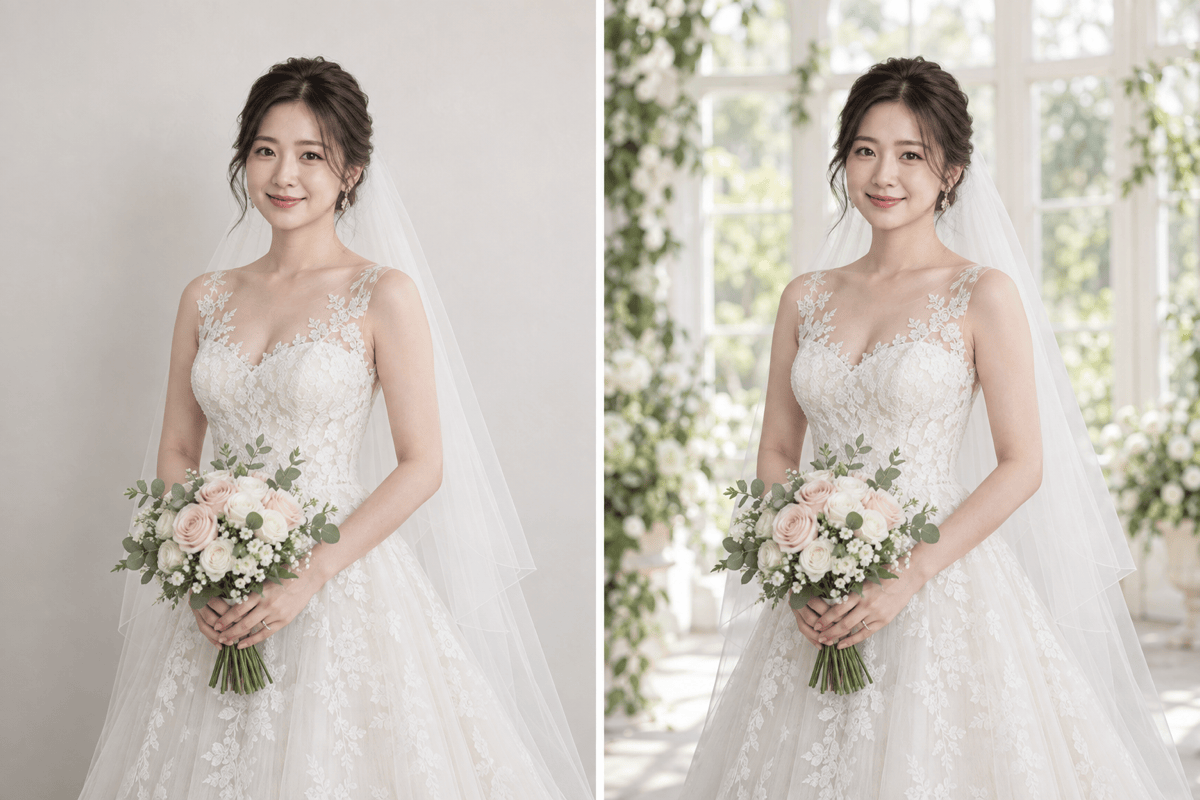
Ask for precise changes around the gown, veil, or bouquet in Chat Edit instead of requesting a full restyle.
Calm a Distracting Venue
Describe a simpler background when signs, chairs, or busy decorations pull attention away from the couple.
Bring Album Images Closer in Mood
Use a shared decor reference and color direction across selected portraits, checking each edited photograph individually.
Protect the Details That Make the Photo Yours
- Look Through the Veil: Check that sheer fabric still looks translucent and does not become a solid white patch.
- Compare Both People: Review expressions, skin tone, hands, and jewelry for each person, not only the more prominent face.
- Match the Dress Edges: Keep lace, the hem, and bouquet stems clear of new flowers or furniture.
- Respect the Original Light: Choose soft garden shade for diffuse portraits; a dark ballroom may clash with strong outdoor light.
Wedding Settings with Clear Preservation Instructions
Place our uploaded wedding portrait before an ivory floral arch in a shaded garden. Preserve both faces, wedding clothes, and bouquet; keep flowers behind us.
Give this bridal portrait a bright conservatory background. Preserve the lace dress and translucent veil, with soft window light matching the original.
Replace the background with a warm reception room and distant candlelight. Keep our faces naturally lit and leave our jewelry and outfits unchanged.
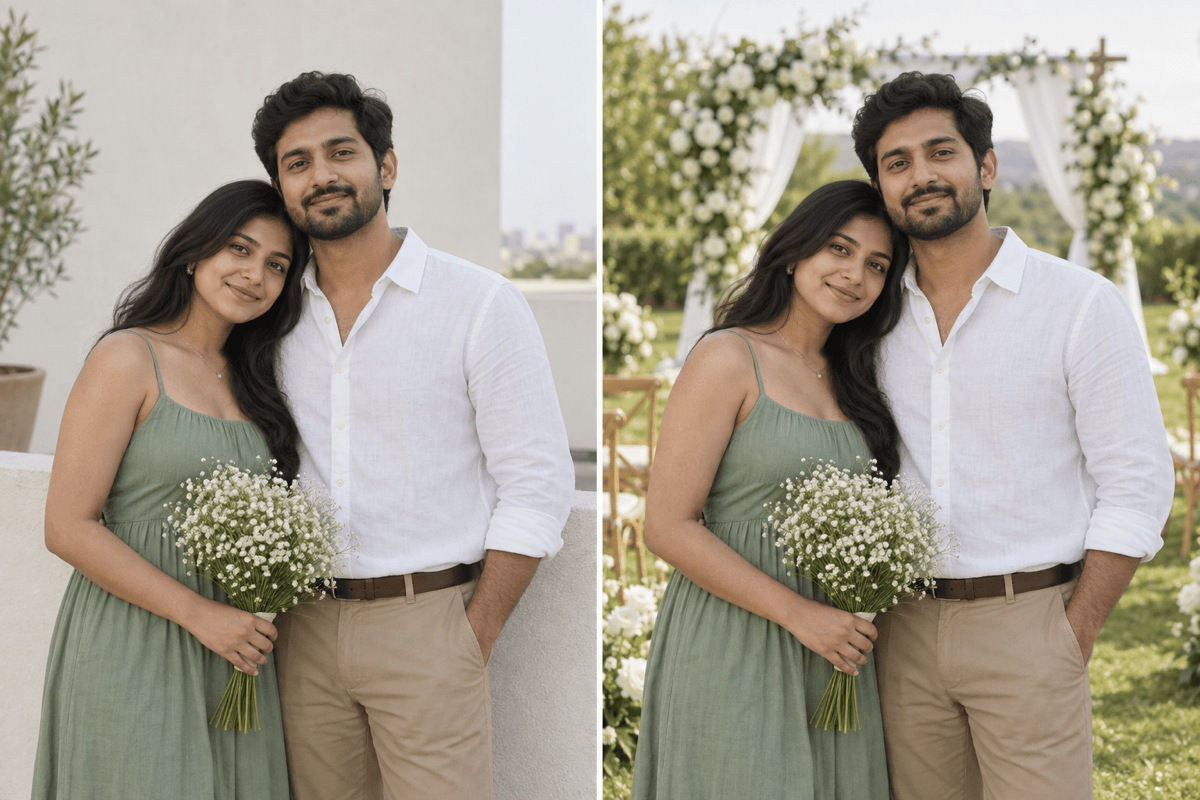
Add a simple outdoor ceremony setting to our engagement photo. Keep our everyday outfits and expressions; do not turn them into wedding clothes.
Simplify the wedding venue behind us by removing cluttered chairs and signs. Retain the existing floral palette, our poses, and all clothing details.
Create a calm, pale wedding background for this album portrait. Keep the full dress hem visible and leave space around the couple for the album crop.





