Free OnlineAI Add Flowers to Photo
How to Add Flowers to a Photo with AI
Upload a Clear Source Photo
Describe the Flowers and Placement
Generate and Inspect the Edit
Refine and Export

Why Use Mew Design for Natural Floral Photo Edits
Preserve the Subject That Matters
Start from your existing image and state what must remain recognizable, such as a face, pose, hairstyle, product shape, room layout, or building details.
Fit Blooms Into the Scene
This online AI floral photo editor can interpret placement, scale, light direction, shadows, and depth so added flowers feel connected to the original camera view.
Guide the Look with References
Upload a bouquet, flower crown, color palette, or botanical reference alongside the source photo when words alone do not capture the arrangement you want.
Correct One Detail in Chat
If the first edit covers a face or changes too much, use Chat Edit to reduce the flowers, restore a detail, move a stem, or rebalance the background.
Explore Several Floral Directions
Compare restrained, romantic, seasonal, editorial, or garden-inspired versions without organizing a new photo shoot or rebuilding the composition by hand.
Try It Online with Free Credits
Use free AI credits after signup to add flowers to a photo online. Finished images can be exported without a watermark as PNG or JPG.
How to Make Added Flowers Look Realistic
- Name the Arrangement: Specify a flower crown, hand-held bouquet, table centerpiece, border, garden bed, petals, or full floral background.
- Control the Blooms: Mention flower types, colors, quantity, scale, bloom stage, foliage, and the exact area where they should appear.
- Protect Key Details: List the face, hands, pose, product label, architecture, furniture, or other elements that should remain unchanged.
- Match the Photograph: Ask for the same camera angle, light direction, color temperature, depth of field, and contact shadows as the original image.
Floral Photo Edits to Try
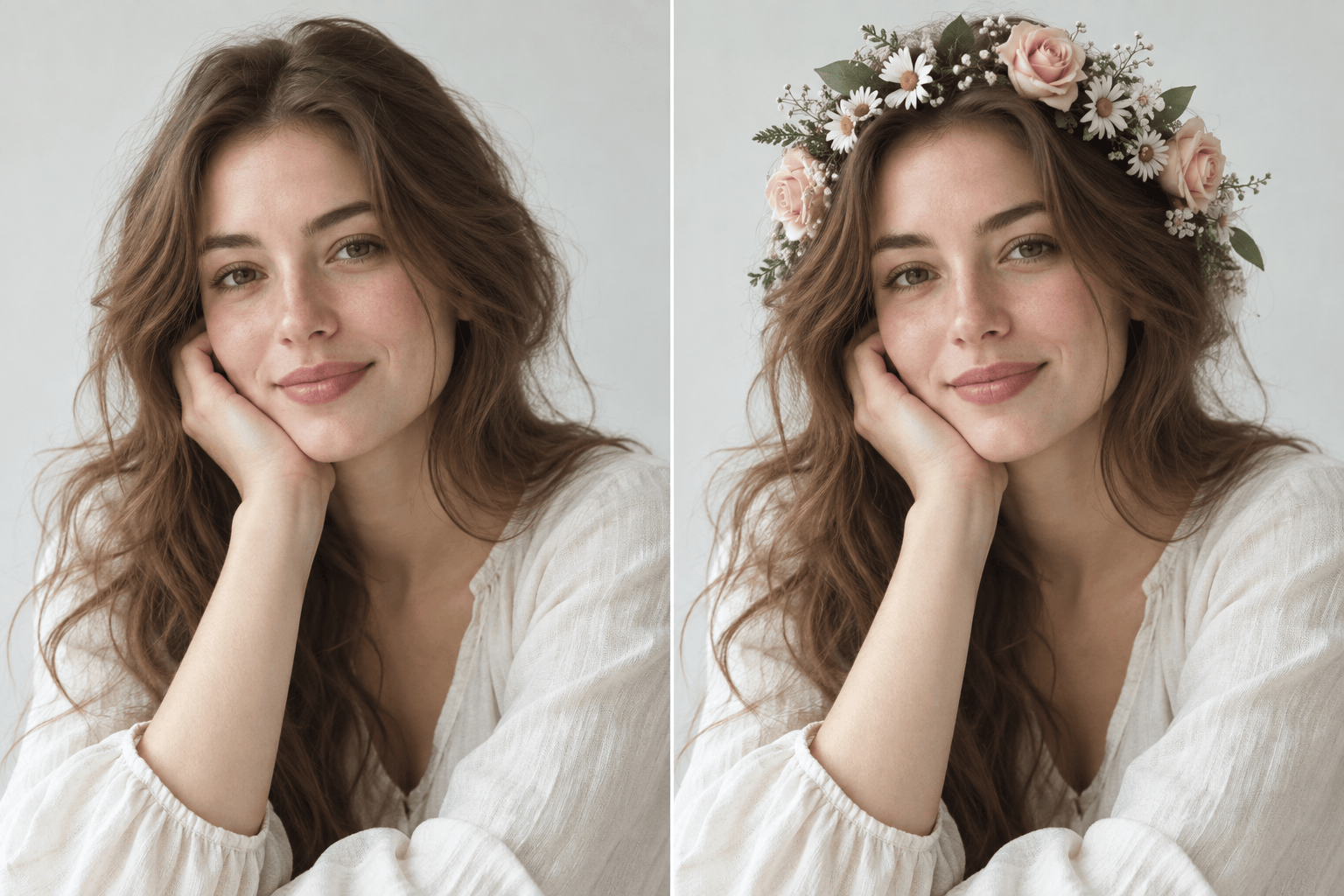
Flower Crown Portrait: Use my uploaded portrait as the base. Add a delicate crown of blush roses, white baby's breath, and small green leaves. Fit it naturally into the hair, match the original daylight and focus, and keep the face, expression, clothing, background, and crop unchanged.
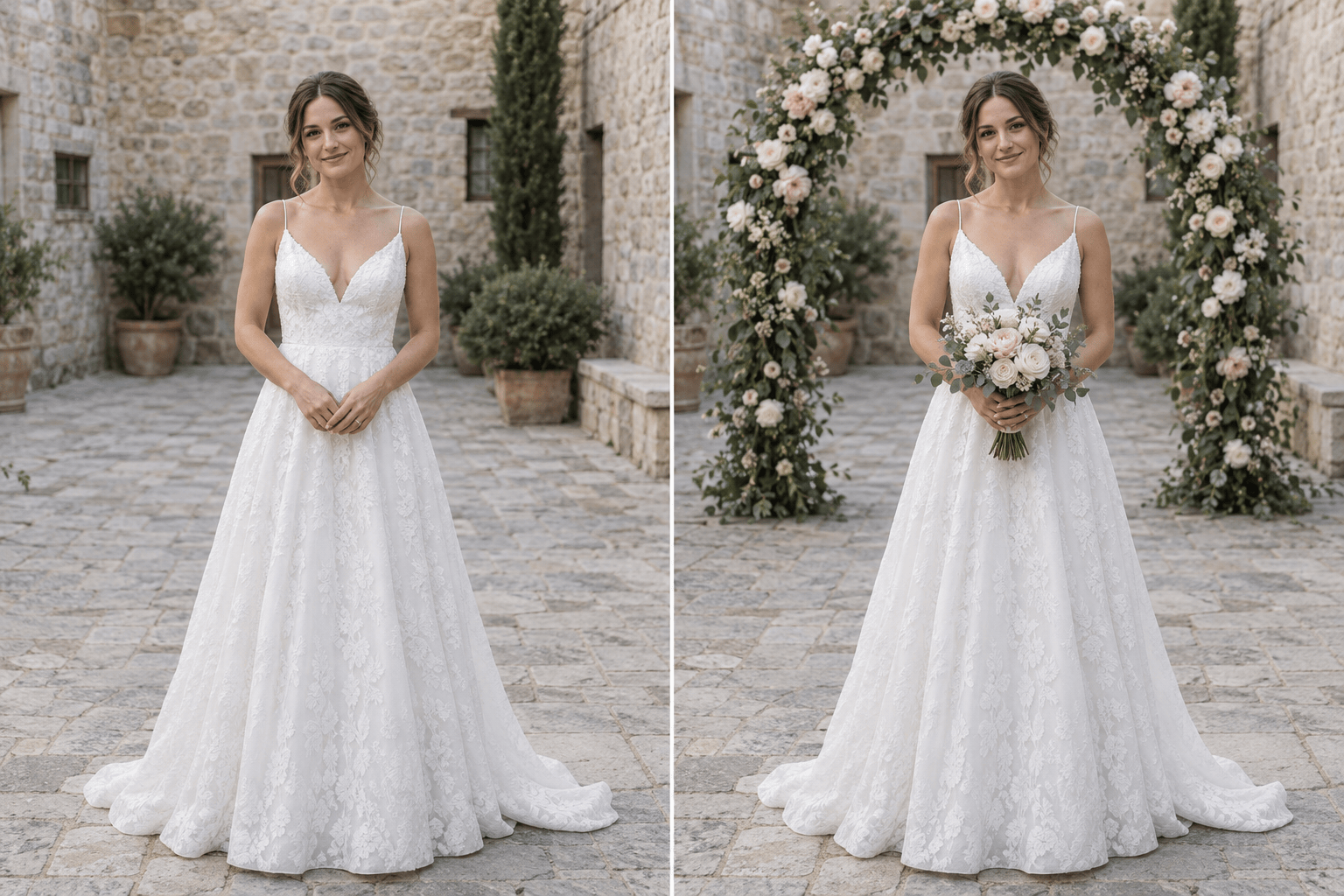
Wedding Flowers: Enhance my uploaded couple photo with an airy arch of white roses, blush peonies, and eucalyptus behind us, plus a few petals near the ground. Preserve both faces, hands, outfits, pose, venue, camera angle, and natural skin tones.
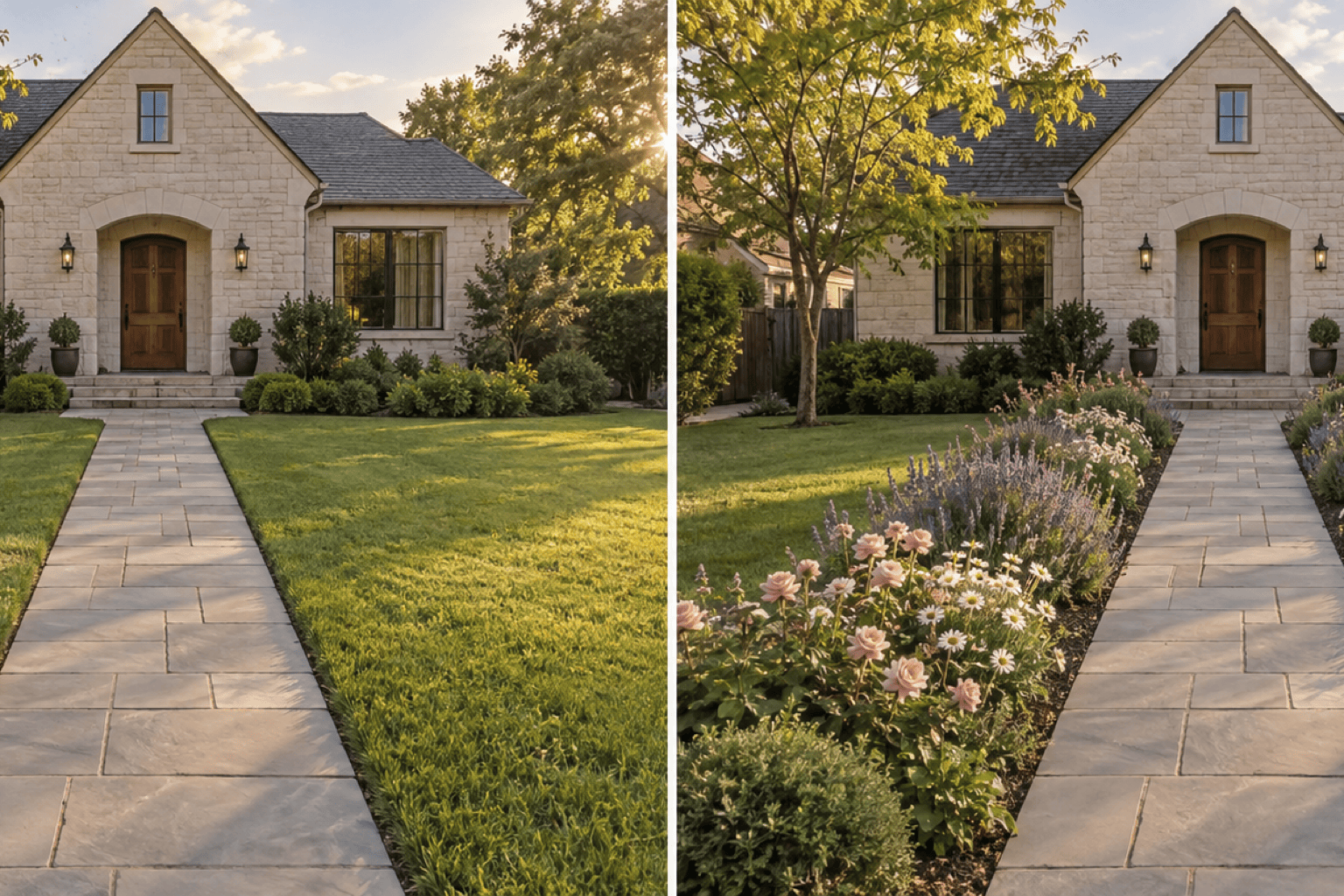
Garden Flower Bed: Add a believable flower bed of lavender, white daisies, and soft pink roses along both sides of the walkway in my uploaded property photo. Follow the path perspective, match the afternoon light, and keep the house, lawn, paving, and trees unchanged.
Indoor Bouquet: Place a medium glass vase with fresh cream tulips and pale yellow ranunculus on the empty dining table. Match the room's warm window light, table perspective, reflections, and shadows; preserve all furniture and wall details.
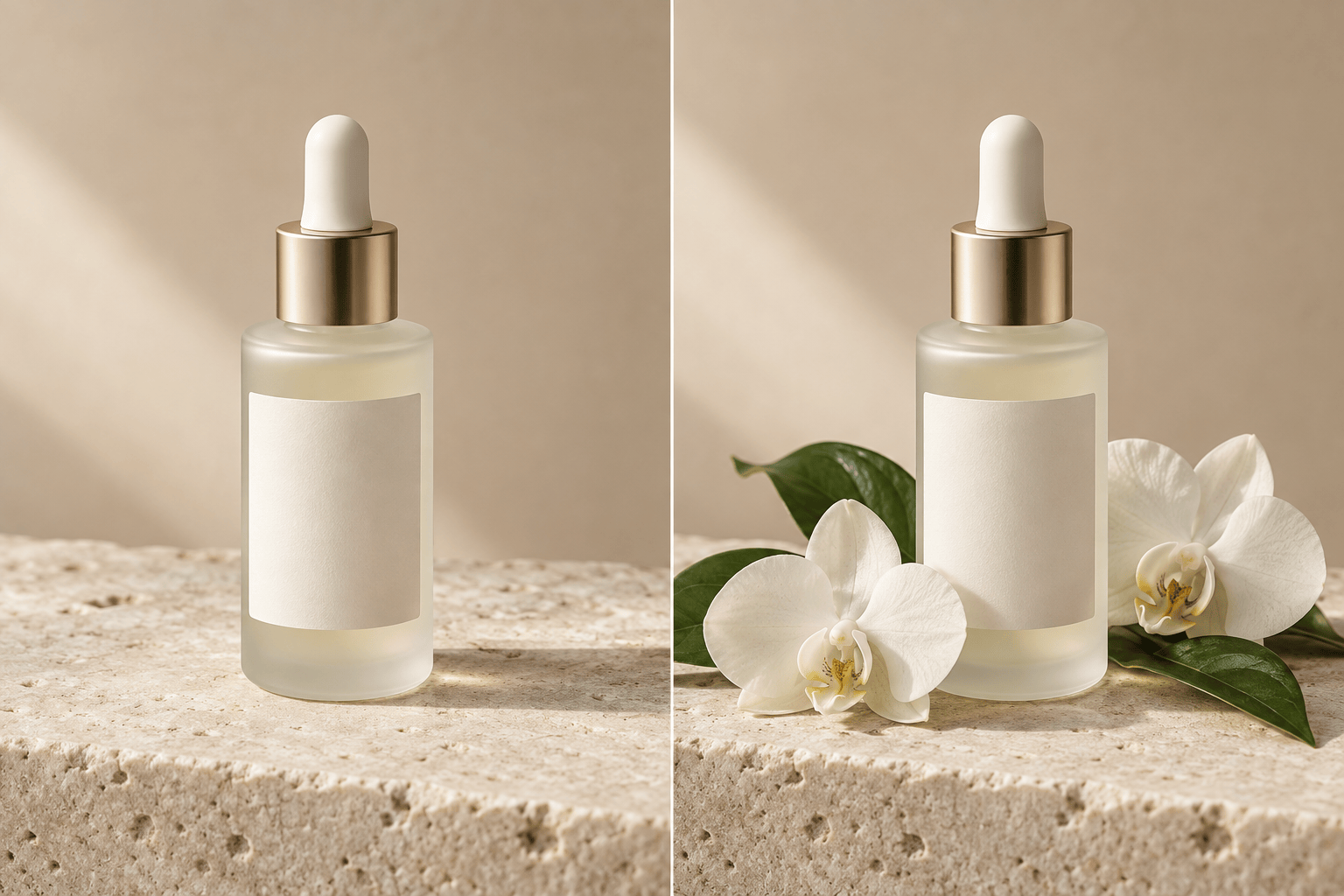
Floral Product Photo: Add a restrained arrangement of white orchids and glossy green leaves around the base of my uploaded skincare bottle. Keep the bottle shape, cap, label area, camera angle, background, and existing highlights unchanged, with no flowers covering the product.
Cherry Blossom Portrait: Add a few soft pink cherry blossom branches behind the subject and a light scattering of petals in the background. Keep the face, hair, body, outfit, and foreground clear, and match the original breeze, focus, and sunset lighting.





