Turn Any Moment Into a Celebration withAI Add Confetti to Photo

How to Add Confetti to a Photo with AI
Upload a Clear Photo
Describe the Confetti Effect
Generate and Check the Depth
Refine and Download

Why Use Mew Design for Realistic Confetti Photo Edits
Edit the Photo You Already Have
Upload an existing image and ask for the celebration effect you want. This image-to-image workflow adds confetti without making you rebuild the moment from scratch.
Keep the Moment Recognizable
Tell the AI what must remain unchanged, including faces, clothing, signs, products, or the background. You can review the result and correct any area that changed too much.
Create Depth, Not Flat Stickers
Our AI confetti filter can vary particle size, focus, angle, and placement so the effect feels integrated with the scene instead of pasted across the frame.
Match the Celebration Theme
Use rainbow paper for birthdays, school colors for graduation, metallic gold for a launch, or deep red petals for a wedding. Describe the shape and palette in plain language.
Fix One Detail Through Chat
If the first edit is too busy, click Chat Edit and ask to reduce the density, clear the face, soften the foreground pieces, or add more confetti only to the empty background.
Try the Online Editor for Free
New users receive free AI credits after signup. Test an AI add confetti to photo edit, refine the result, and export without a watermark when it is ready to share.
How to Make Added Confetti Look Real
- Set the amount: Say light, medium, or dense, and name the emptier areas where more pieces can appear. This helps prevent a celebration photo from becoming visually crowded.
- Describe the depth: Ask for a few blurred foreground pieces, sharp midground pieces, and smaller background pieces so the confetti sits inside the photographed space.
- Match color and light: Choose colors that fit the event or existing decorations, and ask the AI to match the scene's light direction, highlights, and shadows.
- Protect key details: List faces, hands, text, logos, products, or keepsakes that must not be covered or changed. Review the final image closely before sharing it.
Confetti Photo Edits to Try
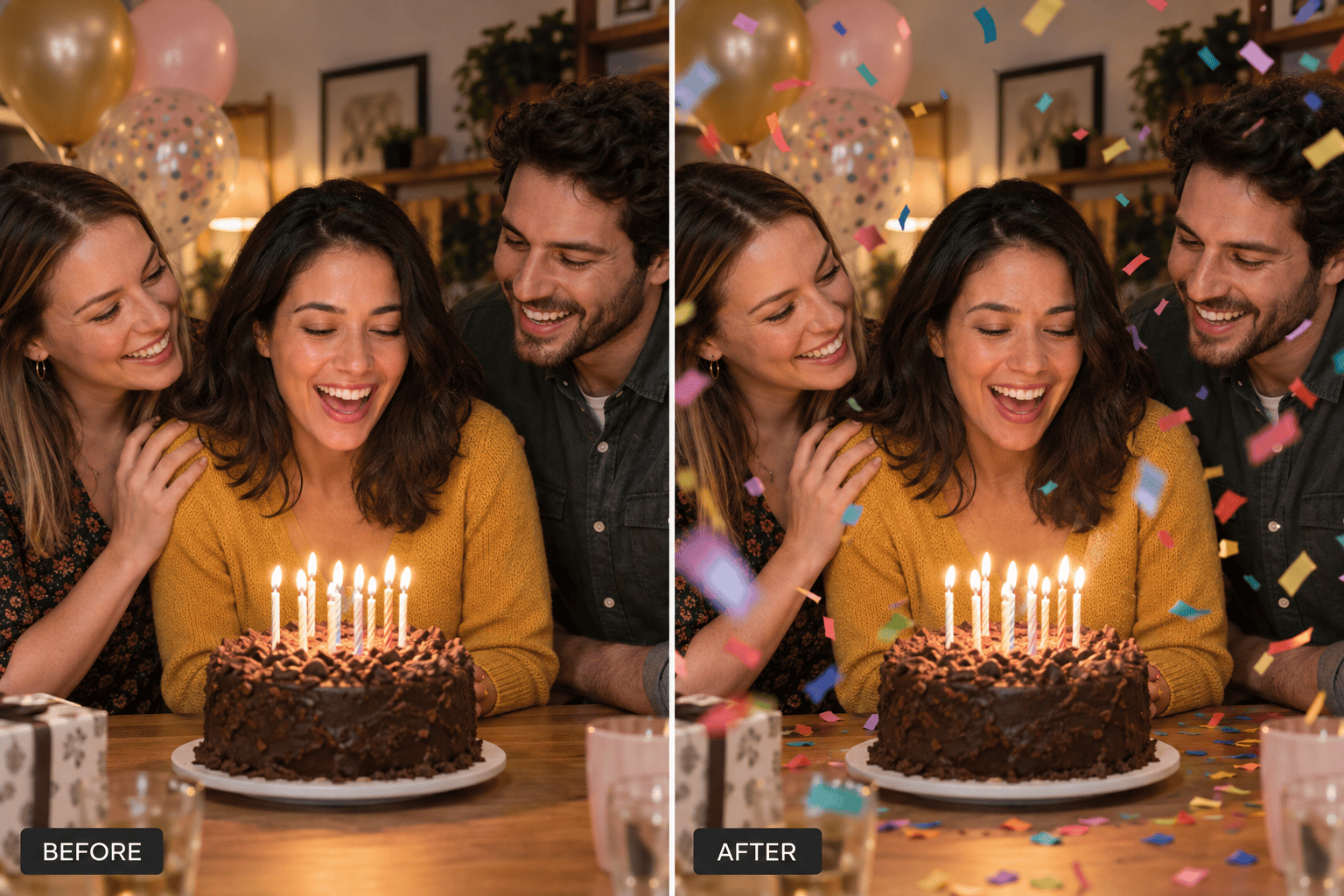
Birthday photo: Add bright multicolor paper confetti falling around the group. Keep all faces, the cake, candles, clothing, and room unchanged. Use medium density and leave the center of the cake clear.
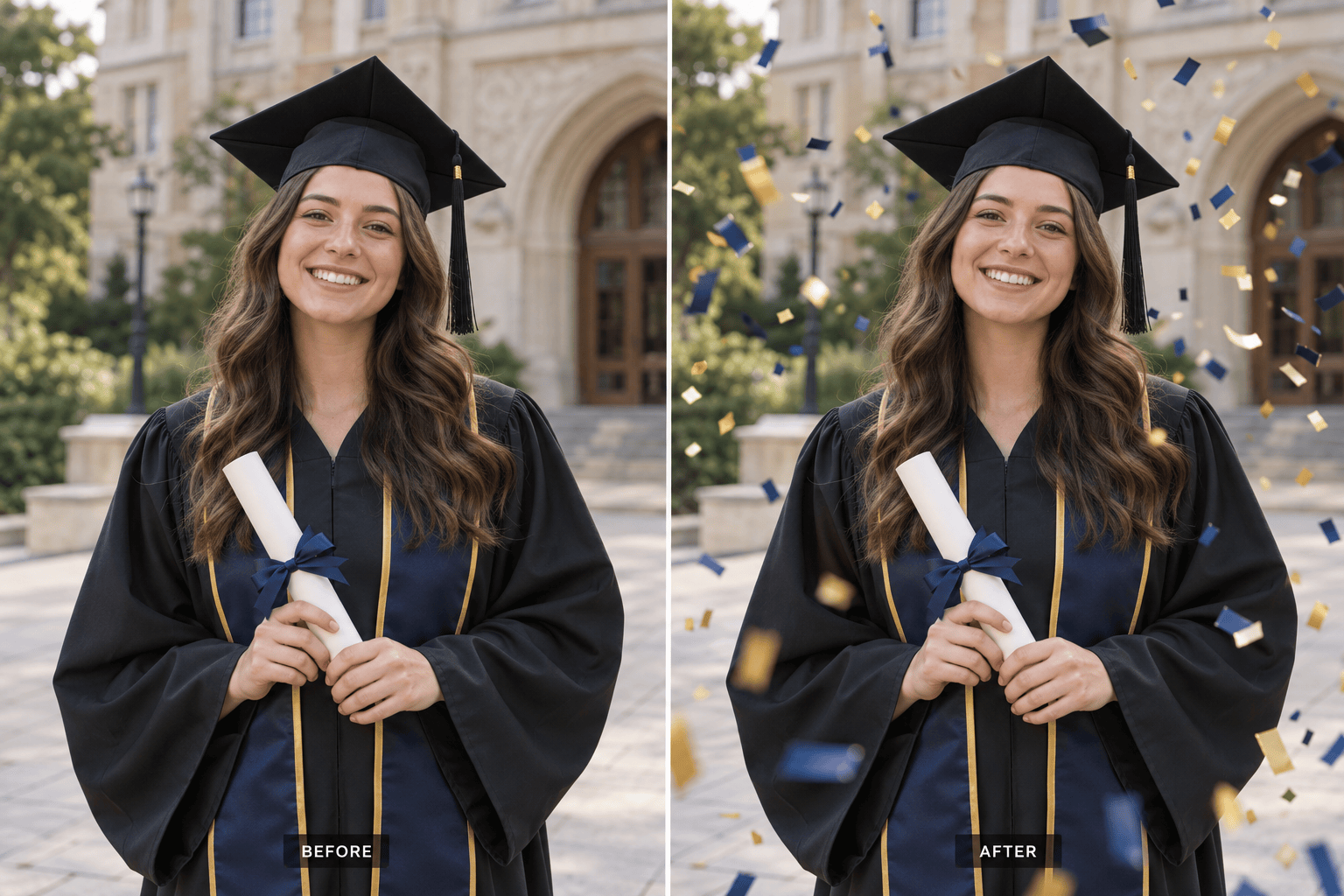
Graduation photo: Add realistic confetti in the school's two main colors, with a few blurred pieces near the camera and smaller pieces behind the graduate. Keep the face, cap, gown, diploma, and campus background unchanged.
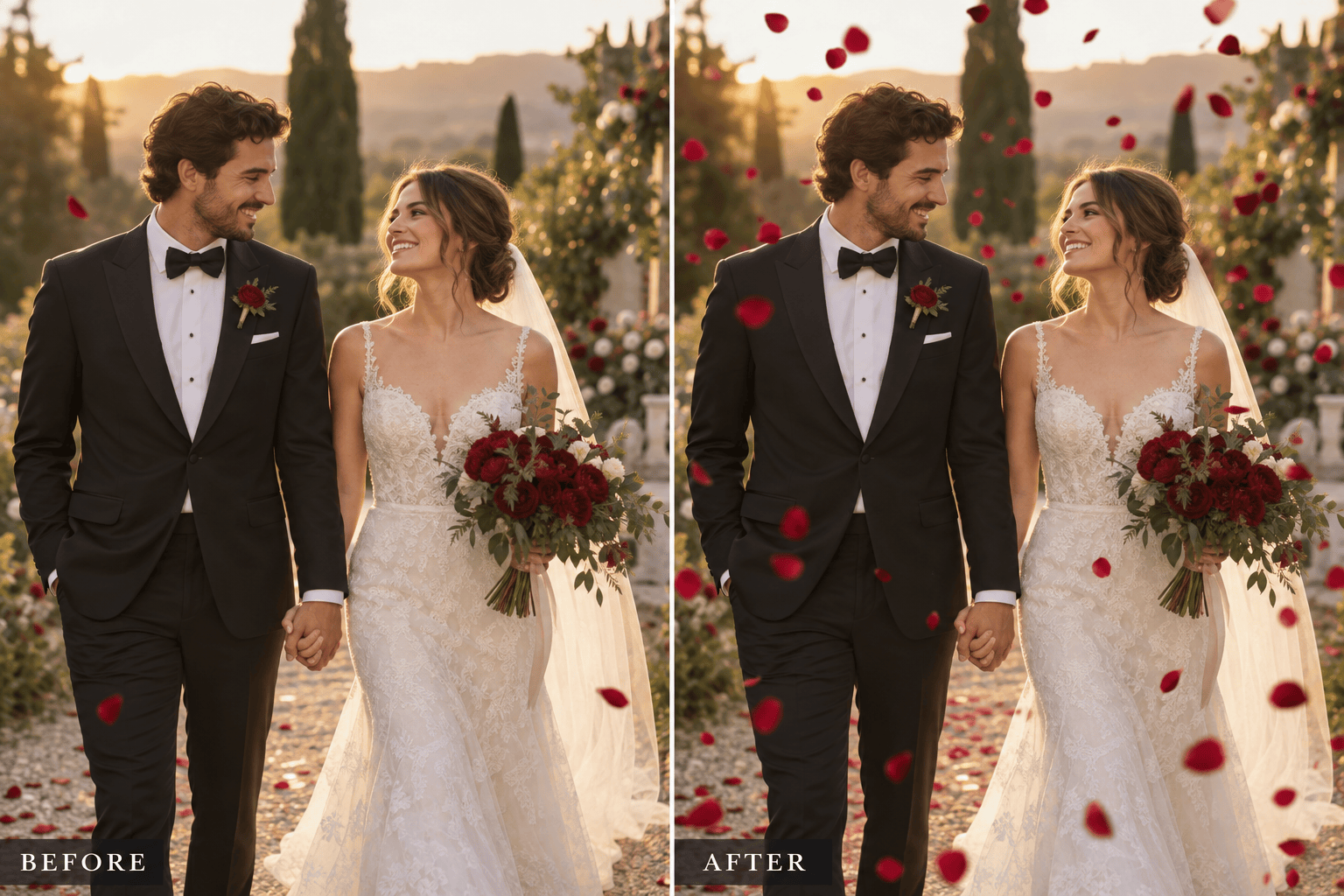
Wedding photo: Add more deep red round petal confetti that matches the pieces already in the scene. Build gentle foreground and background depth, keep both faces completely clear, and preserve the original warm lighting.
Sports victory photo: Add a high-energy gold and team-color confetti cannon burst from both lower corners. Preserve every athlete, jersey number, trophy, stadium detail, and the original camera framing.
Product launch photo: Add restrained metallic gold confetti around the empty outer edges of the frame. Keep the product, packaging text, logo, reflections, and background unchanged and fully readable.
New Year's portrait: Add elegant silver and gold falling confetti with realistic motion blur and varied depth. Keep the person's face, hair, outfit, pose, and city lights unchanged; avoid covering the eyes.





