Free to Try OnlineAdd a Christmas Background with AI
How to Add a Christmas Background to a Photo
Upload Your Holiday Photo
Set the Christmas Scene
Check Faces and Festive Details
Save for Cards or Sharing

A Festive Setting Around the Photo You Love
Begin with Your Own Picture
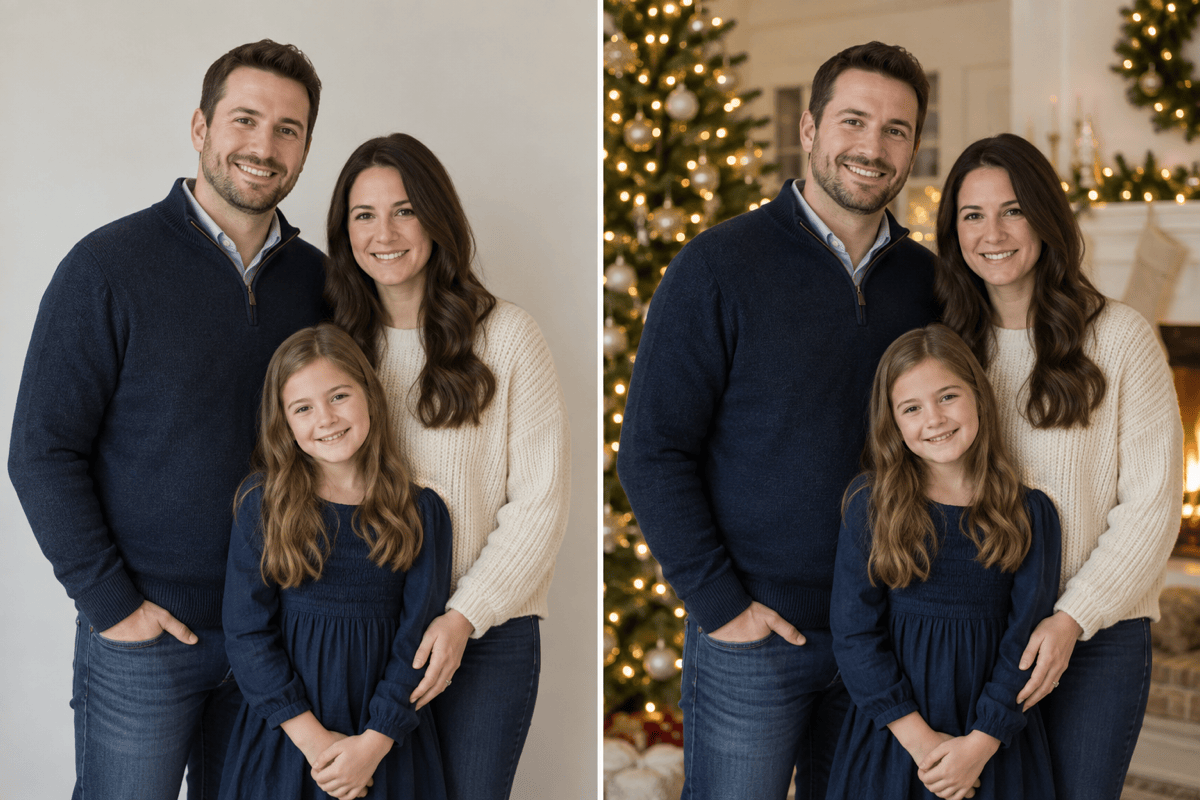
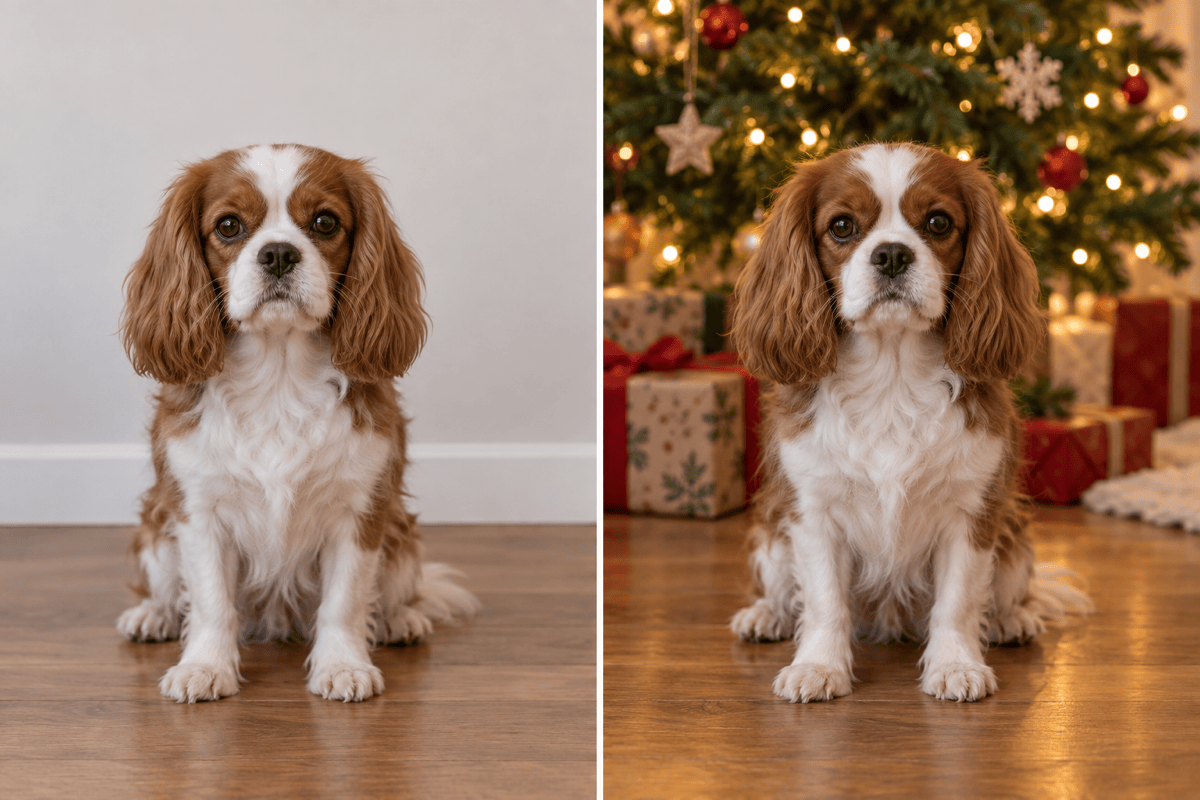
Upload an existing family or pet photo and ask for a new Christmas backdrop instead of arranging another photo session.
Choose Your Holiday Atmosphere
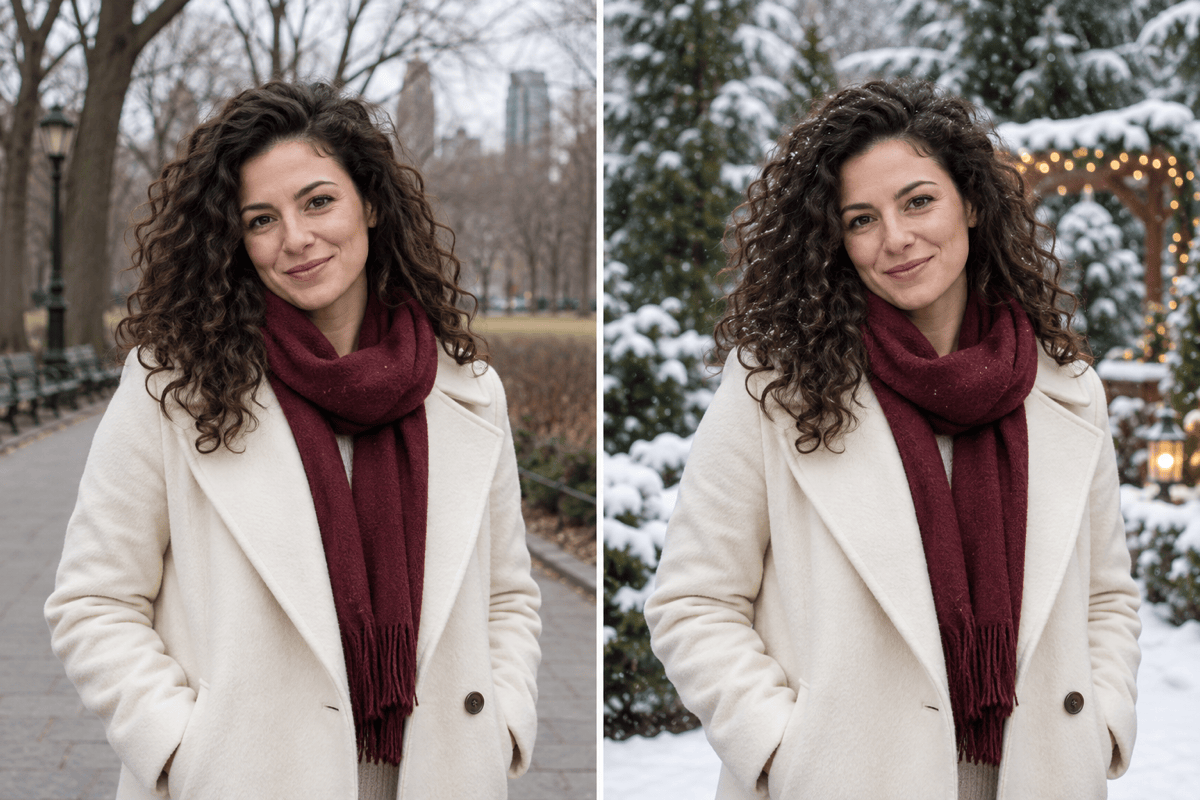
Use this Christmas background changer to explore quiet winter scenes, warm interiors, or bright party lights.
Match a Reference Setting
Upload a decor reference to guide the colors and mood of your Christmas photo background.
Refine the Small Distractions
Describe a specific correction in Chat Edit, such as moving an ornament away from a face or reducing a strong glow.
Style Seasonal Product Photos
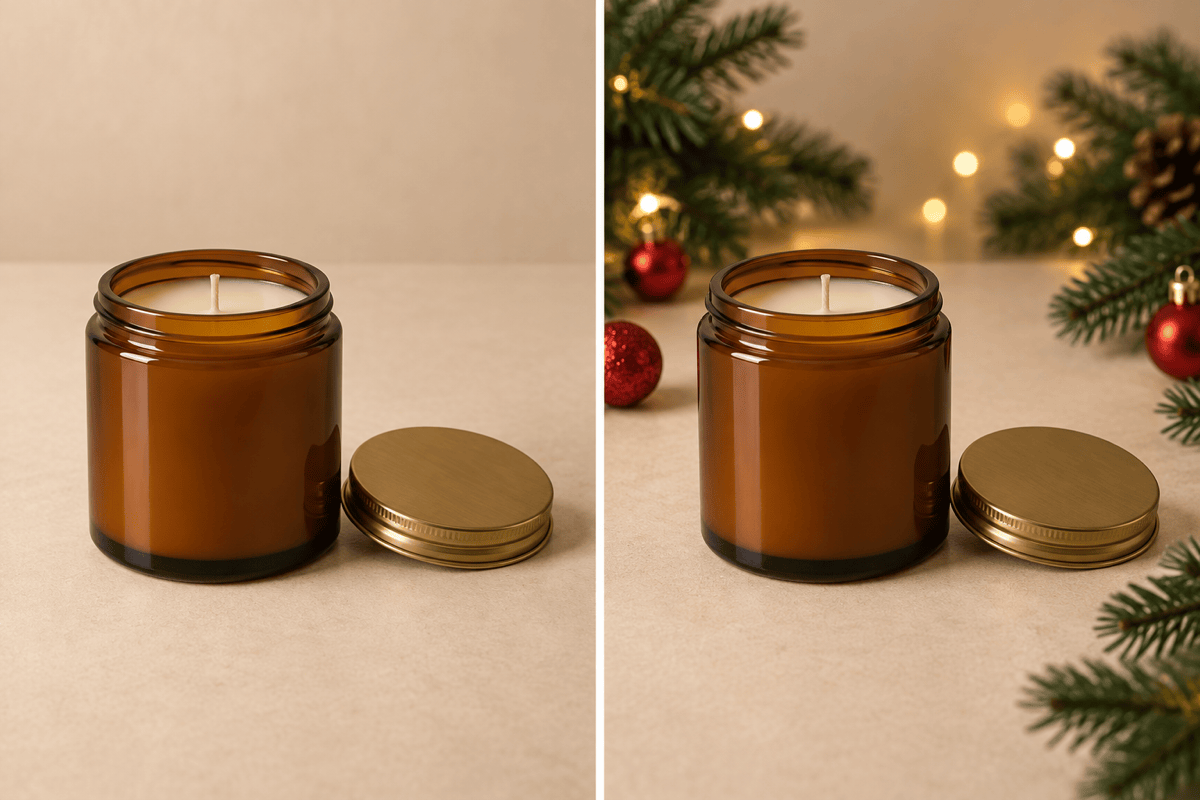
Add a Christmas background to product photos with your preferred palette. Review labels, materials, and proportions before using the result.
Prepare a Card-Friendly Crop
Ask for uncluttered space beside the subject, then export the picture for a greeting card or seasonal social post.
Keep Your Subject Natural in a Christmas Scene
- Protect the Subject: Name faces, fur markings, clothing, or product labels that must stay the same. Compare them after generation.
- Match the Light: Choose a warm indoor backdrop for softly lit portraits. Strong midday light usually fits an outdoor winter setting better.
- Control the Decorations: Keep lights and branches behind the subject. Avoid ornaments that overlap eyes, hair, or important packaging.
- Plan the Greeting Space: Request a calm area for card text before generating, so you do not need to crop away people later.
Fix Common Christmas Background Problems
Remove the bright halo around the hair in this Christmas photo. Keep the face and hairstyle unchanged, and blend the edge into the background.
Make the Christmas tree lights softer and farther behind the family. Keep every person and their clothing unchanged.
Replace the snow covering my pet with light snowfall behind it. Preserve its fur markings, ears, and paws.
Reduce the red color cast on this product. Keep the Christmas decorations in the background and preserve the label and packaging colors.
Move the holiday decorations away from the upper part of this photo. Leave a clean area for Christmas card text without adding any words yet.
Make the floor shadow agree with the warm light in the Christmas background. Keep the subject in the same position and scale.





