Free OnlineAI Add Cat Ears to Photo
How to Add Cat Ears to a Photo with AI
Upload a Clear Photo
Describe the Cat Ears
Generate and Inspect the Edit
Correct Details and Download

Why Use Mew Design for Cat Ear Photo Edits
Protect the Person's Recognizable Look
Tell the editor to preserve facial proportions, expression, skin tone, hairstyle, clothes, pose, crop, and background. Clear constraints help the cat-ear photo stay tied to the original.
Fit Ears to Hair, Angle, and Light
Our AI cat ears filter can interpret head position, hair volume, and scene lighting so you can request believable contact, depth, and shadows instead of a flat sticker effect.
Explore More Than One Cat-Ear Style
Create realistic fur, soft kawaii ears, sleek black cosplay accessories, neon fantasy ears, or subtle profile-picture edits from the same permitted source photo.
Use Visual References When Words Are Not Enough
Upload a permitted ear or costume reference beside the portrait and explain what to borrow. This helps the online cat ears photo editor follow a specific shape, texture, or color.
Fix One Detail Without Rewriting the Brief
If the ears float, cover too much hair, or do not match the light, use Chat Edit to request one correction while keeping the face, pose, and successful parts unchanged.
Try the Edit Online and Export Cleanly
Start with free AI credits after signup, compare a few directions, and download the finished cat-ear selfie without a watermark as PNG or JPG. Credit use depends on the model and generations.
How to Get Better Cat Ear Photo Edits
- Show the full hairline: Use a clear front-facing or three-quarter photo with the top of the head visible. Heavy blur, hats, and cropped hair make natural placement harder.
- Name the ear design: Specify color, fur or fabric texture, size, tilt, inner-ear color, and whether the look should feel realistic, kawaii, cosplay, or illustrated.
- Lock important details: List the face, expression, hair, clothes, pose, crop, and background as preserved elements when you only want an accessory-level change.
- Control optional extras: Say whether whiskers, a cat nose, blush, makeup, sparkles, or a tail are allowed. Explicit exclusions prevent the filter from becoming a full cat-face makeover.
Cat Ears Filter Prompts for Popular Styles
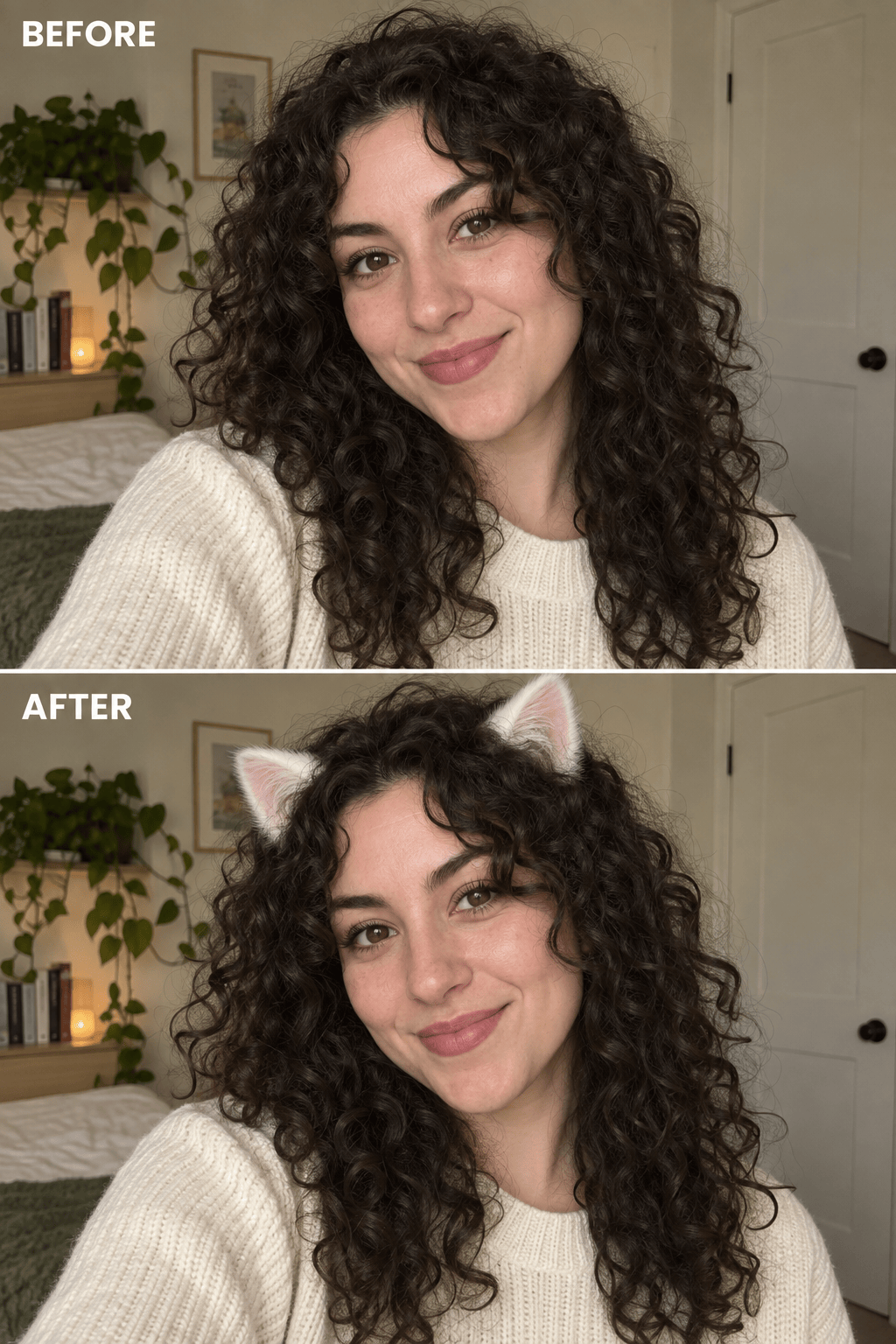
Add realistic fluffy white cat ears to @[selfie]. Align them with the head angle and blend the bases into the hair with soft daylight shadows. Preserve the face, expression, hairstyle, skin texture, clothes, crop, and background. No whiskers, cat nose, tail, text, or logo.
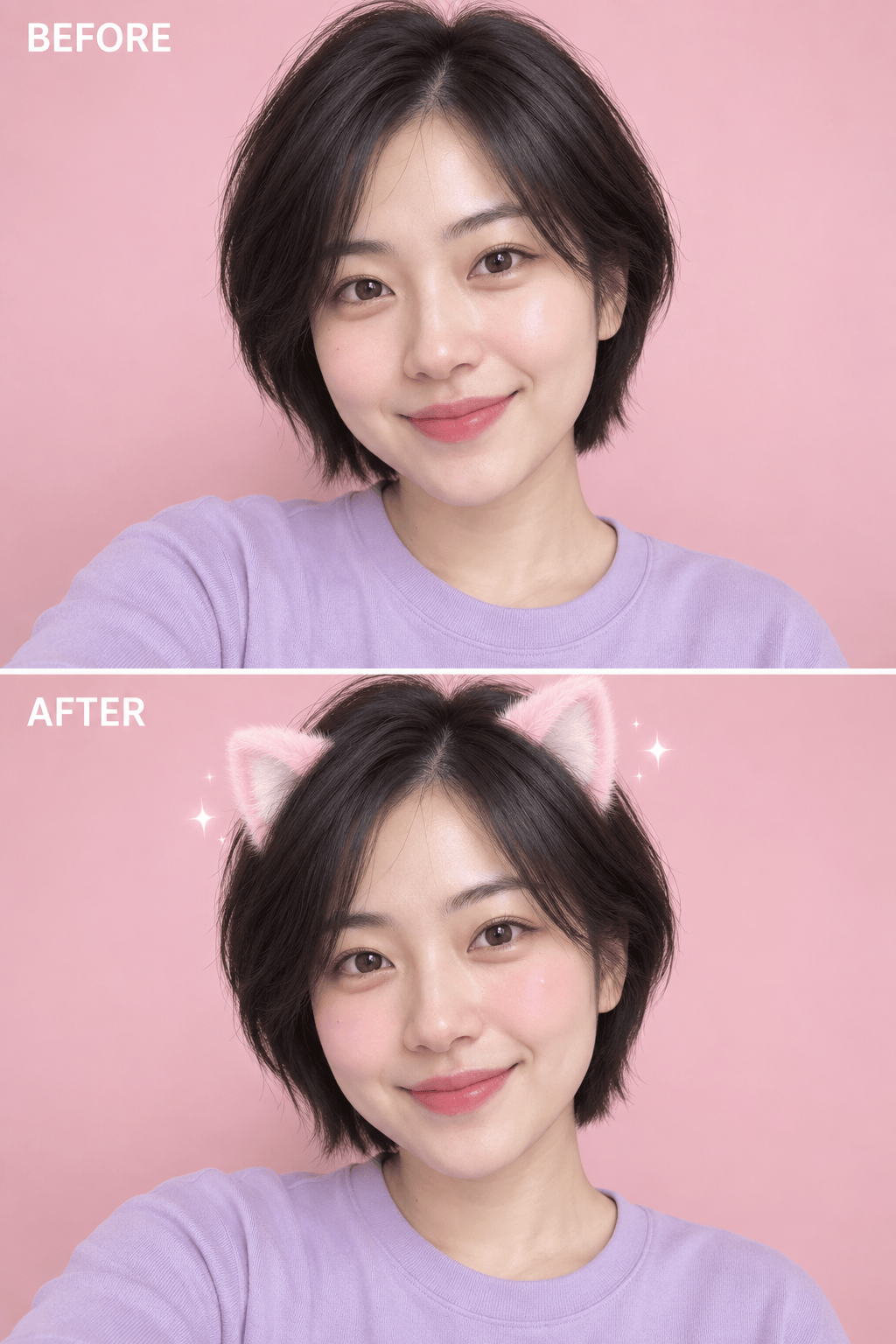
Turn @[portrait] into a pastel kawaii cat-ear profile photo. Add small pink plush ears with pale inner ears, gentle blush, and subtle sparkle. Keep the person recognizable and preserve the original pose and hairstyle. Use a clean soft-pink finish without changing the face shape.
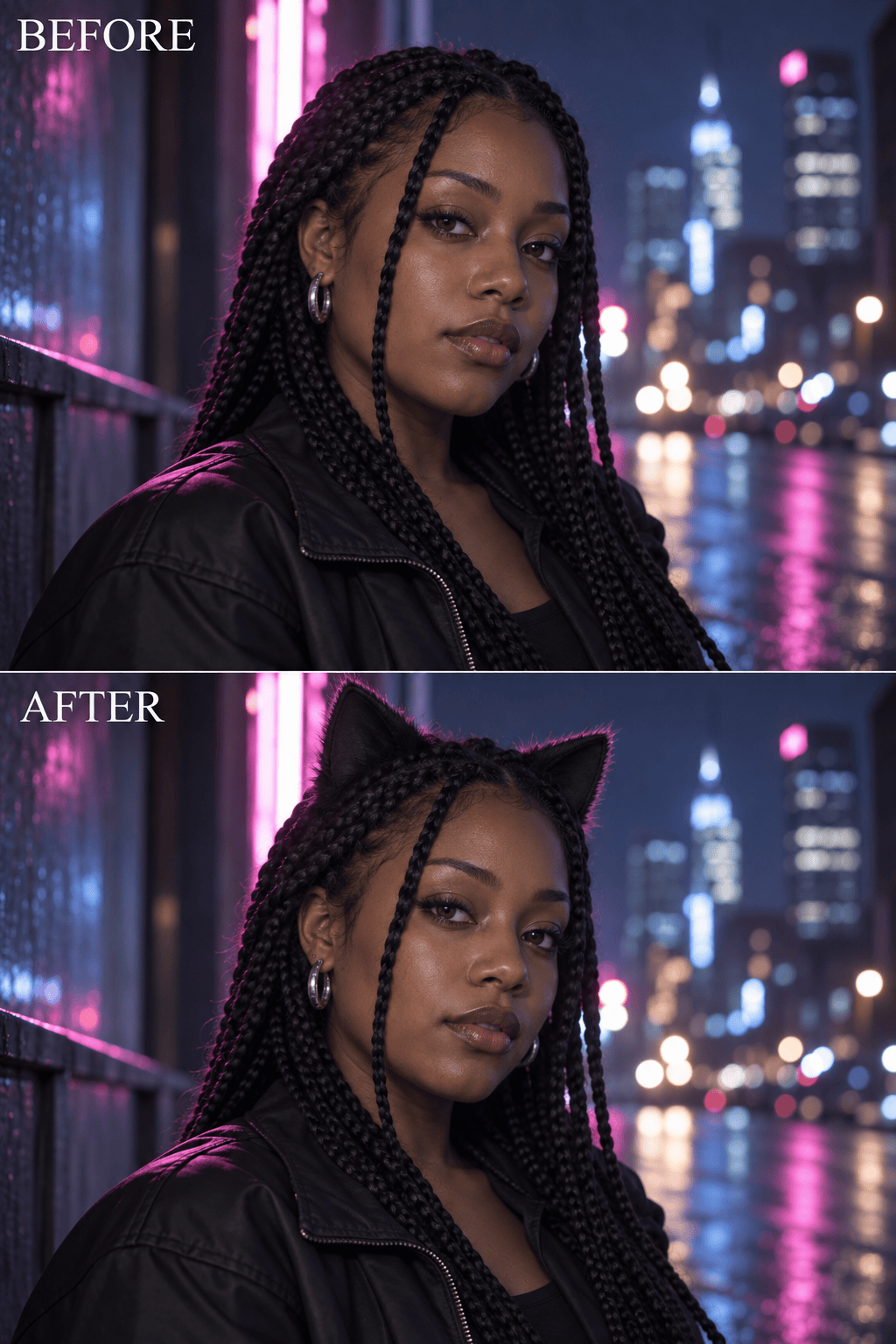
Add sleek black cosplay cat ears to @[photo]. Use matte fabric with a thin fur edge, symmetrical placement, and shadows that match the moody city light. Keep the face, hair, outfit, jewelry, camera angle, and background unchanged. Do not add animal facial features.
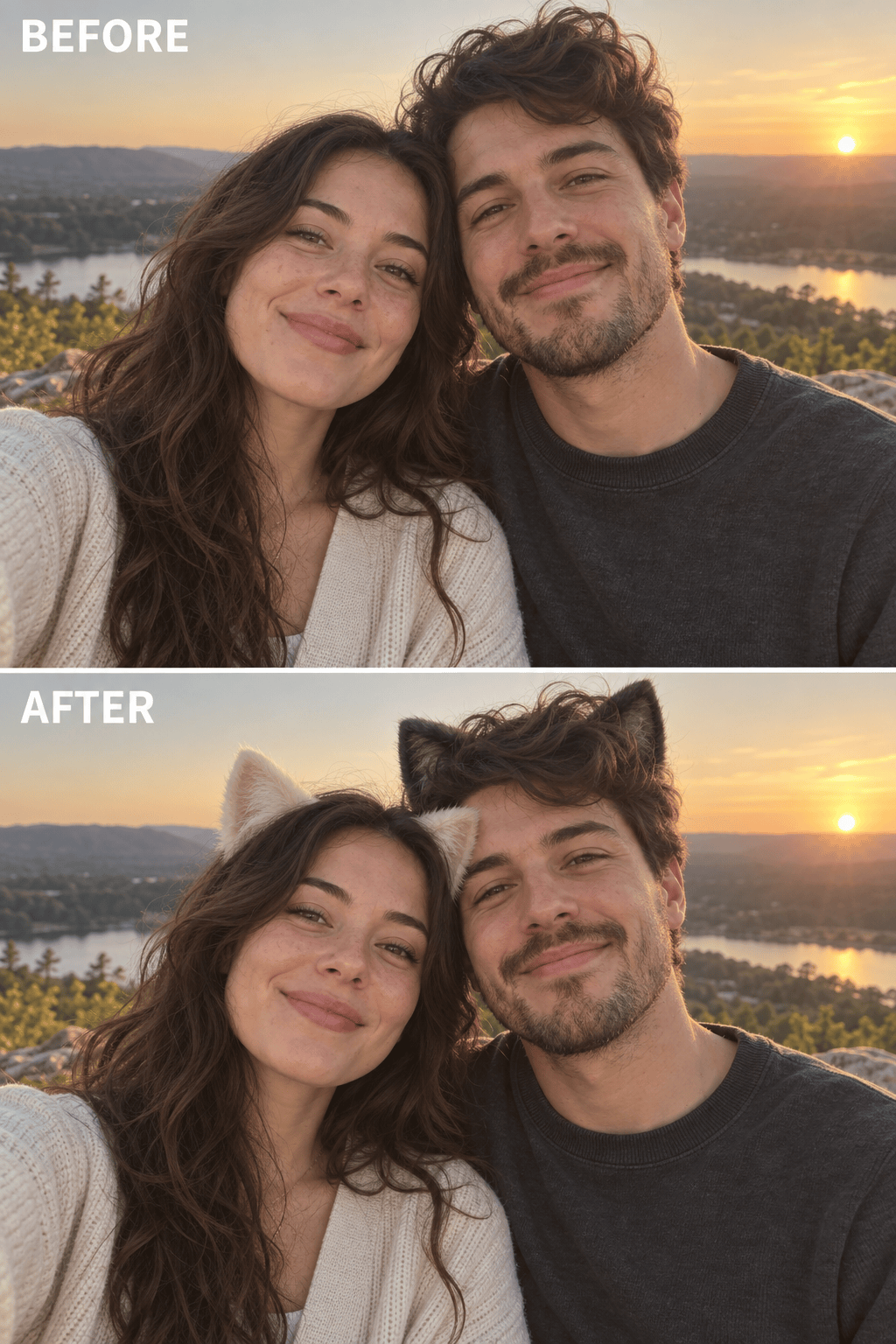
Add coordinated cat ears to both people in @[group photo]. Give the person on the left cream ears and the person on the right charcoal ears. Match each head angle and hair shadow separately. Preserve both identities, expressions, clothing, hands, framing, and background.
Create a subtle cat ears filter for @[headshot]. Add short ears close to the hairline in a color that matches the hair. Keep the edit polished and believable for a square profile picture. Do not smooth the skin, enlarge the eyes, or change the neutral background.
Correct only the cat ears in @[edited photo]. Lower both ears so they connect naturally to the hair, make them 15% smaller, match the warm side light, and soften the contact shadows. Keep the face, hairstyle, expression, clothes, crop, and background exactly as they are.





