AI Photo EditingAdd Butterflies to Photos
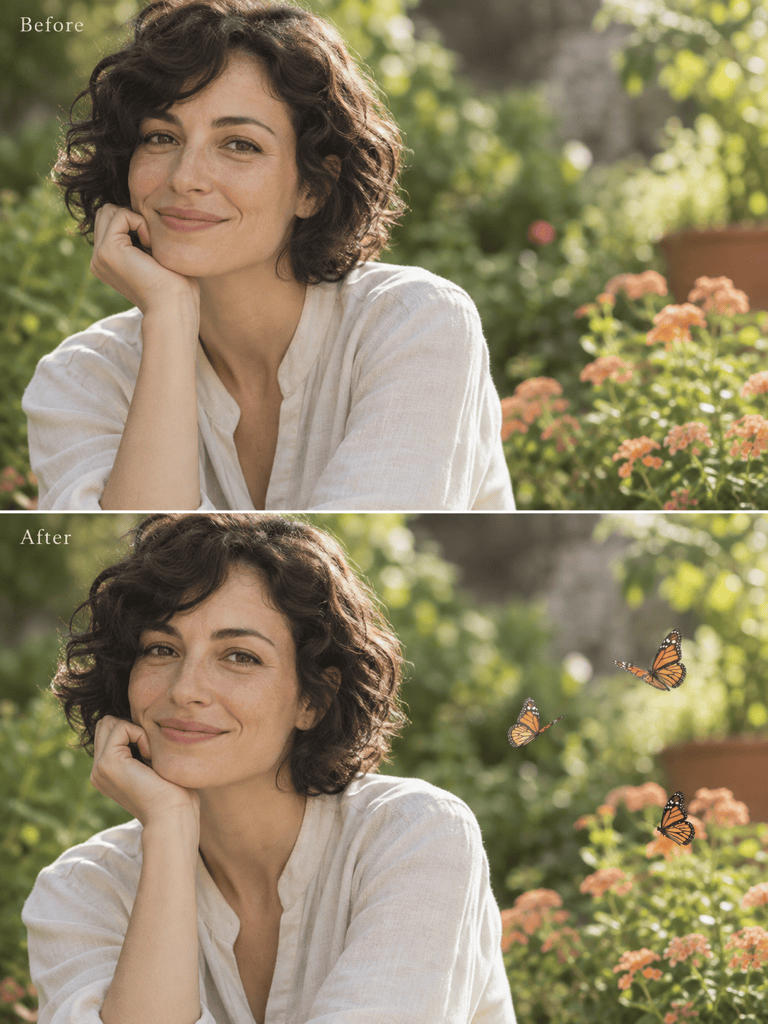
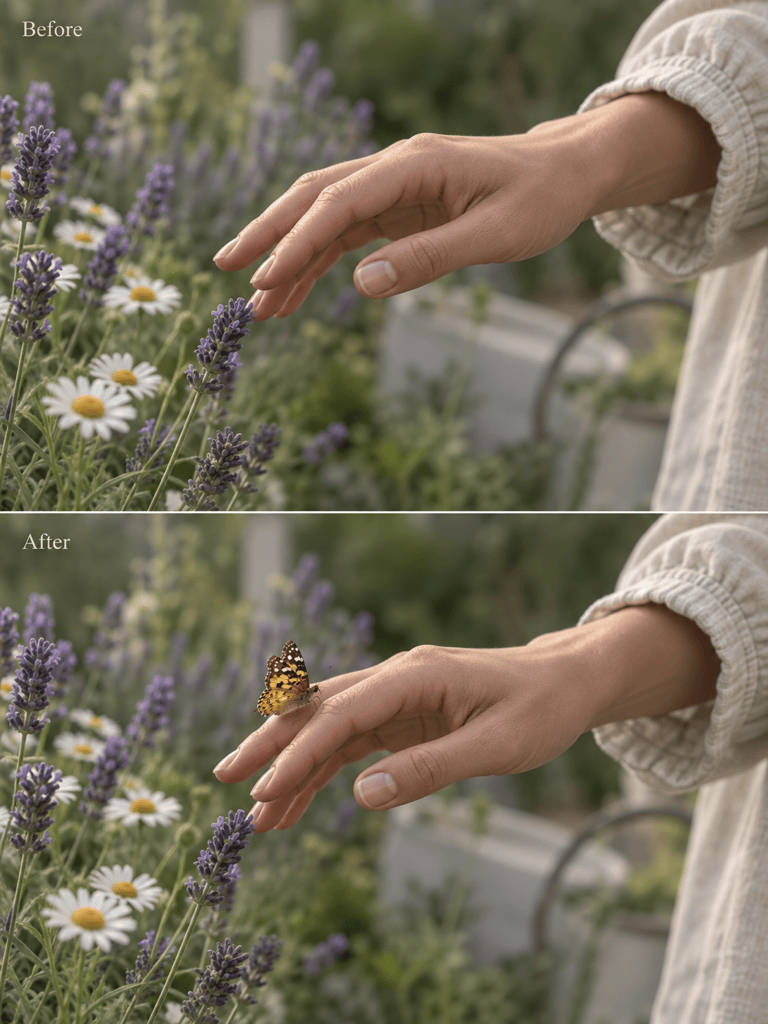
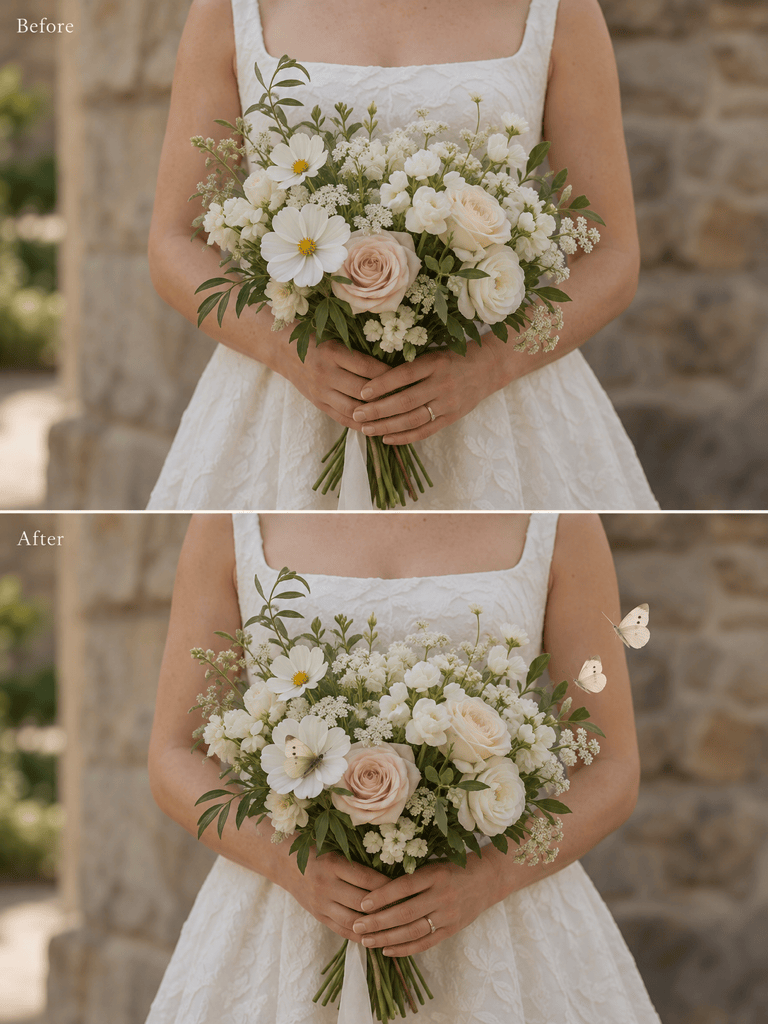
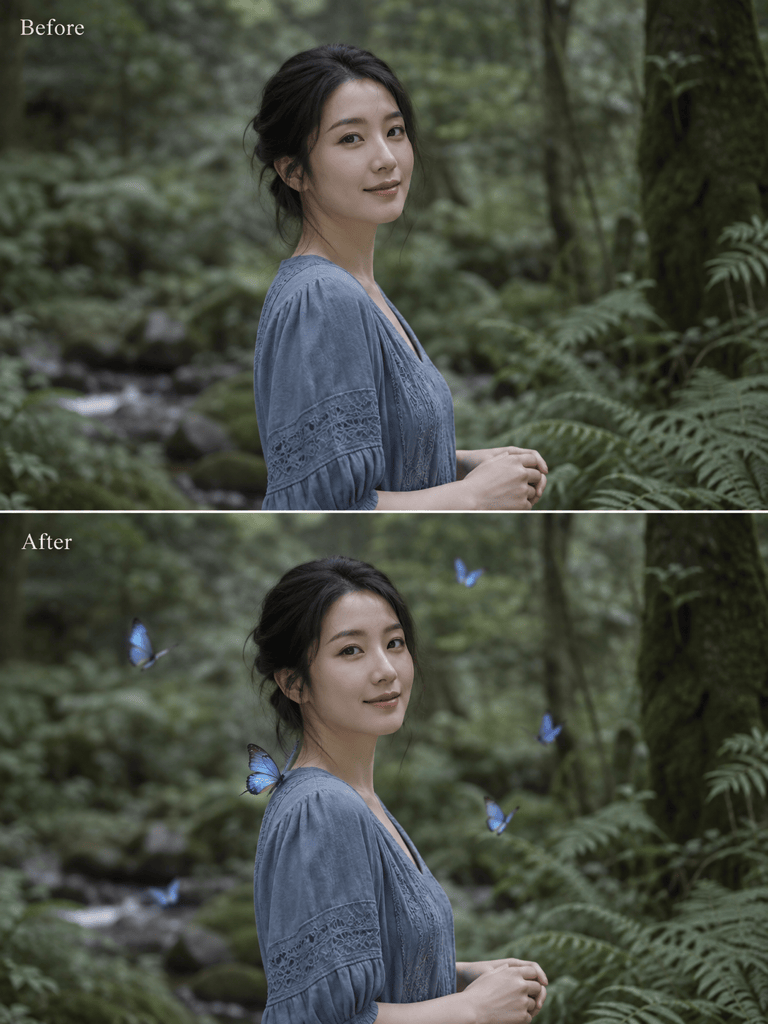
How to Add Butterflies to a Photo With AI
Upload a Clear Photo
Describe the Butterflies
Adjust the Placement
Download Your Photo

Butterfly Photo Edits You Can Refine
Start With Your Own Image
Use Mew Design as an online butterfly photo editor for an existing portrait or outdoor photo. Upload the image and describe the additions you want.
Direct the Small Details
Ask for realistic butterflies with a specific color, scale, and landing spot. Matching the original light and focus helps the effect feel part of the photo.
Choose Subtle or Dreamy
Explore a restrained butterfly overlay or a fantasy blue butterfly effect. Describe the mood instead of accepting a fixed filter.
Correct One Thing at a Time
Use Chat Edit to reduce a crowded swarm, move wings off a face, or adjust one color. State which successful details should stay the same.
Bring a Style Reference
Upload a reference for wing color or atmosphere alongside your photo. Identify which image to edit and which one should only guide the style.
Try It With Free Credits
Sign up for free AI credits to try adding butterflies to a photo online. Download watermark-free exports; generation is subject to your available credits.
Make Added Butterflies Look Natural
- Leave Room: Choose open space beside hair, hands, or flowers. Keep eyes and important facial features unobstructed.
- Match the Scene: Request wings lit from the same direction as the subject. Distant butterflies should look smaller and softer than nearby ones.
- Check Contact: For a butterfly on a hand or flower, inspect where its legs meet the surface and whether a subtle contact shadow makes sense.
- Compare the Original: AI edits may alter details beyond the butterflies. Check faces, fingers, clothing, and background edges before downloading.
Quick Fixes for Butterfly Photo Effects
Reduce the butterflies to three small accents around my shoulders. Leave the face clear and preserve the original framing.
Make the added butterflies smaller so their scale fits the flowers. Keep the flowers and background as close to the original as possible.
Move the butterfly off my eye into the empty space beside my hair. Preserve my facial features and expression.
Match the butterflies to the warm light coming from the left. Remove the hard cutout edges and reduce overly bright wing colors.
Adjust the butterfly on my hand so its legs rest naturally on the skin. Keep the fingers unchanged and add only a subtle contact shadow.
Soften the distant blue butterflies to match the background blur. Keep the closest wings detailed and preserve the original lighting.





