Free OnlineAI Infographic Generator
How to Create an Infographic with AI
Input Your Text Prompt
Generate the Infographic
Refine or Manually Edit
Export and Share
The Most Intelligent Way to Make Infographics with AI
Generate Infographics from Text
Mew Design turns plain text into structured infographics automatically. Paste notes, summaries, or long-form content, and the AI transforms them into clear, easy-to-follow visual narratives. You can simply ask, “Create an infographic from this text.”
Turn Website URL into an Infographic
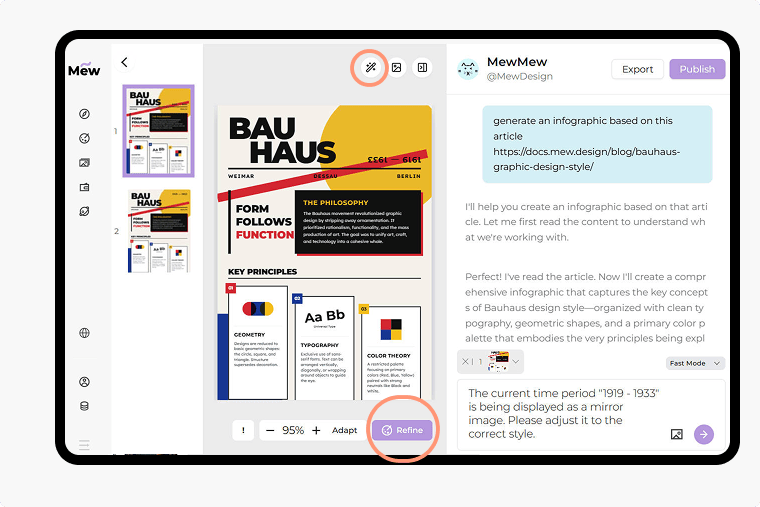
Convert articles into infographics with a simple command like: “Generate an infographic based on this article https://xxx.” The AI agent will read the page, extract key points, and visualize the information in seconds.
Accurate Text and Precise Layouts
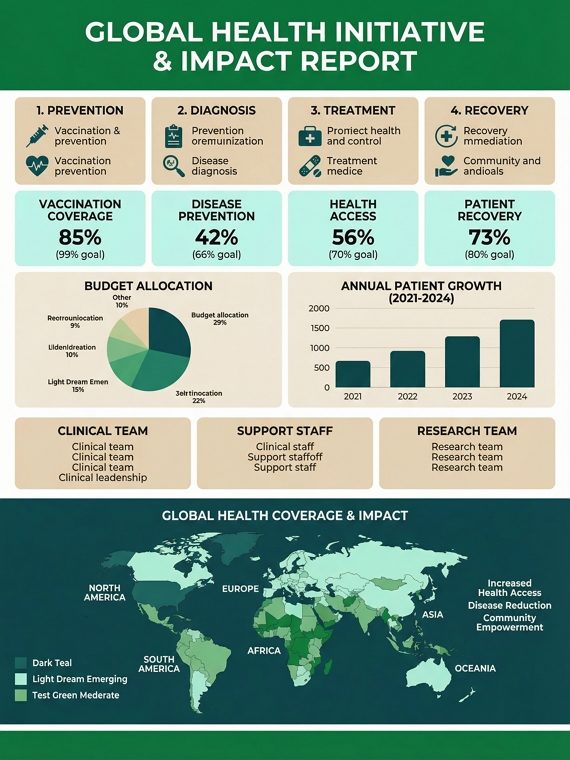
Unlike many AI tools, our AI infographic maker avoids text hallucinations. The AI agent intelligently coordinates specialized tools such as aiImageTool and codedesign to ensure correct wording, clean typography, and perfectly aligned layouts.
Built-In World Knowledge
Don't have all the data ready? No problem. Simply ask our infographic creator to "create an infographic about the history of space travel," and the AI will use its vast world knowledge to provide the facts and the design simultaneously.
Dual-Mode Editing for Total Control
Not happy with the first result? Click Refine to edit the design through natural-language feedback, or open the visual editor to adjust layers, colors, and elements manually.
Style Matching and Asset Integration
Upload a reference image to replicate a specific artistic style. You can also upload your own brand assets, such as logos or product images, and the AI will naturally integrate them into the final infographic design.
How to Write a Good AI Infographic Prompt
- Subject & Data: What is the infographic about? (e.g., "The benefits of remote work"). Paste your content or provide a URL link.
- Tone & Style: (e.g., "Minimalist corporate," "Bright and educational," "Vintage 19th-century style").
- Specific Elements: Mention if you want specific sections (e.g., "Include a 3-step timeline").
- Advanced Tool Steering (Optional): While the agent is automated, you can manually steer its focus if you have a specific priority. For example, if you want a more artistic, image-heavy design, start your prompt with "Use the aiImageTool to generate..."
Sample AI Prompts to Help You Make Infographics
From a Live Website: Convert this article https://science.com/space-trends to an infographic. Summarize the top three discoveries mentioned.
Standard Automated Request: Generate an infographic about the pros and cons of electric vehicles. Use a modern, eco-friendly style.
Data-Heavy (Manual Steering): Use the **codeDesign** to generate an infographic from this text: [Paste financial report]. Ensure the year-over-year growth charts are perfectly accurate.
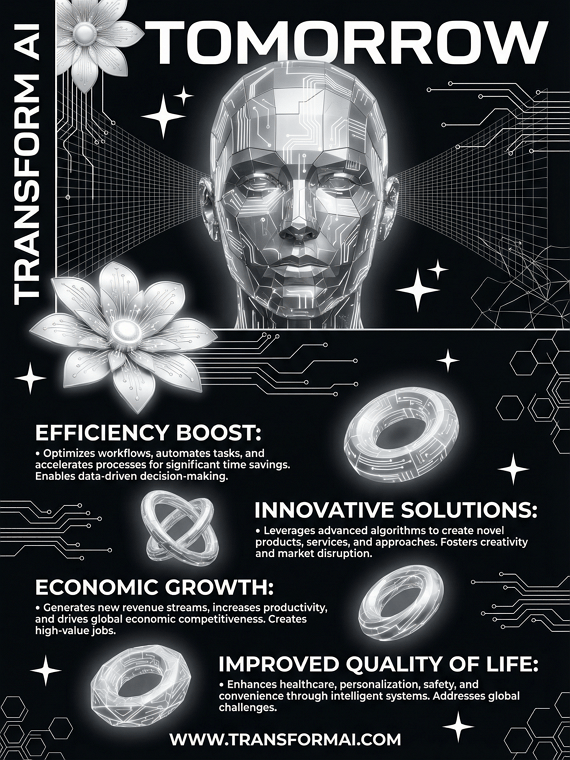
Visual-First (Artistic Style): Use the aiImageTool to generate an infographic about the life cycle of a butterfly. Focus on beautiful, realistic illustrations for each stage. Use a soft, natural color palette.
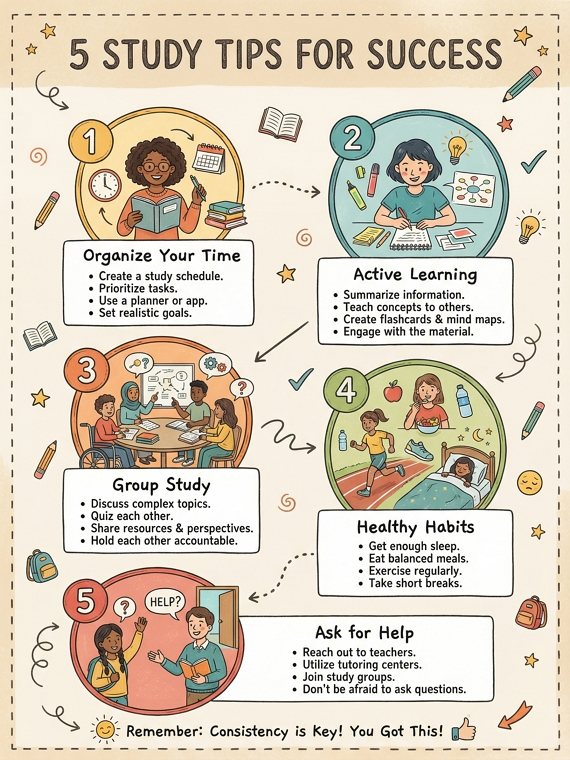
Educational Summary: Generate an infographic about healthy eating for a primary school classroom. Use bright colors and friendly icons. Use infographic style for kids.
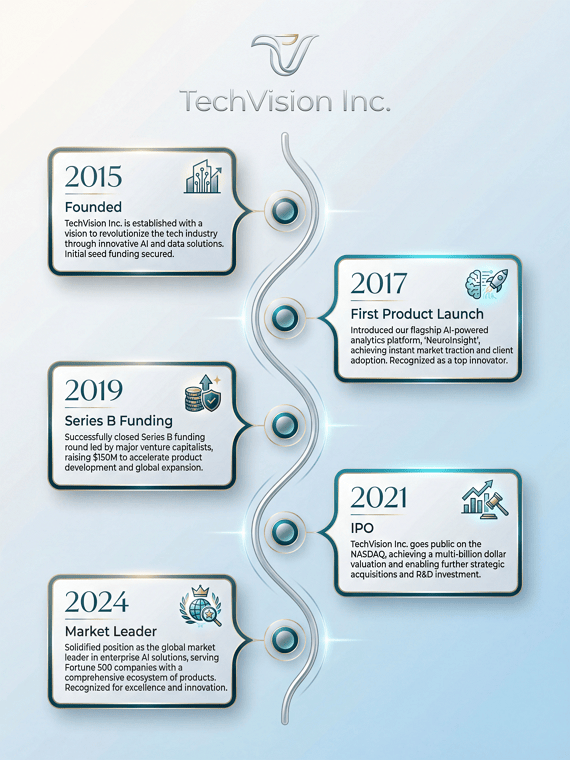
Branded Business Design: Generate an infographic about our service process: [paste service information]. Integrate the uploaded logo image in the header and use our brand colors: Navy Blue and Slate Gray.